
We will create a Windows form to browse through a .Net assembly. The program lists the methods contained in the assembly selected by the user and the parameter name and parameter type for each assembly.
The example also illustrates the use of the File control in helping the user to select a particular type of file.
Step 1. Create the user interface
Create a new Windows Application Project of type Visual C#. In the default new Windows form, drag and drop the following controls from the ToolBox:
Refer to Figure 1. Label
- Change Text property to Assembly
- TextBox: Change Name property to txt file
- Button: Change Text property to
- Button: Change Text property to Reflect
- Label: Change Text property to Reflection
- TreeView: Change the Name property to AssemblyBox
- OpenFileDialog
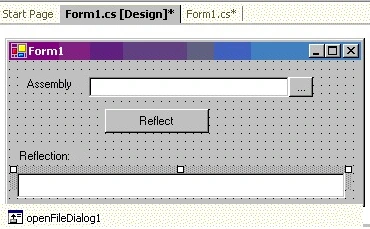
Figure 1. User Interface for our form
Step 2. Import Namespaces
We will need to import these namespaces for accessing the reflection classes.
using System.Reflection;
using System.Reflection.Emit;
Step 3. Allow the user to select the Assembly file
The user inputs in this case are a valid assembly file name and a type name. The file name should be a valid file - with the extension .dll or .exe. We use the OpenFileDialog control to get the user to select a file name of the specified type and display the selected value in the textbox adjacent to it.
The function to allow the user to select a file is shown below: Double click on button1 and add the following code to its OnClick event handler.
private void button1_Click(object sender, System.EventArgs e) {
      openFileDialog1.CheckFileExists = true;
      openFileDialog1.CheckPathExists = true;
      openFileDialog1.Filter = "Exe files (*.exe)|*.exe|Dll files (*.dll)|*.dll|All files (*.*) *.*"
      openFileDialog1.Multiselect = false;
      openFileDialog1.ReadOnlyChecked = true;
      if (openFileDialog1.ShowDialog() == DialogResult.OK) {
            txtFile.Text = openFileDialog1.FileName;
      }
}
Step 4. Code to dissect the assembly
Let us focus on the function that does all the work of verifying the assembly specified by the user in the form input. The user interface accepts a valid file name of type .dll or .exe and a type name. When the user clicks OK, the tree in the user interface is populated with the Fields, Properties, and Methods in the type. We start by loading the assembly and querying for all types within the assembly. Using Reflection classes, we get the information on the fields, properties, methods, and their parameters for each type found in the assembly.
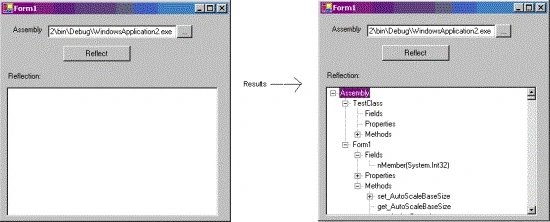
In our sample code listing, we have included a dummy class, TestClass, and a dummy field nMember, in the main class. For testing the sample, you can run the sample file, select the executable file created for our sample itself, and see how it looks (Figure
Comments are included in the code listing below to explain the approach at every step.
Nicolas EsclapezPosted Nov 8, 2007, 12:48 PM
Hi, You can find resources about linking type member with xml doc comments. It is here : http://www.csharpfr.com/codes/GENERATEUR-DOCUMENTATION-LIB-REFLECTION-XMLDOC_44645.aspx Bye