

This article shows how to do asynchronous file uploading in KendoUI using the following ways:
1) Processing the multipart MIME data using Web API.
2) Using Generic Handler
Here I will use the following:
- Kendo Upload control with MVVM pattern
- Web API 2
The first thing we need to do is create a Web API project as in the following figure:
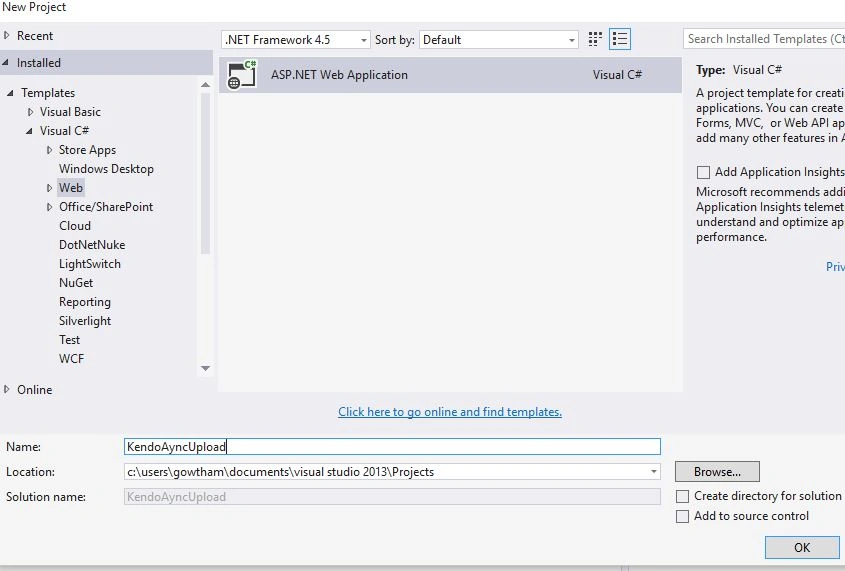
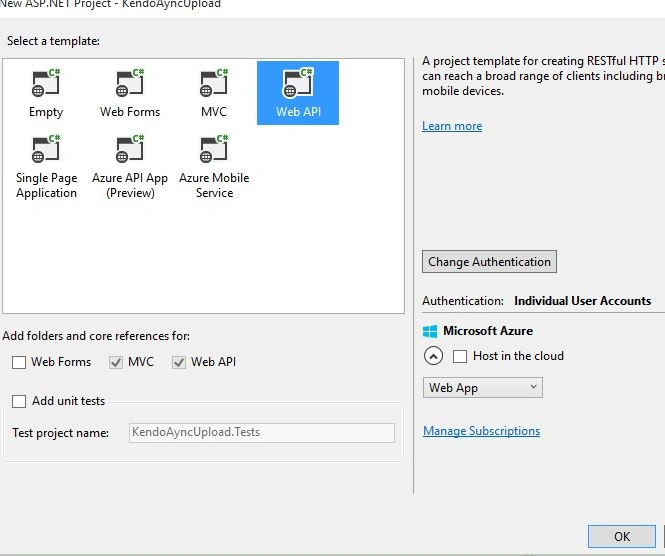
Create an HTML page in the project. In my case I named it AyncUpload.html.
Write the following code.
AyncUpload.html
- <head>
- <title>Kendo Upload</title>
- <link rel="stylesheet" href="http://cdn.kendostatic.com/2015.1.408/styles/kendo.common.min.css">
- <link rel="stylesheet" href="http://cdn.kendostatic.com/2015.1.408/styles/kendo.default.min.css">
- <link rel="stylesheet" href="http://cdn.kendostatic.com/2015.1.408/styles/kendo.dataviz.min.css">
- <link rel="stylesheet" href="http://cdn.kendostatic.com/2015.1.408/styles/kendo.dataviz.default.min.css">
- <script src="http://code.jquery.com/jquery-1.9.1.min.js"></script>
- <script src="http://cdn.kendostatic.com/2015.1.408/js/kendo.all.min.js"></script>
- </head>
- <body>
- <div id="example">
- <div class="demo-section k-header">
- <div>
- <h4>Upload files</h4>
- <input name="files"
- type="file"
- data-role="upload"
- data-async="{ saveUrl: ‘api/Upload',autoUpload: true }"
- data-bind="visible: isVisible,enabled: isEnabled">
- </div>
- </div>
- </div>
- </body>
- </html>
JavaScript
- $(document).ready(function() {
- var viewModel = kendo.observable({
- isEnabled: true,
- isVisible: true,
- });
- kendo.bind($("#example"), viewModel);
- });
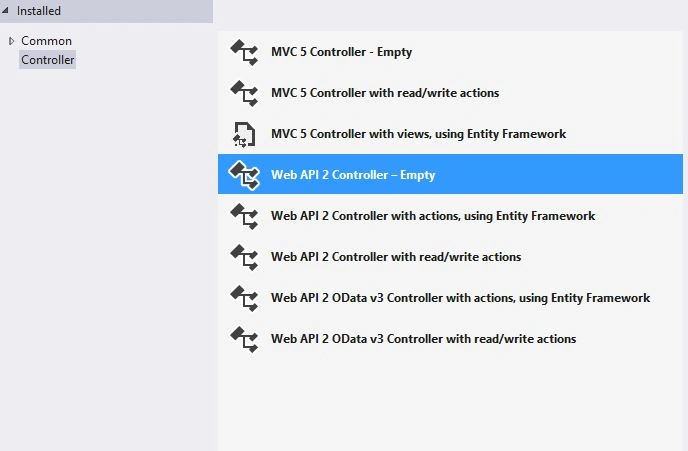

Write the following code in the UploadController class.
- public async Task < HttpResponseMessage > PostFile()
- {
- if (!Request.Content.IsMimeMultipartContent())
- {
- throw new HttpResponseException(HttpStatusCode.UnsupportedMediaType);
- }
- string root = HttpContext.Current.Server.MapPath("~/App_Data");
- var provider = new MultipartFormDataStreamProvider(root);
- try
- {
- StringBuilder sb = new StringBuilder();
- await Request.Content.ReadAsMultipartAsync(provider);
- foreach(var key in provider.FormData.AllKeys)
- {
- foreach(var val in provider.FormData.GetValues(key))
- {
- sb.Append(string.Format("{0}: {1}\n", key, val));
- }
- }
- foreach(var file in provider.FileData)
- {
- FileInfo fileInfo = new FileInfo(file.LocalFileName);
- sb.Append(string.Format("Uploaded file: {0} ({1} bytes)\n", fileInfo.Name, fileInfo.Length));
- }
- return new HttpResponseMessage()
- {
- Content = new StringContent(sb.ToString())
- };
- } catch (System.Exception e)
- {
- return Request.CreateErrorResponse(HttpStatusCode.InternalServerError, e);
- }
- }
- }
Now, run the application to upload the files as in the following:

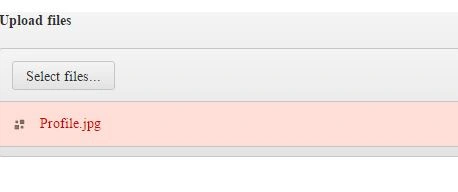
The API response in Firebug is shown here in the figure:
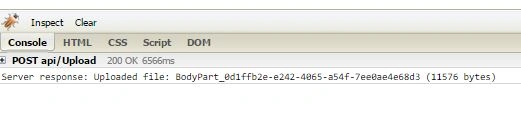

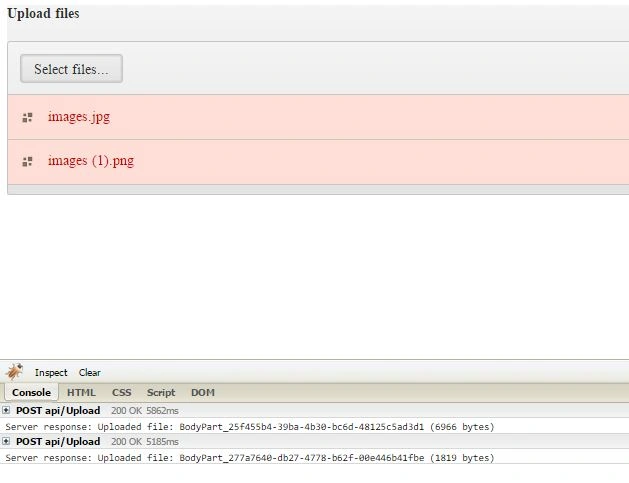
We can upload multiple files also, as in the following figure.
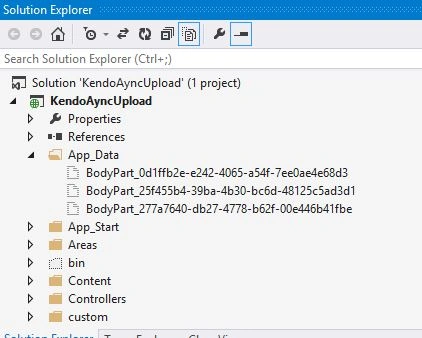
Check the uploaded files In APP_DATA folder in the project.

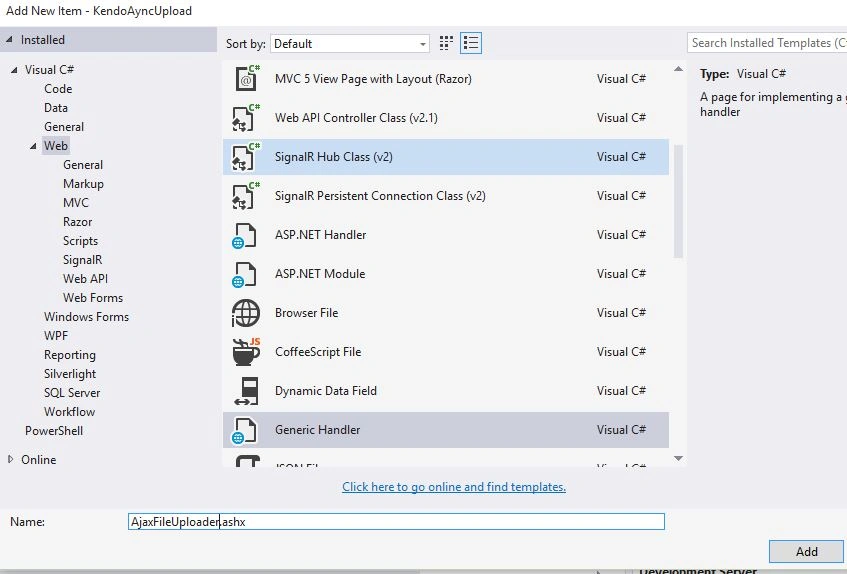
Create a generic handler by right-clicking on the project application, selecting Add, then New Item. Then select Generic Handler and name it AjaxFileUploader.ashx and click the Add button as shown in the following.
Write the following code in AjaxFileUploader.ashx:
- public class AjaxFileUploader: IHttpHandler,
- IRequiresSessionState
- {
- public void ProcessRequest(HttpContext context)
- {
- if (context.Request.Files.Count > 0)
- {
- string path = context.Server.MapPath("~/Images");
- if (!Directory.Exists(path))
- {
- Directory.CreateDirectory(path);
- }
- var file = context.Request.Files[0];
- string fileName;
- if (HttpContext.Current.Request.Browser.Browser.ToUpper() == "IE")
- {
- string[] files = file.FileName.Split(new char[] {
- '\\'
- });
- fileName = files[files.Length - 1];
- } else
- {
- fileName = file.FileName;
- }
- string fullFileNM = Path.Combine(path, fileName);
- file.SaveAs(fullFileNM);
- string msg = "{";
- msg += string.Format("error:'{0}',\n", string.Empty);
- msg += string.Format("msg:'{0}',\n", fileName);
- msg += "}";
- context.Response.Write(msg);
- }
- }
- public bool IsReusable
- {
- get
- {
- return true;
- }
- }
- }
In the preceding code I have specified the path ~/Images where the uploaded images will be stored.
Write the following snippet in AyncUpload.html.
- <head>
- <title>Kendo Upload</title>
- <link rel="stylesheet" href="http://cdn.kendostatic.com/2015.1.408/styles/kendo.common.min.css">
- <link rel="stylesheet" href="http://cdn.kendostatic.com/2015.1.408/styles/kendo.default.min.css">
- <link rel="stylesheet" href="http://cdn.kendostatic.com/2015.1.408/styles/kendo.dataviz.min.css">
- <link rel="stylesheet" href="http://cdn.kendostatic.com/2015.1.408/styles/kendo.dataviz.default.min.css">
- <script src="http://code.jquery.com/jquery-1.9.1.min.js"></script>
- <script src="http://cdn.kendostatic.com/2015.1.408/js/kendo.all.min.js"></script>
- </head>
- <body>
- <div id="example">
- <div class="demo-section k-header">
- <div>
- <h4>Upload files</h4>
- <input name="files"
- type="file"
- data-role="upload"
- data-async="{ saveUrl: '/AjaxFileUploader.ashx', autoUpload: true }"
- data-bind="visible: isVisible,enabled: isEnabled">
- </div>
- </div>
- </div>
- Javascript:
- $(document).ready(function(){ var viewModel = kendo.observable({
- isEnabled: true,
- isVisible: true,
- });
- kendo.bind($("#example"), viewModel);
- })
Now, run the application to upload the files as in the following figure.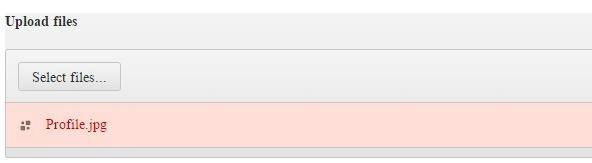 :
:
Check the files in Image folder of your application.
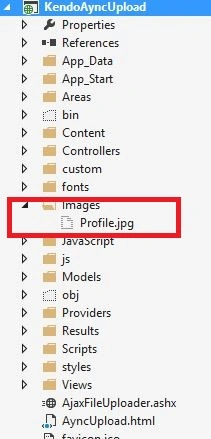
I hope you have enjoyed this article, Thank you.
Happy Coding.
patrick simalangoPosted Aug 7, 2018, 2:09 AM
Can we take the path, where the image saved and save it on database?
Robert GrahamPosted Dec 21, 2015, 1:30 PM
I built an app using the exact steps outlined for Web API2, but in the APiController I get an error "The return type of an async method must be void, Task or Task<T>".This does not happen in the downloaded ample app. Is no one else getting this error? Has anyone built a fresh project using this method? I checked to be sure I have all the same references, all seems to be the same. This was created after update to Visual Studio Update 1. ALSO noticed that in my app, "Using System.Threading.Tasks" is greyed out, indicating not used, while in the download it's in normal text color, indicating the using is "used."
Jong PoloPosted Nov 4, 2015, 4:56 AM
Hi, were you able to track upload progress using these methods? Good share by the way
Arul RPosted Oct 28, 2015, 5:56 AM
Nice share!!!
Yashwanth MuthineniPosted Aug 19, 2015, 6:14 AM
Nice Share
Santhakumar MunuswamyPosted Aug 16, 2015, 2:21 AM
Good Article. Thanks for sharing
Shridhar SharmaPosted Aug 14, 2015, 11:11 AM
very nice.
Gopi ChandPosted Aug 14, 2015, 7:39 AM
Well done
Karthikeyan KPosted Aug 14, 2015, 7:17 AM
Nice one...Thanks for sharing
Sibeesh VenuPosted Aug 14, 2015, 6:55 AM
Nice Share :)
Humayun Kabir MamunPosted Aug 14, 2015, 6:20 AM
Nice...
Sumit JoshiPosted Aug 14, 2015, 6:00 AM
Thank you for sharing..
Vaikesh K PPosted Aug 14, 2015, 5:01 AM
Good