
In this article, we will discuss an automated email processing solution built using Power Automate. This flow is designed to monitor a shared mailbox, extract relevant email information, format the data, and send it securely to an external system using a REST API.
This automation helps eliminate manual effort, improves accuracy, and ensures consistent handling of incoming emails.
Flow Overview:
The automation performs the following key actions:
Detects new emails in a shared mailbox
Extracts sender details and email metadata
Identifies correct timestamps, including forwarded emails
Cleans and formats email content
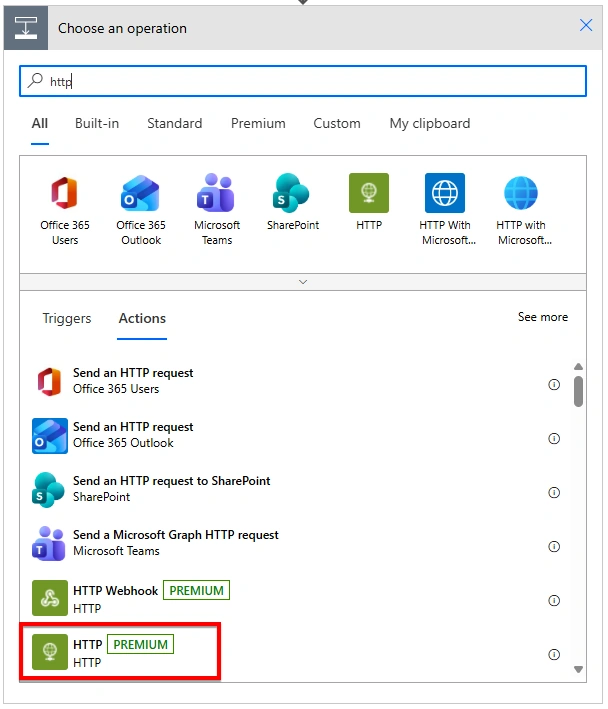
Sends structured data to an external API
Creating the Email Processing Flow
Configuration of Trigger action: When a New Email Arrives in a Shared Mailbox (V2)
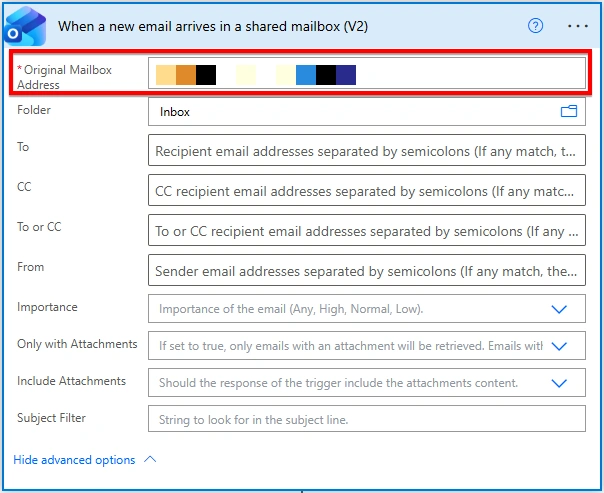
The flow starts with the “When a new email arrives in a shared mailbox (V2)” trigger. This trigger continuously monitors the shared mailbox and automatically starts the flow whenever a new email is received. In the trigger, add in the shared mailbox to be used in the “Original Mailbox Address” field:
Export Email (V2) action configuration:
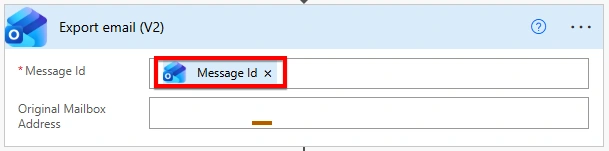
The Export Email (V2) action retrieves the complete email content. This step is required to accurately extract sender details, especially in cases where emails are forwarded and sender information is embedded inside the email body. In this action, configure the Message Id by using the Add dynamic content option. Ensure that the Message Id is selected from the trigger. In the subsequent field, select the same shared mailbox that is used in the trigger.
Extract Sender Name and Email Address:
Add a “Compose” action (rename as ‘Extract Name and Email’) and use the following expression to extract the sender’s “From” line from the output of the Export Email (V2) action by isolating the text that appears immediately after From: and before the next line break. Using this approach, the flow extracts the complete sender information from the raw email content.
first(split(split(outputs('Export_email_(V2)')?['body'], 'From: ')[1], decodeUriComponent('%0D%0A')))Sender Name Extraction: Add in another “Compose” action (rename as ‘SenderName’) and use the following expression to get the sender’s name:
trim(split(outputs('Extract_Name_and_Email'), '<')[0])Sender Email Extraction: Add in another “Compose” action (rename as ‘SenderEmail’) and use the following expression to get the sender’s email:
trim(replace(split(split(outputs('Extract_Name_and_Email'), '<')[1], '>')[0], '>', ''))This ensures that the correct sender information is captured.
Note: All these three compose actions can be added in a single scope action.
Parse Email Metadata Using Parse JSON action:
Before adding the Parse JSON action, add a Compose action. Configure the Input field of the Compose action with the email body from the trigger:
triggerBody()?['body']
Save and test the flow by sending a test email to the configured shared mailbox.
Once the flow runs successfully, copy the output of the Compose action. This output will be used to generate the schema for the Parse JSON action.
Add “Parse JSON” action in the next step and configure it as follows:
Content: Set the Content field to the email body from the trigger
triggerBody()?['body']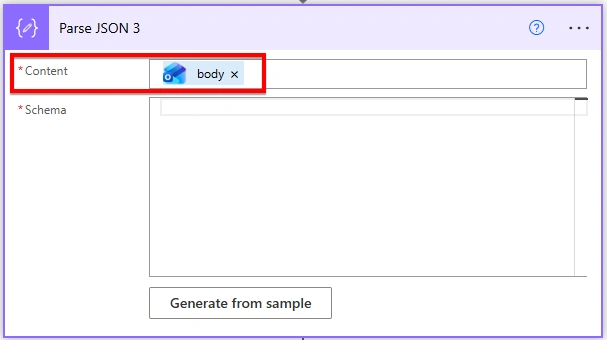
Schema: Click on Generate from sample:
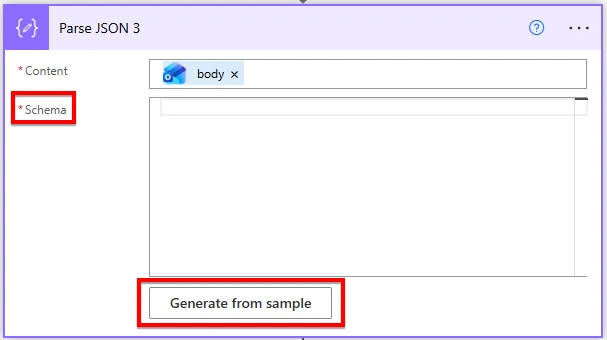
Paste the output from the previous compose action:
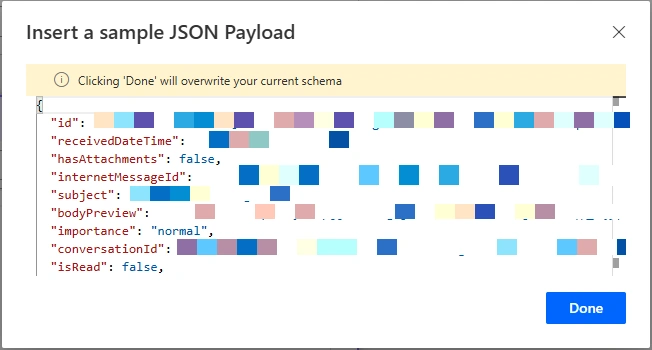
The schema will be automatically generated based on the provided sample.
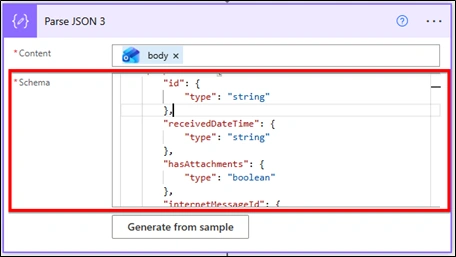
The Parse JSON action structures the email data and allows easy access to key fields such as:
Subject
Importance
Received date and time
Message ID
Conversation ID
To and CC recipients
Email body preview
This structured data can then be conveniently referenced in subsequent steps of the flow.
Convert and Clean Email Content:
Email bodies often contain:
HTML formatting
Special characters
Multiple line breaks
To ensure the content can be safely sent to external systems, the flow performs the following actions:
Converts HTML email content to plain text
Cleans special characters
Normalizes line breaks and formatting for JSON compatibility
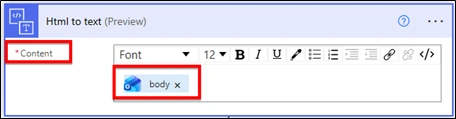
To achieve this, add an HTML to Text action in the next step of the flow. Set the Content field to the email body from the trigger:
Next, add a Compose action and rename it to Comment.
Use the following expression in the Compose action. This expression cleans the email text by:Replacing smart quotes with standard quotes
Escaping special characters
Normalizing line breaks
This ensures the email content is safe for JSON transmission.
replace(replace(replace(replace(replace(replace(replace(replace(body('Html_to_text'),'’',''''),'‘',''''),'“','"'),'”','"'),'\\','\\\\'),'"','\"'),decodeUriComponent('%0A%0A'),decodeUriComponent('%0A')),'’','''')This step helps prevent formatting and parsing errors when sending the email content to external systems.
Create Structured JSON Payload:
To prepare the email data for integration with an external system, a Compose action is used to build a structured JSON object.
Add a Compose action and rename it to ‘JSONBody’.
In the Inputs field, use the following expression to construct the JSON payload:
Join the conversation! Your thoughts help the community grow.