

Introduction
Managing IP firewall rules in Azure Analysis Services (AAS) is typically a manual process that involves logging into the Azure portal, navigating to the resource, and adding IPs manually. This becomes a bottleneck in environments where:
- Teams are working from different locations
- IPs change frequently (like dynamic VPNs, cloud agents)
- Access needs to be provided temporarily or securely to different systems or users
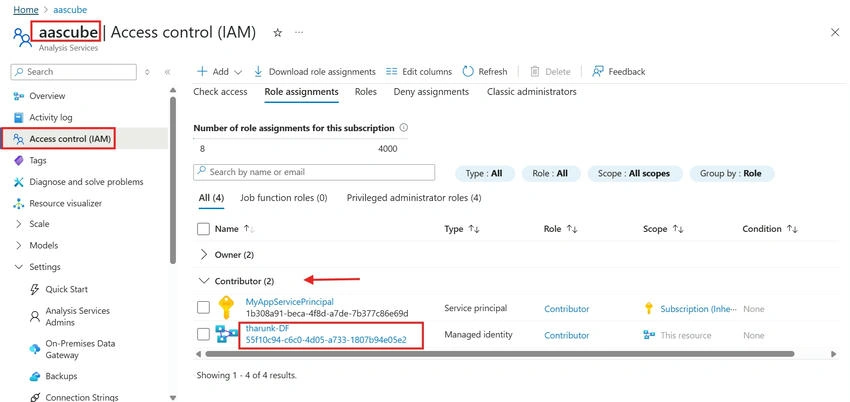
Moreover, to manually add a firewall rule in AAS, a person must have Contributor-level access (or higher) on the resource. It’s not always safe—or practical—to give this level of access to everyone in the team.
Why was this pipeline built?
This pipeline was created to address a real-world challenge:
How can we allow teams to whitelist IPs in Azure Analysis Services on-demand, without giving them elevated portal access or requiring manual intervention?
By assigning Managed Identity permissions to ADF just once, we avoid the need to grant portal-level access to individual users. Now, anyone with basic trigger permissions can execute the pipeline and whitelist the required IP securely and consistently.
This approach strikes a balance between security, flexibility, and automation.
What does this Pipeline do?
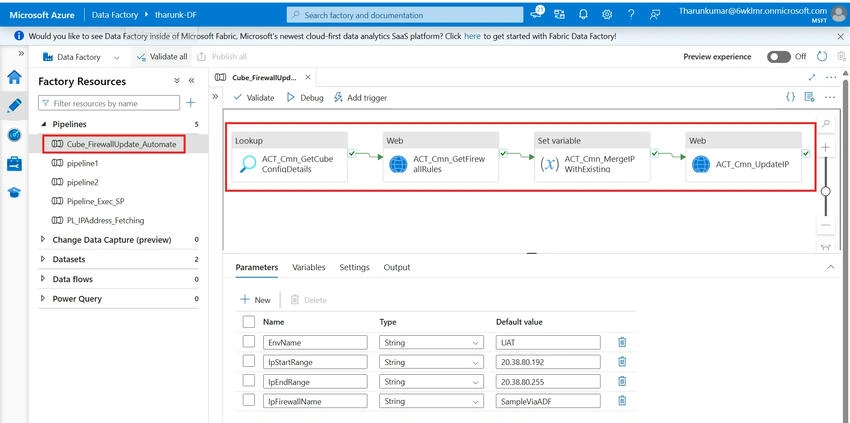
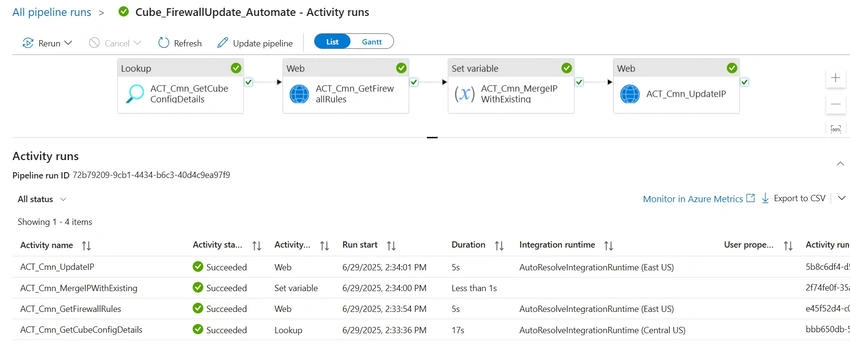
Here’s a breakdown of the steps in the pipeline Cube_FirewallUpdate_Automate:
1. Get Cube Configuration (ACT_Cmn_GetCubeConfigDetails)
The pipeline fetches the necessary metadata—such as Subscription ID, Resource Group Name, and Cube Name—from a configuration table in Azure SQL Database. This makes the solution dynamic and environment-agnostic.
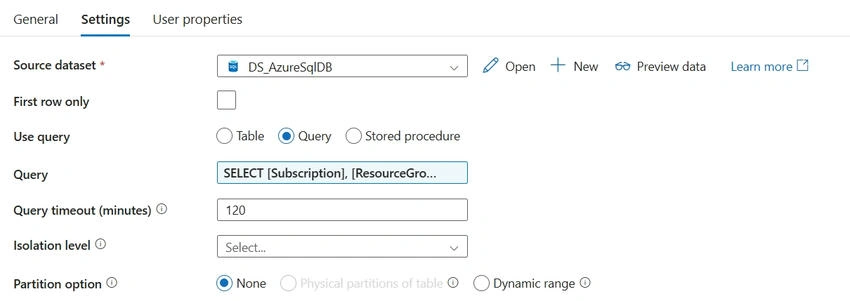
QUERY :
SELECT
    [Subscription],
    [ResourceGroupNm],
    [CubeNm]
FROM
    dbo.Cube_Config
WHERE
    [Environment] = '@{pipeline().parameters.EnvName}'
    AND [Is_Active] = 1
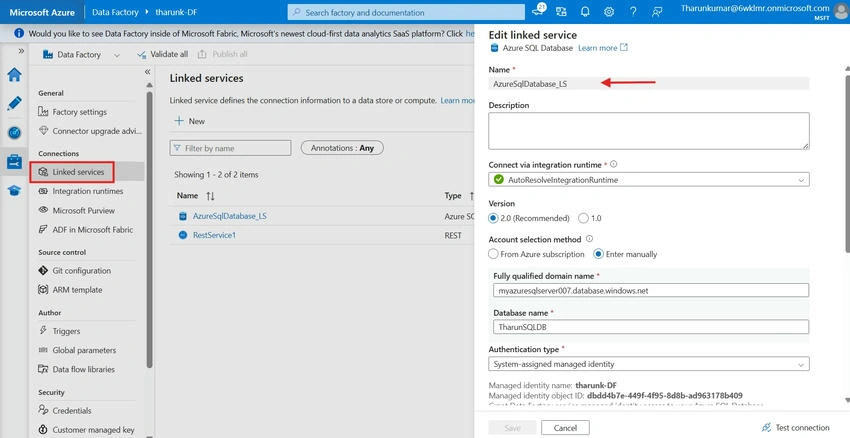
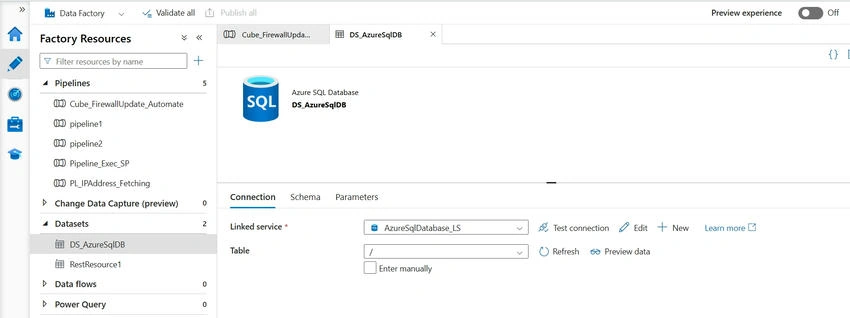
Created a Dataset & Linked Service to access the sql database.
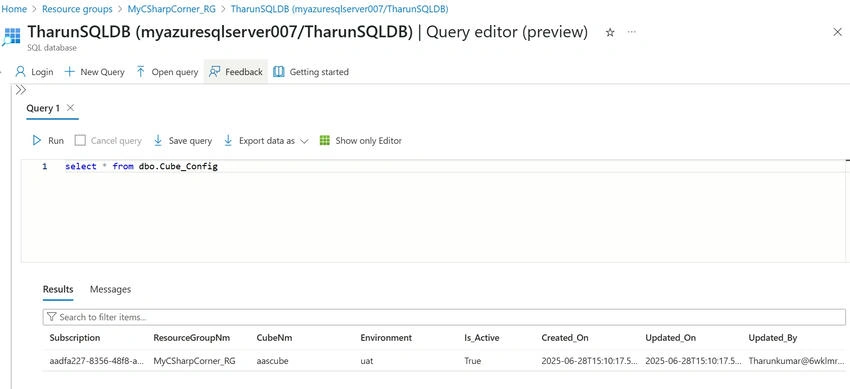
---CREATE SCRIPT ------
CREATE TABLE dbo.Cube_Config (
    Subscription       VARCHAR(100)  NOT NULL,
    ResourceGroupNm    VARCHAR(100)  NOT NULL,
    CubeNm             VARCHAR(100)  NOT NULL,
    Environment        VARCHAR(50)   NOT NULL,     -- e.g., uat, dev, prod
    Is_Active          BIT           NOT NULL DEFAULT 1,
    Created_On         DATETIME      NOT NULL DEFAULT GETDATE(),
    Updated_On         DATETIME      NOT NULL DEFAULT GETDATE(),
    Updated_By         VARCHAR(100)  NOT NULL
);

---INSERT SCRIPT----

INSERT INTO dbo.Cube_Config (
    Subscription,
    ResourceGroupNm,
    CubeNm,
    Environment,
    Is_Active,
    Created_On,
    Updated_On,
    Updated_By
)
VALUES (
    'aadfa227-8356-48f8-ac09-c87e7fda15a4',
    'MyCSharpCorner_RG',
    'aascube',
    'uat',
    1,
    GETDATE(),
    GETDATE(),
    SYSTEM_USER
);
You can get values for these fields from Analysis Service’s ‘Overview’ section.
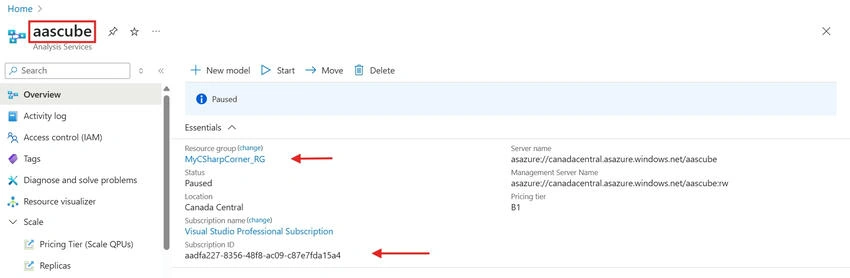
2. Get Existing Firewall Rules (ACT_Cmn_GetFirewallRules)
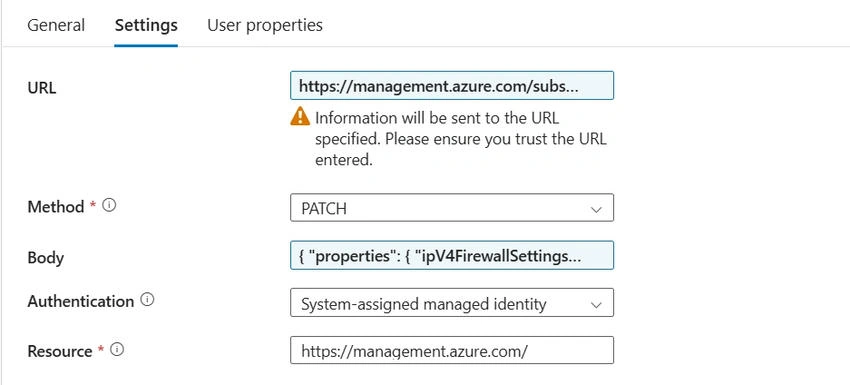
A Web activity uses ADF’s Managed Identity to make a GET request to the Azure Management API. This retrieves the current list of firewall rules configured on the AAS server.
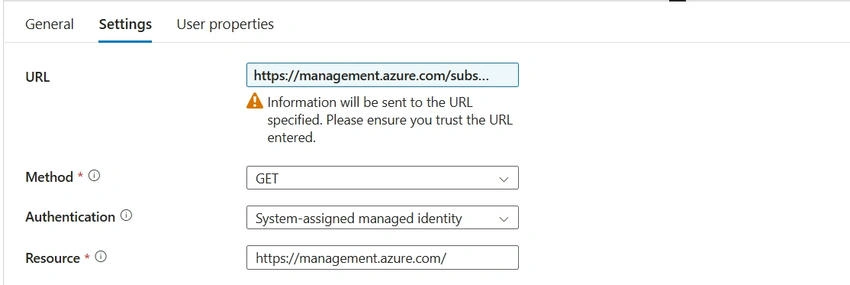
URL: https://management.azure.com/subscriptions/@{activity('ACT_Cmn_GetCubeConfigDetails').output.value[0].Subscription}/resourceGroups/@{activity('ACT_Cmn_GetCubeConfigDetails').output.value[0].ResourceGroupNm}/providers/Microsoft.AnalysisServices/servers/@{activity('ACT_Cmn_GetCubeConfigDetails').output.value[0].CubeNm}?api-version=2017-08-01

Resource: https://management.azure.com/
3. Merge with New IP Rule (ACT_Cmn_MergeIPWithExisting)
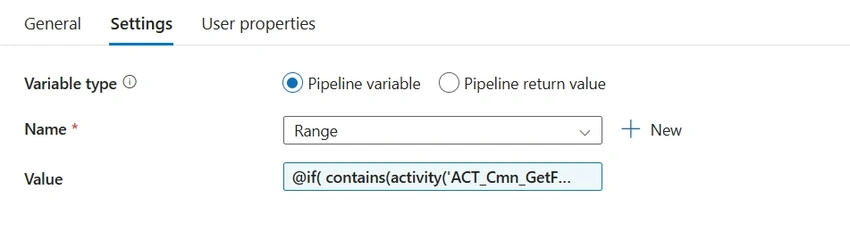
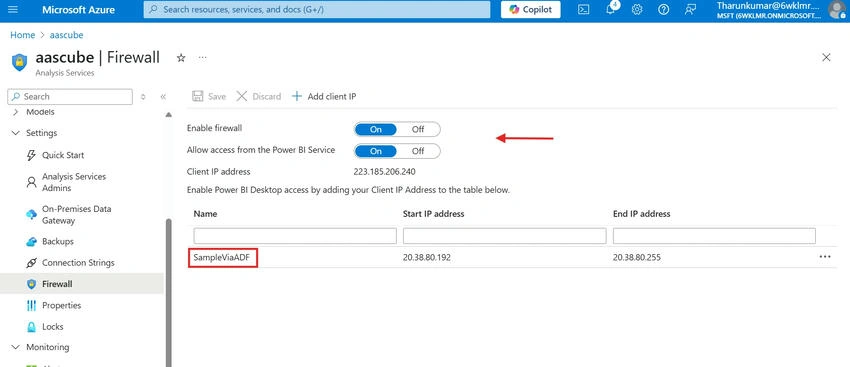
The pipeline checks whether any existing firewall rules are present on the AAS server. If rules exist, it appends the new IP to the list. If there are no existing rules (i.e., the firewall is disabled), it creates a new rule list and enables the firewall automatically.
Example
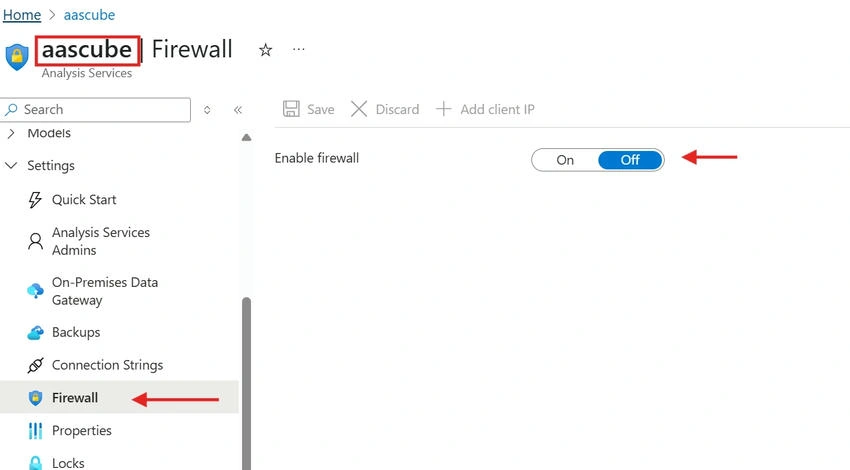
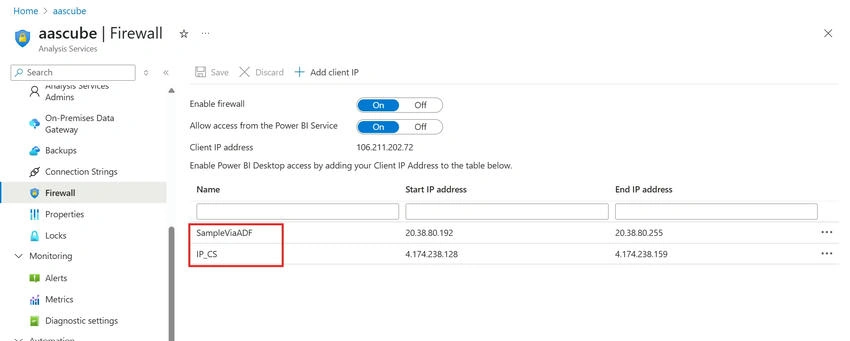
In our case, the AAS firewall was initially disabled. Once we triggered the pipeline, it not only enabled the firewall but also added the specified IP, as shown in the screenshot below.
This approach ensures that the firewall is always correctly enabled, even for first-time runs, without needing any manual setup from the portal.
Join the conversation! Your thoughts help the community grow.