

Note: this article is published on 03/08/2025.
Amazon Web Services, Inc. (AWS) is a subsidiary of Amazon that provides on-demand cloud computing platforms and APIs to individuals, companies, and governments on a metered, pay-as-you-go basis.
This series of articles will record one Single task for each.
- AWS Management (0) --- Registration
- AWS Management (0-1) ---AWS CLI --- this article
- AWS Management (1) --- File Update
- AWS Management (2) --- Server Monitoring
A - Introduction
This article is to introduce the AWS CLI.
The AWS Command Line Interface (AWS CLI) is an open source tool that enables you to interact with AWS services using commands in your command-line shell. With minimal configuration, the AWS CLI enables you to start running commands that implement functionality equivalent to that provided by the browser-based AWS Management Console from the command prompt.
The content of this article:
- A - Introduction
- B - Install AWS CLI
- C - AWS CLI Configuration
- C.1 - Create Access Key
- C.2 - Configure AWS Console
- C.3 - Test Connection
- C.4 - Corp Sample
B - Install AWS CLI
To check the currently installed version, use the following command:
$ aws --version
Before installation, check if AWS CLI is installed:

Download AWS CLI
install:
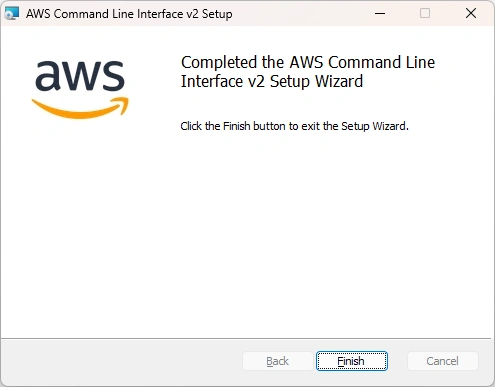
After installation:
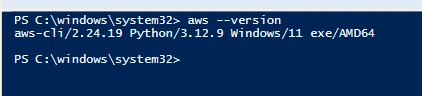
C - AWS CLI Configuration
The command:
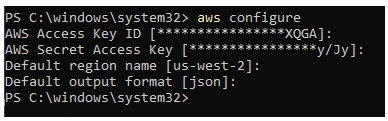
aws configure
Configure AWS console, actually, link the console to AWS server:

First, we need to create a AWS Access Key, then using the key to configure the AWS Console.
C.1 - Create Access Key
We can get Security Credentials page either from the link below:
-
Security Credentials or by GUI like this

In the Access Keys section: Click Create Access Key.
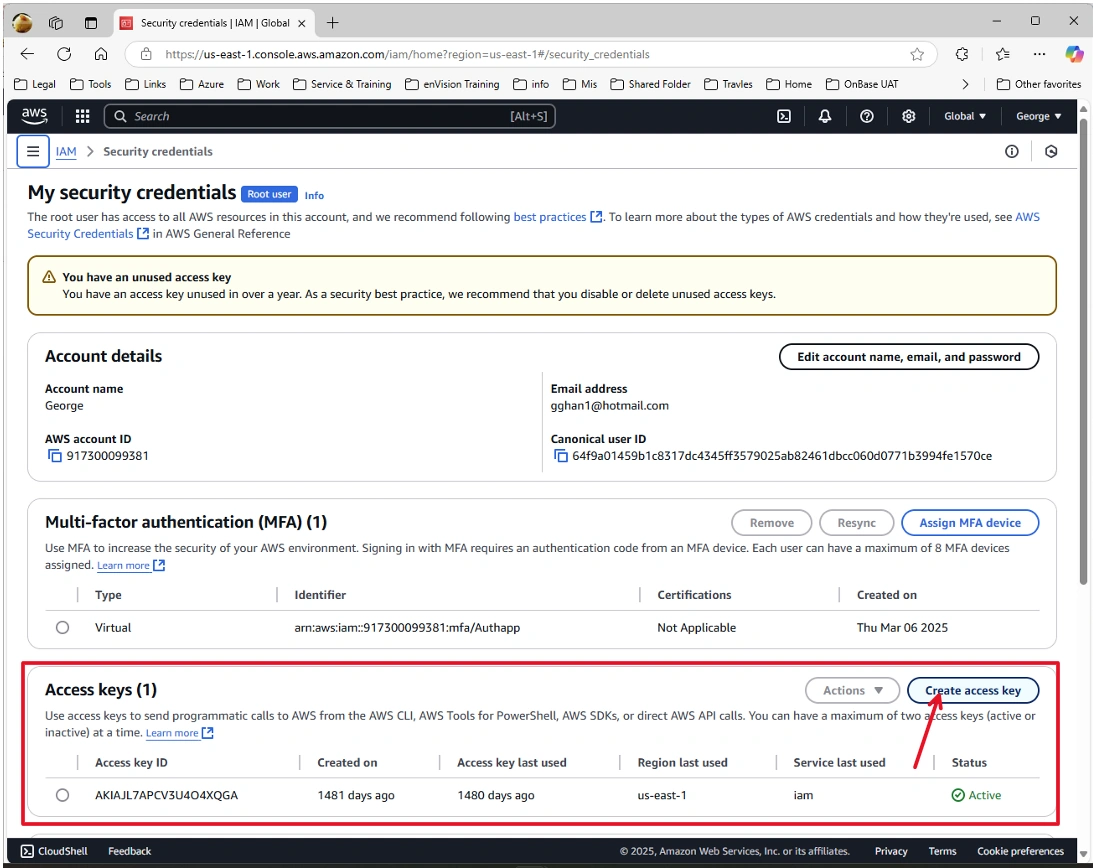
Create Access Key:
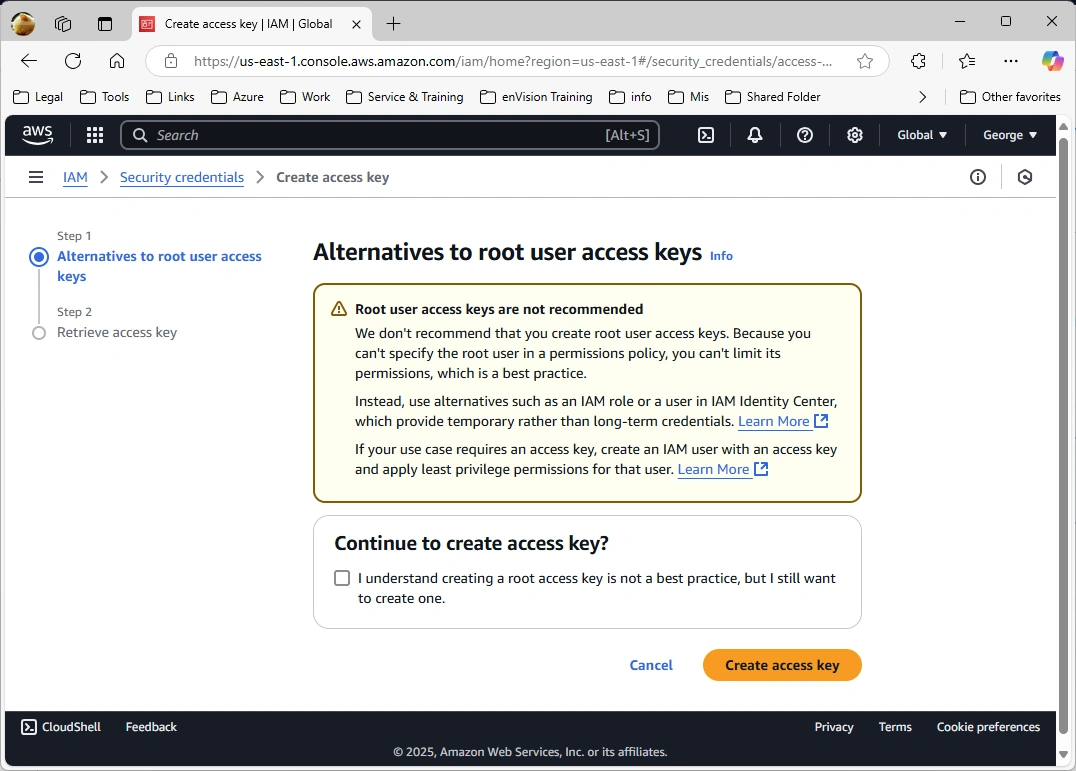
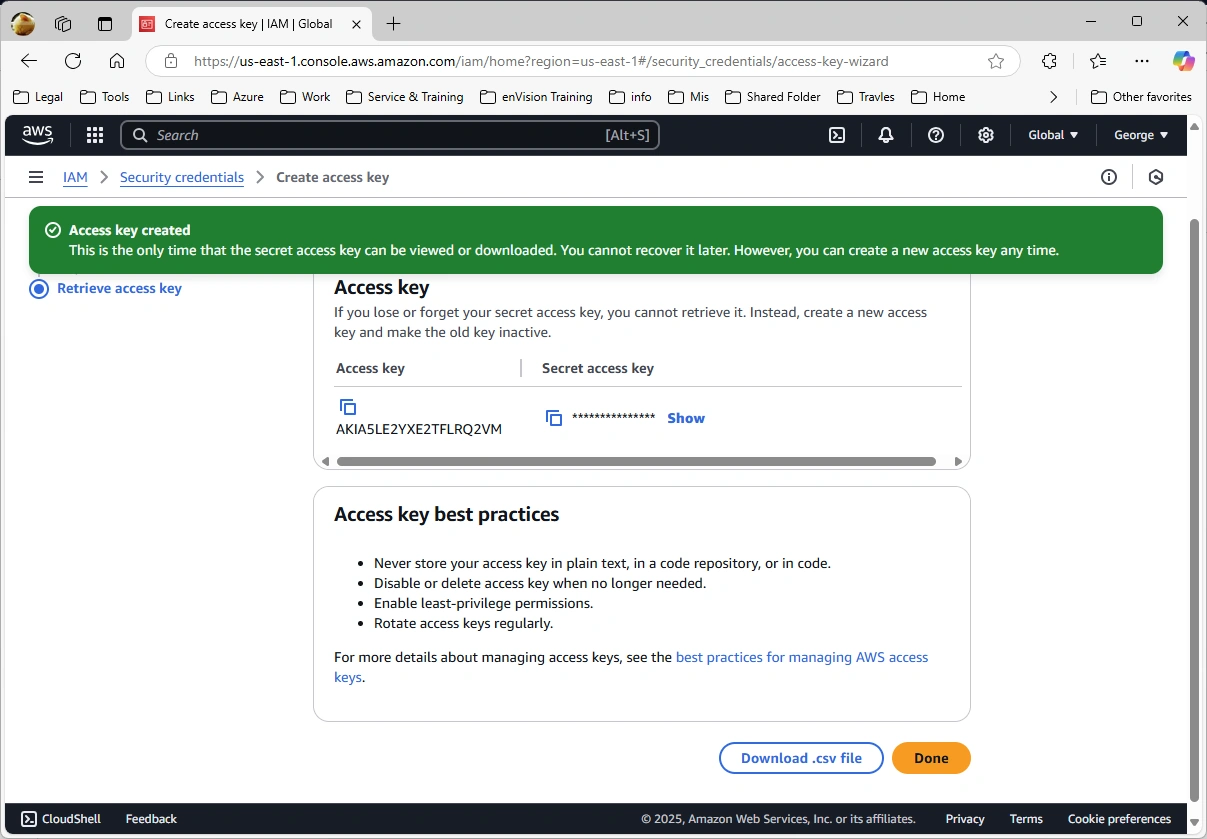
The key created:






Join the conversation! Your thoughts help the community grow.