

Azure AD is designed for internet scale, Internet-based standards, and protocols and it is not a replacement for on-premises Windows Active Directory.
Before getting into coding and explanations let’s see what are the benefits of using Azure AD over Windows AD.
Windows on Premises AD has limitations:
- Single point of failure. If the domain goes down everything goes down nobody has access to the resources like emails, SharePoint, etc.
- Not designed for internet scale.
- Too chatty. Any resource you access on your network requires you to keep talking to the domain controller.
Azure AD
- Azure AD Identifies Apps, APIs, and Users using internet ready standards
- It is designed for internet scale because it supports protocols like OAuth, WS-federation and more.
- It is a trust-based architecture, less chatty and there is no single point of failure.
- One of the biggest reasons that Azure AD is successful is that it is free.
- Azure AD lets you focus on building your application by making it fast and simple to integrate with a world-class identity management solution used by millions of organizations around the world.
(There are paid versions too that add more value but the freebie version is quite capable)
Now, we have seen the benefits of Azure AD and the differences between the Windows AD and Azure AD. Let’s jump into coding and explanations.
There are two sections in this course:
- Setup an MVC web application environment that can support Azure AD Authentication
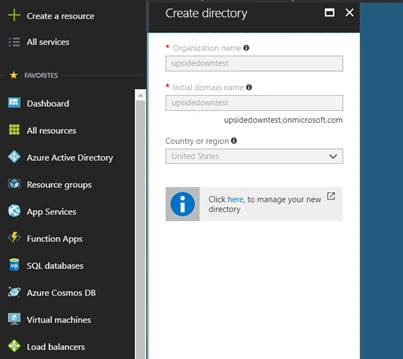
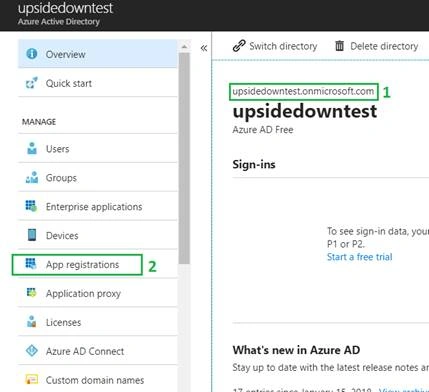
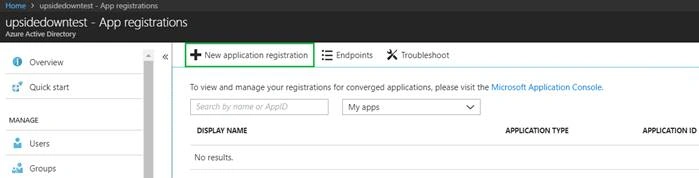
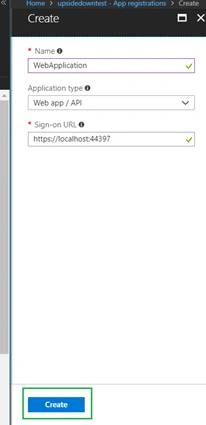
- Creation and Configuration of Azure AD to register the MVC Web Application
Let us get to the actual practice.
Section 1 - Setup an MVC web application environment that can support Azure AD Authentication
Step 1
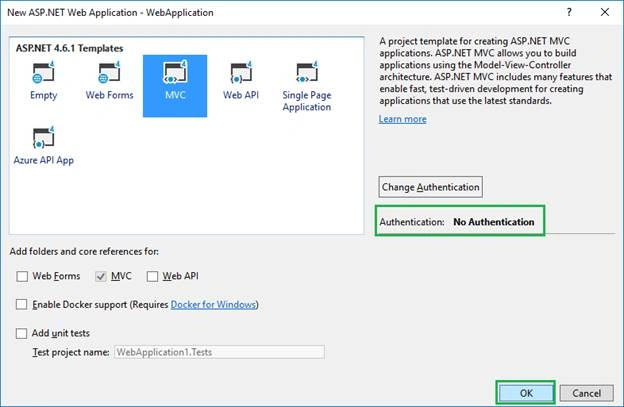
Open Visual Studio and create an MVC Web Application and make sure that the authentication option is set to “No Authentication” and then hit “OK” as illustrated in the image below.
Step 2
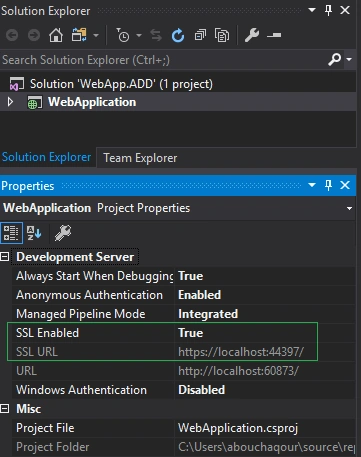
Select your project under “Solution Explorer” then you must see the “Project Properties” window. If you don't see it press “F4” key on your keyboard then it will appear.
Change the “SSL Enabled” property value to “True”, then copy the value of “SSL URL” property because you will need it to configure Azure AD.
The image below illustrates the state of “SSL Enabled” property and “SSL URL” property after changing the value of “SSL Enabled” property from “false” to “true”.
Step 3
Install all necessary libraries to make our application support Azure AD Authentication.
To install all necessary libraries open “Package Manager Console” to open it, navigate to
Tools > NuGet Package Manager > Package Manager Console
Then install the following packages one by one (copy, paste, and hit enter).
Install-Package Microsoft.Owin
Install-Package Microsoft.Owin.Security.OpenIdConnect
Install-Package Microsoft.Owin.Security.Cookies
Install-Package Microsoft.Owin.Host.SystemWeb
Install-Package Microsoft.IdentityModel.Protocol.Extensions
Install-Package System.IdentityModel.Tokens.Jwt
Now, let’s do some configuration in “Web.config” xml file
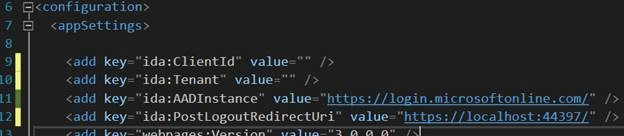
Open your “Web.config” xml file and then copy the xml lines below and paste them inside <appSettings> tag which lives inside <configuration> tag
- <add key="ida:ClientId" value="" />
- <add key="ida:Tenant" value=" " />
- <add key="ida:AADInstance" value="https://login.microsoftonline.com/" />
- <add key="ida:PostLogoutRedirectUri" value="https://localhost:44397/" />
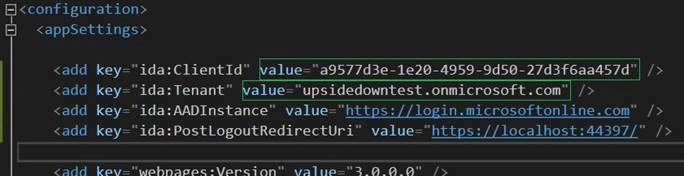
Notice, that the “ida:ClientId” and “ida:Tenant” have empty values because we don’t know their values yet. We will know their values when we register our MVC Web Application in Azure AD.
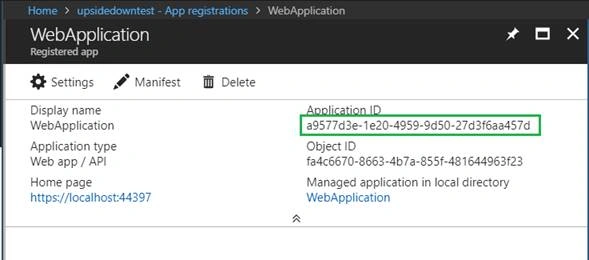
- “ida:ClientId” represents the Application ID
- “ida:Tenant” represents your domain name on Azure AD
- "ida:AADInstance" represents login URL that allows accessing Azure AD for Authentication
- "ida:PostLogoutRedirectUri" represents your local URL
The image below illustrates how the lines look after you paste them.
Step 4
Right-click on your web application project and then add a file and name it “Startup.cs”. The file will contain a Startup class that has a void method “Configuration”.
The code below illustrates how the Startup class should be implemented
- using Owin;
- namespace WebApplication
- {
- public partial class Startup
- {
- public void Configuration(IAppBuilder app)
- {
- ConfigureAuth(app);
- }
- }
- }
ConfigureAuth(app) method will be unrecognized because you don’t have a definition of it yet, its definition will be implemented in “Startup.Auth.cs” file.
Right-click on “App_Start” folder to add file and name it “Startup.Auth.cs”
When you create Startup.Auth.cs file visual studio will concatenate the name of the “App_Start” folder with the name of your project to form the namespace. Make sure to remove the “.App_start” from your namespace. It should look like “namespace WebApplication” as illustrated in the code below.
Now, let’s see how you should code your “Startup.Auth.cs” file:
- using Microsoft.Owin.Security;
- using Microsoft.Owin.Security.Cookies;
- using Microsoft.Owin.Security.OpenIdConnect;
- using Owin;
- using System.Configuration;
- using System.Globalization;
- using System.Threading.Tasks;
- namespace WebApplication
- {
- public partial class Startup
- {
- // Calling the keys values from Web.config file
- private static string clientId =ConfigurationManager.AppSettings["ida:ClientId"];
- private static string tenant = ConfigurationManager.AppSettings["ida:Tenant"];
- private static string aadInstance = ConfigurationManager.AppSettings["ida:AADInstance"];
- private static string postLogoutRedirectUri = ConfigurationManager.AppSettings["ida:PostLogoutRedirectUri"];
- // Concatenate aadInstance, tenant to form authority value
- private string authority = string.Format(CultureInfo.InvariantCulture, aadInstance, tenant);
- // ConfigureAuth method
- public void ConfigureAuth(IAppBuilder app)
- {
- app.SetDefaultSignInAsAuthenticationType(CookieAuthenticationDefaults.AuthenticationType);
- app.UseCookieAuthentication(new CookieAuthenticationOptions());
- app.UseOpenIdConnectAuthentication(
- new OpenIdConnectAuthenticationOptions
- {
- ClientId = clientId,
- Authority = authority,
- PostLogoutRedirectUri = postLogoutRedirectUri,
- Notifications = new OpenIdConnectAuthenticationNotifications
- {
- AuthenticationFailed = (context) =>
- {
- context.HandleResponse();
- context.OwinContext.Response.Redirect("/Home/Index");
- return Task.FromResult(0);
- }
- }
- });
- } // end - ConfigureAuth method
- } // end - Startup class
- } // end - namespace
Suhas ShewalePosted Dec 28, 2022, 8:40 AM
Request.IsAuthenticated is always false after authenticating please help
RaviPosted Dec 1, 2022, 6:59 AM
Can we get this source code
SHILUPosted Oct 16, 2020, 7:39 AM
I too got the following Nonce error in Google Chrome, but it disappeared in IE. Later again I checked in Chrome, the error is gone. Not sure how, but lol!
kajal singhPosted Sep 20, 2020, 2:16 PM
Hi, I am getting below error while following same above steps- IDX21323: RequireNonce is '[PII is hidden]'. OpenIdConnectProtocolValidationContext.Nonce was null, OpenIdConnectProtocol.ValidatedIdToken.Payload.Nonce was not null. The nonce cannot be validated. If you don't need to check the nonce, set OpenIdConnectProtocolValidator.RequireNonce to 'false'. Note if a 'nonce' is found it will be evaluated.
jagadeesh balagaPosted Jun 21, 2020, 3:50 PM
I got 404 error after i followed above steps. After spent some time, i came to know the issue. Please replace the code. // Concatenate aadInstance, tenant to form authority value private string authority = aadInstance + tenant;
Phanu WattanaprayaPosted May 25, 2020, 11:36 PM
Hi All, in my case, Request.IsAuthenticationed is always false. Is anyone has any idea?
nine howiePosted Mar 12, 2020, 10:36 AM
All of these steps are now automated for you in VS2019. Right click on your project, go to add, connected service. Pick Authentication with Azure Active Directory. It will add all the nuget packages, add the code and create the app registration. All you have to do is add the partial view to the layout page https://docs.microsoft.com/en-us/azure/active-directory/develop/vs-active-directory-dotnet-getting-started
Halim LahoudPosted Apr 17, 2019, 8:58 AM
I'am getting http error 401 what should i do
Meet RavalPosted Mar 1, 2019, 6:41 AM
I implemented a similar code. There is a separate page for login for normal users. That is handled in 'app.UseCookieAuthentication'.The problem is that when I go to the page which uses TempData and tried to login Azure AD user, it's getting me redirected to the login page of the application.
Rahul ShuklaPosted Feb 19, 2019, 7:39 AM
All good . Its very nice to have azure ad authentication but when it comes to hacking the application its very easy because it contains all the information of the logged in user. We have also implemented in our project and now at the end we are facing huge security flaws in azure based authentication. Do we have any option to log-in cookie less authentication.
ling zengPosted Sep 14, 2018, 12:52 AM
Great article!
Daniel DinevPosted Jul 27, 2018, 7:41 AM
Hey there, I enjoyed the article and it was extremely helpful however I have a query. After login it doesn't redirect me back to the localhost server, but tries to log me into the Azure app I have set up for some reason.
Carlos Henrique Guardão GandarezPosted Jul 15, 2018, 9:36 AM
Hi nice article. But I'm getting this error [InvalidOperationException: IDX20803: Unable to obtain configuration from: '[PII is hidden]'.]
Akash KotechaPosted Jun 16, 2018, 4:40 AM
Nice article! One question: If I have to skip a view from authentication and want to show that view before authentication, how can I do it?
Joe WilsonPosted Mar 31, 2018, 5:17 AM
Thank you for sharing it.
Satyaprakash SamantarayPosted Mar 29, 2018, 2:31 PM
Really nice article .......