

In this article, we’ll learn about Azure Blob storage and go through a step-by-step tutorial to create a storage account in Azure for use of different projects.
Azure Blob Storage
Azure Blob Storage is designed by Microsoft for the process of object storage in cloud. The blob storage has the capacity to store huge amount of data, majorly the unstructured data. When we talk about the unstructured data it basically means that the data doesn’t follow or are setup in any particular model and definition like binary data and text.
Usage of the Blob Storage
The Azure Blob Storage can be used for multitudes of purposes. From storing files with the goal of distributed access, serving documents, images straightly to the browser and streaming of audio and video – the Azure blob storage can be used for it all, Moreover, Azure Blob Storage also is a major functionality offered by Azure for backup storage focused for business continuity and disaster recovery. You can learn more about it in the following article, Business Continuity And Disaster Recovery In Azure. Furthermore, data can be stored from on-premises and with hosted services in Azure for analysis in the Blob Storage.
Resources
The Azure Blob mainly stores three basic types of resources. They can be understood in terms of Storage Accounts, Container, and Blob itself.
The Account storage consists of the unique namespace for objects with the unique account name. The container, on the other hand, focuses on the organization of different set of blobs just like the directory in file system. Unlimited number of containers can be included in the specific account storage. Now, this container can contain unlimited number of blobs which is the third type of resource. This blob supports block blobs for binary data and text, append blob for logging of data for virtual machine and page blob with access to files upto the size of 8TiB.
Now, let us learn to setup a storage account to use blob storage for any projects.
Step 1
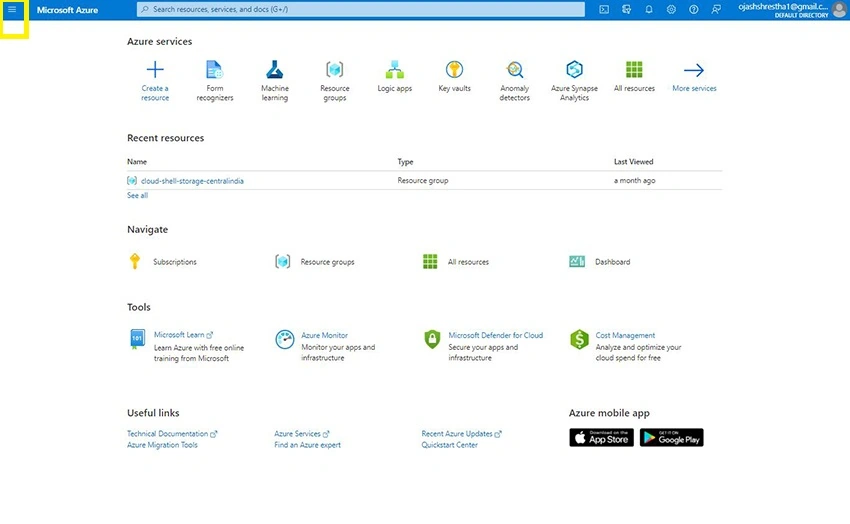
Login to Azure Portal. You’ll be taken to the welcome page similar to the one below.
Step 2
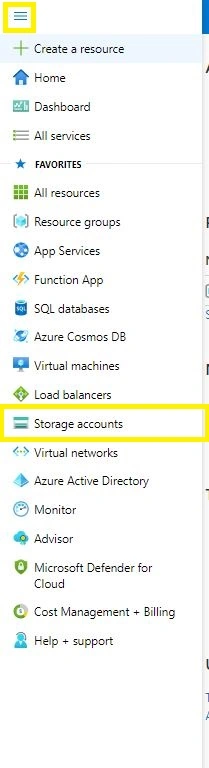
Now, expand the Menu tab on the top left. Now, click on Storage accounts.
Step 3
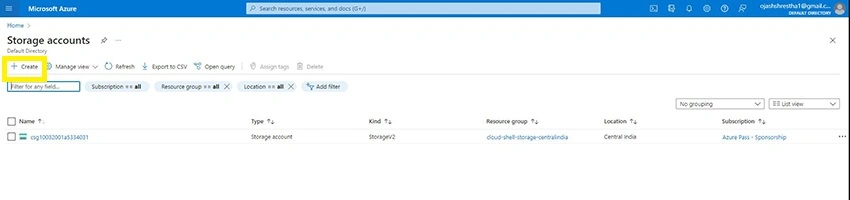
Next, you’ll be taken to the storage accounts page. Here, click on Create.
Step 4
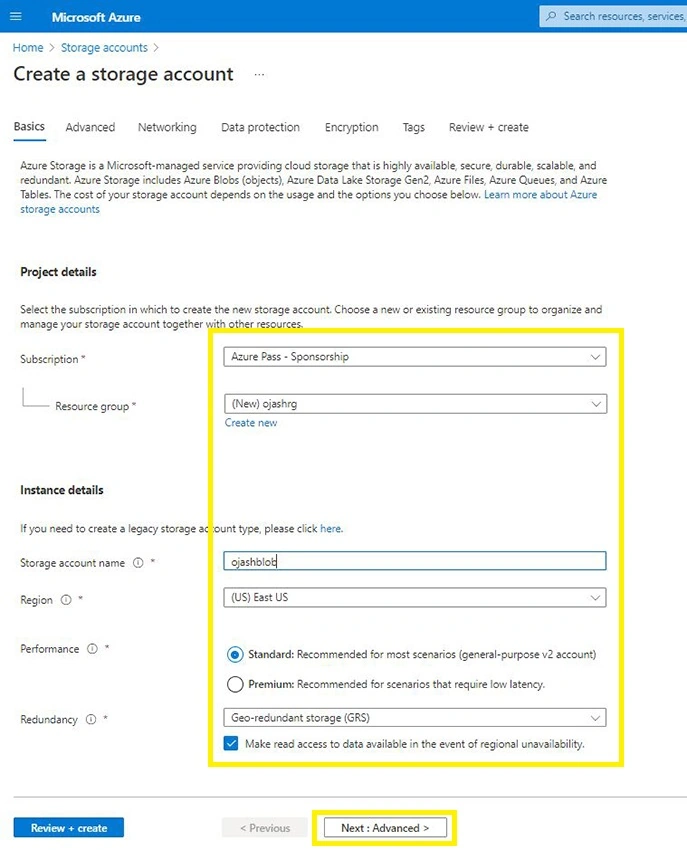
We’ll be given the form to fill in the details of the project and instance.
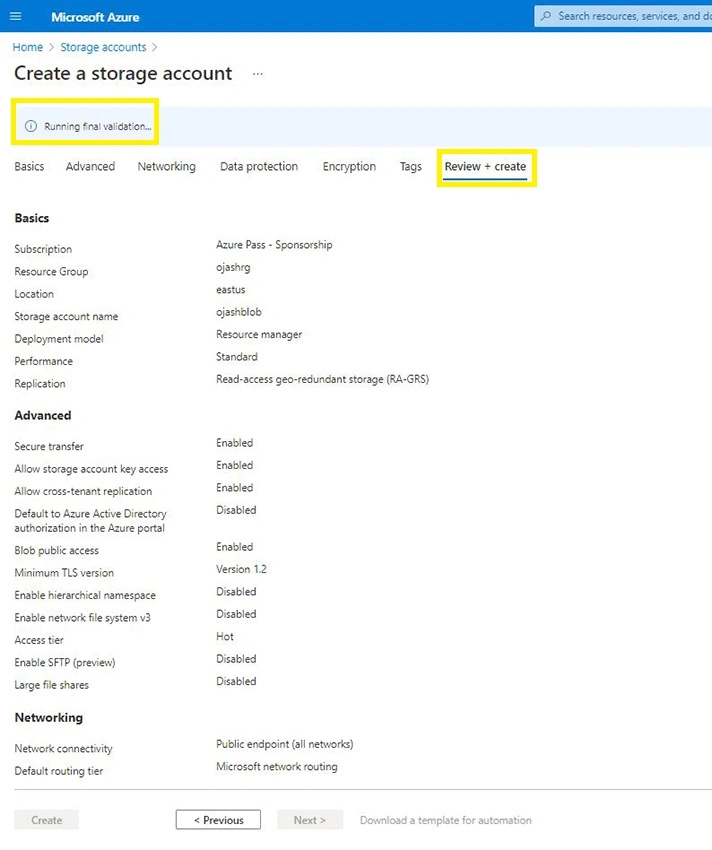
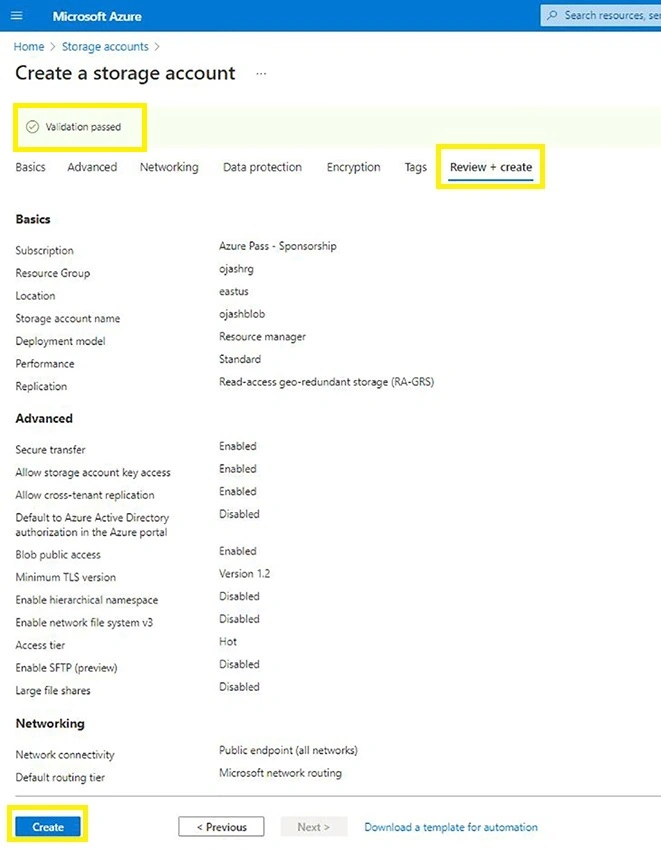
Here, setup your resource group. I’ve created my ojash-rg.
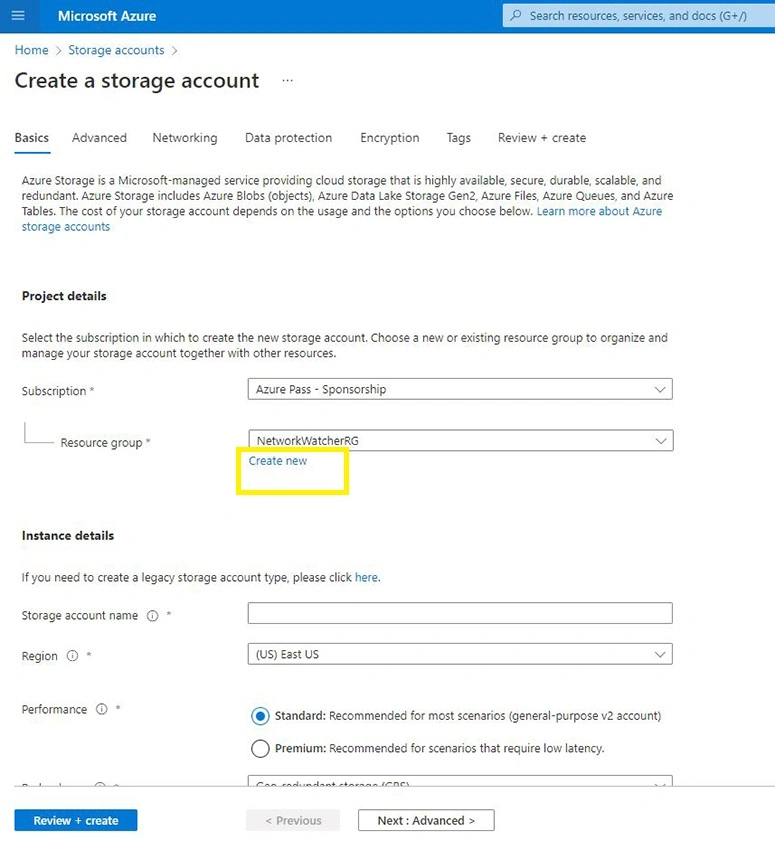
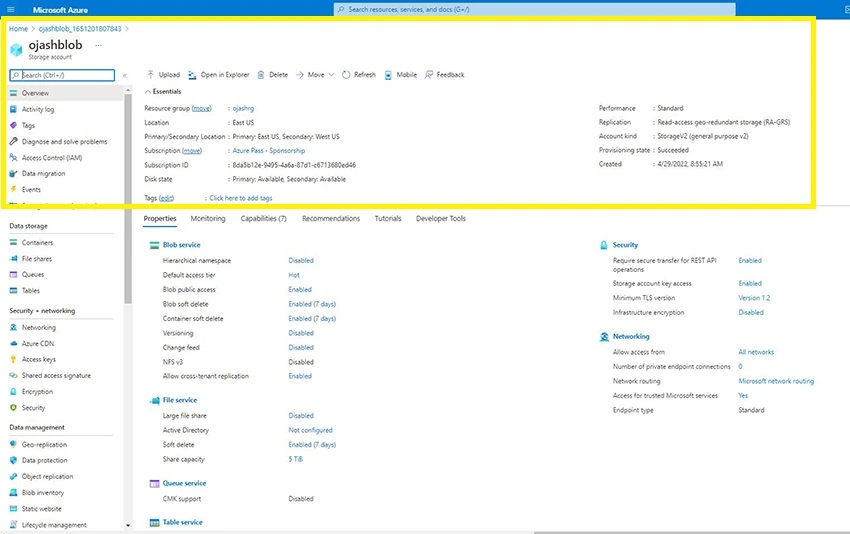
Next, name your storage account name and select the region where you want to setup this account. Here, I’ve named mine ojashblob and setting up in East US.
Join the conversation! Your thoughts help the community grow.