

This article is a part of a series of articles related to one of the Azure Compute options “Cloud Services”.
- Azure Cloud Service Introduction
- Azure Cloud Services - Create Hello World Cloud Service Using Visual Studio
- Azure Cloud Service Examine Files
- Azure Cloud Service – Add existing Web Application to Cloud Service
- Azure Cloud Service – Compute Emulator
- Azure Cloud Service - Create Package using Visual Studio
- Azure Cloud Service – Create a new Cloud Service using Azure Management Portal
- Azure Cloud Service – Deploy Cloud Service using Azure Management Portal
- Azure Cloud Service – Create Staging Slot using Azure Management Portal
- Azure Cloud Service – VIP Swap using Azure Management Portal
- Azure Cloud Service – Delete Slot using Azure Management Portal.
- Azure Cloud Service – Scale up Instance Size
- Azure Cloud Service – Scale Out Instances using Visual Studio
- Azure Cloud Service – Enable Remote Desktop using Visual Studio
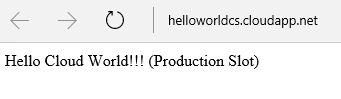
In our previous articles, we have created and deployed the package to both of the following slots.
- Production Slot
- Staging Slot
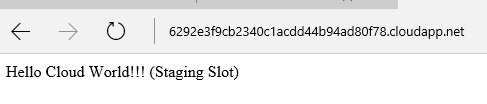
Now that you are done with promoting the changes to the production, you don’t need to have the Staging Environment in Azure until we get a new requirement. So, in order to reduce the costs, we can go ahead and delete the Staging Environment. Let’s see how to delete the existing slots of the Azure Cloud Service.
Navigate to the Cloud Service, as shown below.
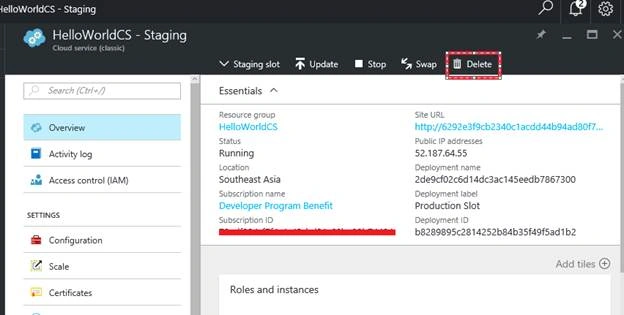
Click on the “Delete” button highlighted in the above screen capture.
Clicking on the “Delete” button will show the following blade.
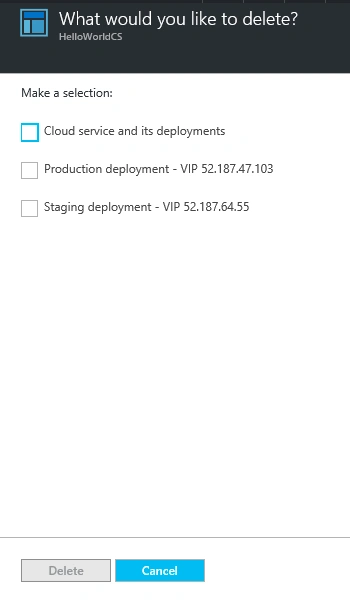
It allows you to delete the entire Cloud Service or any of the individual slots. In our case, we just wanted to delete the Staging slot. Let’s go ahead and check the Staging Slot, as shown below.
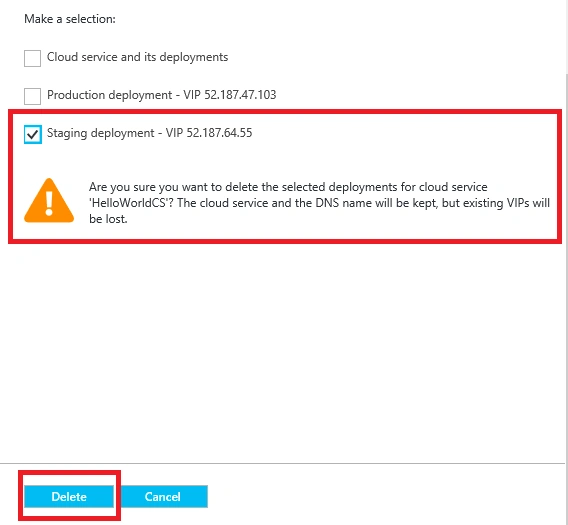
As soon as I selected the Staging slot related checkbox, an informational message is displayed, as shown above. Just click on Delete button to delete the Slot.
So, we have learned how to delete an existing Slot or the entire Cloud Service. Hope you enjoyed the article. Your feedback will be highly appreciated.
Join the conversation! Your thoughts help the community grow.