Azure Foundry Workflows let you visually design “flows” where AI agents and business steps work together to complete a task from start to finish. Instead of one agent trying to do everything, you connect several small agents and logic blocks in a clear, ordered way.
What is a workflow in Foundry?
A workflow is a diagram of steps (called nodes) that run one after another or based on conditions. Each step can call an AI agent, ask a user a question, run logic, or transform data, so you can build real business processes, not just chatbots.
Workflows are useful when
A task has many stages (collect info → check rules → generate summary → send result).
You need more than one agent with different skills.
You want human approval or checks in the middle of an AI process.
Types of workflow patterns
Foundry gives you common patterns so you don’t have to start from a blank canvas. The main ones are:
Sequential: One step after another, passing the result forward (like a pipeline).
Human in the loop: The flow pauses and waits for a person to review, approve, or provide more details before continuing.
Group chat: Several agents talk and pass control between each other based on rules or context, useful for expert handoffs or escalation.
You can pick a template that matches your use case and then adjust it.
Quick start: create your first workflow
Here is the simple path to build a basic Sequential workflow in Foundry (new):
Sign in to Microsoft Foundry and open your project.
Select Build, then choose Create new workflow → Sequential.
In the visual builder, click each agent node and assign an existing agent or create a new one.
Click Save (workflows are not saved automatically).
Click Run workflow and use the chat window to test it.
Add or reorder nodes later using the + button and the three dot menu on each node.
This gives you a working multi-step flow in just a few minutes.
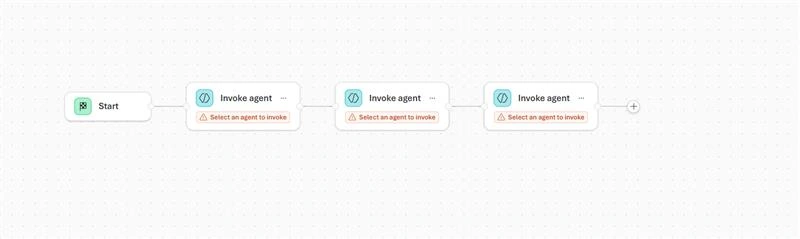
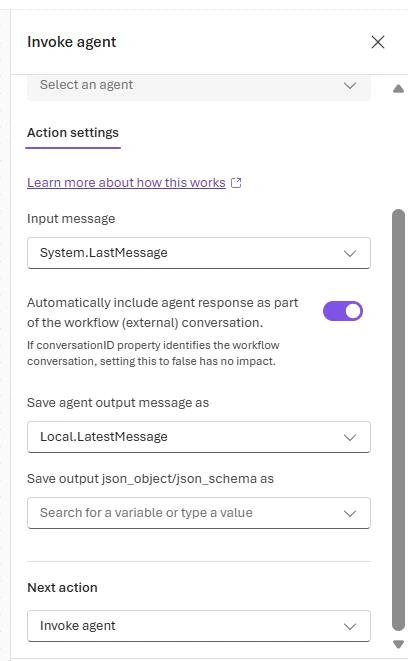
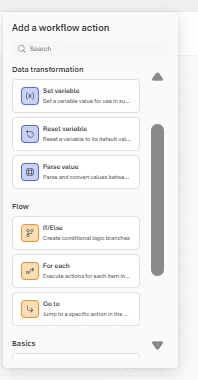
Nodes: the building blocks
Each box in the workflow is a node, and each node does one job. Common node types include:
Agent: Call a Foundry agent to perform a task (for example, summarize text, answer a question, classify a request).
Logic: Add smart behavior such as If/Else, loops (For Each), or Go To for jumps and branches.
Data transformation: Set or update variables, parse values, or reshape outputs so later steps can use them.
Basic chat: Ask the user a question or send a message as part of the flow.
You can drag nodes around, move them in order, and connect them to shape your process.
Adding and configuring agents
You can use agents you already built or create new ones directly from the workflow canvas.
To add an existing agent: click + → Invoke agent → existing, search by name, and select it.
To create a new agent: click + → Invoke agent, enter a name and description, configure its model, prompt, and tools, then save.
Agents in workflows can be simple (single model and prompt) or advanced (with tools and structured outputs), depending on your scenario.
Structured output with JSON
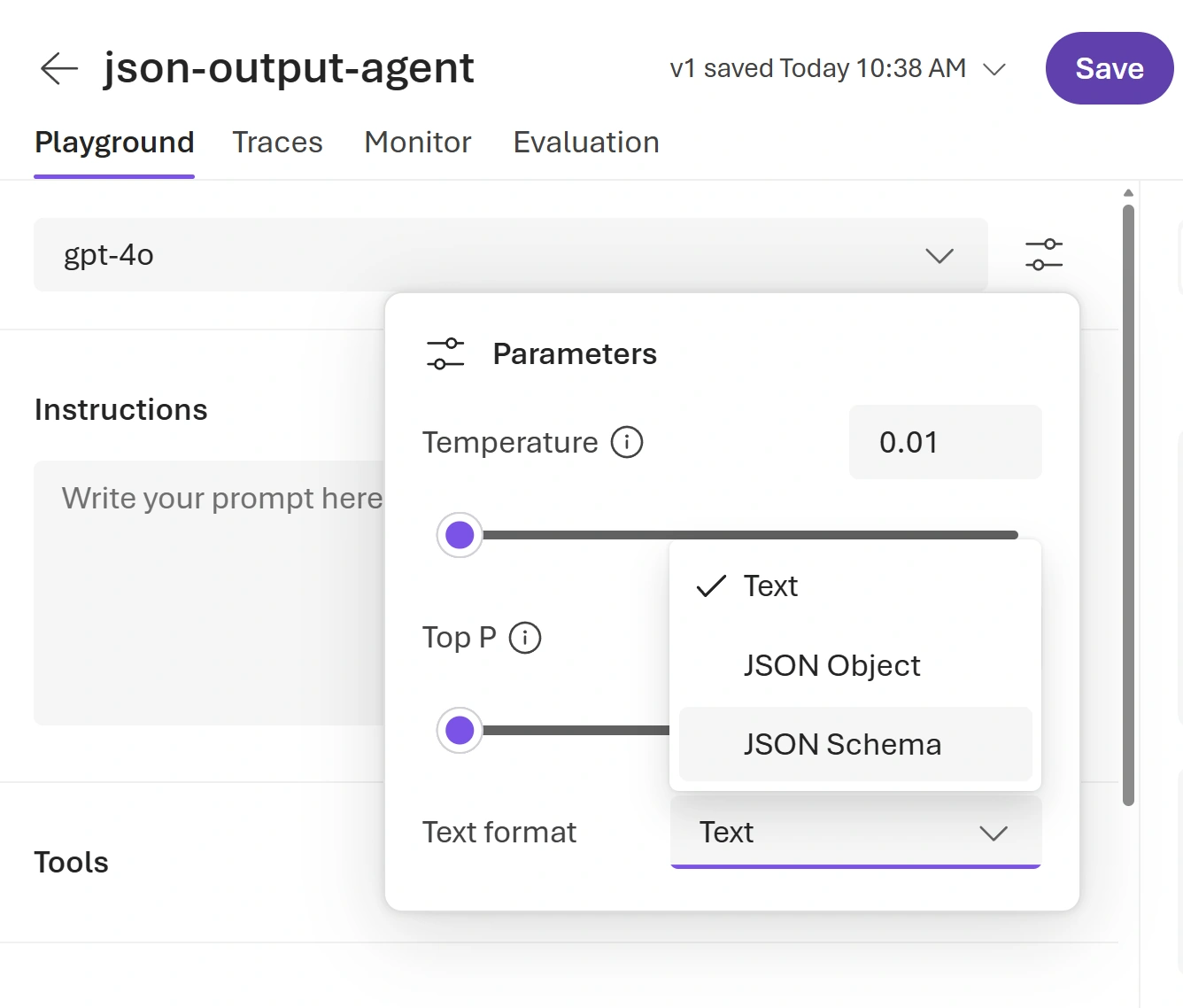
For more control, you can configure an agent node to return output in a fixed JSON format using JSON Schema. This helps when later steps need to read specific fields like steps or final_answer instead of free text.
Typical flow:
Set the agent’s text format to JSON Schema in the details.
Paste your JSON Schema (for example, an object with an array of steps and a final answer).
Save the output into a variable so the next nodes can use it.
This makes workflows more predictable and easier to debug.
Variables and Power Fx (simple logic)
Workflows use variables to pass data between steps, like the user’s answer or an agent result. You can read and change these values using Power Fx, which is a low-code, Excel-style formula language.
{
  "name": "math_response",
  "schema": {
    "type": "object",
    "properties": {
      "steps": {
        "type": "array",
        "items": {
          "type": "object",
          "properties": {
            "explanation": {
              "type": "string"
            },
            "output": {
              "type": "string"
            }
          },
          "required": [
            "explanation",
            "output"
          ],
          "additionalProperties": false
        }
      },
      "final_answer": {
        "type": "string"
      }
    },
    "additionalProperties": false,
    "required": [
      "steps",
      "final_answer"
    ]
  },
  "strict": true
}
Examples:
Upper – convert a stored name to upper case for a reply.
Use If, And, Or and other functions to control logic based on variable values.
There are also system variables like Conversation.Id, User.Language, and LastMessage.Text that give you information about the current chat and user.
Helpful extra features
Foundry workflows include several features that make building and maintaining flows easier:
YAML view and visual view: The workflow is stored as YAML; you can edit in text or visually, and both stay in sync.
Versioning: Every time you click Save, a new read‑only version is created so you can track changes and roll back if needed.
Notes on canvas: Add sticky note style comments to explain parts of the workflow for yourself or teammates.
These features are especially helpful when workflows grow larger or more people work on them.
In simple terms: Microsoft Foundry Workflows let you draw your business process as a flow of steps, plug in AI agents where needed, add human checks and logic, and then run it all without heavy coding.


Join the conversation! Your thoughts help the community grow.