

In this article, we’ll learn about Azure Functions and Azure Function app. Then we’ll go ahead and learn the process of creating the Azure Function app step-by-step. Next, we’ll create the HTTP trigger function and finally test it too.
Azure Functions
Azure Functions is the popular serverless compute platform on Microsoft Azure, supporting rapid integration with the Microsoft suite of products. Azure Functions is an event-driven serverless compute platform which enables complex orchestration difficulties to be solved easily. Using Triggers and Bindings, services can be integrated. Applications can be deployed and scaled flawlessly in the cloud with Azure functions. Depending on the workload volume, the infrastructure scales automatically. Building, debugging, deploying, and monitoring are all possible with ease with the built-in DevOps capabilities supported by the Azure Functions. It supports multiple programming languages from C#, Python, Java, or Node.js. With the use of Azure Functions, it can drastically minimize the time to solve problems compared to traditional approaches thus saving the time of developers and duration to provide service to the clients. Learn more about Azure Serverless from the previous article, Azure Serverless. The Azure Function allows us irrespective of the setup of virtual machines or publishing of the web applications to run our code in the serverless environment.
Azure Function App
In order to host the execution of the functions, Azure Function App is integral. The function app allows grouping of the functions for convenience in deployment, management, resource sharing, and scaling as one logical unit. Let us learn to create the function app in Azure through the step-by-step tutorial.
Step 1
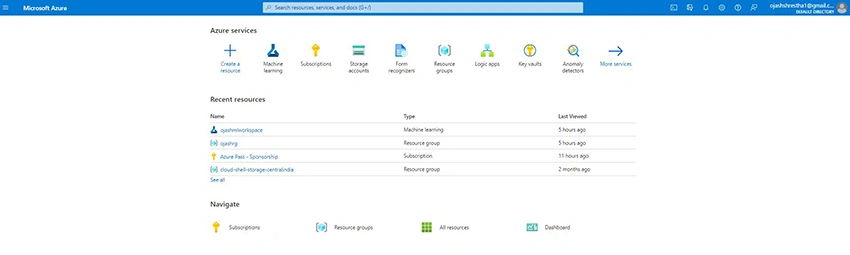
First of all, visit the Azure Portal and click on Create a resource.
Step 2
Now, on the search bar in the marketplace, find Function App.
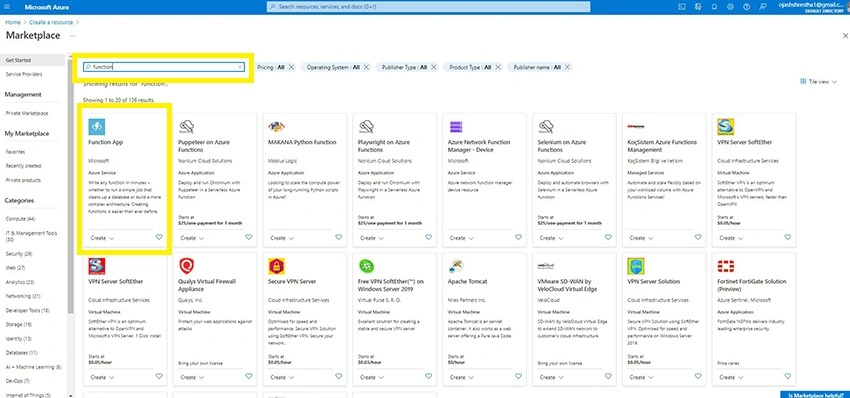
Click on Function App.
Step 3
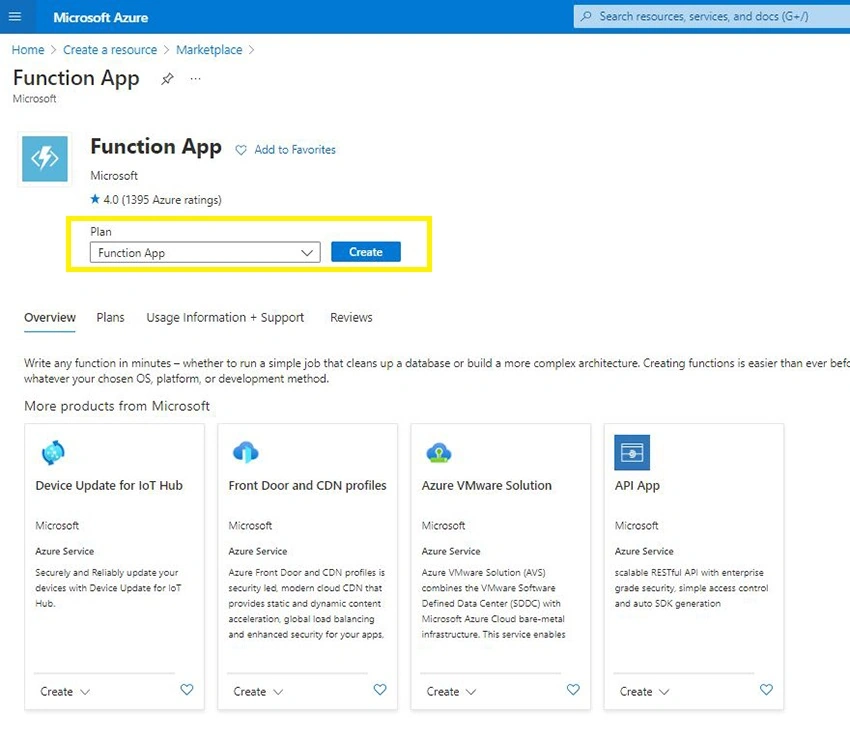
Under the Function App plan, click on Create.
Step 4
Now, we are taken to the page to fill the details to create the function app.
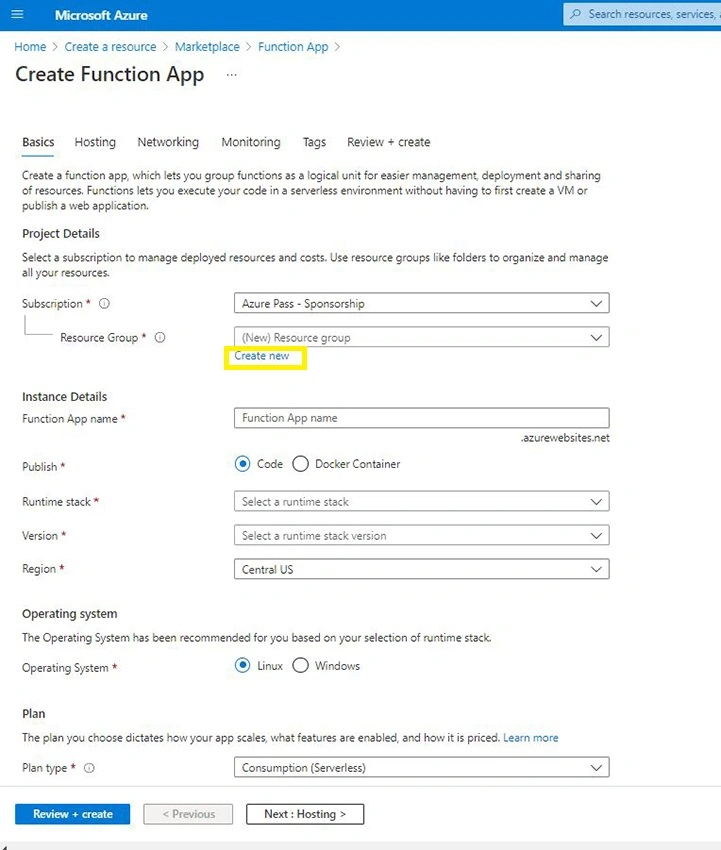
Select the appropriate subscription and choose your resource group. If you don’t have one, create a new one.
Step 5
Fill in the instance details: the function app name, the method of publishing, runtime stack, version, and region. I’ve selected Code for publishing and .NET as runtime. The region is the location where you want to setup this service. It is better to select one near to the expected location of your users.
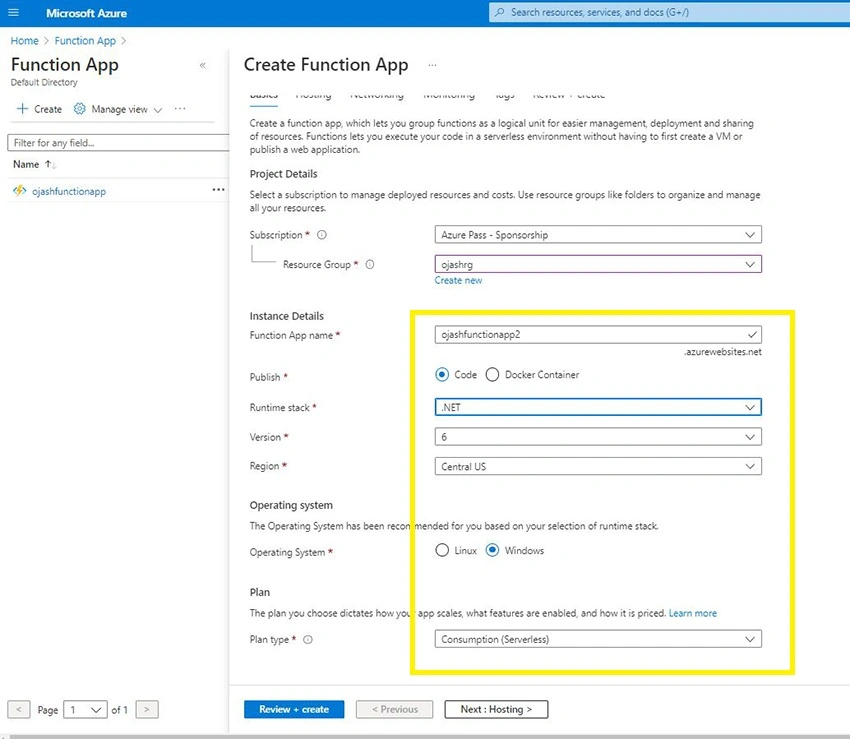
Under the Operating System, I’ve selected Windows and Consumption (serverless) for the plan type.
Step 6
Now, under Monitoring, select yes for enabling the Application insights.
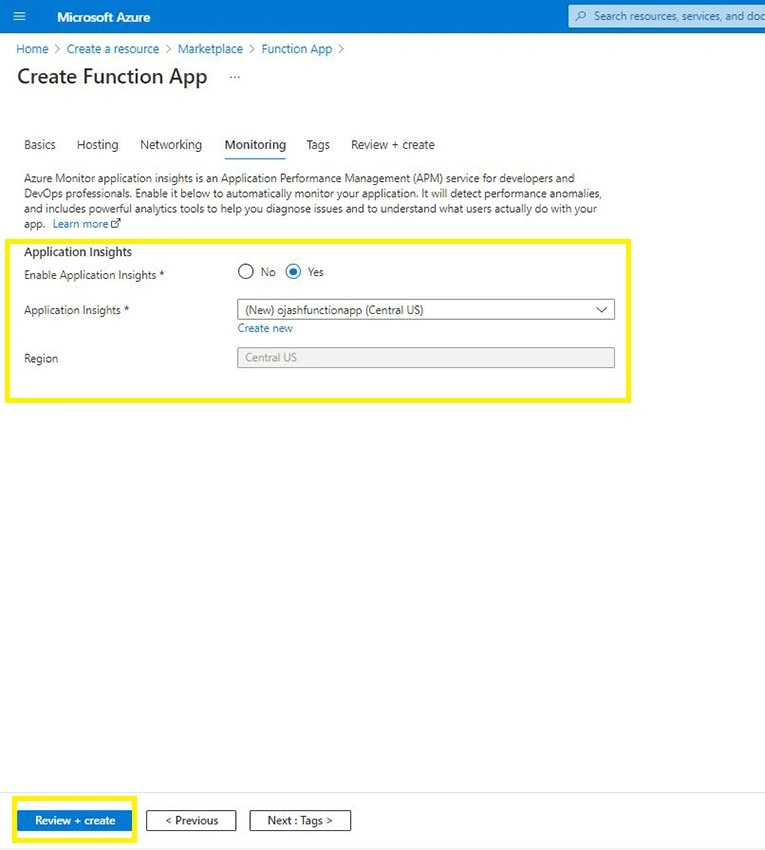
Once done, click on Review + Create.
Step 7
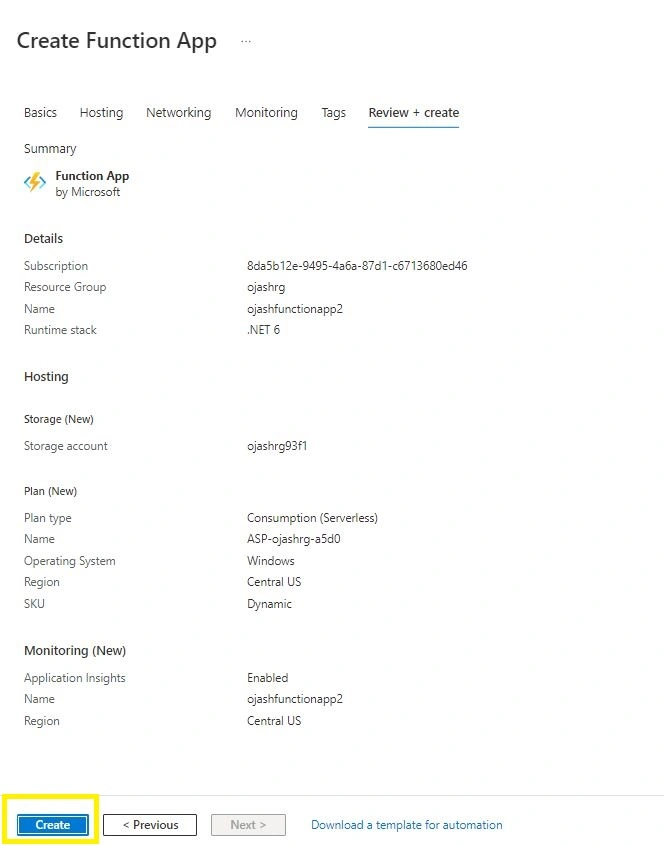
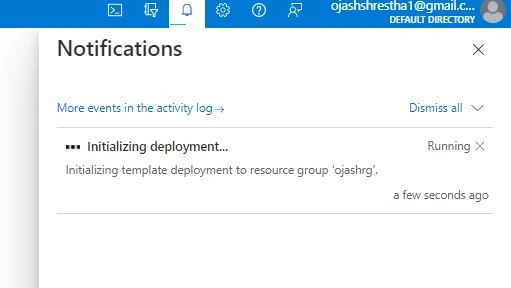
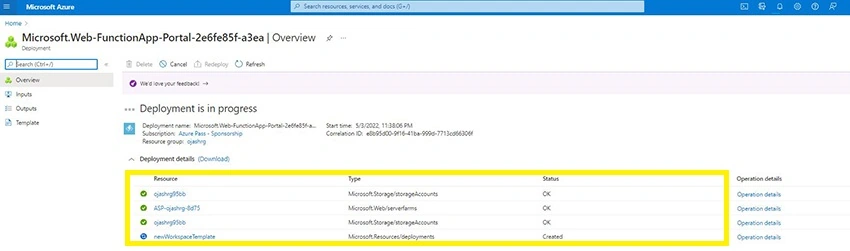
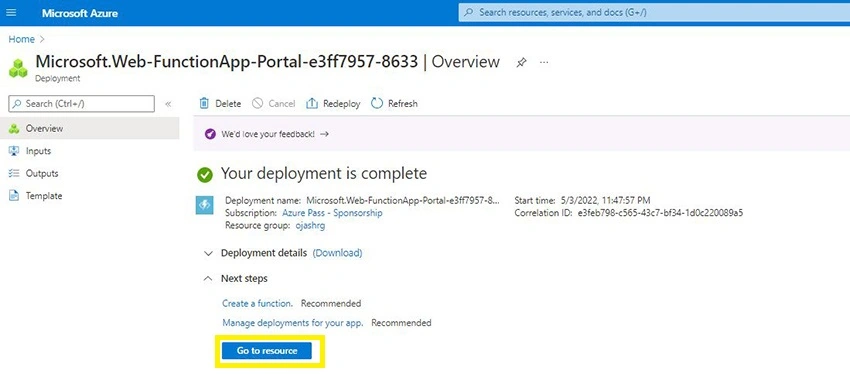
Next, Click on Create.


Join the conversation! Your thoughts help the community grow.