

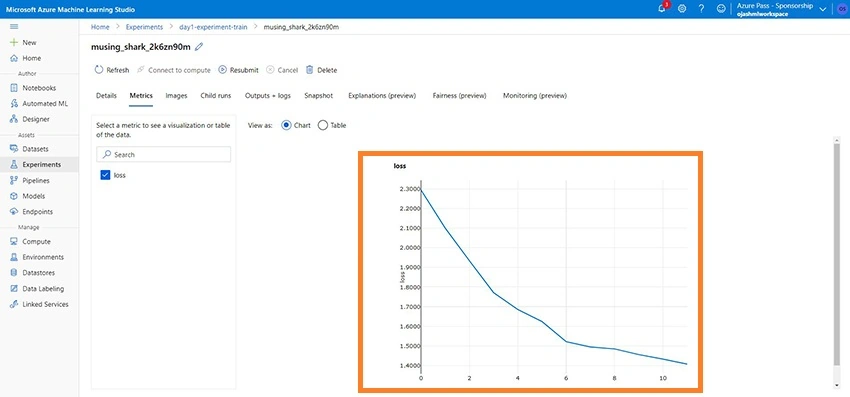
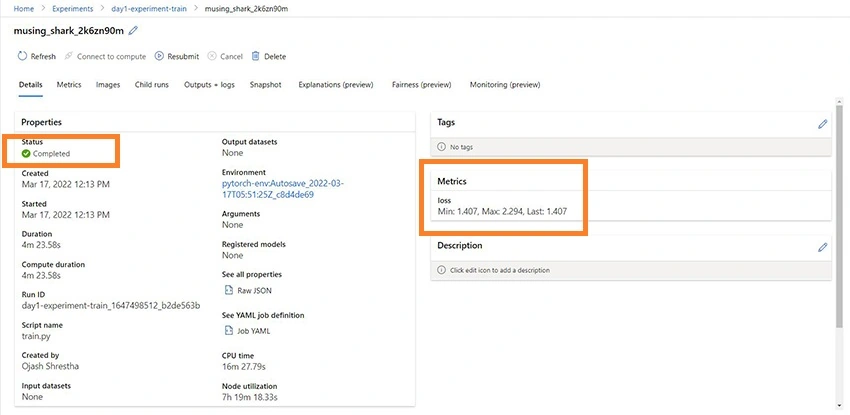
In this article, we’ll learn to train the machine learning model in Notebook within Azure Machine Learning Studio. This article, details about a part of the machine learning workflow where we fit best combinations of bias and weight to minimize the loss function. We’ll also view the various features offered by Azure Machine Learning Studio to graphically represent the minimization of loss function metric in real time when running the model training. This article is a part of the Azure Machine Learning Series.
- Azure Machine Learning - Create Workspace for Machine Learning
- Azure Machine Learning – Create Compute Instance and Compute Cluster
- Azure Machine Learning - Writing Python Script in Notebook
- Azure Machine Learning - Model Training
Microsoft AI
Microsoft AI is a powerful framework that enables organizations, researchers, and non-profits to use AI technologies with its powerful framework which offers services and features across domains of Machine Learning, Robotics, Data Science, IoT, and many more. Learn more about Microsoft AI from this article.
Azure Machine Learning
The Azure Machine Learning enriches and consolidates the functionalities to support model training and deployment which transitions from Machine Learning Studio. It provides tools for Machine Learning works for all skill levels, provides an open and interoperable framework with support to different languages, and enables robust end-to-end MLOps. It also supports Automated Machine Learning. Read this article Auto ML to learn more about it.
So, where and how do we start if we want to create and deploy a Machine Learning project? Azure Machine Learning provides all the tools through its portal to create the resources and set up the infrastructure that is needed for any kind of machine learning works.
Pre-requisite
Before we start with the tutorial of this article, you first need to create Machine Learning Workspace in Azure and create compute instance along with compute cluster. Follow up the Azure Machine Learning - Create Workspace for Machine Learning and Azure Machine Learning – Create Compute Instance and Compute Cluster respectively. Next, create appropriate folders in Notebook within Azure Machine Learning Studio following the article, Azure Machine Learning - Writing Python Script in Notebook
Now, once you’ve followed up the above pre-requisite, you’ll be ready to follow up the step below.
Step 1
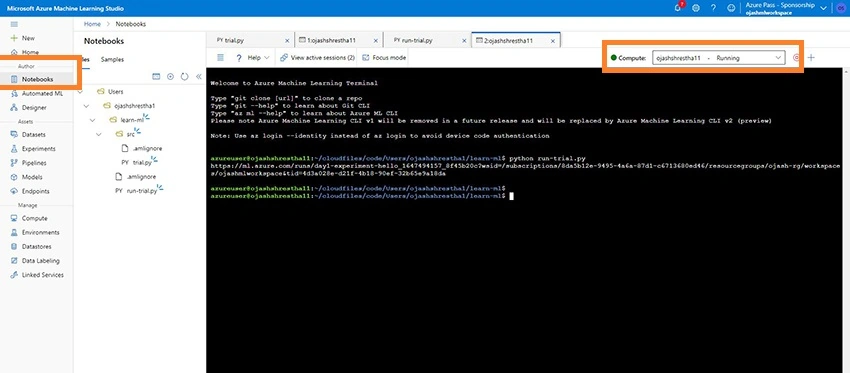
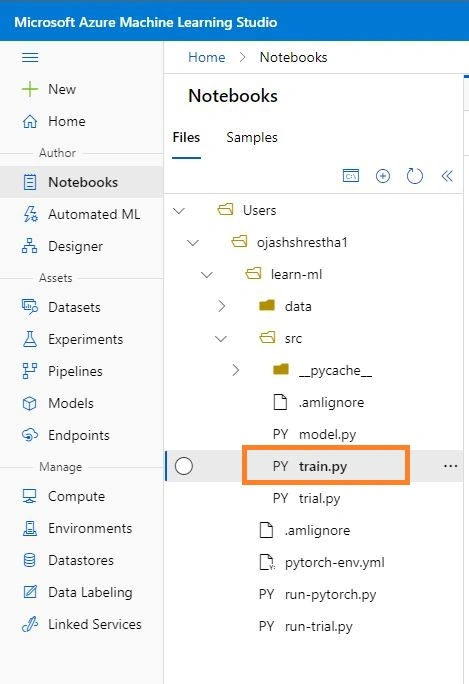
Click on Notebook under Author. Your Folder should look similar to the one shown here. The src folder is within the learn-ml.
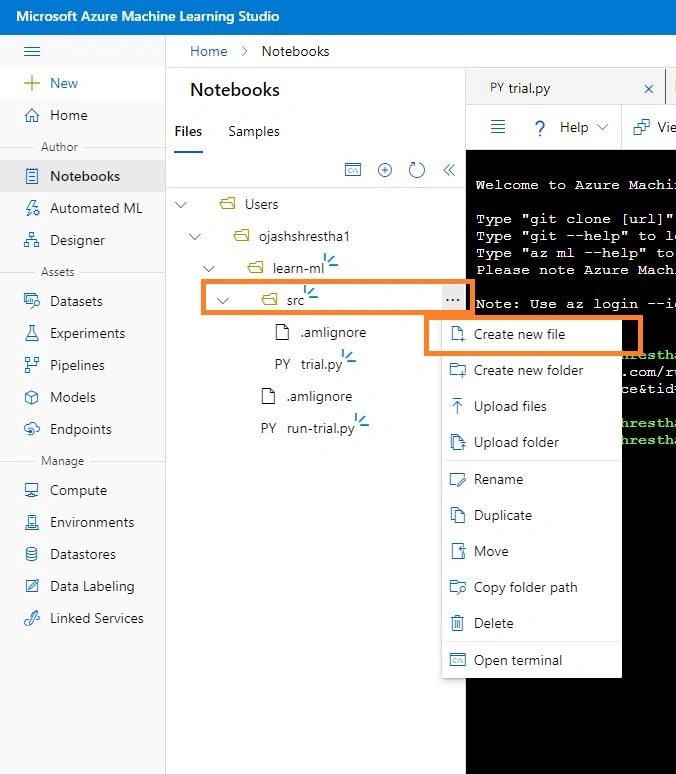
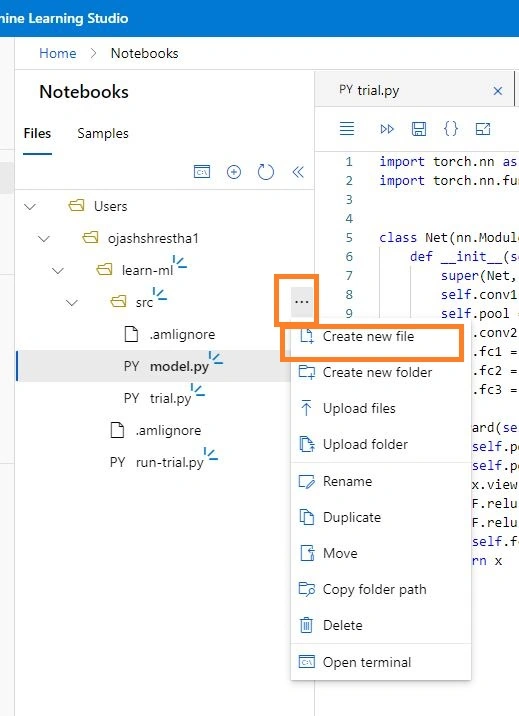
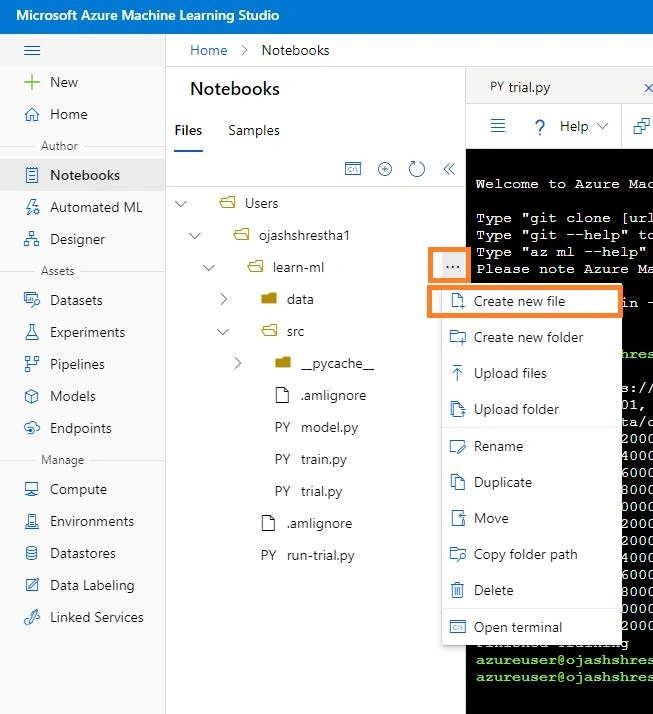
Right Click on the … in the src and Click Create new file.
Step 2
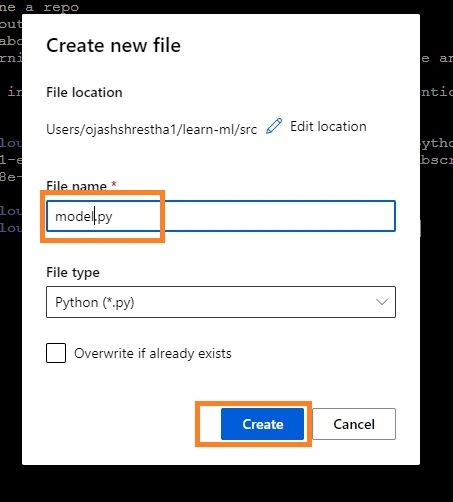
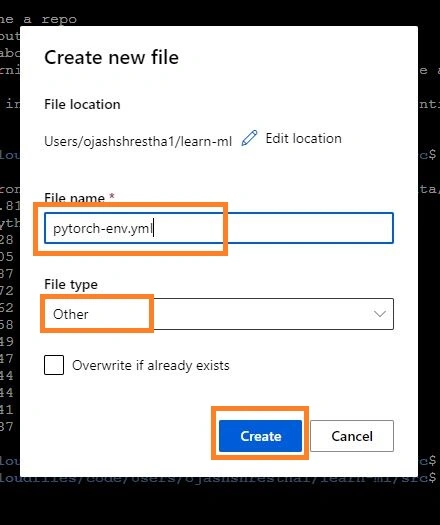
Name this file, model.py and Click on Create.
Defining Convolution Neural Network
Step 3
Now, under the model.py write in the following script. This is referred from the official Pytorch website.
import torch.nn as nn
import torch.nn.functional as F


class Net(nn.Module):
    def __init__(self):
        super(Net, self).__init__()
        self.conv1 = nn.Conv2d(3, 6, 5)
        self.pool = nn.MaxPool2d(2, 2)
        self.conv2 = nn.Conv2d(6, 16, 5)
        self.fc1 = nn.Linear(16 * 5 * 5, 120)
        self.fc2 = nn.Linear(120, 84)
        self.fc3 = nn.Linear(84, 10)

    def forward(self, x):
        x = self.pool(F.relu(self.conv1(x)))
        x = self.pool(F.relu(self.conv2(x)))
        x = x.view(-1, 16 * 5 * 5)
        x = F.relu(self.fc1(x))
        x = F.relu(self.fc2(x))
        x = self.fc3(x)
        return x
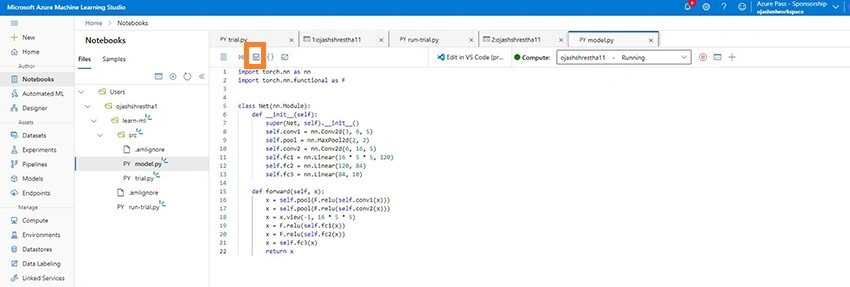
Now, Click on Save Button.
Step 4
Similarly, Create new file under src folder again.
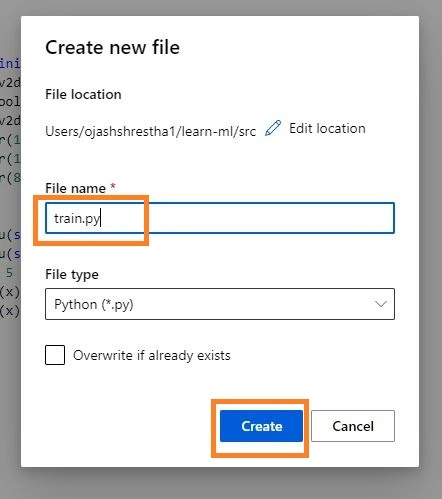
Name this file train.py and Click on Create.
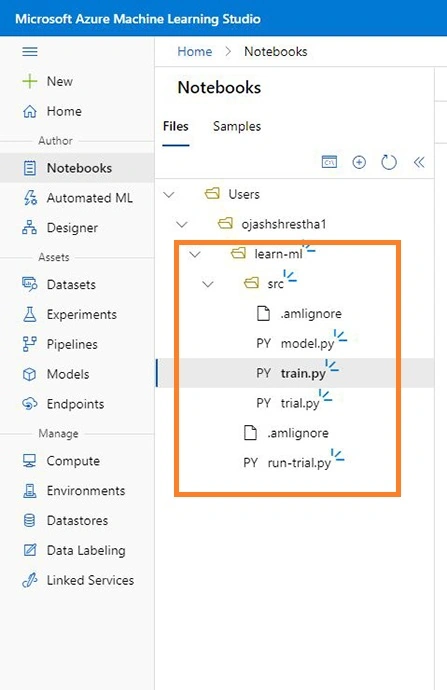
The files structure will look similar to as below.
Downloading Training Dataset and Training Model
Step 5
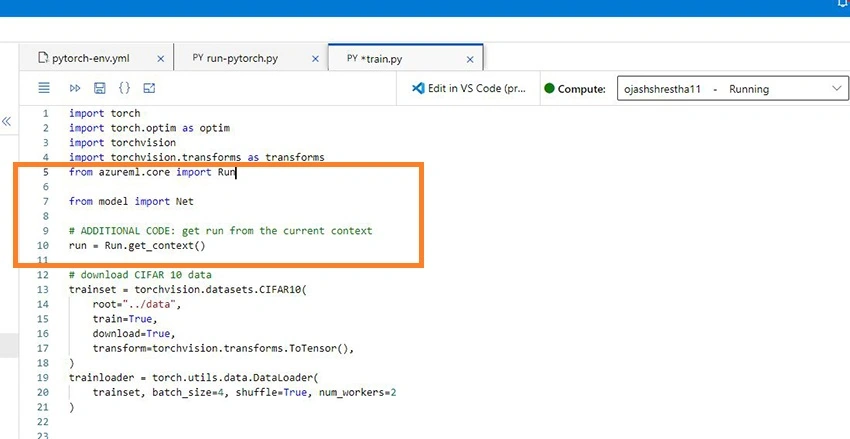
Now, copy the following code.
import torch
import torch.optim as optim
import torchvision
import torchvision.transforms as transforms

from model import Net

# download CIFAR 10 data
trainset = torchvision.datasets.CIFAR10(
    root="../data",
    train=True,
    download=True,
    transform=torchvision.transforms.ToTensor(),
)
trainloader = torch.utils.data.DataLoader(
    trainset, batch_size=4, shuffle=True, num_workers=2
)


if __name__ == "__main__":

    # define convolutional network
    net = Net()

    # set up pytorch loss /  optimizer
    criterion = torch.nn.CrossEntropyLoss()
    optimizer = optim.SGD(net.parameters(), lr=0.001, momentum=0.9)

    # train the network
    for epoch in range(2):

        running_loss = 0.0
        for i, data in enumerate(trainloader, 0):
            # unpack the data
            inputs, labels = data

            # zero the parameter gradients
            optimizer.zero_grad()

            # forward + backward + optimize
            outputs = net(inputs)
            loss = criterion(outputs, labels)
            loss.backward()
            optimizer.step()

            # print statistics
            running_loss += loss.item()
            if i % 2000 == 1999:
                loss = running_loss / 2000
                print(f"epoch={epoch + 1}, batch={i + 1:5}: loss {loss:.2f}")
                running_loss = 0.0

    print("Finished Training")
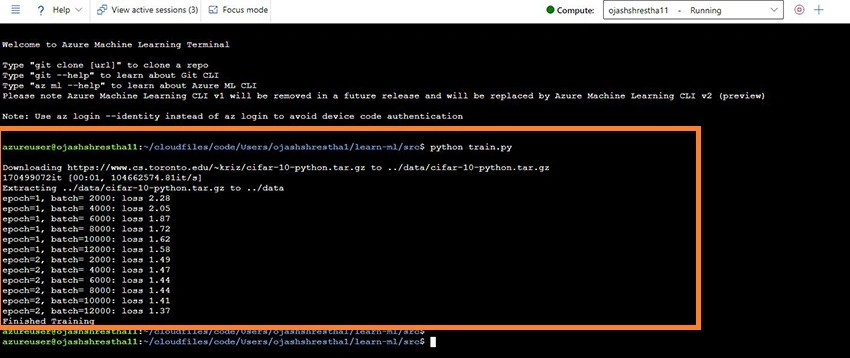
This script will download the CIFAR 10 dataset through the PyTorch API torchvision.dataset and set up the network which we defined in model.py and train it for epochs using cross-entropy loss and Stochastic Gradient Descent.
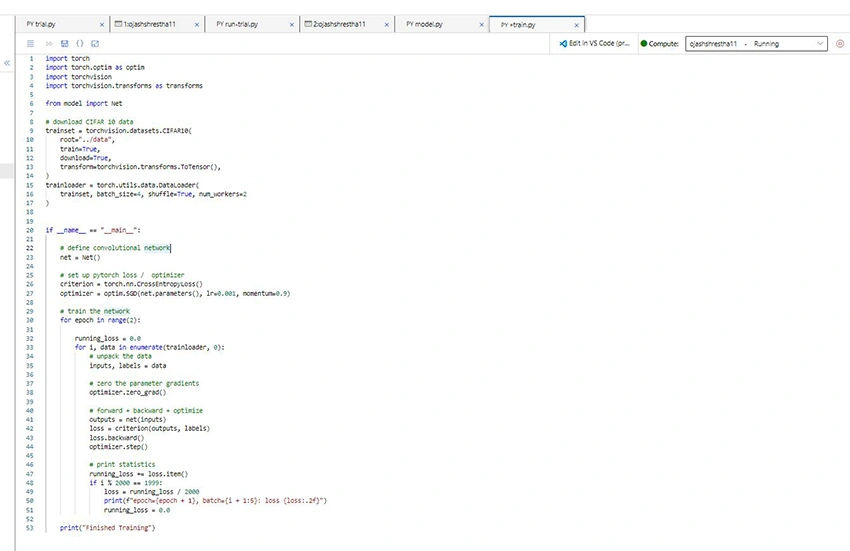
Now, Click on Save and Run.

Step 6
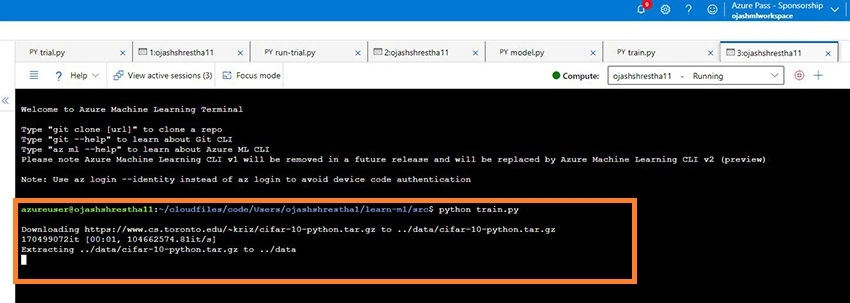
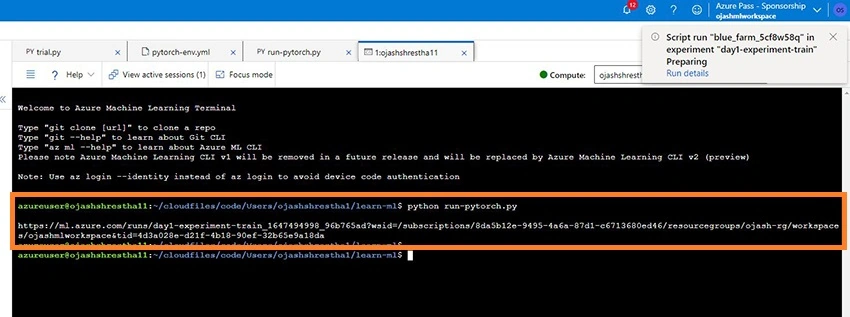
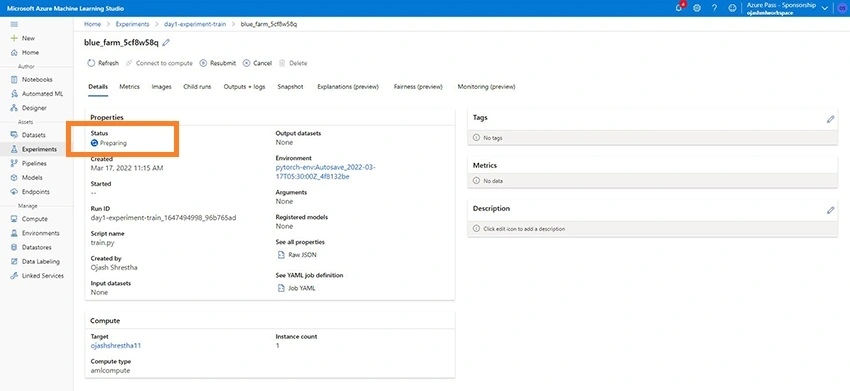
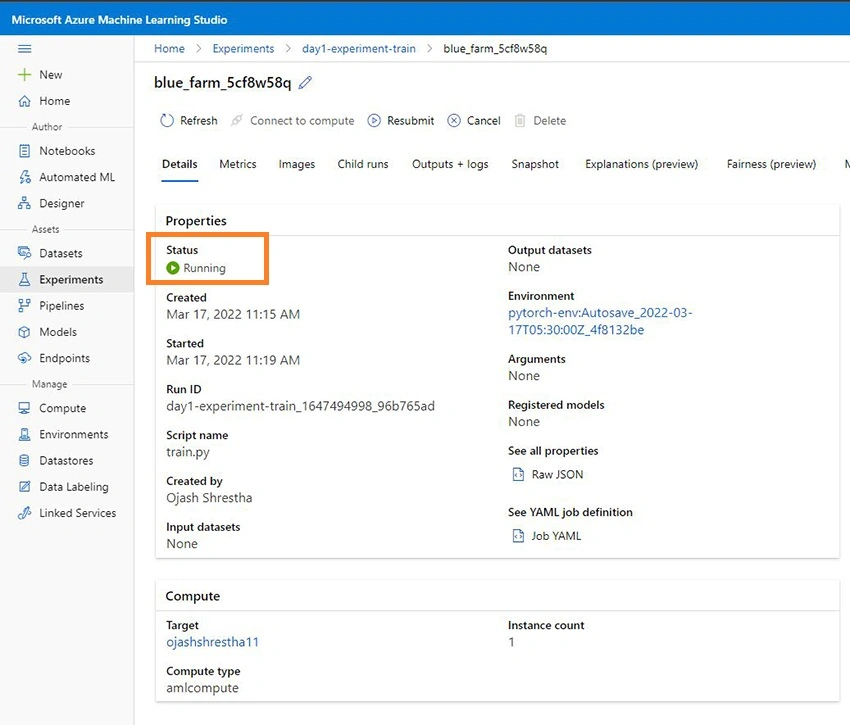
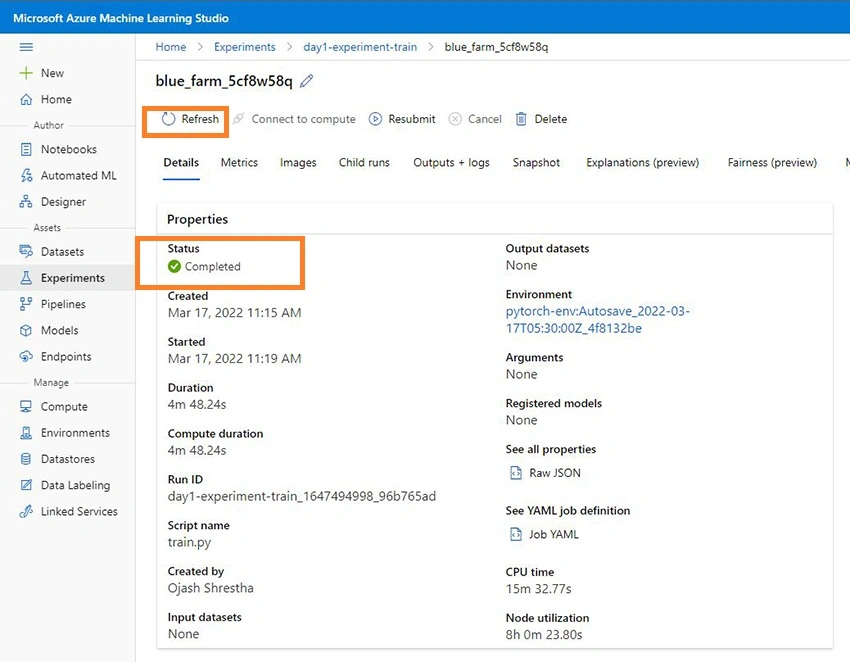
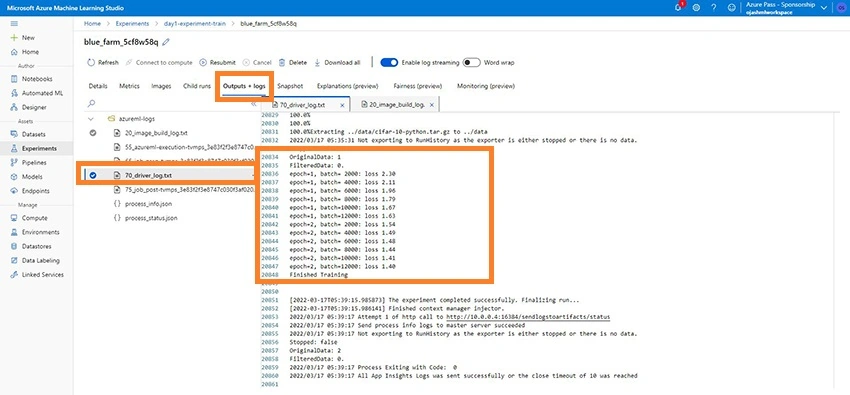
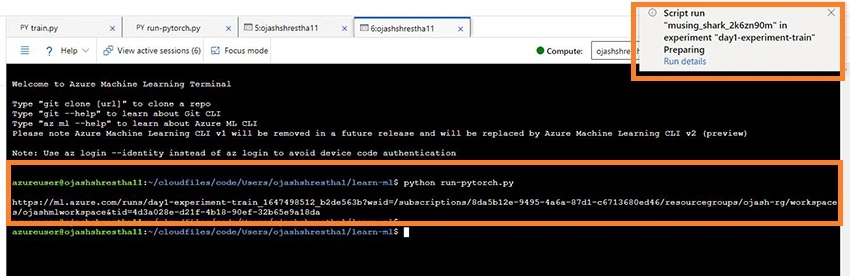
The Machine Learning Terminal is opened as we run the script. We can here see, the CIFAR 10 Dataset being downloaded and extracted to data folder.

Join the conversation! Your thoughts help the community grow.