

This article will talk about YAML templates. By using these templates, you can make your code reusable and simplify sharing code across multiple pipelines.
If you are new to CI/CD, you might be familiar with blocks of code repeated multiple times in a single pipeline or deploying applications in various environments. The problem with code duplication is that block refactors must be propagated to each duplicate. Because of this, both the chance of human error and the time required to develop the pipeline increase linearly as the number of duplicates.
Using YAML templates, you can define reusable content, logic, and parameters in separate templates that load into your pipeline at runtime. You can divide these templates into one of these four categories,
- Stage - define a set of stages for related jobs
- Job - define a collection of steps run by an agent
- Step - define a linear sequence of operations for a job
- Variable - alternative to hardcoded values or variable groups
Example
Suppose you have a repository that needs to be automated through CI/CD pipelines with the following structure,
.
├── api
│   ├── dockerfile
│   ├── node_modules
│   ├── package-lock.json
│   ├── package.json
│   └── server.js
├── frontend
│   ├── dockerfile
│   ├── node_modules
│   ├── package.json
│   ├── public
│   ├── src
│   └── yarn.lock
└── pipelines
    └── azure-pipelines.yml
Without using a template, you will have to add the tasks to build, test, and deploy the docker image of the Node.JS API. Then you will have to perform the same tasks for the React.JS front-end. The result will be something like this,
trigger:
- mainpool:
  vmImage: 'ubuntu-latest'stages:
- stage: Build
  displayName: Build stage
  jobs:
  - job: Build_api
    displayName: Build API
    steps:
    - task: NodeTool@0
      inputs:
        versionSpec: '10.x'
      displayName: 'Install Node.js'
    - script: |
        npm install
      workingDirectory: '$(Build.Repository.LocalPath)/api'
      displayName: 'npm install'- job: Build_frontend
    displayName: Build Frontend
    steps:
    - task: NodeTool@0
      inputs:
        versionSpec: '10.x'
      displayName: 'Install Node.js'
    - script: |
        npm install
        npm run build
      workingDirectory: '$(Build.Repository.LocalPath)/frontend'
      displayName: 'npm install and build'- stage: Test
  displayName: Test stage
  jobs:
  - job: Test_api
    displayName: Test API
    steps:
    - task: SonarCloudPrepare@1
      inputs:
        SonarCloud: 'SonarCloud training connection'
        organization: 'gtrekter'
        scannerMode: 'CLI'
        configMode: 'manual'
        cliProjectKey: 'GTRekter_Training'
        cliProjectName: 'Training'
        cliSources: '$(Build.Repository.LocalPath)/api'
    - task: SonarCloudAnalyze@1
    - task: SonarCloudPublish@1
      inputs:
        pollingTimeoutSec: '300'  - job: Test_frontend
    displayName: Test Frontend
    steps:
    - task: SonarCloudPrepare@1
      inputs:
        SonarCloud: 'SonarCloud training connection'
        organization: 'gtrekter'
        scannerMode: 'CLI'
        configMode: 'manual'
        cliProjectKey: 'GTRekter_Training'
        cliProjectName: 'Training'
        cliSources: '$(Build.Repository.LocalPath)/frontend'
    - task: SonarCloudAnalyze@1
    - task: SonarCloudPublish@1
      inputs:
        pollingTimeoutSec: '300'- stage: Build_dockerimage
  displayName: Build and push image to ACR stage
  jobs:
  - job: Build_api_dockerimage
    displayName: Build and push API image
    steps:
    - task: Docker@2
      displayName: Build and push an image to ACR
      inputs:
        containerRegistry: 'ACR training connection'
        repository: 'training-frontend'
        command: 'buildAndPush'
        Dockerfile: '$(Build.SourcesDirectory)/api/dockerfile'
        tags: '$(Build.BuildId)'  - job: Build_frontend_dockerimage
    displayName: Build and push frontend image
    steps:
    - task: Docker@2
      displayName: Build and push an image to ACR
      inputs:
        containerRegistry: 'ACR training connection'
        repository: 'training-frontend'
        command: 'buildAndPush'
        Dockerfile: '$(Build.SourcesDirectory)/frontend/dockerfile'
        tags: '$(Build.BuildId)'

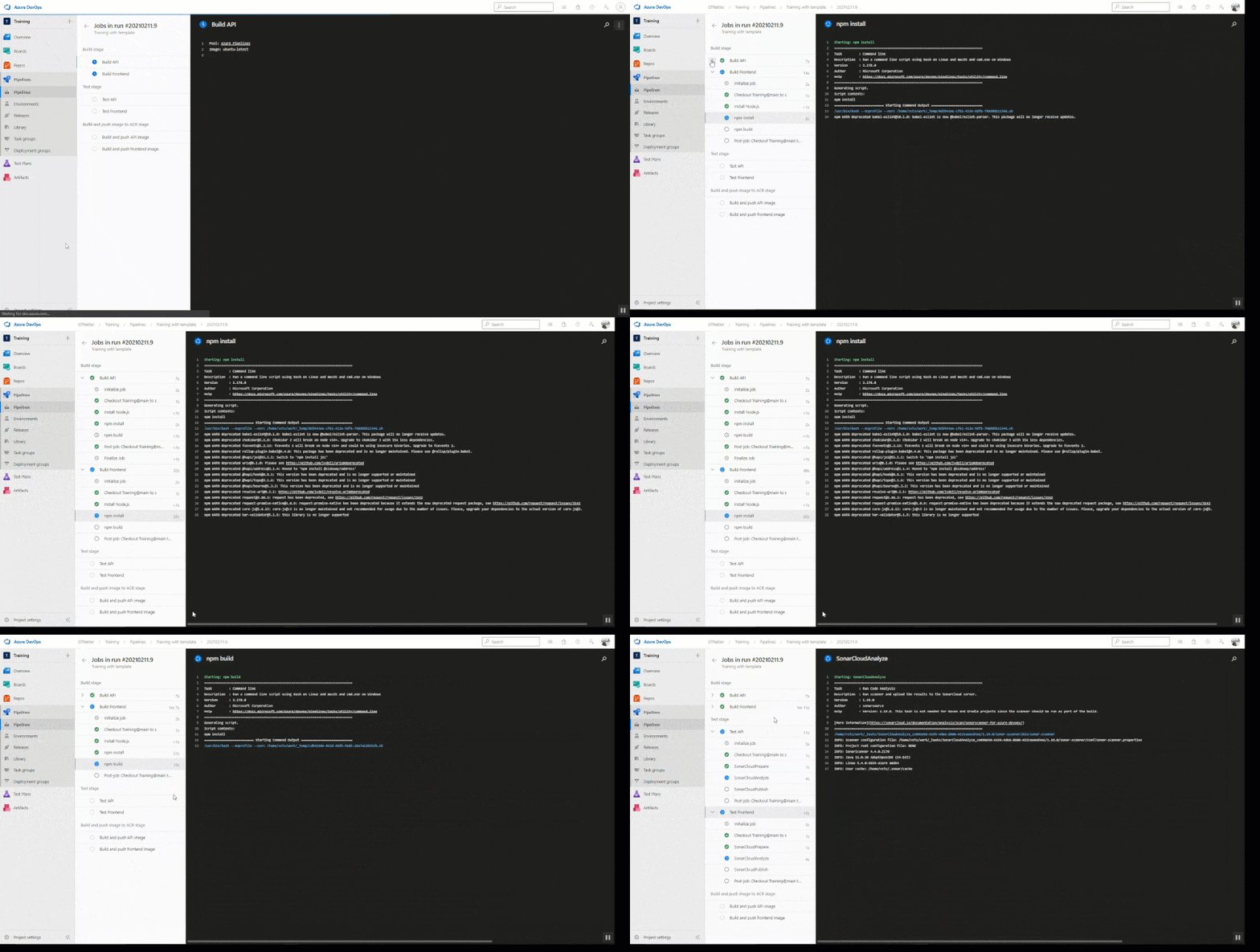
The results of running the pipeline will be the following,
Gurpreet AroraPosted Jul 23, 2021, 8:44 AM
Nice Article