Background transfer is used for long-term transfer or download operations such as video, music, and images. For that time user will allow play around your app don’t stop the user to wait.
BackgroundDownloader class will help you to transfer or download the files from the server event the app is running in foreground. If the user exits the app, the download will continue in the background. You can check when the app is relaunched.
Let’s see the steps how to download files from server.
Create new Windows 10 project and give a suitable name.
Design your xaml page. Here I will create one textbox to enter your download url then textblock for showing the status and one button to start the download.
XAML Code
- <Grid Background="{ThemeResource ApplicationPageBackgroundThemeBrush}">
- <Grid.RowDefinitions>
- <RowDefinition Height="Auto"></RowDefinition>
- <RowDefinition Height="Auto"></RowDefinition>
- <RowDefinition Height="Auto"></RowDefinition>
- <RowDefinition Height="Auto"></RowDefinition>
- </Grid.RowDefinitions>
- <TextBox x:Name="linkBox" Height="20" Width="200" Grid.Row="0" HorizontalAlignment="Left"></TextBox>
- <TextBlock x:Name="Statustext" Height="30" Grid.Row="1" HorizontalAlignment="Center" TextWrapping="Wrap" Text="TextBlock" VerticalAlignment="Top" />
- <Button x:Name="downloadBtn" Height="30" Grid.Row="2" Content="Download" Click="downloadBtn_Click" HorizontalAlignment="Center" VerticalAlignment="Top" /> </Grid>
Next we need to ensure that your app has the capability to access the internet. To enable the capability follow the below steps.
Double click your
package.aapmainfest file in you solution explorer and enable the internet client like the following screen.
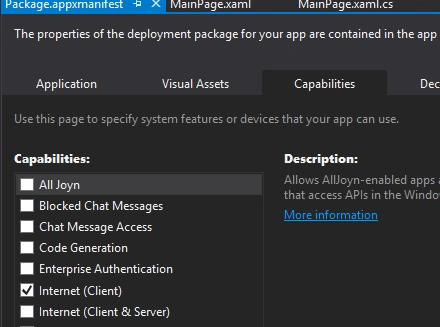
Next go to code behind page and write the following code.
- DownloadOperation downloadOperation;
- CancellationTokenSource cancellationToken;
- Windows.Networking.BackgroundTransfer.BackgroundDownloader backgroundDownloader = new Windows.Networking.BackgroundTransfer.BackgroundDownloader();
- public MainPage()
- {
- this.InitializeComponent();
- }
- public async void Download()
- {
- FolderPicker folderPicker = new FolderPicker();
- folderPicker.SuggestedStartLocation = PickerLocationId.Downloads;
- folderPicker.ViewMode = PickerViewMode.Thumbnail;
- folderPicker.FileTypeFilter.Add("*");
- StorageFolder folder = await folderPicker.PickSingleFolderAsync();
- if (folder != null)
- {
- StorageFile file = await folder.CreateFileAsync("NewFile.jpg", CreationCollisionOption.GenerateUniqueName);
- Uri durl = new Uri(linkBox.Text.ToString());
- downloadOperation = backgroundDownloader.CreateDownload(durl, file);
- Progress < DownloadOperation > progress = new Progress < DownloadOperation > (progressChanged);
- cancellationToken = new CancellationTokenSource();
- try
- {
- Statustext.Text = "Initializing...";
- await downloadOperation.StartAsync().AsTask(cancellationToken.Token, progress);
- }
- catch (TaskCanceledException)
- {
- downloadOperation.ResultFile.DeleteAsync();
- downloadOperation = null;
- }
- }
- }
- private void progressChanged(DownloadOperation downloadOperation)
- {
- int progress = (int)(100 * ((double) downloadOperation.Progress.BytesReceived / (double) downloadOperation.Progress.TotalBytesToReceive));
- Statustext.Text = String.Format("{0} of {1} kb. downloaded - %{2} complete.", downloadOperation.Progress.BytesReceived / 1024, downloadOperation.Progress.TotalBytesToReceive / 1024, progress);
- switch (downloadOperation.Progress.Status)
- {
- case BackgroundTransferStatus.Running:
- {
- break;
- }
- case BackgroundTransferStatus.PausedByApplication:
- {
- break;
- }
- case BackgroundTransferStatus.PausedCostedNetwork:
- {
- break;
- }
- case BackgroundTransferStatus.PausedNoNetwork:
- {
- break;
- }
- case BackgroundTransferStatus.Error:
- {
- Statustext.Text = "An error occured while downloading.";
- break;
- }
- }
- if (progress >= 100)
- {
- downloadOperation = null;
- }
- }
- private void downloadBtn_Click(object sender, RoutedEventArgs e)
- {
- Download();
- }
- }
Created a new
DownloadOperation and
CancellationTokenSource object using the
BackgroundDownloader class when passed the required
StorageFile location and download URI values and call the
CreateDownload method to download the file.
In the above code user first select the location to store the file and start the download and register a method to receive progress updates.
Progress class helps you to track the downloading progress and you can get how much bytes received.
Now run the app and see the output like the following screen. Here I am going to download the google logo.
For source code 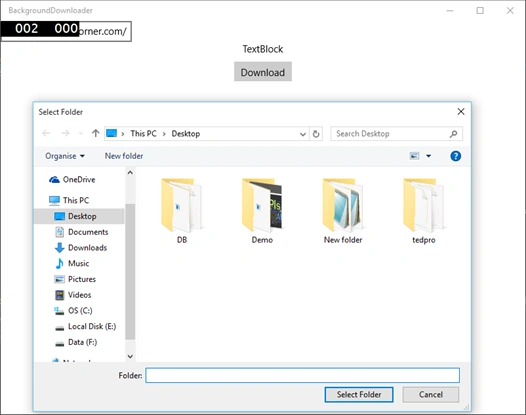
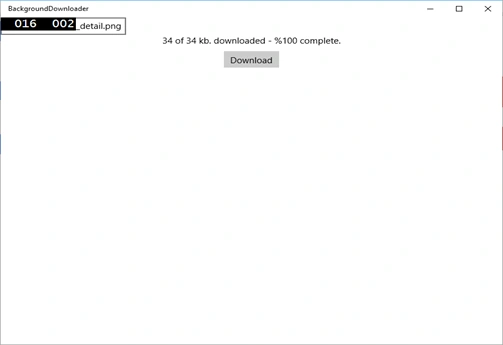


sunil bhoopalamPosted Aug 9, 2018, 11:43 AM
All is Okay, but after downloading the file I am not able identify the fType of file.
Santhakumar MunuswamyPosted Dec 4, 2015, 7:25 AM
Good one
Mukesh KumarPosted Dec 4, 2015, 1:41 AM
Good Share
Mohammed IbrahimPosted Dec 3, 2015, 7:34 PM
nice