

Introduction
Welcome to the world of networking! If you want to become a network administrator or just learn how networks work, you're in the right place. A Cisco switch is a smart device that helps computers and other devices talk to each other in a local network. It sends data to the right place, making the network fast and safe.
With Cisco Packet Tracer, you can practice these skills in a safe, virtual space without using real hardware. This guide will show you the basic steps to set up a new switch, add simple security, and get it ready to work in a network.
What is Cisco Packet Tracer Simulator?
Cisco Packet Tracer is a free tool that helps students and beginners practice networking. One of the first tasks in networking is learning how to set up (configure) a Cisco switch. In this guide, we will use simple steps to configure a switch in Packet Tracer.
Download Link: https://www.netacad.com/resources/lab-downloads
Once you download Cisco Packet Tracer, you can install it and start using it to build virtual networks. You just open the program, choose devices like switches, routers, and computers, and drag them into the workspace. Then, you connect them with cables and click on each device to set it up. It’s a simple way to learn how networks work without needing real equipment.
What is Switch?
A switch is a Networking device that connects computers, printers, and other devices in a network. It helps them send and receive information to the right place. Instead of sending data to every device, the switch sends it only to the one that needs it. This makes the network faster and safer. Switches are used in homes, schools, and offices to keep everything connected.

Step 1. Add a Switch in Packet Tracer
Open Cisco Packet Tracer.
Drag a 2960 switch and a PC to the workspace.
Use a console cable from the PC to the switch for CLI access.
Then, connect a PC to the switch using a copper straight-through cable.
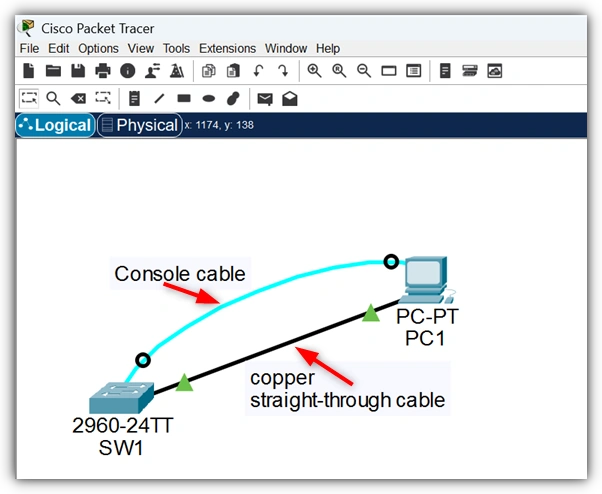
If you use a console cable from the PC to the switch for CLI access for the first time
A console connection is a direct link between your computer and a Cisco switch or router using a console cable. It lets you open the CLI and configure the device even if it has no IP address or network connection.
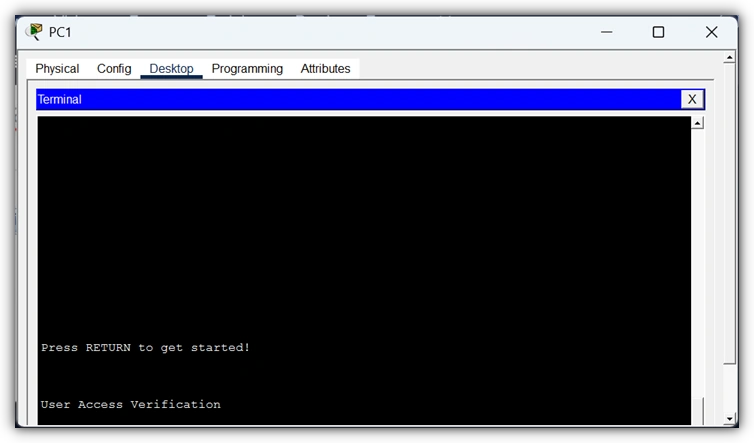
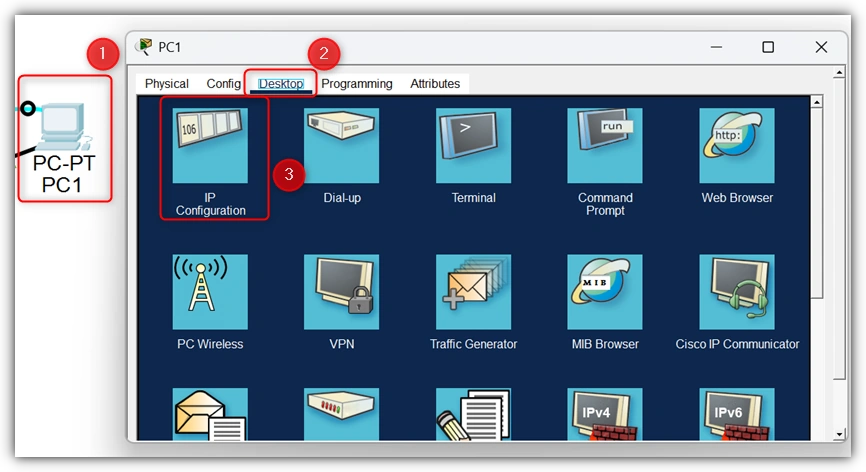
Click on the PC
Go to the Desktop tab
Click on the Terminal window.
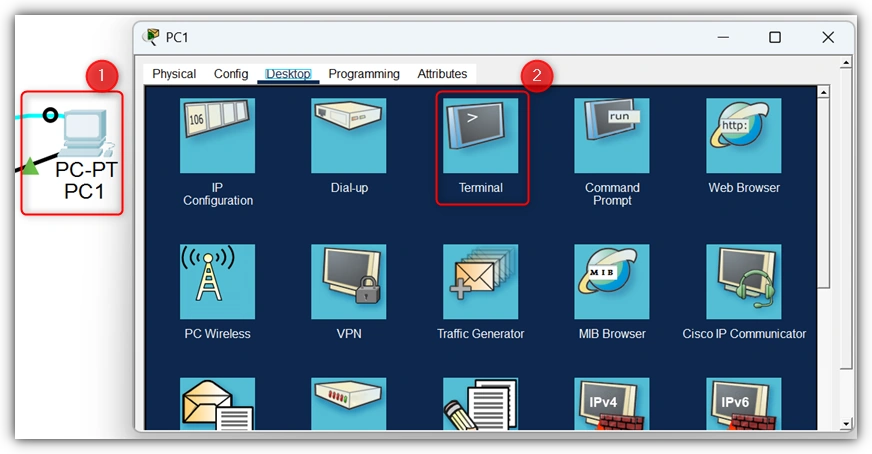
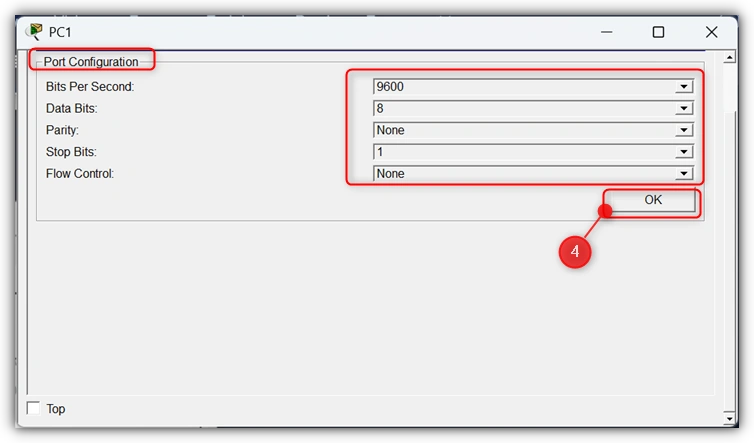
Then you can start the configuration using the following steps and configuration commands.
Step 2. Access the Switch ( Enter Privileged Mode)
Enter Privileged Mode is a mode on a Cisco switch or router that lets you do more than normal. In this mode, you can see all the settings and make important changes. It is also called “enable mode.
Click on the switch.
Go to the CLI tab.
Press Enter to start.

Step 3. Go to Configuration Mode ( Enter Global Configuration Mode )
Global Configuration Mode is a mode in a Cisco switch or router where you can change the main settings of the device. In this mode, you can set things like the device name, passwords, and other important settings that affect the whole switch or router.
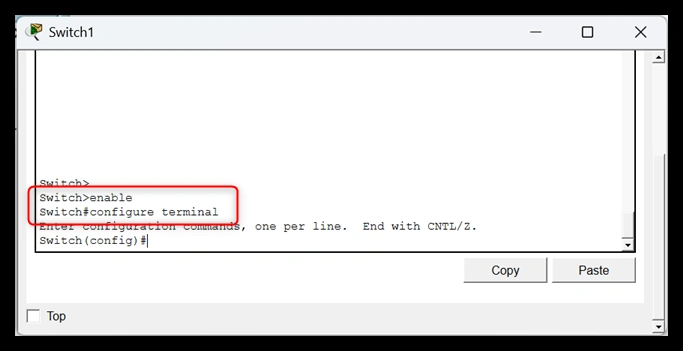
Switch> enable
Switch# configure terminal
Switch(config)#
Step 4. Change the Switch Name
Every Cisco device should have its own name instead of the default "Switch." A name (hostname) helps you know which device you are working on, especially when using remote access like SSH.
Rules for names:
Must start with a letter
Must end with a letter or number
No spaces (use letters, numbers, or dashes only)
Less than 64 characters
Example: naming a switch SW1.
Switch> enable
Switch# configure terminal
Switch(config)# hostname SW1
SW1(config)# 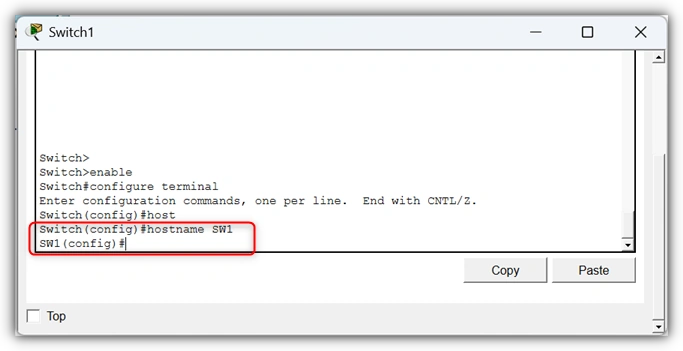
Join the conversation! Your thoughts help the community grow.