

Overview
In this article, we will create a MariaDB database service in Azure and connect MariaDB to a single-page Page Blazor application.
Azure Database for MariaDB is a relational database service in the Microsoft cloud. This service is currently in public preview. Azure Database for MariaDB is based on the MariaDB community edition database engine.
MariaDB Server is one of the most popular database servers in the world. MariaDB turns data into structured information in a wide array of applications, ranging from banking to websites. It is an enhanced, drop-in replacement for MySQL. MariaDB is used because it is fast, scalable, and robust, with a rich ecosystem of storage engines, plugins, and many other tools that make it very versatile for a wide variety of use cases. It’s made by the original developers of MySQL and guaranteed to stay open source.
Please refer to this URL to get more details of MariaDB.
I have already written many articles on Blazor in C# Corner. If you are new to the Blazor framework, please refer to the below articles to get a basic idea of Blazor.
- Single Page Application With Blazor And CosmosDB
- Blazor - CRUD Using PostgreSQL And Entity Framework Core
- Blazor - Connect With Amazon DynamoDB Using AWS SDK
- Blazor - Work With Cassandra API In Cosmos DB
- Localization In Blazor App Using Microsoft.JSInterop
Create Azure database for MariaDB server
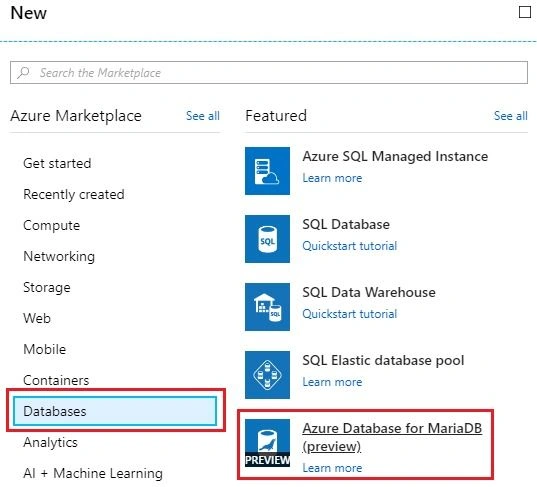
Create new resource -> Databases -> Azure Database for MariaDB (Currently it is in preview)
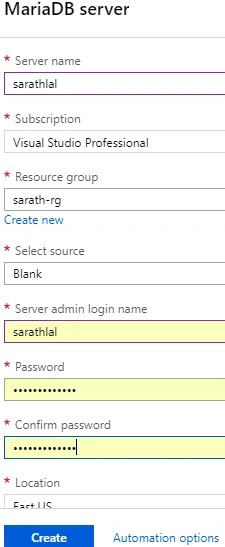
We can give a name to the MariaDB server. Also, choose the resource group name. If you do not have any resource group, you can create a new one. You must give the server admin login name and password.
You can choose the pricing tier. I chose the Basic tier.
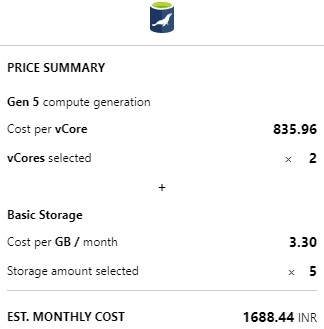
After selecting the pricing tier, you can click the “Create” button to create the DB server. It will take some moments to create the server.
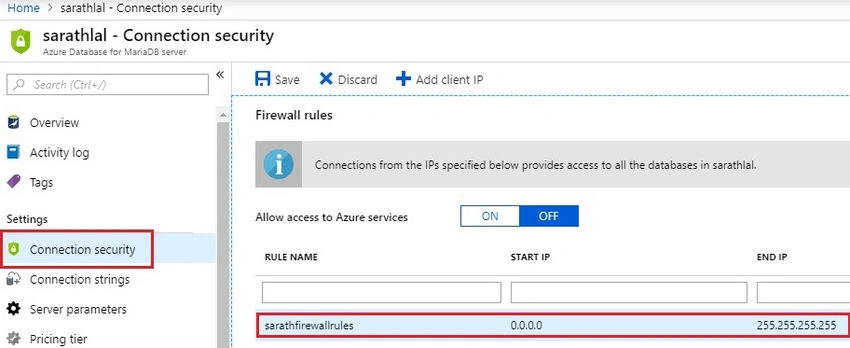
We must add the IP address in Connection security to access MariaDB from outside Azure. You can choose “the Connection security” tab and add the starting IP and Ending IP address. Here I added minimum IP address and maximum IP address. Because my system IP address often changes. But in production, we can give the exact IP address.
Create a database and table in MariaDB
I am using MySQL Workbench to connect MariaDB for creating a Database and Table. Most of the MySQL admin tools also support MariaDB. You can download a free MySQL community edition from this URL.
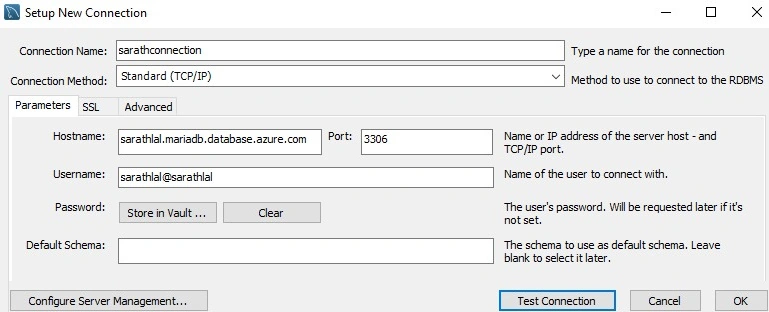
Please give the connection name, hostname, and username in the workbench. You can get the hostname and username from the Azure portal. You can also store the password as Vault. It is fully secured.
We can create a new database and table using Query eEditor Here I am creating an Employee table with five columns.
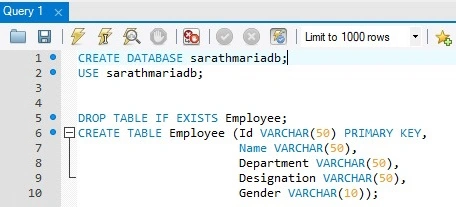
CREATE DATABASE sarathmariadb;
USE sarathmariadb;
DROP TABLE IF EXISTS Employee;
CREATE TABLE Employee (
    Id VARCHAR(50) PRIMARY KEY,
    Name VARCHAR(50),
    Department VARCHAR(50),
    Designation VARCHAR(50),
    Gender VARCHAR(10)
);
We have successfully created a MariaDB server and created one database and table.
Create a new Blazor application
In this article, we will create an Employee data entry single-page application. I am using the free Visual Studio 2017 Community edition for creating a Blazor application.
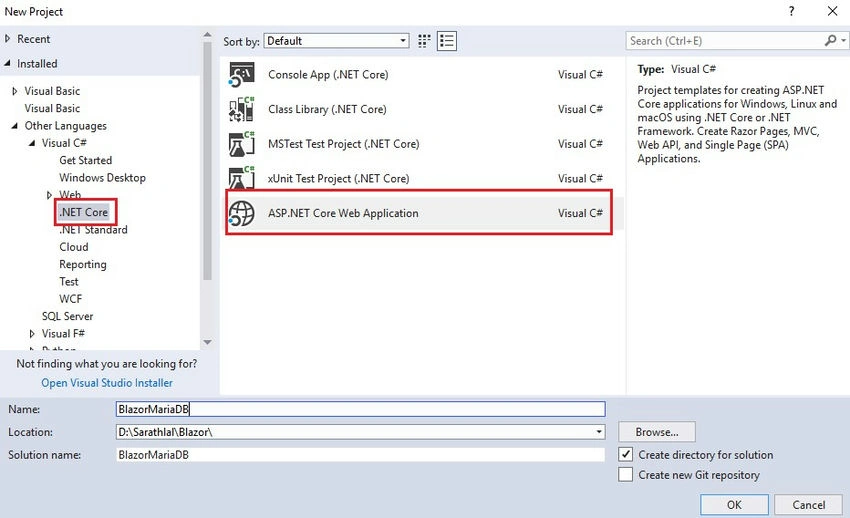
Choose .NET Core -> ASP.NET Core Web Application template
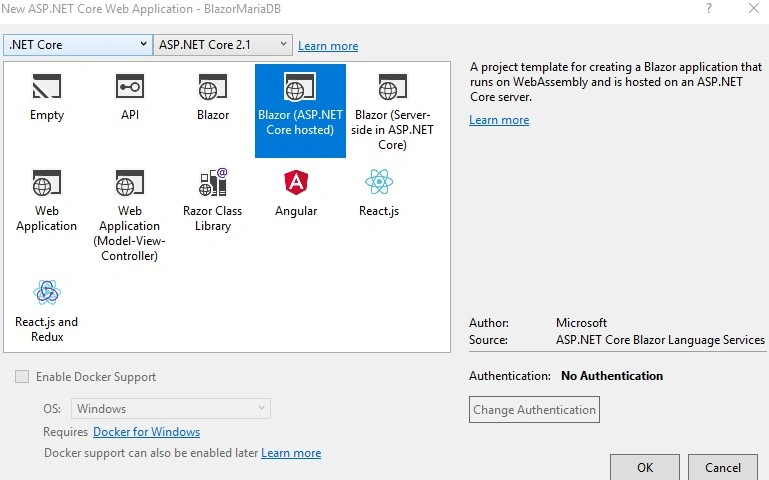
Currently, there are three types of Blazor templates available. We chose the Blazor (ASP.NET Core hosted) template.
Our solution will be ready in a moment. Please note that there are three projects created in our solution - “Client”, “Server” and “Shared”.
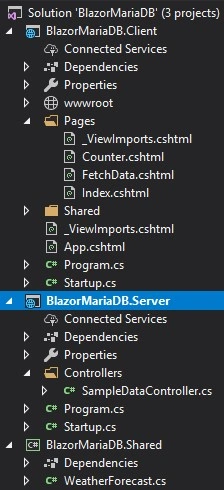
By default, Blazor created many files in these three projects. We can remove all the unwanted files like “Counter. cshtml”, “FetchData.cshtml”, “SurveyPrompt.cshtml” from the Client project and the “SampleDataController.cs” file from the Server project and delete the “WeatherForecast.cs” file from the shared project too.
We can create a Models folder in the “Shared” project and create an Employee class inside this Models folder.
Employee.cs
namespace BlazorMariaDB.Shared.Models
{
    public class Employee
    {
        public string Id
        {
            get;
            set;
        }
        public string Name
        {
            get;
            set;
        }
        public string Department
        {
            get;
            set;
        }
        public string Designation
        {
            get;
            set;
        }
        public string Gender
        {
            get;
            set;
        }
    }
}
As I mentioned earlier MariaDB is developed from (forked) MySQL. We can use MySQL providers to connect MariaDB. NET.
We can install “MySql.Data” NuGet Package in the “Server” project. This package is developed by Oracle corporation

We create a “DataAccess” folder in the “Server” project create Ma ariaDBContext class inside the DataAccess folder and add all the CRUD operations logic inside this class.
We will call the methods in this class from our Controller class later.
MariaDBContext.cs
using BlazorMariaDB.Shared.Models;
using MySql.Data.MySqlClient;
using System;
using System.Collections.Generic;
using System.Data;
using System.Threading.Tasks;

namespace BlazorMariaDB.Server.DataAccess
{
    public class MariaDBContext
    {
        public string ConnectionString { get; set; }

        public MariaDBContext(string connectionString)
        {
            ConnectionString = connectionString;
        }

        private MySqlConnection GetConnection()
        {
            return new MySqlConnection(ConnectionString);
        }

        public async Task<List<Employee>> GetAllAsync()
        {
            List<Employee> list = new List<Employee>();

            using (MySqlConnection conn = GetConnection())
            {
                conn.Open();
                var commandText = @"SELECT Id,Name,Department,Designation,Gender FROM Employee;";
                MySqlCommand cmd = new MySqlCommand(commandText, conn);

                using (var reader = await cmd.ExecuteReaderAsync())
                {
                    while (await reader.ReadAsync())
                    {
                        list.Add(new Employee()
                        {
                            Id = await reader.GetFieldValueAsync<string>(0),
                            Name = await reader.GetFieldValueAsync<string>(1),
                            Department = await reader.GetFieldValueAsync<string>(2),
                            Designation = await reader.GetFieldValueAsync<string>(3),
                            Gender = await reader.GetFieldValueAsync<string>(4),
                        });
                    }
                }

            }
            return list;
        }

        public async Task InsertAsync(Employee employee)
        {
            employee.Id = Guid.NewGuid().ToString();

            using (MySqlConnection conn = GetConnection())
            {
                conn.Open();
                var commandText = @"INSERT INTO Employee (Id,Name,Department,Designation,Gender) VALUES (@Id, @Name, @Department, @Designation, @Gender);";
                MySqlCommand cmd = new MySqlCommand(commandText, conn);

                cmd.Parameters.Add(new MySqlParameter
                {
                    ParameterName = "@Id",
                    DbType = DbType.String,
                    Value = employee.Id,
                });

                cmd.Parameters.Add(new MySqlParameter
                {
                    ParameterName = "@Name",
                    DbType = DbType.String,
                    Value = employee.Name,
                });

                cmd.Parameters.Add(new MySqlParameter
                {
                    ParameterName = "@Department",
                    DbType = DbType.String,
                    Value = employee.Department,
                });

                cmd.Parameters.Add(new MySqlParameter
                {
                    ParameterName = "@Designation",
                    DbType = DbType.String,
                    Value = employee.Designation,
                });

                cmd.Parameters.Add(new MySqlParameter
                {
                    ParameterName = "@Gender",
                    DbType = DbType.String,
                    Value = employee.Gender,
                });

                await cmd.ExecuteNonQueryAsync();

            }
        }

        public async Task UpdateAsync(Employee employee)
        {
            using (MySqlConnection conn = GetConnection())
            {
                conn.Open();
                var commandText = @"UPDATE Employee SET Name=@Name, Department=@Department, Designation=@Designation, Gender=@Gender  Where Id=@Id;";
                MySqlCommand cmd = new MySqlCommand(commandText, conn);

                cmd.Parameters.Add(new MySqlParameter
                {
                    ParameterName = "@Id",
                    DbType = DbType.String,
                    Value = employee.Id,
                });

                cmd.Parameters.Add(new MySqlParameter
                {
                    ParameterName = "@Name",
                    DbType = DbType.String,
                    Value = employee.Name,
                });

                cmd.Parameters.Add(new MySqlParameter
                {
                    ParameterName = "@Department",
                    DbType = DbType.String,
                    Value = employee.Department,
                });

                cmd.Parameters.Add(new MySqlParameter
                {
                    ParameterName = "@Designation",
                    DbType = DbType.String,
                    Value = employee.Designation,
                });

                cmd.Parameters.Add(new MySqlParameter
                {
                    ParameterName = "@Gender",
                    DbType = DbType.String,
                    Value = employee.Gender,
                });

                await cmd.ExecuteNonQueryAsync();
            }

        }

        public async Task DeleteAsync(string id)
        {
            using (MySqlConnection conn = GetConnection())
            {
                conn.Open();
                var commandText = @"DELETE FROM Employee Where Id=@Id;";
                MySqlCommand cmd = new MySqlCommand(commandText, conn);

                cmd.Parameters.Add(new MySqlParameter
                {
                    ParameterName = "@Id",
                    DbType = DbType.String,
                    Value = id,
                });

                await cmd.ExecuteNonQueryAsync();
            }

        }

        public async Task<Employee> FindOneAsync(string id)
        {
            using (MySqlConnection conn = GetConnection())
            {
                conn.Open();
                var commandText = @"SELECT Name,Department,Designation,Gender FROM Employee Where Id=@Id;";
                MySqlCommand cmd = new MySqlCommand(commandText, conn);
                cmd.Parameters.Add(new MySqlParameter
                {
                    ParameterName = "@Id",
                    DbType = DbType.String,
                    Value = id,
                });

                using (var reader = await cmd.ExecuteReaderAsync())
                {
                    if (await reader.ReadAsync())
                    {
                        return new Employee()
                        {
                            Id = id,
                            Name = await reader.GetFieldValueAsync<string>(0),
                            Department = await reader.GetFieldValueAsync<string>(1),
                            Designation = await reader.GetFieldValueAsync<string>(2),
                            Gender = await reader.GetFieldValueAsync<string>(3),
                        };
                    }
                    else
                    {
                        return null;
                    }

                }
            }
        }
    }
}

Rushi MehtaPosted Oct 30, 2018, 11:27 PM
Awesome. Nicely written
Abhishek MishraPosted Oct 30, 2018, 10:48 AM
Awesome. Nicely written