

Blazor Introduction
Blazor is a free and open-source web framework developed by Microsoft, that enables developers to create web apps based on Single Page Application architecture using C# and HTML.
Blazor hosting models
Currently, there are two ways to host Blazor applications,
- Server-side: In this hosting model the application is executed on the server from within an ASP.NET Core app. UI updates, event handling, and JavaScript calls are handled over a SignalR connection. This execution modal is available with the current stable version of .Net Core (3.1) and the project template to create the Blazor Server application is released with Visual Studio 2019 16.4.
- Web assembly: In this hosting modal the application is executed client-side in the browser. The Blazor app, its dependencies, and the .NET run-time are downloaded to the browser. The app is executed directly on the browser UI thread. UI updates and event handling occur within the same process. This execution modal is available with a preview version of .Net Core.
Blazor project templates
As mentioned above, the project template to create the Blazor Server project is by default available with Visual Studio 2019 16.3 and above versions. To create a Blazor Server project open Visual Studio but if you want to create a Blazor Webassembly project you will have to execute the following command in the command prompt (or terminal window if you are on Mac)
dotnetnew -i Microsoft.AspNetCore.Blazor.Templates::3.1.0-preview4.19579.2
After executing this command you will get the following three project templates,
Blazor.Server
Blazor applications created using this template support Blazor.Server execution model defined above, the steps to create a Blazor application using this template are,
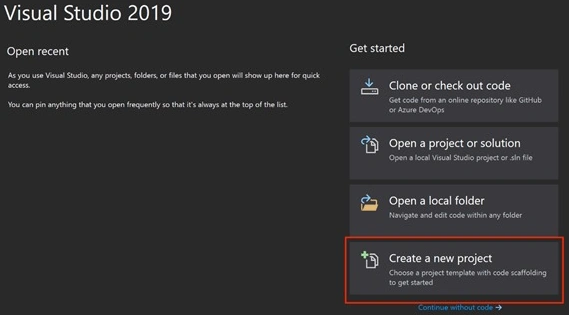
Step 1. Open Visual Studio 2019 to see the following start screen and then click on "Create New Project" as highlighted in the screenshot.
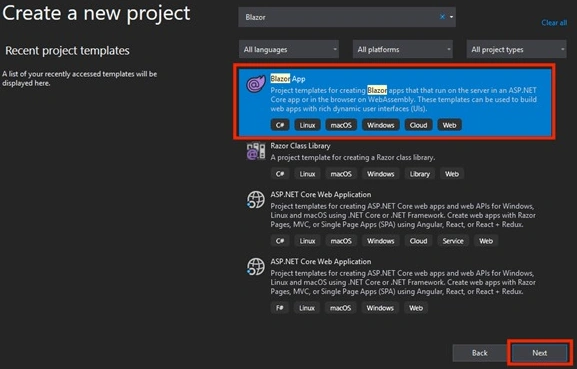
Step 2. On the Create a new project window, enter or type Blazor in the search box. It will show the Blazor App project on top, click on that and then click Next as shown below. screenshot.
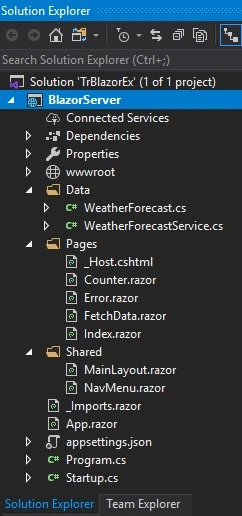
Step 3. Next, you will get the below screen, mention the name of the project and solution, their path, and click on Create as highlighted.

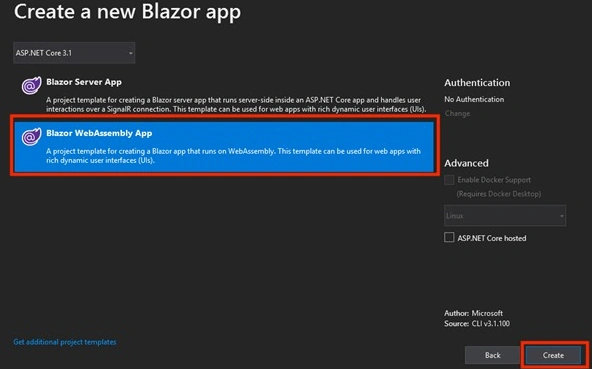
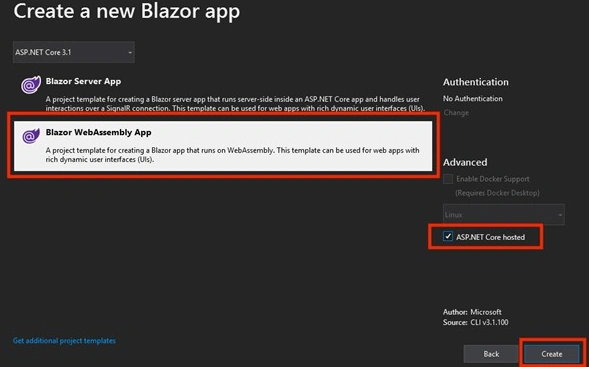
Step 4. Next, you will get a project template selection screen where you will see the Blazor. Server as an option ( and Blazor WebAssembly if you are following these steps after executing the command mentioned above). Select Blazor Server and click on the Create button.



Sourav Kumar DasPosted Dec 19, 2019, 5:09 AM
Nice and useful article Sir.
Rushi MehtaPosted Dec 19, 2019, 4:09 AM
Great start to learn Blazor
Shahrukh AlamPosted Dec 19, 2019, 4:02 AM
Awesome sir
Chittaranjan SwainPosted Dec 18, 2019, 11:49 PM
Nice article.
Ankur MistryPosted Dec 18, 2019, 11:25 AM
Nice one, thank you so much for sharing