

Preface
This article about getting accustomed to serverless functions will help a developer to learn what Azure Functions are, how to create an Azure Function from Visual Studio, and how to publish and test the function on Azure. This article will focus on getting familiar with Blob and Queue Storage that Azure provides.
Learning Serverless Azure Functions
Following are the two articles to completely cover HTTP triggered Azure Functions, Queue triggered Azure Functions, and Blob triggered Azure Functions.
- Creating Azure Functions in Visual Studio 2017
- Mastering Blob Triggers and Queue Storage Triggers
Prerequisites
The readers of this article should first go through the article of learning Azure Functions, i.e., Creating Azure Functions in Visual Studio 2017. We’ll start exactly where we left in that article.
Introduction
In the last article of learning Azure Functions, we learned about creating an Azure account, and setting up a development environment to write HTTP triggered Azure Functions. We tested the functions locally in Visual Studio 2017 and then published the function to Azure and tested the published function via Postman. We also explored how to debug the Azure function in a local development environment and not only this we also explored how to debug a pre-compiled deployed Azure Function on the Azure portal in Visual Studio. The case study that we took was an end user making a credit card application and our function acknowledging it by just returning a dummy text with applicant’s name saying “Hi XYZ, your application is accepted”. In this article that is the continuation of the last article, we’ll learn how to take that credit card application request and put that into a Queue function and then into the Blob storage. We’ll create a few more Azure functions to take care of this functionality. We’ll introduce a business logic which decides whether the application in the queue should be accepted or rejected and accordingly put the application result in Blob storage. So, we'll learn how to create Queue triggers, how to create Blob output bindings, and Blob storage triggers.
Azure Storage
The Azure Storage services consist of various properties. The first one is Blob storage. Blobs are basically like individual files. Blob storage can store log files, images and word documents as well for e.g. and blobs are stored inside blob containers. Blob containers could be imagined like file folders. The stored blobs could be accessed via URL as a REST endpoint and could also be accessed from code. Another storage service is Azure Queue storage. An Azure Queue can be created to send and receive messages. The maximum allowed size of an individual queue item is 64 KB, so the item in the queue should be less than this size. Azure Queues could be used to create processing pipelines.
Azure also provides Azure table Storage that is a structured NoSQL data store, which means it has a schema-less design. Azure Table Storage is much more flexible than other traditional relational data models. The schema-less design can store information like device information, metadata or address books. Another one is Azure Cosmos DB which offers several additional features over and above Azure Table storage, for example, it was designed from the ground up to support the global distribution of data. Azure Storage also includes disk storage and file storage.
Azure Storage Emulator
The Azure Storage Emulator offers local development machine emulation for Azure blob services, Azure Queue services, and Azure Table services. This means that we can develop and test our functions that use Azure Storage locally without needing a network connection. When we're using the local emulator, we're not reading or writing anything to Azure Storage in the cloud, which means we're not incurring any transaction costs during development. There are several ways to install the Azure Storage Emulator. First off is as part of the Azure SDK installer, and there's also a standalone installer that you can find on Microsoft's website.
Adding Azure Queue Storage
We’ll use the same application that we developed in the last article and start from there. We’ll try to write the received credit card application to queue storage. So, open the Visual Studio and the solution that we developed in the last tutorial. Make sure the Azure Storage Emulator installed on your machine is running as described in the following steps.
- Open the Azure Storage Emulator.
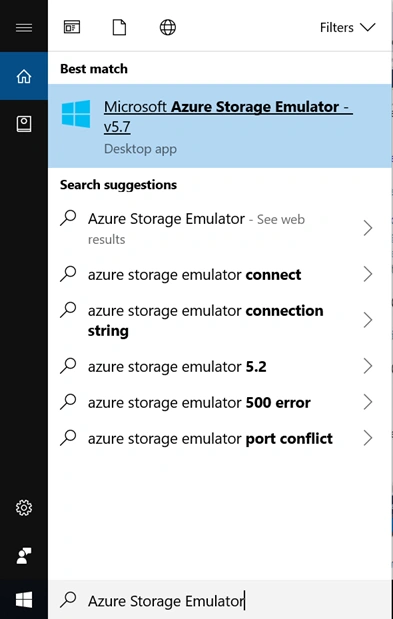
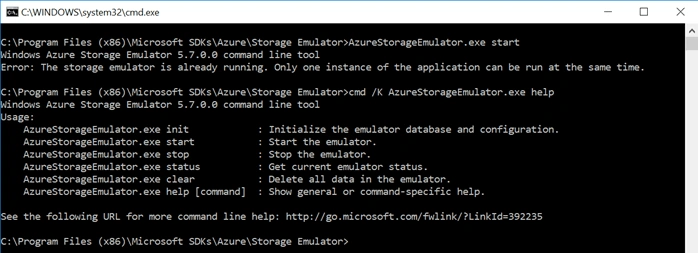
- Once successfully launched, it means it is running.
- Now in the existing Run method of ApplyForCC, add a Queue attribute named “ccApplication” or the name of your choice. In the method-body read the CCApplication from the request body and add the same to the ccApplicationQueue and return the response back. So, here we are fetching the CCApplication from the body of the request and adding it to our newly defined queue.
- using System.Linq;
- using System.Net;
- using System.Net.Http;
- using System.Threading.Tasks;
- using Microsoft.Azure.WebJobs;
- using Microsoft.Azure.WebJobs.Extensions.Http;
- using Microsoft.Azure.WebJobs.Host;
- namespace LearnAzureFunctions
- {
- public static class ApplyForCC
- {
- [FunctionName("ApplyForCC")]
- public static async Task<HttpResponseMessage> Run(
- [HttpTrigger(AuthorizationLevel.Function,
- "post",
- Route = null)]HttpRequestMessage req,
- [Queue("ccApplication")] IAsyncCollector<CCApplication> applicationQueue,
- TraceWriter log)
- {
- log.Info("C# HTTP trigger function processed a request.");
- CCApplication ccApplication = await req.Content.ReadAsAsync<CCApplication>();
- log.Info($"Received Credit Card Application from : {ccApplication.Name }");
- await applicationQueue.AddAsync(ccApplication);
- return req.CreateResponse(HttpStatusCode.OK,
- $"Application received and submitted for {ccApplication.Name}");
- }
- }
- }
- Make sure in your local.settings.json file, the following should be the setting.
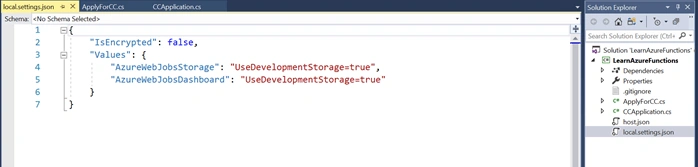
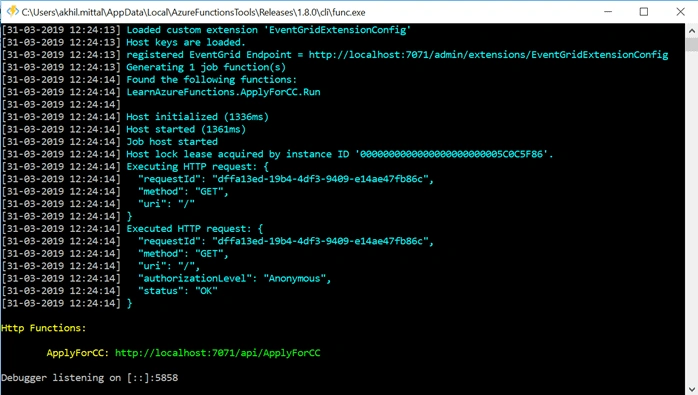
- Run the application. The console window will be launched.
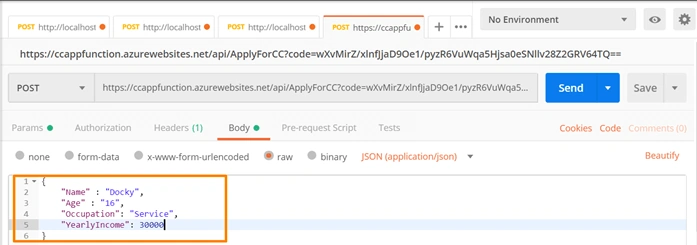
- Now, head back to Postman and make the request to the local URL for the function with the JSON in body tag, as shown in the last article.
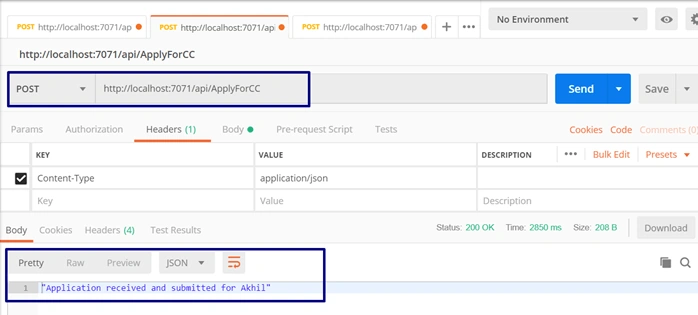
- Once the response is received, open the cloud explorer in Visual Studio and under Local-> Storage Accounts-> Development->Queues, you’ll find one new queue created with the name of “ccapplication”, i.e., the name we provided to the queue attribute in Run method.
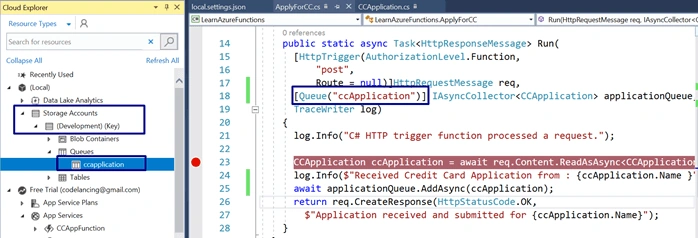
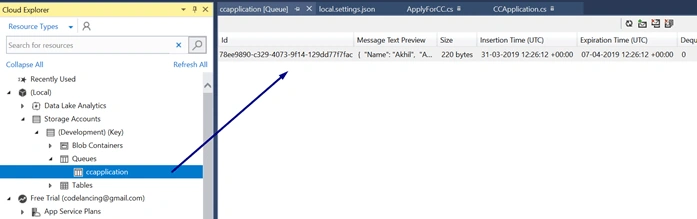
- Double click the queue and we see the details that were passed as a JSON object in the request. The queue is created, and the details are logged as a message in the queue.
Create Storage Account in Azure Portal
We have seen how to use the Azure Storage Emulator when we're working with functions. Let's see how we can set up a test storage account in the cloud rather than relying on the emulator. The first thing we're going to do is head over to the portal and create a new storage account for development and test purposes.
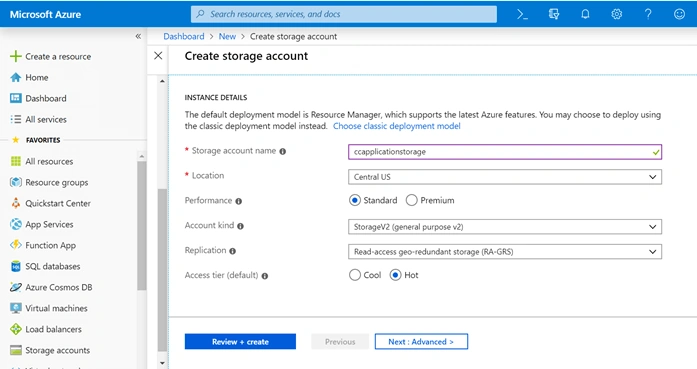
- Head back to the Azure portal, click on Create Resource and select Storage Account.
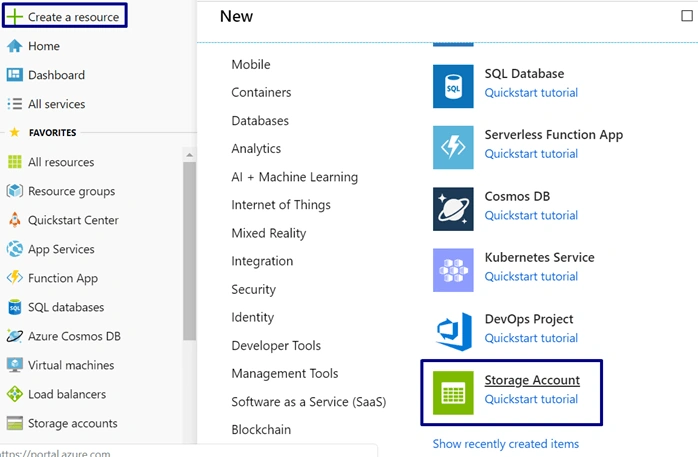
- Provide the Storage account name, location, account kind. I chose the general purpose v2 kind. Just review and create the account.
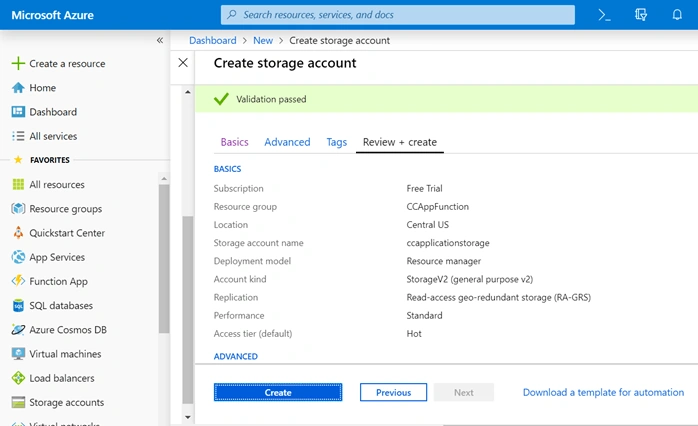
- Once the validation passes, hit the Create button to create the account.
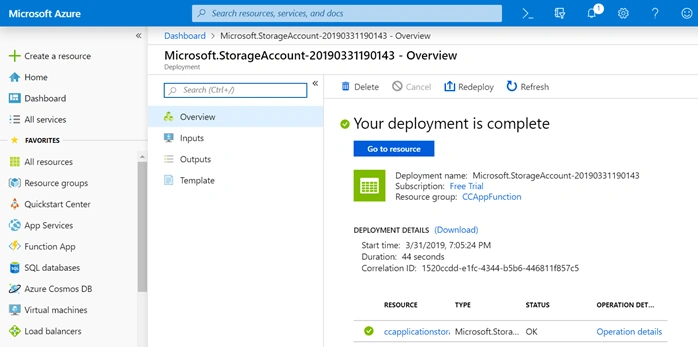
- After which, the deployment would be completed, and you’ll see your storage account created.
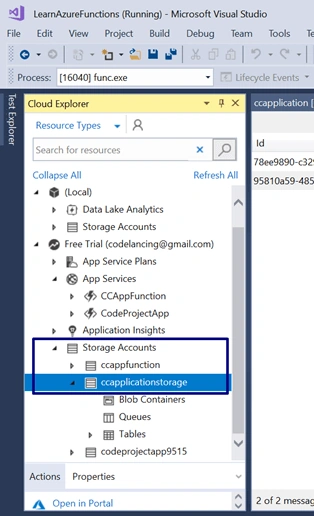
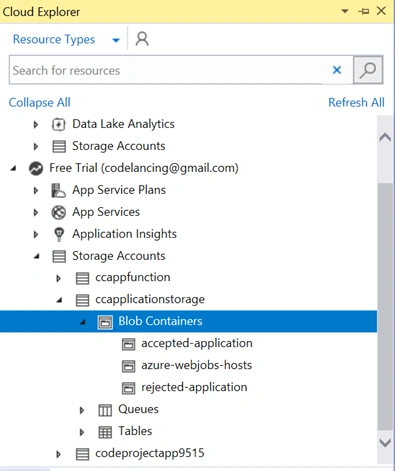
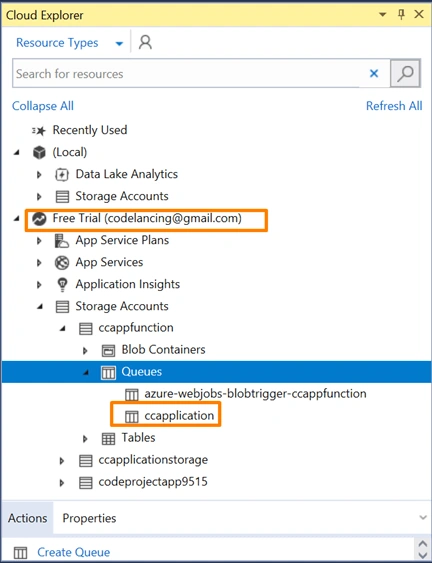
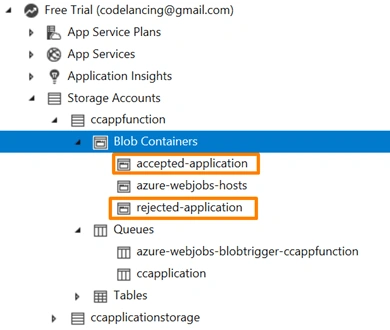
- Go back to cloud explorer in Visual Studio and under the Azure account (not the local development one), check Storage Account and you see the storage account name showing there. This storage account lists the Blob containers, Queues and Table storage as the type of storage containers.
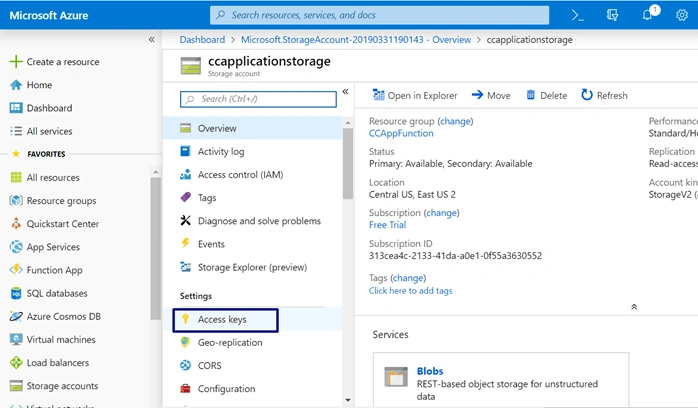
- In the Azure portal, in your storage account, click on Access keys to see the access keys of your account.
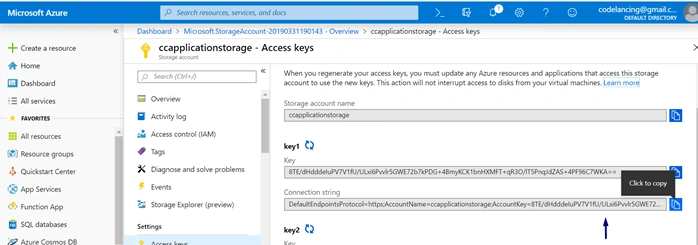
- Copy the access key shown in key1. We’ll use this key to access the storage account from the local environment and write messages to the queue created in storage account now and not in the local environment.
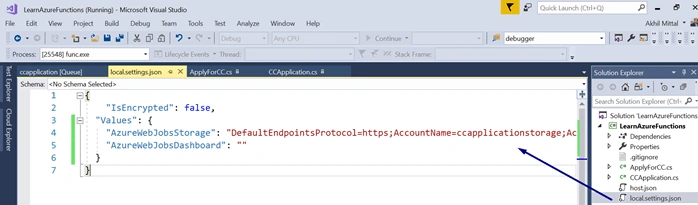
- Paste the copied key in the “AzureWebJobsStorage” field as shown in the following image in the local.settings.json file.
- Now again make a request to the ApplyForCC function. We are expecting here the queue to be created on the storage account and not in the local and the message written to that queue.
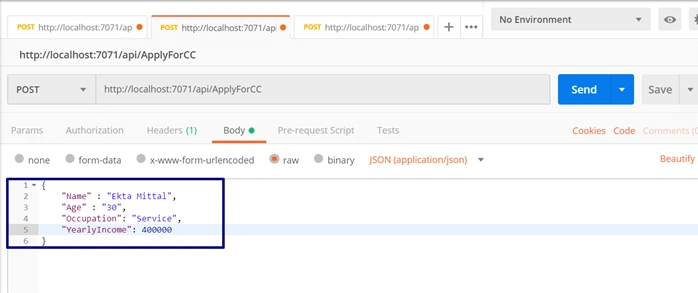
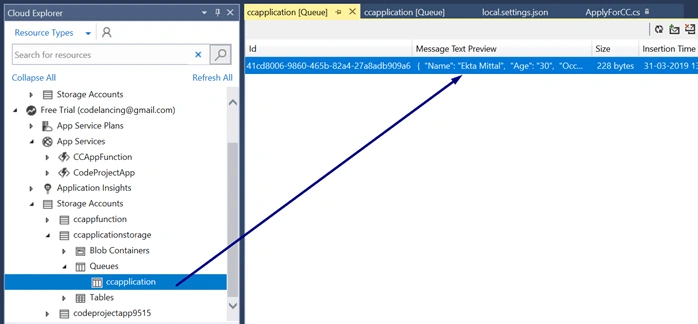
- Once you get the response for the applicant named “Ekta” as shown in the last step, go to cloud explorer and refresh the storage account created on the Azure portal.
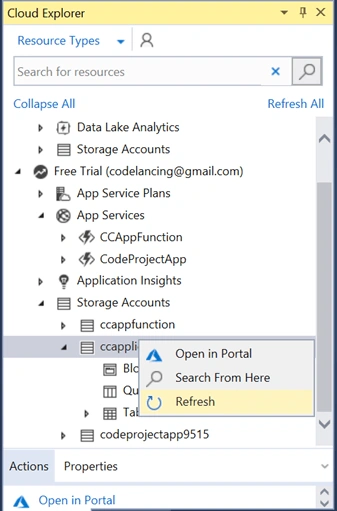
- We see ow the queue has been created under this storage account and the request is logged as a message in this queue.
Queue Trigger Azure Functions
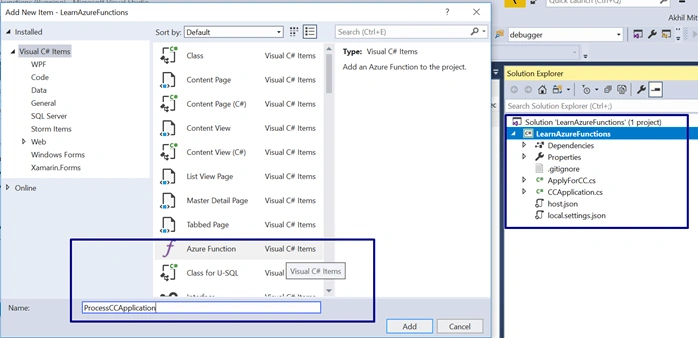
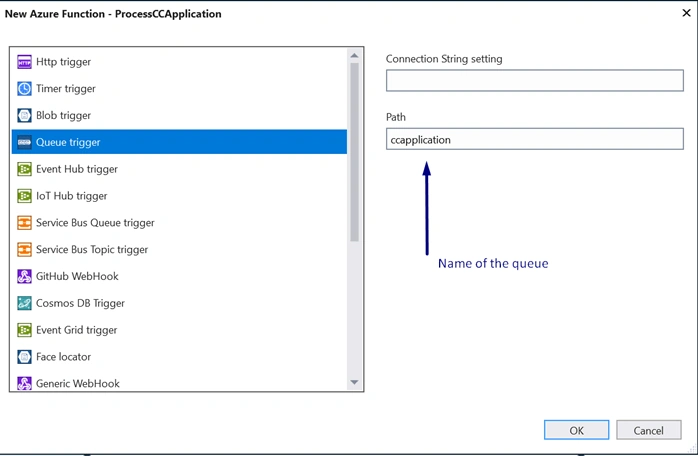
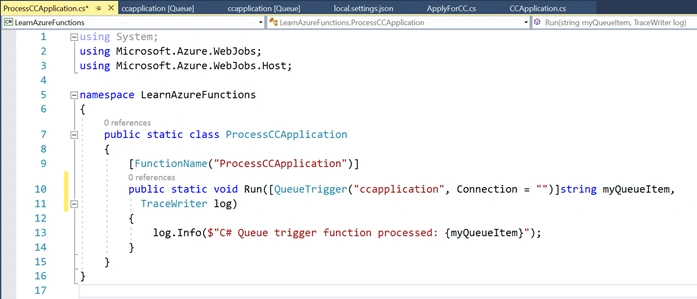
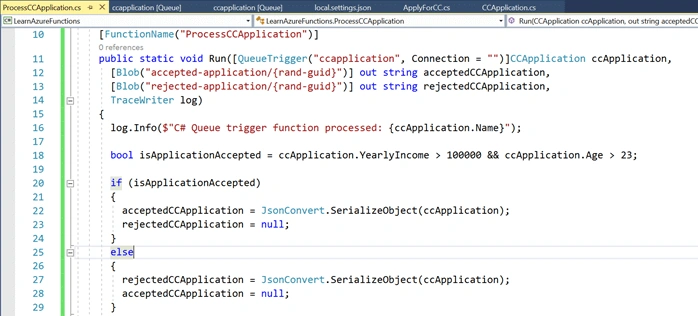
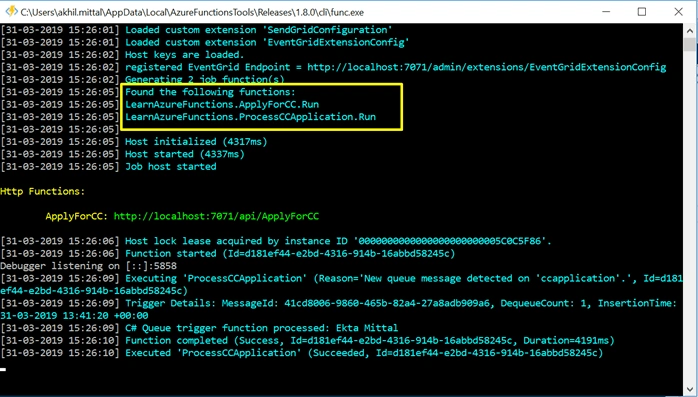
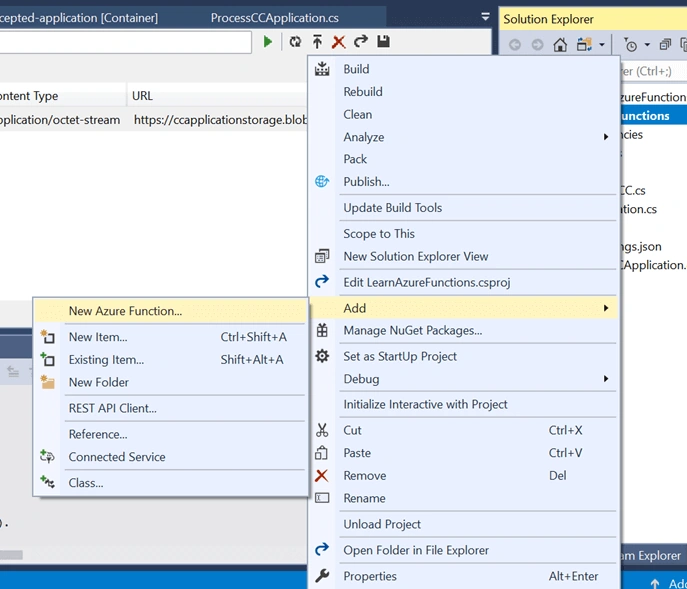
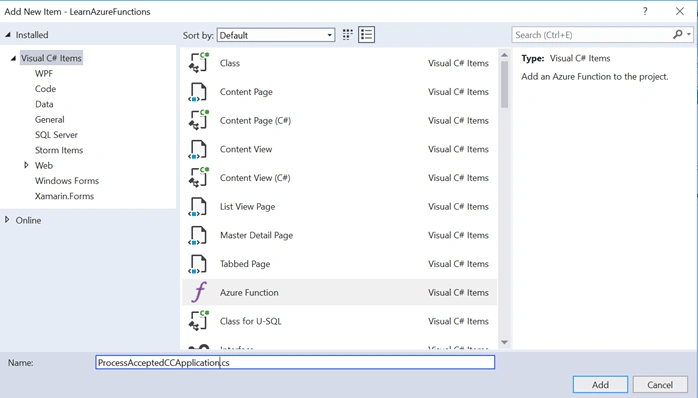
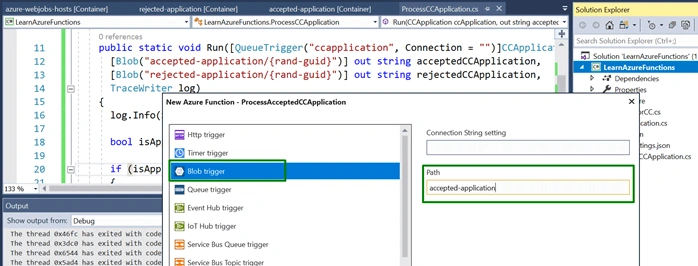
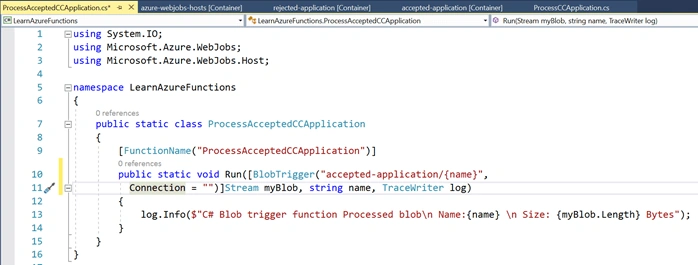
Time to process the messages received in the queue. To achieve that we’ll create a queue trigger, where if the message comes in a queue the function will be triggered to further process the message. We’ll again create an Azure Function but this time not HTTP trigger but a Queue trigger function.

Join the conversation! Your thoughts help the community grow.