

Before reading this article, please go through the article given below.
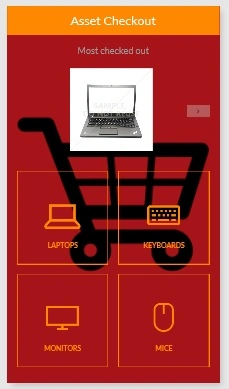
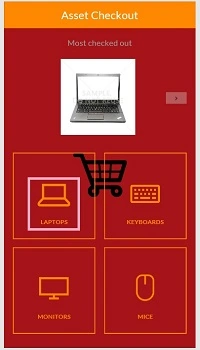
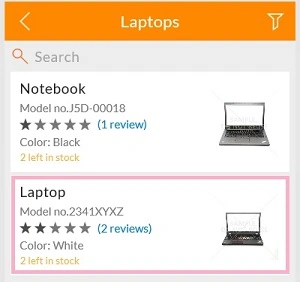
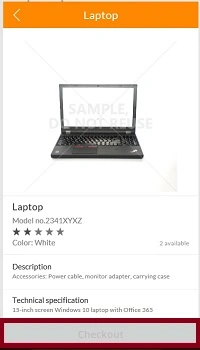
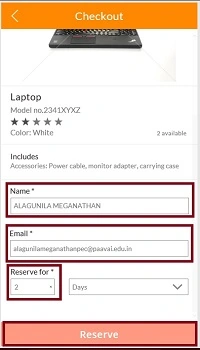
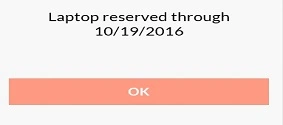
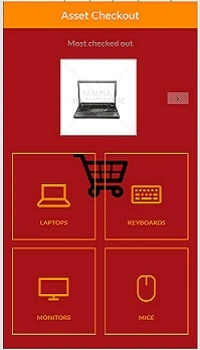
The "Asset Checkout" app is one of the templates in Microsoft PowerApps. In this template, we can reserve the products, such as laptop, keyboard, mouse, etc.
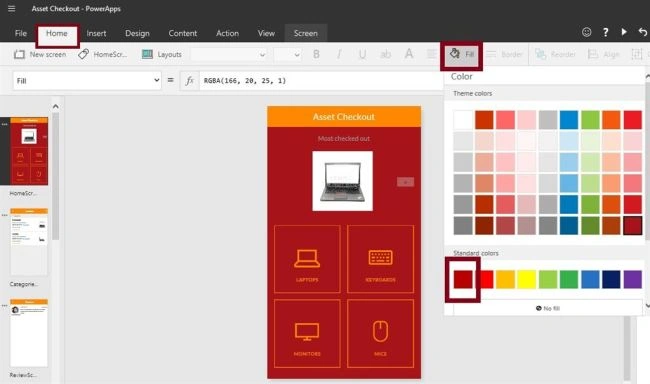
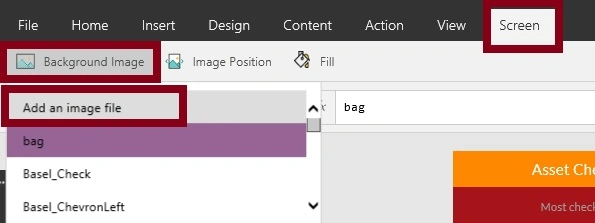
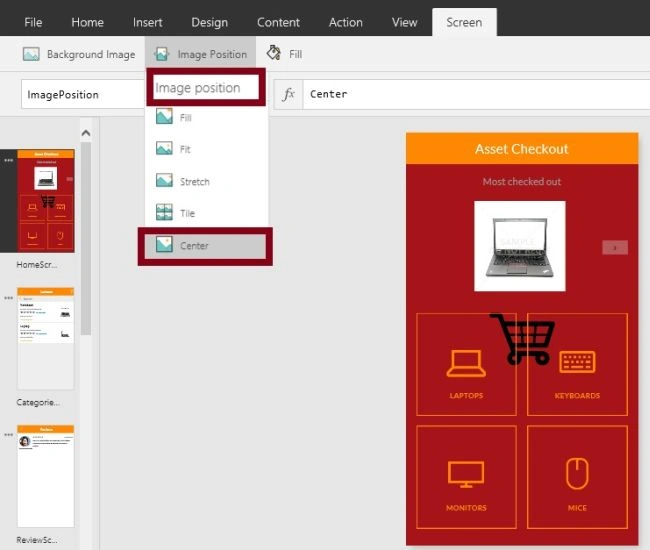
You can edit whatever data you need. You are able to change the color of the screen, change the themes of the app, set the background images, add the screens, etc.
More importantly, you can start building the Asset Checkout apps without even writing a single line of code - using PowerApps.
Developer Requirement
- Download PowerApps from the Windows Store.
Follow the below steps to build a PowerApp using the Asset Checkout Template.
Step 1. Log into the PowerApps.
After downloading the PowerApps from the Windows Store, we need the Microsoft-related organization’s login ID (MSDN, Microsoft, Skype, Office 365, etc.,), to log in to it.
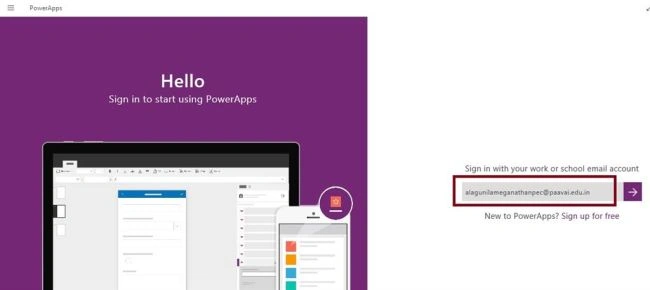
Step 2. Create a new app in PowerApps.
After successful login, we see the Dashboard. There, click on the New button.
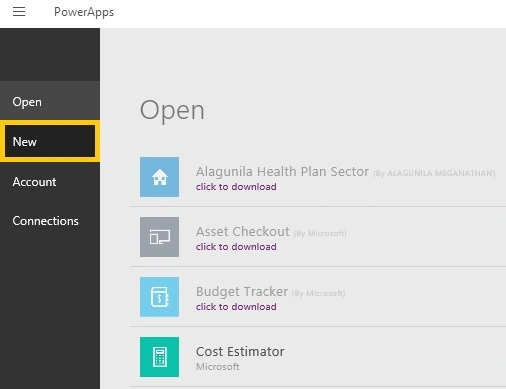
Step 3. Choose the template.
Now, choose the template.
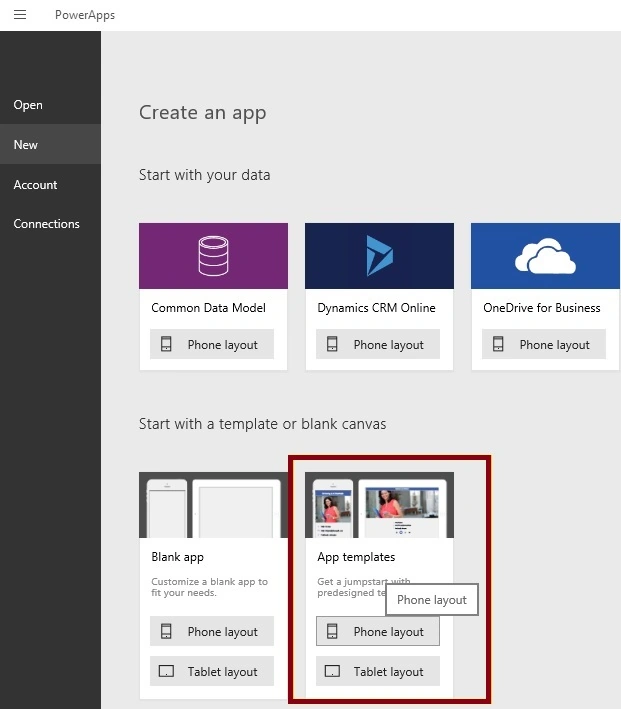
You can see, there are a number of templates displayed on the screen. Click on the Asset Checkout Template and click "Use".
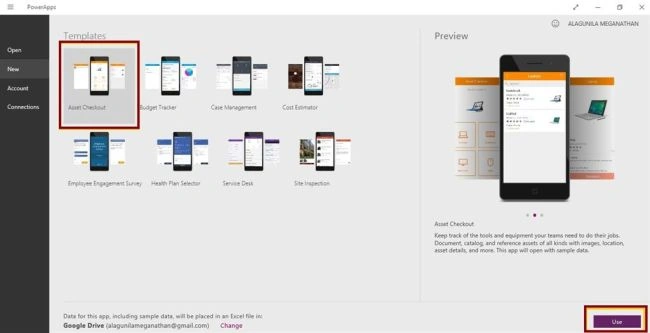
Step 4. Designing the app.
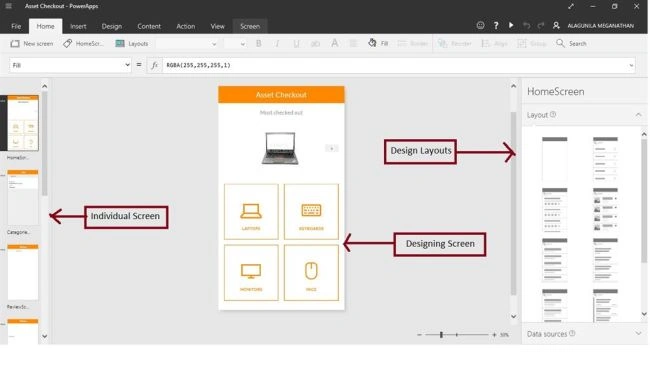
Now, let's start designing the app. On the left side, we can see individual screens for changing our data in templates, while on the right side, there is the list of Layouts. At the top, there is a Formula bar where you can see the Properties of the screen.
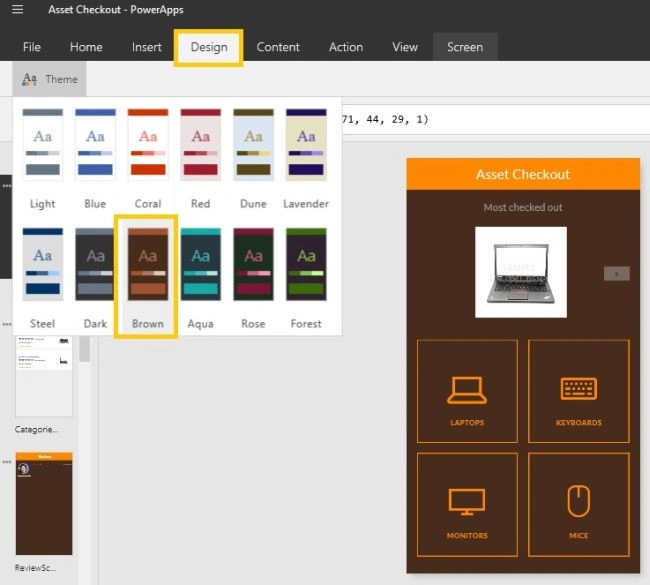
Change the Theme
If you want to change the theme of the app, just go to the Design tool and change the theme. It will reflect on all the screens.
Ehab AbuPosted Jun 10, 2020, 12:57 AM
Thanks! but where is data saved? and how can manage it by change stock availability??
Elayaraja APosted Aug 25, 2018, 6:44 AM
Nice, expecting Attachment with Screenshots. Thanks in advance.
RajaPosted Oct 20, 2016, 5:02 AM
Good One.....
Madhanmohan DevarajanPosted Oct 19, 2016, 11:06 AM
Good one. Power apps is going to open doors for the non-programmers to build their own app.