

Overview
Welcome to the Power Platform with AI series. During this entire series, we will talk about one of the important components of AI Builder which is – “Form Processing”.
You are reading the Fourth part of this article series.
I have divided this entire series into the following parts,
Use Case
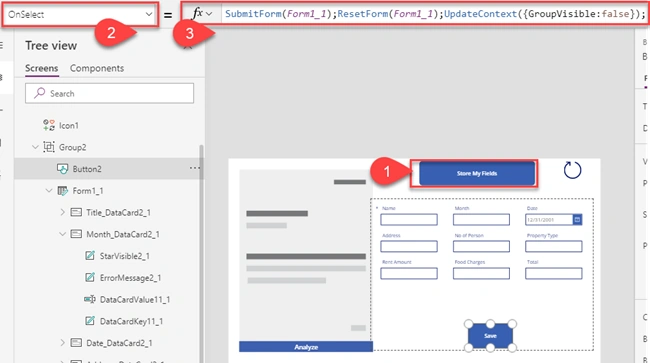
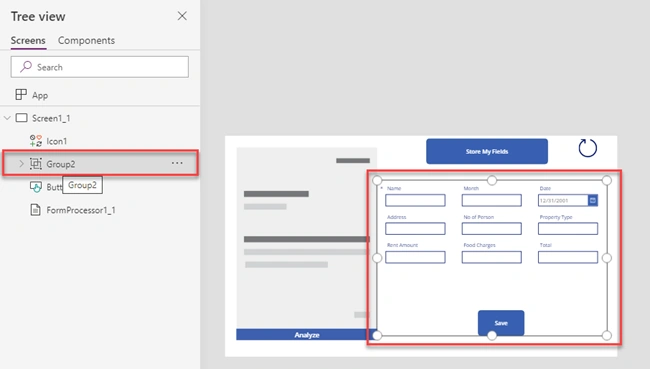
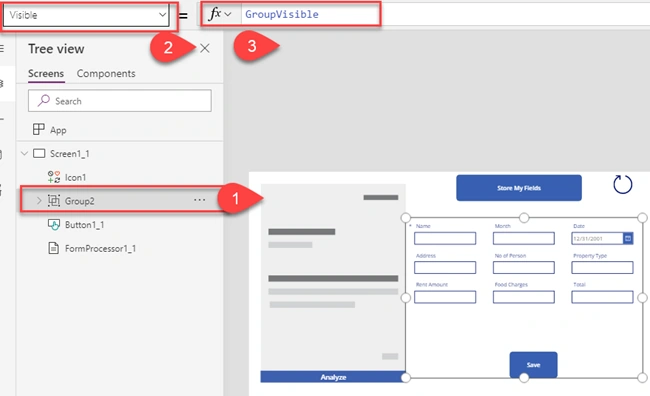
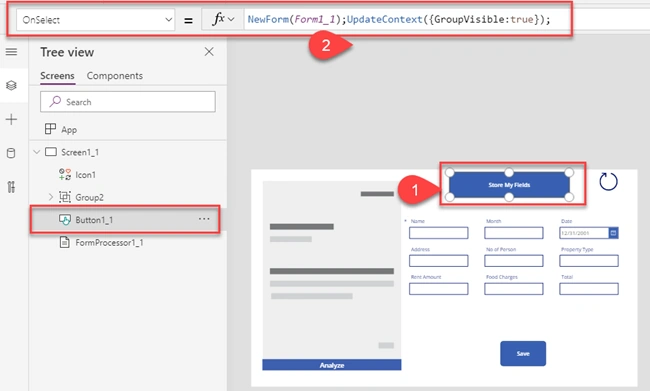
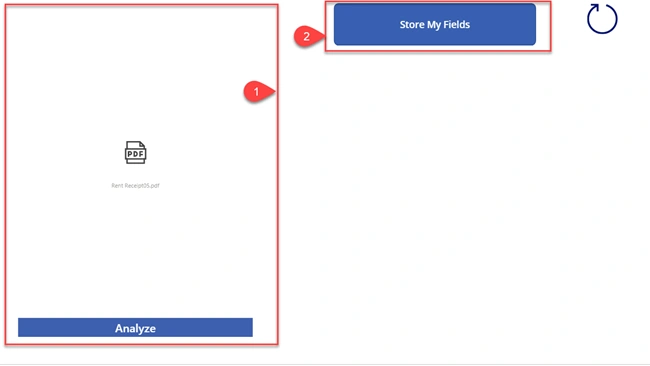
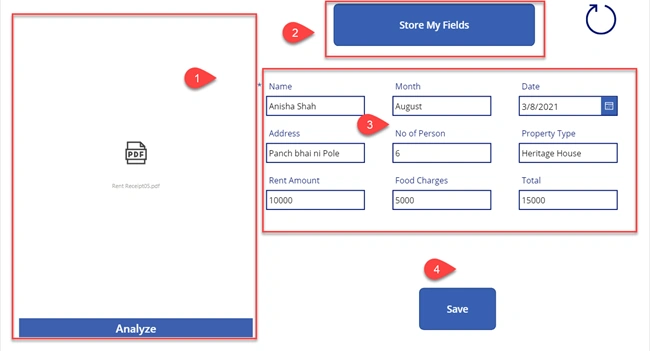
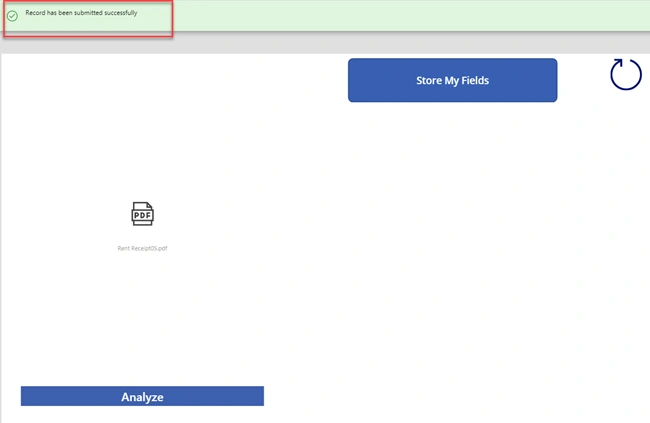
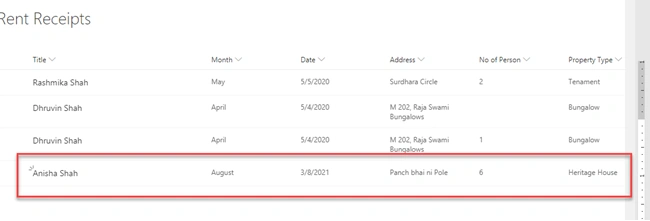
During this article, we will check how we can consume our trained AI model and build a PowerApps Canvas App which scans the document and retrieves the fields from the document. The retrieved field will be pre-populated in the Power Apps form. Once the user will click on save all the fields they will be stored on the SharePoint list.The same article is available in vLog.
So, now let’s get started!
Build a list Schema
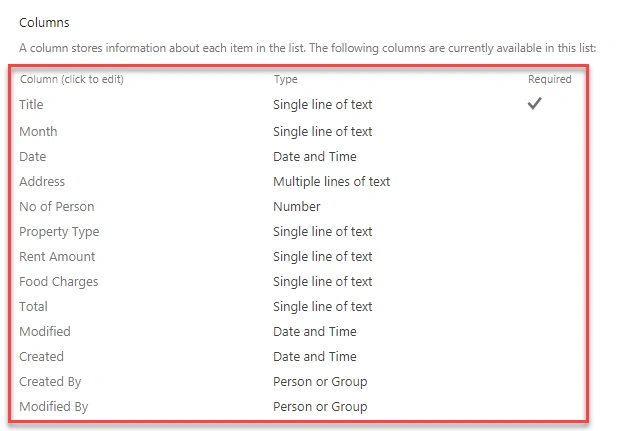
We have created a SharePoint list named “Rent Receipts”. Below is the list schema for the same.
Build a Power Apps Canvas App
- Open your Power Apps Canvas Screen.
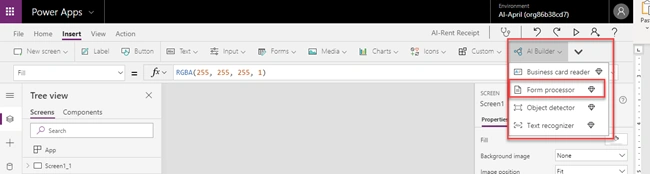
- Go to Insert menu, and expand AI Builder, select Form Processor.
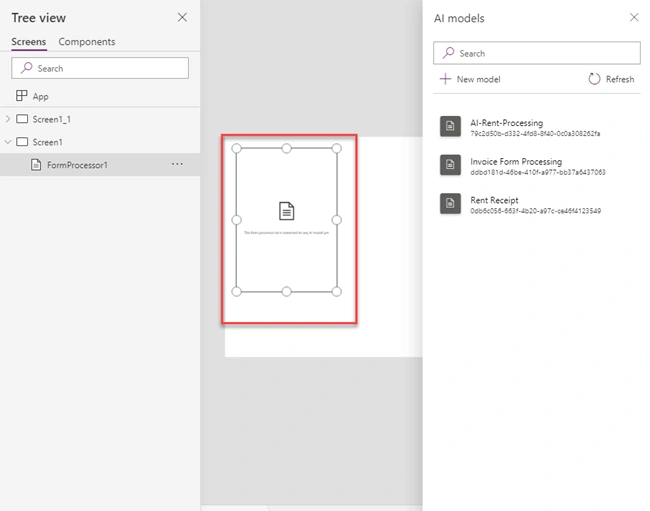
- This will add one Form Processor control on screen. Right side shows available AI models that we have trained in Article 1 to 3.
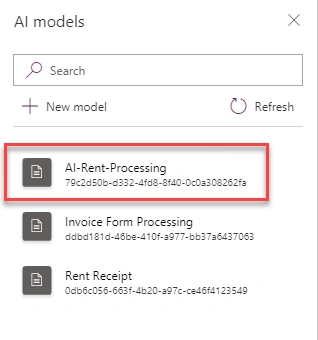
- Select “AI-Rent-Processing” model that we have developed.
- Create a new SharePoint Form.

Satyajit PaulPosted Jul 1, 2021, 9:12 AM
Amazing article!
Love ThakkerPosted Jun 14, 2021, 12:06 AM
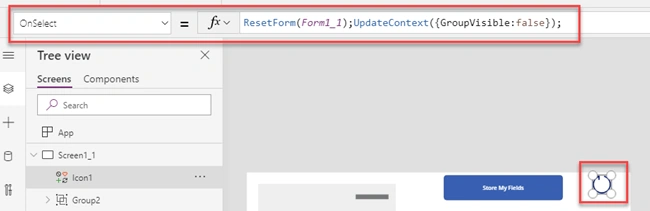
Is there any way to reset the form processing control?