

Introduction
This article demonstrates how to build a dynamic reordering feature inside a Power Apps Gallery where users can reposition items using Up and Down arrow icons. Reordering records is often required in business applications such as navigation menus, task prioritization, or configuration panels, where the sequence of items matters. Instead of manually changing values, users can easily modify the order with a single click, and the gallery will automatically refresh based on the updated sequence.
Prerequisites
Before implementing this , ensure the following:
A Canvas Power App with a Gallery control connected to your data source.
A Data source such as SharePoint, Dataverse
A Number type column named " Order " in the data source to store item sequence.
If it does not exist, create it first - it is mandatory for reordering.
Below are the steps to dynamic record reordering in PowerApps Gallery:
Step 1. Sort Gallery Using Order Column
Set the Items Property of the Gallery:
Sort(Activities,Order,SortOrder.Ascending)Step 2. Add Arrow Icons
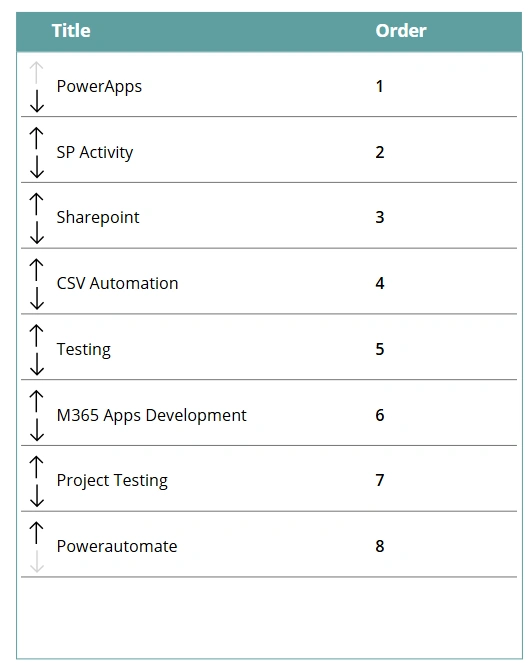
Insert Up and Down arrow icons inside the gallery.
Step 3. Move an Item Up
Add below logic in OnSelect property of Up Arrow:
UpdateContext({varCurrentOrderNumber: ThisItem.Order});
UpdateContext({varPreviousOrderNumber: ThisItem.Order - 1});
UpdateContext(
    {
        varPreviousRecord: First(
            Filter(
                Activities,
                Order = varPreviousOrderNumber
            )
        )
    }
);
If(
    !IsBlank(varPreviousRecord),
    UpdateIf(
        Activities,
        ID = varPreviousRecord.ID,
        {Order: varCurrentOrderNumber}
    );
    UpdateIf(
        Activities,
        ID = ThisItem.ID,
        {Order: varPreviousOrderNumber}
    )
);
Refresh(Activities);
UpdateContext({varPreviousOrderNumber: Blank()});
UpdateContext({varCurrentOrderNumber: Blank()});
Step 4. Move an Item Down
Add below logic in OnSelect property of Down Arrow:
UpdateContext({varCurrentOrderNumber: ThisItem.Order});
UpdateContext({varNextOrderNumber: ThisItem.Order + 1});
UpdateContext(
    {
        varNextRecord: First(
            Filter(
                Activities,
                Order = varNextOrderNumber
            )
        )
    }
);
If(
    !IsBlank(varNextRecord),
    UpdateIf(
        Activities,
        ID = varNextRecord.ID,
        {Order: varCurrentOrderNumber}
    );
    UpdateIf(
        Activities,
        ID = ThisItem.ID,
        {Order: varNextOrderNumber}
    )
);
Refresh(Activities);
UpdateContext({varNextOrderNumber: Blank()});
UpdateContext({varCurrentOrderNumber: Blank()});
Step 5. Disable Top & Bottom Items Arrow
We will disable the Up arrow for the first record and the Down arrow for the last record in the gallery.
Up Arrow - DisplayMode Property
If(
    ThisItem.Order = First(
        Sort(
            Activities,
            Order,
            SortOrder.Ascending
        )
    ).Order,
    DisplayMode.Disabled,
    DisplayMode.Edit
)
Down Arrow - DisplayMode Property
If(
    ThisItem.Order = Last(
        Sort(
            Activities,
            Order,
            SortOrder.Ascending
        )
    ).Order,
    DisplayMode.Disabled,
    DisplayMode.Edit
)
Conclusion
By completing these steps, you can easily reorder gallery items in ascending order as users want.
Join the conversation! Your thoughts help the community grow.