Copilot Studio lets you create conversational agents that don’t just “chat” — they can also collect structured data using Adaptive Cards. Adaptive Cards are reusable, JSON-based UI blocks (inputs, dropdowns, date pickers, buttons) that show inside chat, so users can submit information in a clean form instead of typing everything manually.
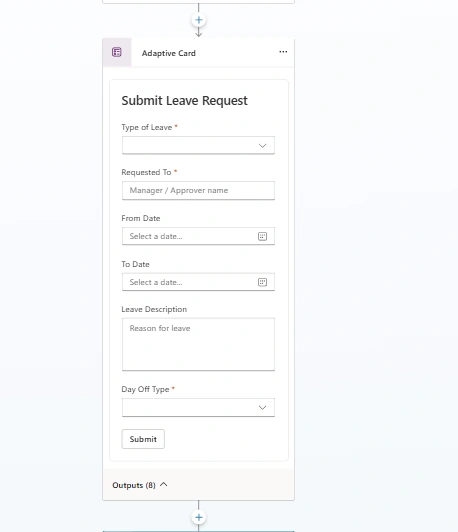
This article explains how to build an interactive form using an Adaptive Card in Copilot Studio, similar to a Leave Request form.
Why use Adaptive Cards in Copilot Studio?
In real business apps, users often need to provide:
Dropdown selections (Leave Type, Department, Priority)
Dates (From/To date)
Text inputs (Reason, Comments)
Quick submit buttons
If you try to collect this using only conversation prompts, it becomes slow and error-prone. Adaptive Cards solve this by providing:
✅ Structured input
✅ Better user experience
✅ Less typing, fewer mistakes
✅ Clear validation (required fields)
✅ Easy integration with Power Automate / Dataverse / SharePoint
What you’ll build
A form inside chat with:
When the user clicks Submit, the values are captured and can be sent to SharePoint or Dataverse via a flow.
Step 1: Create a topic in Copilot Studio
Open Copilot Studio
Go to Topics
Create a new topic like: Submit Leave Request
Add trigger phrases:
“apply leave”
“submit leave request”
“request leave”
This topic will launch when the user asks for leave.
Step 2: Add an Adaptive Card message node
Inside the topic flow:
Click +
Choose Ask a question (or Send a message)
Select Adaptive card
Paste the Adaptive Card JSON (example below)
This will display the form in chat.
Step 3: Adaptive Card JSON (Leave Request Form)
Paste this in Copilot Studio’s Adaptive Card editor:
{
  "$schema": "https://adaptivecards.io/schemas/adaptive-card.json",
  "type": "AdaptiveCard",
  "version": "1.5",
  "body": [
    {
      "type": "TextBlock",
      "text": "Submit Leave Request",
      "weight": "Bolder",
      "size": "Large"
    },
    {
      "type": "Input.ChoiceSet",
      "id": "leaveType",
      "label": "Type of Leave",
      "isRequired": true,
      "errorMessage": "Please select Type of Leave",
      "placeholder": "Select...",
      "choices": [
        { "title": "Casual Leave", "value": "Casual" },
        { "title": "Sick Leave", "value": "Sick" },
        { "title": "Earned Leave", "value": "Earned" },
        { "title": "Work From Home", "value": "WFH" }
      ]
    },
    {
      "type": "Input.Text",
      "id": "requestedTo",
      "label": "Requested To",
      "isRequired": true,
      "errorMessage": "Please enter Manager/Approver name",
      "placeholder": "Manager / Approver name"
    },
    {
      "type": "Input.Date",
      "id": "fromDate",
      "label": "From Date",
      "isRequired": true,
      "errorMessage": "Please select From Date"
    },
    {
      "type": "Input.Date",
      "id": "toDate",
      "label": "To Date",
      "isRequired": true,
      "errorMessage": "Please select To Date"
    },
    {
      "type": "Input.Text",
      "id": "leaveDescription",
      "label": "Leave Description",
      "isMultiline": true,
      "placeholder": "Reason for leave"
    },
    {
      "type": "Input.ChoiceSet",
      "id": "dayOffType",
      "label": "Day Off Type",
      "isRequired": true,
      "errorMessage": "Please select Day Off Type",
      "placeholder": "Select...",
      "choices": [
        { "title": "Full Day", "value": "FullDay" },
        { "title": "Half Day - First Half", "value": "HalfDay_First" },
        { "title": "Half Day - Second Half", "value": "HalfDay_Second" }
      ]
    }
  ],
  "actions": [
    {
      "type": "Action.Submit",
      "title": "Submit",
      "data": { "action": "submitLeaveRequest" }
    }
  ]
}
Step 4: Capture submitted values in Copilot Studio
When the user clicks Submit, Copilot Studio returns the payload as variables.
Typical keys returned are based on the id fields:
leaveType
requestedTo
fromDate
toDate
leaveDescription
dayOffType
In Copilot Studio, you can store these values into variables (for example):
varLeaveType
varRequestedTo
varFromDate
varToDate
varReason
varDayOffType
Step 5: Send the data to SharePoint or Dataverse (Power Automate)
Now add a step:
Call an action → Power Automate flow
Create a flow that accepts inputs:
LeaveType
RequestedTo
FromDate
ToDate
Description
DayOffType
Inside Power Automate, you can:
✅ Create item in SharePoint list
✅ Create record in Dataverse table
✅ Start approval workflow
✅ Notify manager via Teams/Email
Step 6: Confirm the submission
After the flow runs, show a success message:
This makes the conversation feel complete and professional.
Best Practices
Keep input IDs clean: Use simple IDs like leaveType, fromDate, requestedTo.
Add validation: Use isRequired and errorMessage for must-fill fields.
Use ChoiceSet for consistency: Dropdowns avoid spelling mistakes and mismatched values.
Store to a backend: Cards are UI — real value comes when data is saved to SharePoint/Dataverse.
Conclusion
Adaptive Cards are one of the best ways to build interactive forms inside Copilot Studio. Instead of long chat-based questioning, you can show a clean UI, collect structured data, and automate actions like storing requests, routing approvals, and sending notifications.
If you are building HR, IT support, asset tracking, onboarding, or leave systems — Adaptive Cards will make your agent feel like a real business application.

Join the conversation! Your thoughts help the community grow.