

Introduction
Dynamic galleries in PowerApps allow you to present data in a flexible, user-friendly way. But what if your data source has too many columns, or you need to add calculated fields on the fly? This is where Table and Record functions come into play. Functions like AddColumns(), DropColumns(), RenameColumns() and ShowColumns() help you shape your data before displaying it in a gallery.
In this blog, we’ll explore these functions in detail and learn how to use them together to build dynamic galleries.
1. Understanding Table vs. Record Functions
Table: A collection of records (rows) with named columns.
Record: A single row of data with fields (columns).
PowerApps provides functions to manipulate tables and records so you can:
Add new columns for calculated values.
Remove unnecessary columns for better performance.
Rename columns for improved readability.
Select only the columns you need.
2. Key Functions Overview
Example Scenario
We have a collection named EmployeeDetails, which contains 4 employee records. You can use this collection as the data source for a gallery to display employee information dynamically.
ClearCollect(EmployeeDetails,
    { ID: 101, Name: "Alice", Department: "HR", Location: "New York" },
    { ID: 102, Name: "Bob", Department: "Finance", Location: "London" },
    { ID: 103, Name: "Charlie", Department: "IT", Location: "Sydney" },
    { ID: 104, Name: "Diana", Department: "Marketing", Location: "Toronto" }
)
AddColumns()
Adds one or more columns to a table.
AddColumns(EmployeeDetails, "Region",
    If(Location = "New York" || Location = "Toronto", "North America",
       If(Location = "London", "Europe", "Asia-Pacific")
    )
)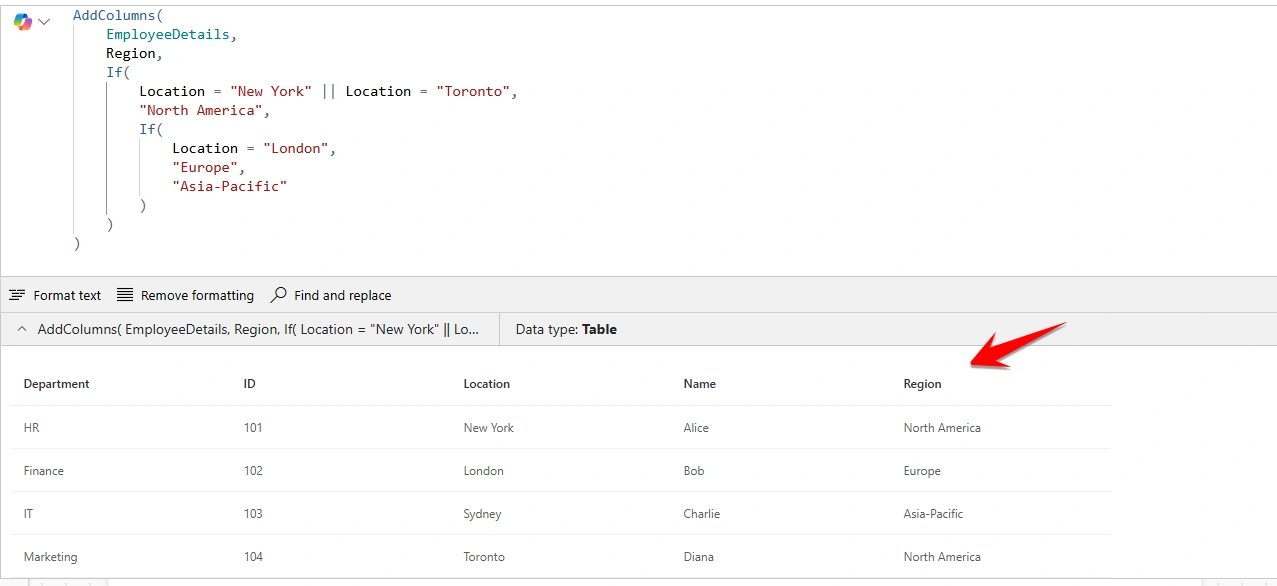
Here, we have add a column called Region based on Location.
DropColumn()
Removes columns you don’t need.
DropColumns(EmployeeDetails, ID)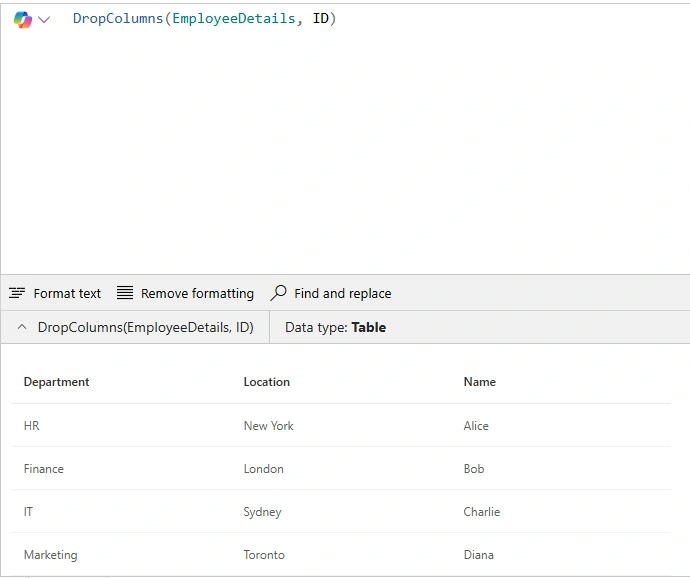
This Remove the ID column from the EmployeeDetails collection.
RenameColumns()
Renames columns for better display names.
RenameColumns(EmployeeDetails, Name, 'Employee Name')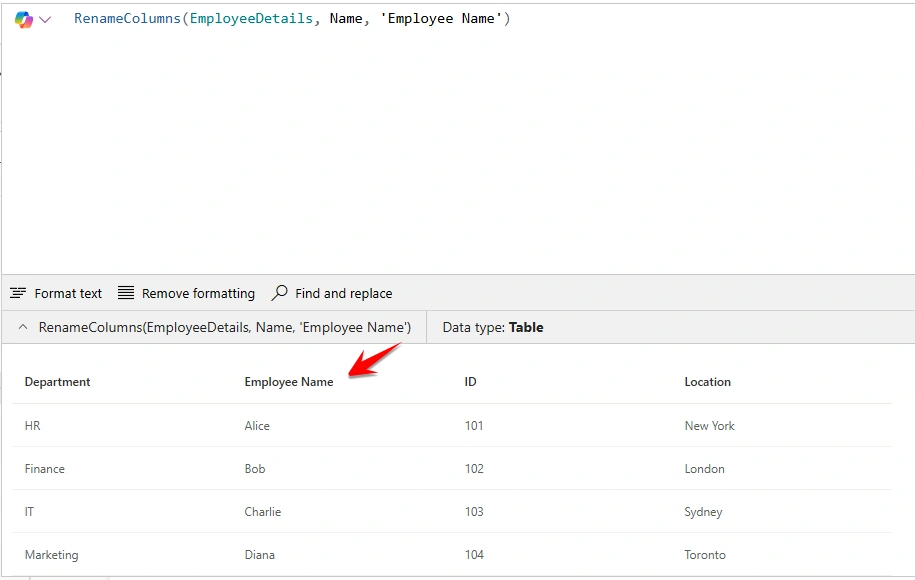
This changes Name to Employee Name.
ShowColumns()
Selects only the columns you want to display.
ShowColumns(EmployeeDetails, Name, Department)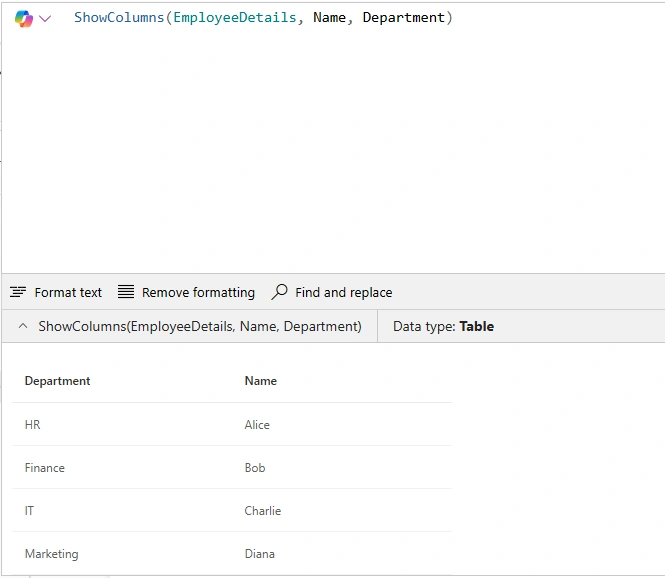
This Display only Name and Department.
3. Building a Dynamic Gallery Step-by-Step
Step 1: Connect the gallery to a Collection
For example, connect the gallery to the EmployeeDetails collection created using the ClearCollect() function.
Step 2: Shape Your Data
Combine the functions to prepare the data for the gallery:
ShowColumns(
    RenameColumns(
        AddColumns(
            DropColumns(EmployeeDetails, ID),
            Region,
            If(
                Location = "New York" || Location = "Toronto",
                "North America",
                If(Location = "London", "Europe", "Asia-Pacific")
            )
        ),
        Name, 'Employee Name'
    ),
    'Employee Name',
    Department,
    Region
)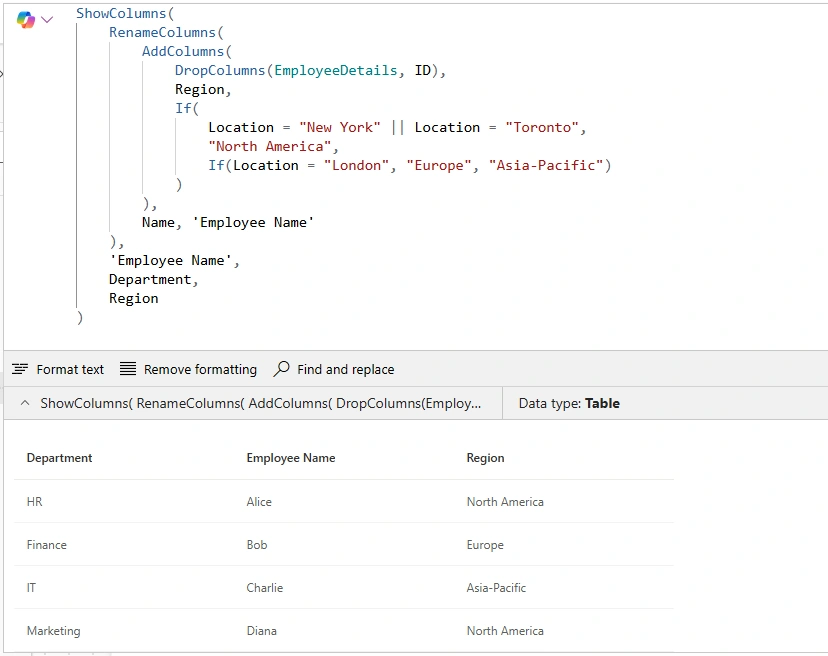
What’s happening here?
Original collection: 4 columns (ID, Name, Department, Location)
After transformation:
Removed ID
Renamed Name → Employee Name
Added Region
Displayed only Employee Name, Department, and Region
Your gallery now shows a clean, dynamic view with calculated data.
Step 3: Bind to Gallery
Set the Items property of your gallery to the combined formula we created earlier. Now your gallery will display:
Employee Name
Department
Region
4. Real-World Use Cases
Inventory Management App: Add a “Stock Status” column dynamically.
Employee Directory: Rename technical column names for better UX.
Compliance Dashboard: Drop sensitive fields before displaying data.
5. Best Practices
Avoid over-nesting functions for readability.
Use ShowColumns() early for performance optimization.
Check delegation warnings when working with large data sources.
Conclusion
Mastering these functions gives you full control over how data appears in your PowerApps galleries. By combining AddColumns(), DropColumns(), RenameColumns(), and ShowColumns(), you can create dynamic, user-friendly interfaces without modifying the original data source.
Join the conversation! Your thoughts help the community grow.