

The preview version of the next version of Visual Studio 2003 is called Visual Studio codename Whidbey. Visual Studio Whidbey has a support for building applications for Windows codename Longhorn, which is a new addition to the Windows operating systems series and successor of Windows XP.
To build Windows Longhorn applications, you don't have to run Windows Longhorn. You can simply use Visual Studio Whidbey but prior to that, you must have install Longhorn SDK on the development machine.
In this article, you will get a glimpse of Whidbey and support of Windows Longhorn applications.
Visual Studio Whidbey Supports Windows Longhorn Development
When you create a new project using Whidbey, you will notice new Longhorn templates. You can select from various templates such as Longhorn Application, Longhorn Custom Control, Longhorn Document Application, Longhorn Hosted Application, Longhorn Screen Saver, Longhorn Library and so on. These templates are shown in Figure 1.
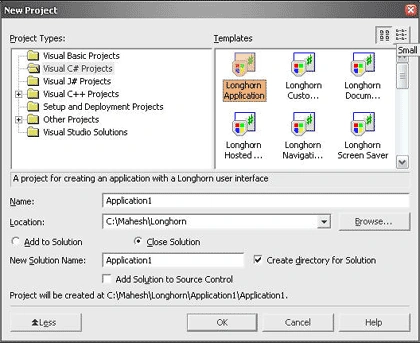
Figure 1. Windows Longhorn project templates in Visual Studio Whidbey
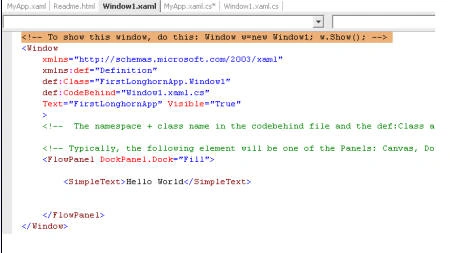
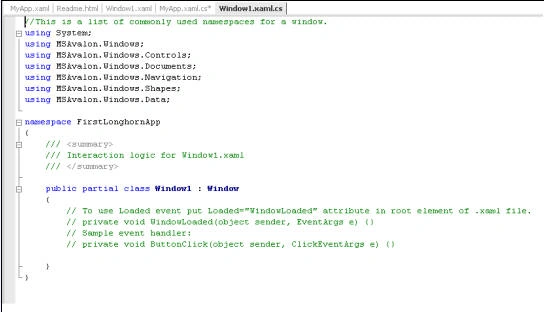
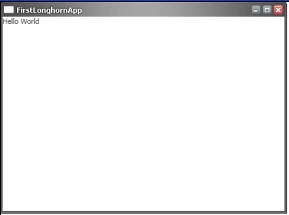
After selecting Windows Application template, Whidbey creates the project. The project items contain an two XAML files and the codebehind files (.cs for C#, .vb for Visual Basic) for them. The expanded view of Solution Explorer looks like Figure 2.
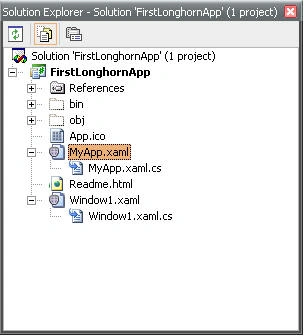
Figure 2. Project items
You may have noticed that there is no Form class in project items, which is by default in the current Windows Forms applications. The reason for that is XAML and Avalong replaces Windows Forms in Longhorn programming model. Yes, that's correct. There will not be any Windows Forms classes in default Longhorn programming model but you can use Windows Forms with XAML and mix them up together. To add a Windows Form to the application, you can use Add New Item and select a Form item.
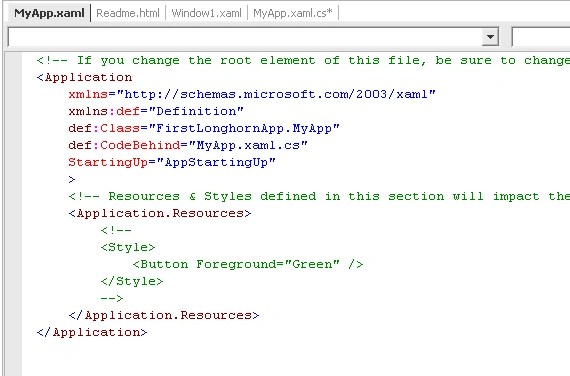
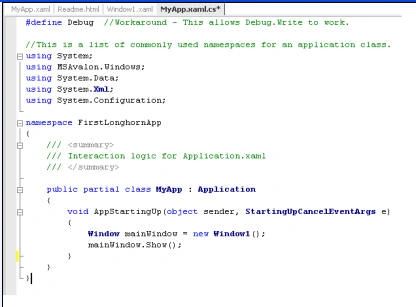
Figure 3 shows MyApp.xaml file, which stores the information and settings for the application and resources.
Join the conversation! Your thoughts help the community grow.