

Introduction
Ethers.js is a toolkit in the field of Ethereum development. It simplifies the development process for developers. Let's explore the role that Ethers.js plays in Ethereum-related tasks and in enhancing accessibility to the development process by creating a crypto wallet.
Significance of Ethers.js
Ethers.js is like a helpful friend for developers diving into Ethereum, which is this cool decentralized platform with blockchains, smart contracts, and lots of interesting applications. Imagine Ethers.js as a superhero tool, written in JavaScript, that makes it way easier for developers to do stuff with Ethereum. Getting into Ethereum development might seem a bit tricky, especially with all its special features and complex stuff. That's where Ethers.js comes to the rescue! It's like your trusty sidekick, offering tools that are easy to use and efficient.
Key Features of Ethers.js
- Wallet Management: Ethers.js makes creating and managing Ethereum wallets super easy. Developers can quickly create new wallets, bring in existing ones, and handle wallet tasks effortlessly.
- Smart Contract Interactions: Ethers.js makes working with Ethereum smart contracts easy. It helps deploy contracts, use functions, and manage events smoothly, making things simple for developers.
- Blockchain Interaction: Ethers.js makes talking to the Ethereum blockchain a breeze. Whether you're checking transactions, balances, or history, Ethers.js keeps things simple for developers.
Ethers.js is like a gateway to Ethereum for developers, making it easy to tap into its possibilities without getting stuck in complexities. As we explore more, you'll see it's not just a handy tool but a spark for innovation in Ethereum development.
Now we have the basic overview of the ethers.js and its capabilities. Let's create a crypto wallet application using ethers.js and node.js.
Creating a crypto wallet
Let's create a wallet step by step.
Prerequisites
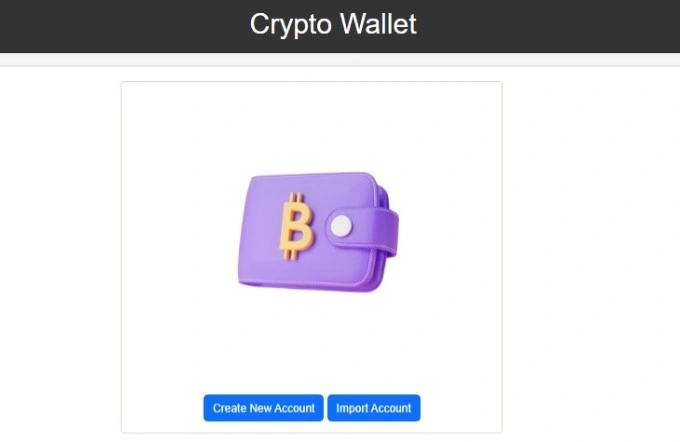
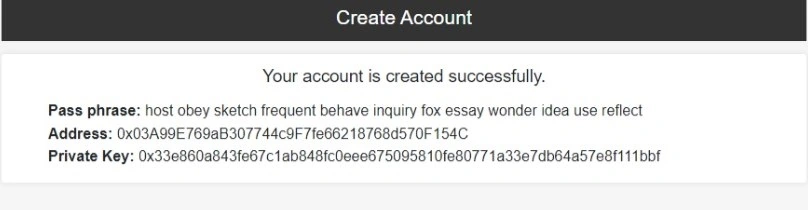
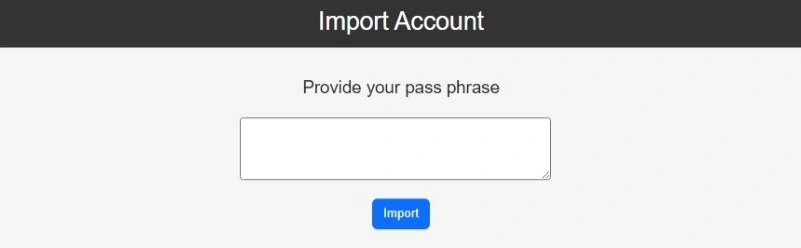
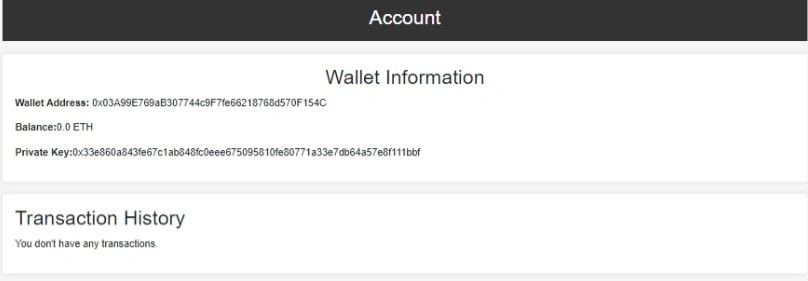
We are going to create a wallet that will be able to create a new account, import the existing account, and show the available balance and transaction history. We will achieve this using Node.js, HTML, and CSS, so you should have a basic knowledge of these technologies and a basic knowledge of Blockchain. Your system should have Node.js installed on it, if not then download it from the official site of Node.js.
Setting Up the Project
Once the installation of Node.js is done, create a new folder with the name of your choice as I have created it with the "etherjs-demo" name. Now open this folder into the command prompt or terminal and enter the following command.
npm init -y
this command will initiate the node project in this directory and a new JSON file will be created named "package.json". If you do not get the same result try checking whether you have successfully installed the node or not. You can check that by running the following command in the command prompt.
node -v
It will show you the version of the installed node.
Install Required Libraries
In this application, we are going to use the following libraries.
- express: It is a web application framework written in JavaScript and hosted on Node.js. We will use it to create our web application.
- ejs: EJS stands for Embedded JavaScript used to handle templates.
- body-parser: This package is used to parse the data of the body on the server side.
- ethers: We will use this package to interact with the Ethereum or Polygon blockchain.
To install these libraries run the following command.
npm install express ejs body-parser ethers
Now we have installed all required libraries, let's move to the next step.
Create app file
Now create a JavaScript file named "app.js" file and require(import) the express framework in this file. And add get, post route, and port number for your web application.
const express = require('express');

const app = express();
const PORT = 3000;

app.get('/', (req, res) => {
    res.send('Hello');
});

app.listen(PORT, (error) =>{
    if(!error)
        console.log("Server is Successfully Running, and App is listening on port "+ PORT);
    else
        console.log("Error occurred, server can't start", error);
    }
);
Now run the following command to start the server.
node app.js
Then visit the 3000 port of localhost by using any browser and you will see "Hello" on the screen. So our application is good to go so let's move to the next step.
Now require the "ejs" library to render the templates and create the ejs template files.
const express = require('express');
const ejs = require('ejs');

const app = express();
const PORT = 3000;

app.use(express.static(path.join(__dirname, 'public')));
app.set('view engine', 'ejs');
app.set('views', __dirname + '/views');

app.get('/', (req, res) => {
    res.send('Hello');
});

app.listen(PORT, (error) =>{
    if(!error)
        console.log("Server is Successfully Running, and App is listening on port "+ PORT);
    else
        console.log("Error occurred, server can't start", error);
    }
);
Let's create our template file. First Create the "views" named folder in the root directory then inside the "views" directory create a subfolder named "partial" where we will put the code of header and footer files. Create a "header.ejs" file and write the following code into it.
<!DOCTYPE html>
<html lang="en">
<head>
    <meta charset="UTF-8">
    <meta name="viewport" content="width=device-width, initial-scale=1.0">
    <meta http-equiv="X-UA-Compatible" content="ie=edge">
    <title>Document</title>
    <link href="https://cdn.jsdelivr.net/npm/[email protected]/dist/css/bootstrap.min.css" rel="stylesheet" integrity="sha384-T3c6CoIi6uLrA9TneNEoa7RxnatzjcDSCmG1MXxSR1GAsXEV/Dwwykc2MPK8M2HN" crossorigin="anonymous">
    <link rel="stylesheet" href="/css/style.css">
</head>
Create a "footer.ejs" file and write the following code into it.
NitinPosted Dec 14, 2023, 11:40 AM
Nice Article Punar Dutt Rajput