

Introduction:
The Business Data Catalog filter web part allows you to connect Line of Business
Data to other web parts such as a List View Web Part for filtering purposes.
Data Source:
I have created a database in SQL which has a table with some data.
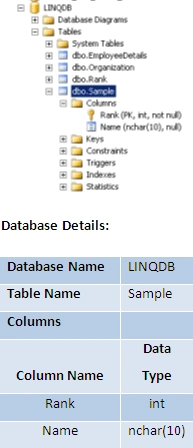
Sample Table:
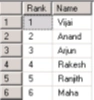
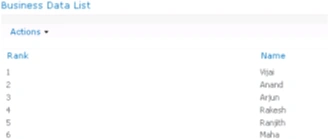
"Sample" table has the following items.
External Content Type:
I have created an external content type named "New External Content Type" to
integrate the external data to SharePoint using SharePoint Designer.
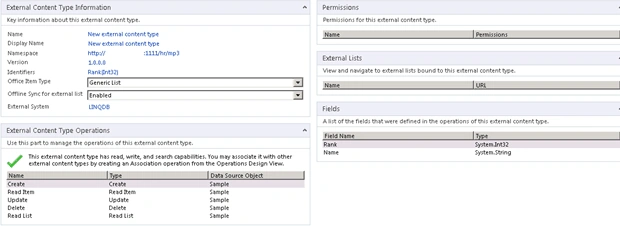
To create External Content Type using SharePoint Designer refer
http://www.c-sharpcorner.com/UploadFile/anavijai/4236/.
Once you have created the external content type using SharePoint Designer , Go
to Central Administration => Application Management => Manage Service
Applications => Business Connectivity Service application => you could be able
to see the external content type that you have created using Designer as shown
in the following.

Set the permission for the external content type (Refer
http://www.c-sharpcorner.com/UploadFile/anavijai/4252/).
Configure Business Data Catalog Filter web part:
- Go to the SharePoint site.
- Go to Site Actions => Edit the Page.
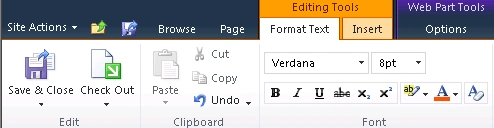
- In the ribbon interface, go to Editing Tools => Insert => Web Part.
- In the Categories, select Business Data =>
Business Data Catalog Filter.
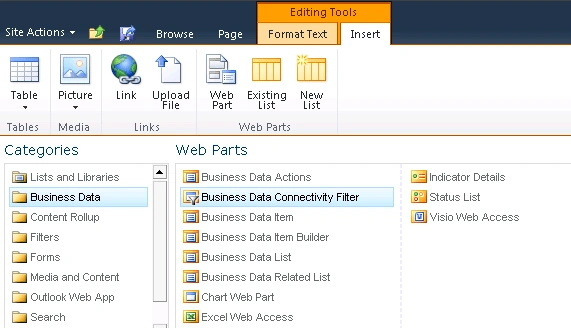
- Click on Add.
- Business Data Catalog Filter web part will
be added.

- Click on Open the tool pane.
- In the web part toolbox, enter the Filter
Name, Select the External Content Type that we have created by clicking on
"Select External Content type" and select the "Value Column".
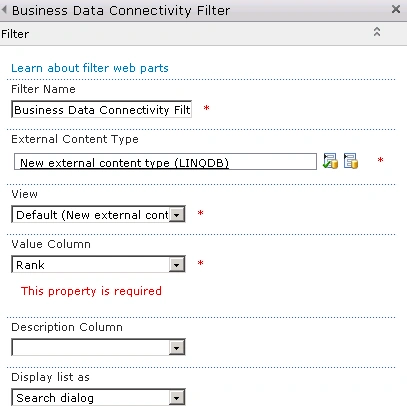
- In the Advanced Filter Options, Select
some default value by clicking on "Select External item(s)".
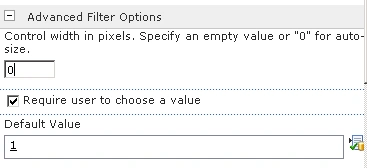
- Click on Ok in the web part toolbox.
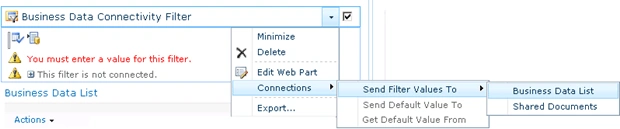
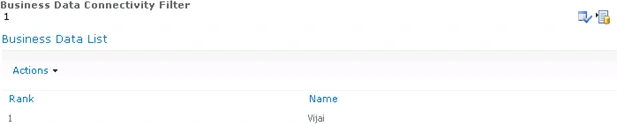
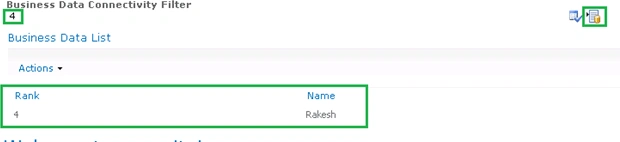
- The web part looks like the following.

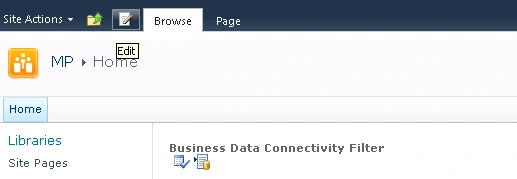

Join the conversation! Your thoughts help the community grow.