

Introduction
This articles describes the caching in WPF using the C# language. Caching is the way to store data in memory for rapid access, hence it provides both scalability and performance.
Caching Types
The types of caching are:
- Output caching
- Input caching
There are various classes provided by the .NET Framework located in the System.Runtime.caching namespace that enables the user to use caching in .NET Framework applications.
The advantages of implementing a data cache are:
- The cache object is thread safe.
- Items in the cache are removed automatically from the memory.
- Items in cache support all dependencies, for example a dependency based on a file or SQL database.
Step 1
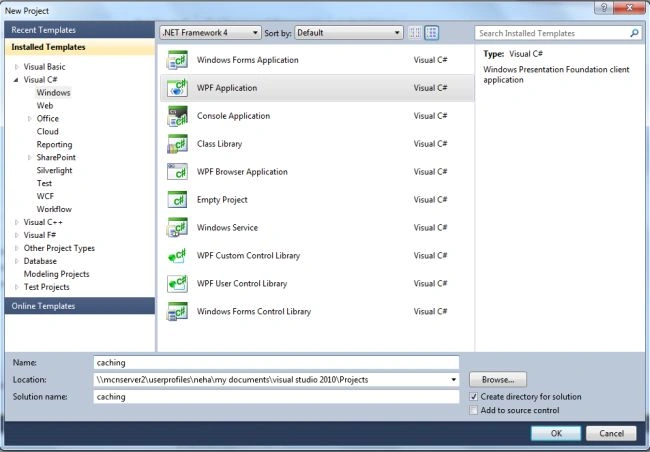
First we create a WPF application using the following procedure:
- Open Visual Studio.
- Select "New project".
- Select the C# language and "WPF Application".
- Name the project "caching".
- Click on the "OK" button.
Step 2
To change the .NET framework use the following procedure:
- Go to the Solutions Explorer, right-click the project name "caching" and click "Properties".
- After clicking on properties, a dialog box will open.
- Click the application.
- Go to the Target framework list.
- Select the .NET Framework 4.
Step 3
To add a reference to the caching Assemblies:
- Go to the References folder.
- Click on "Add Reference".
- Select the System.Runtime.Caching .
- Then click "OK".
Step 4
- Go to the "View" -> "Toolbox".
- The Toolbox opens in the left corner of the window.
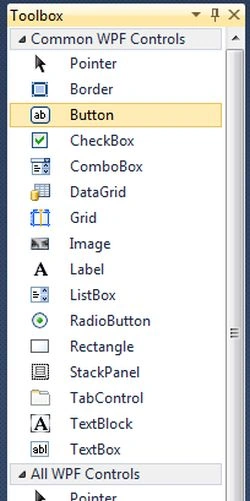
- Then Drag and Drop a button onto the design view .
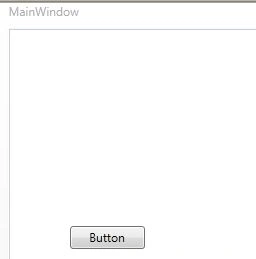
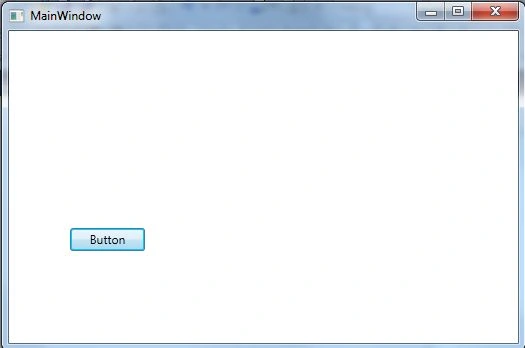
Now the code for the MainWindow.xaml file:
<Window x:Class="caching.MainWindow"
xmlns="http://schemas.microsoft.com/winfx/2006/xaml/presentation"
xmlns:x="http://schemas.microsoft.com/winfx/2006/xaml"
Title="MainWindow" Height="350" Width="525">
<Grid>
<Button Content="Button" Height="23" HorizontalAlignment="Left" Margin="61,197,0,0" Name="button1" VerticalAlignment="Top" Width="75" Click="button1_Click" />
</Grid>
</Window>
Step 5
- Create a text file named "cache file" and store it in the C drive.
Step 6
- Double-click the button and write the following code in MainWindow.xmal.cs:
using System;
using System.Collections.Generic;
using System.Linq;
using System.Text;
using System.Windows;
using System.Windows.Controls;
using System.Windows.Data;
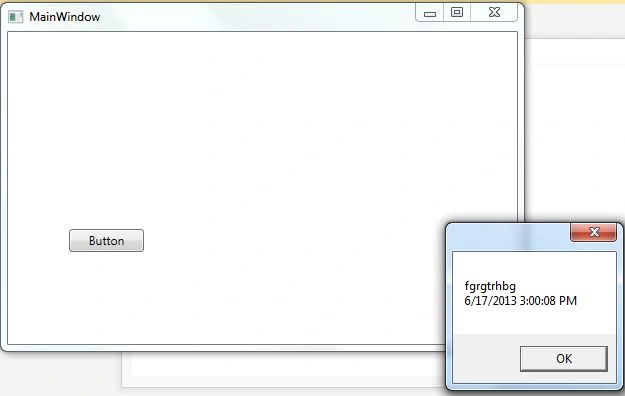
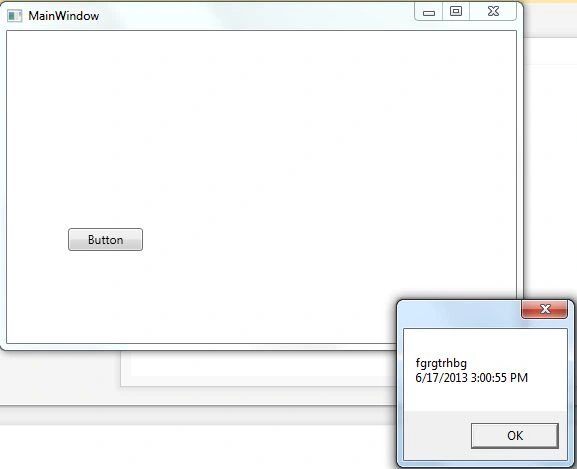
Join the conversation! Your thoughts help the community grow.