

Let's start with SharePoint Designer workflow which accesses the SharePoint List data using REST call i.e Web Service Call
SharePoint List
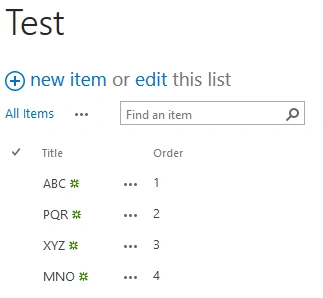
The following is a list structure which we are referencing for our application.

Figure 1: SharePoint
Step 1: Create Site Workflow
Using SharePoint Designer create site workflow. Make sure you select SharePoint 2013 Workflow as the platform type.

Figure 2: Workflow
Step 2: Create Workflow Stage.
Let’s start by creating a new stage.

Figure 3: Stage
Workflow Stages
Stage 1: Workflow Initialization: The following variables get initialized at this stage:
ServiceURL: Here's the URL.

Figure 4: Initialized
Index: Create Index variable of type Integer & set it to 0.
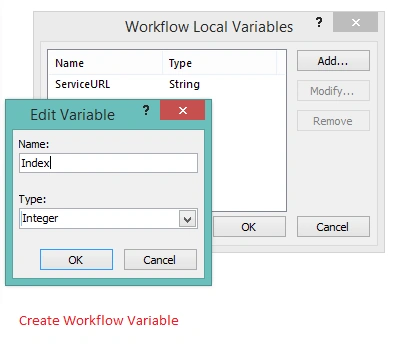
Figure 5: Index
Service Call Header: Next, we add a Dictionary variable (Build a Dictionary action), call it requestHeaders and initialize it as this:

Figure 6: Header
Both “Accept” and “Content-Type” entries are of the String type and they both contain the value “application/json;odata=verbose”. SharePoint REST API understands this and sets the response content type appropriately as JSON. If we don’t pass these values, the output would come as XML.

Figure 7: Accept
Stage 2: Web Service Call
Add a Call as HTTP Web Service action and set its properties. The request will be the url variable:
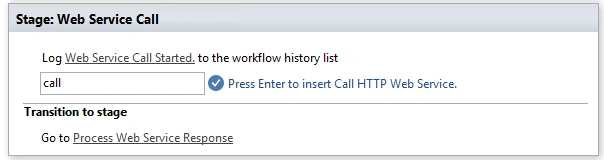
Figure 8: Webservice
Set workflow variable "ServiceURL" as Web Service URL.
HTTP method as "GET".

Figure 9: Get
Response content will go to a new variable called responseContent.(type - Dictionary).
Response headers will go to a new variable called responseHeaders.(type - Dictionary).
Response code will go to a new variable called responseCode.(type - Dictionary ).
Then we set the request headers to be the requestHeaders variable we created just now, by clicking on the properties for the Call on HTTP Web Service action:

Figure 10: Call set variable as needed.
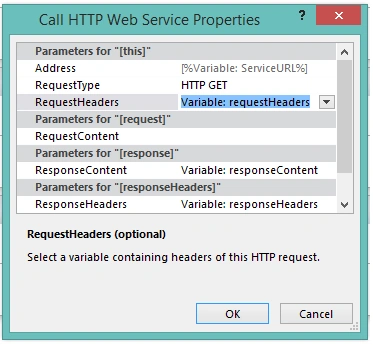
Figure 11: Variable
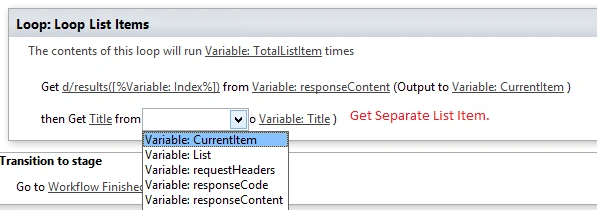
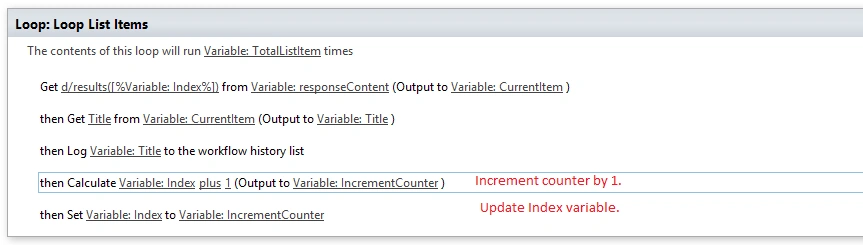
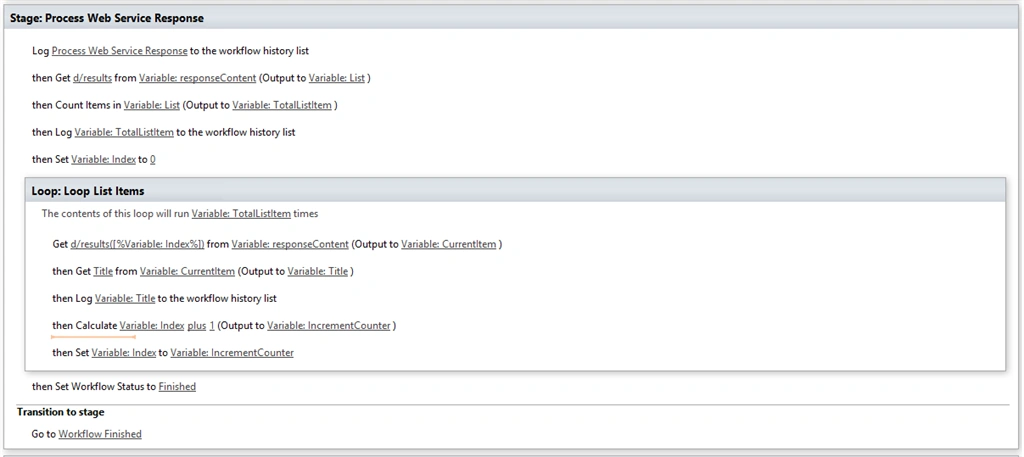
Process Web Service Response
Now, create a new stage, call it " Process Web Service Response".
At the end of the " Web Service Call" add a Go to Process Web Service Response stage.







Noman RafiquePosted Mar 13, 2020, 11:16 AM
For me it's showing the counts but not the actual names or any data. Why's dat?
Fabian WaynePosted Mar 6, 2018, 12:47 PM
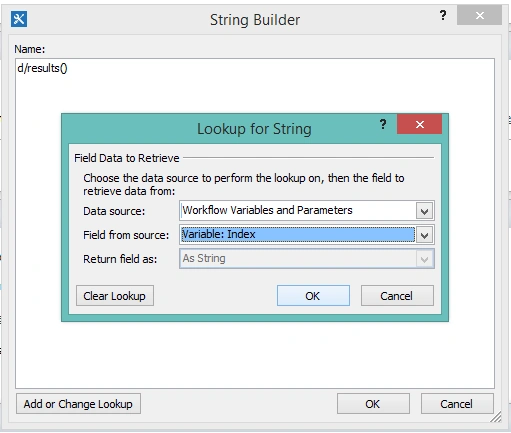
Why do you need to specify the responseHeaders in the figure 11, and why use d/response in Figure 13, in the Item secction you dont specify where do you get the Title value, and other values, i get lost there
Ganesh SanapPosted Sep 14, 2017, 2:01 AM
Good one...But what is the use of "index" variable in this workflow??
jon vPosted Apr 18, 2017, 11:46 AM
Please, can someone help me? I am receiving an access denied and 403 forbidden error while executing this Site Workflow.
Dhayanand KalimidiPosted Apr 5, 2017, 7:50 AM
Nice article for beginners to lean call Http web service using SharePoint Designer workflow 2013. Excellent!
Manish RanglaniPosted Jan 2, 2017, 8:32 AM
Is is possible to trigger SharePoint Online site workflow from another SharePoint Online Site Workflow using REST API?
MadhavPosted Dec 2, 2016, 6:57 AM
Hii Rupali,am trying same aproch for copying items from one library to another ,for that am only calling the Call Action with REST API's inside the loop in that am passing the retrieved document name from the responseContent Dictionary variable to my REST API URL and it is as like below https://MyServerURL/sites/appdev/_api/web/folders/GetByUrl('MySourceLibrary')/Files/getbyurl('[%Variable: Name%]')/copyto(strNewUrl='/sites/appdev/MyDestinationLibrary/[%Variable: Name%]', bOverWrite=true) so when am calling this REST API the loop gets only a first item from Library,but when am doing same without this REST API call Action then loop goes through all items that i can see in workflow history log.so do you have any idea of this?
Laura MartinezPosted Jul 14, 2016, 4:02 PM
Thanks! Well Done!
Santhakumar MunuswamyPosted Oct 18, 2015, 2:22 AM
Good one
Rupali ShindePosted Oct 17, 2015, 3:31 AM
thanks everyone, I hope will come with new ideas in future
Mukesh KumarPosted Oct 17, 2015, 12:52 AM
Great job done by you
Nilesh JadavPosted Oct 17, 2015, 12:12 AM
Thank you for sharing mam !! Nice Article
Harshad PansuriyaPosted Oct 17, 2015, 12:09 AM
Great Work
Priyaranjan K SPosted Oct 16, 2015, 11:54 PM
Excellent Work . Keep Sharing :)