

Today I am going to show you how to capture images from the webcam using JavaScript and HTML5 and upload on the server using a simple Ajax call using C#.
For your reference, I have attached zip file of the MVC project with this article.
Below are the steps needed to create this example.
- Access Webcam, which requires user permission
- Once you have permission, then capture the image on Canvas
- Make a Fetch call to send Image to Server with the help of Base64 data
- And upload Base64 data as an image on the server folder
In this demo, we will upload the image to the server using an ASP.NET API.
So let's get started.
HTML
<div class="jumbotron" style="margin-top:20px;padding:20px;">
  <p><span id="errorMsg"></span></p>
  <div class="row">
    <div class="col-lg-6">
      <!-- Here we stream video from the webcam -->
      <h4>
        Video coming from Webcam
        <button class="btn btn-primary" id="btnCapture">Capture to Canvas >></button>
      </h4>
      <video id="video" playsinline autoplay alt="Webcam video stream"></video>
    </div>

    <div class="col-lg-6">
      <h4>
        Captured image from Webcam
        <button type="submit" class="btn btn-primary" id="btnSave" name="btnSave">Save the canvas (image) to server</button>
      </h4>
      <!-- Webcam video snapshot -->
      <canvas id="canvas" width="475" height="475" alt="Canvas image"></canvas>
    </div>
  </div>
</div>
Scripts
  const video = document.querySelector("#video");

  // Basic settings for the video to get from Webcam
  const constraints = {
    audio: false,
    video: {
      width: 475,
      height: 475
    }
  };

  // This condition will ask permission to user for Webcam access
  if (navigator.mediaDevices.getUserMedia) {
    navigator.mediaDevices.getUserMedia(constraints)
      .then(function(stream) {
        video.srcObject = stream;
      })
      .catch(function(err0r) {
        console.log("Something went wrong!");
      });
  }

  function stop(e) {
    const stream = video.srcObject;
    const tracks = stream.getTracks();

    for (let i = 0; i < tracks.length; i++) {
      const track = tracks[i];
      track.stop();
    }
    video.srcObject = null;
  }


  // Below code to capture image from Video tag (Webcam streaming)
  const btnCapture = document.querySelector("#btnCapture");
  const canvas = document.getElementById('canvas');

  btnCapture.addEventListener('click', function() {
    const context = canvas.getContext('2d');
    // Capture the image into canvas from Webcam streaming Video element
    context.drawImage(video, 0, 0);
  });

  // Upload image to server - ajax call - with the help of base64 data as a parameter
  const btnSave = document.querySelector("#btnSave");

  btnSave.addEventListener('click', async function() {
    // Below new canvas to generate flip/mirror image from existing canvas
    const destinationCanvas = document.createElement("canvas");
    const destCtx = destinationCanvas.getContext('2d');

    destinationCanvas.height = 500;
    destinationCanvas.width = 500;

    destCtx.translate(video.videoWidth, 0);
    destCtx.scale(-1, 1);
    destCtx.drawImage(document.getElementById("canvas"), 0, 0);

    // Get base64 data to send to server for upload
    let imagebase64data = destinationCanvas.toDataURL("image/png");
    imagebase64data = imagebase64data.replace('data:image/png;base64,', '');

    try {
      const response = await fetch('/Home/UploadWebCamImage', {
        method: 'POST',
        headers: {
          'Content-Type': 'application/json; charset=utf-8'
        },
        body: JSON.stringify({
          imageData: imagebase64data
        })
      });

      if (response.ok) {
        alert('Image uploaded successfully..');
      } else {
        throw new Error(`Request failed with status ${response.status}`);
      }
    } catch (error) {
      console.error('Error while uploading image:', error);
    }
  });
Below is the condition which actually asks the user for Webcam permission.
if (navigator.mediaDevices.getUserMedia)  {

...

}
CSS
/* Flipping the video as it was not mirror view */
video {
  transform: scaleX(-1);
  margin-top: 5px;
}

/* Flipping the canvas image as it was not mirror view */
#canvas {
  transform: scaleX(-1);
  filter: FlipH;
}
Note
We need to add the CSS to flip the video and canvas as the webcam is not showing mirror video.
C# Code
public async Task<string> UploadWebCamImage(string imageData)
{
    string filename = Server.MapPath("~/UploadWebcamImages/webcam_") + DateTime.Now.ToString().Replace("/", "-").Replace(" ", "_").Replace(":", "") + ".png";

    byte[] data = Convert.FromBase64String(imageData);

    using (FileStream fs = new FileStream(filename, FileMode.Create))
    {
        await fs.WriteAsync(data, 0, data.Length);
    }

    return "success";
}
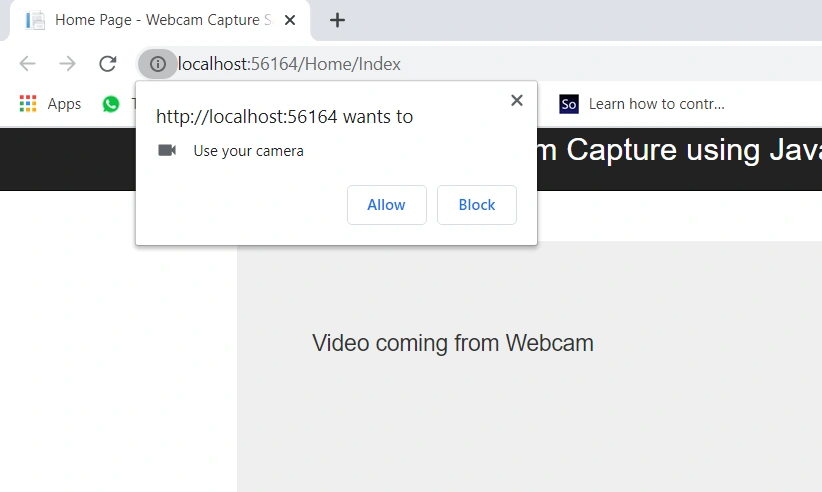
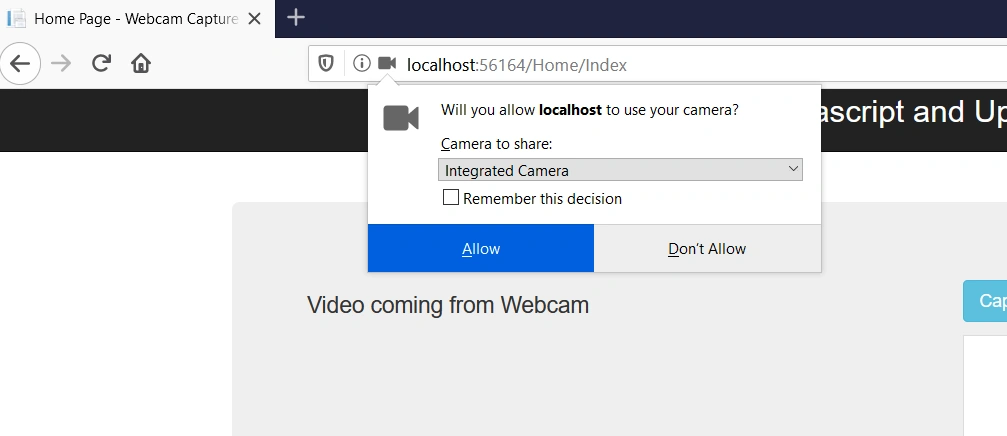
So once all the setup is done and we run the project. First, the user has to give permission for the site to use the Webcam, shown below.
Chrome/Edge
Firefox
Let's have a look at the running project
After giving permission to access the webcam the user can see the feed from the camera,
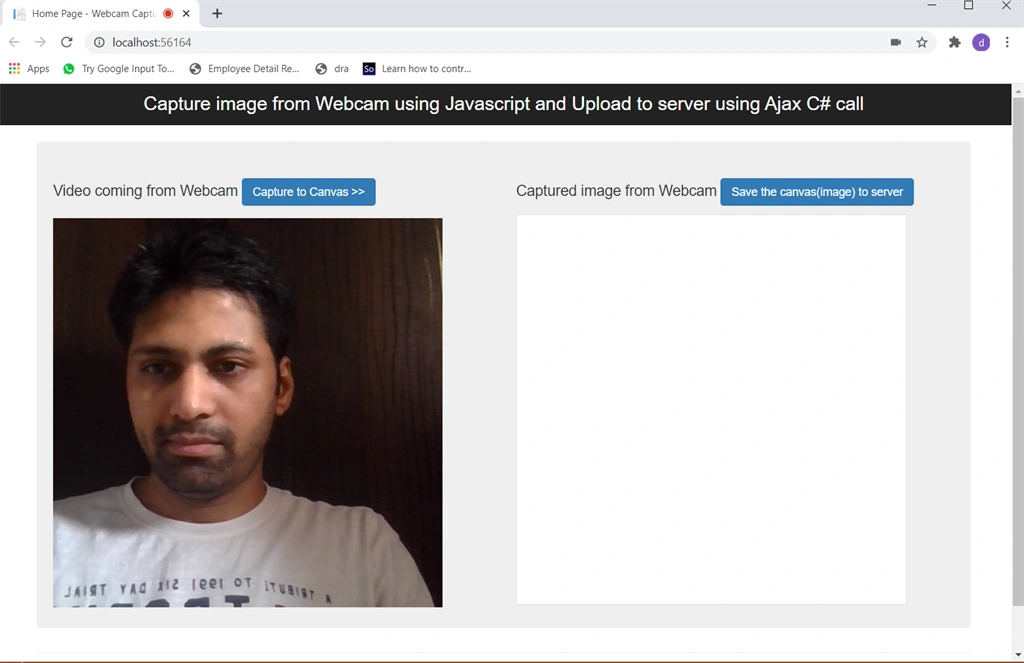
After clicking the capture button.

After clicking the save the image to Server,
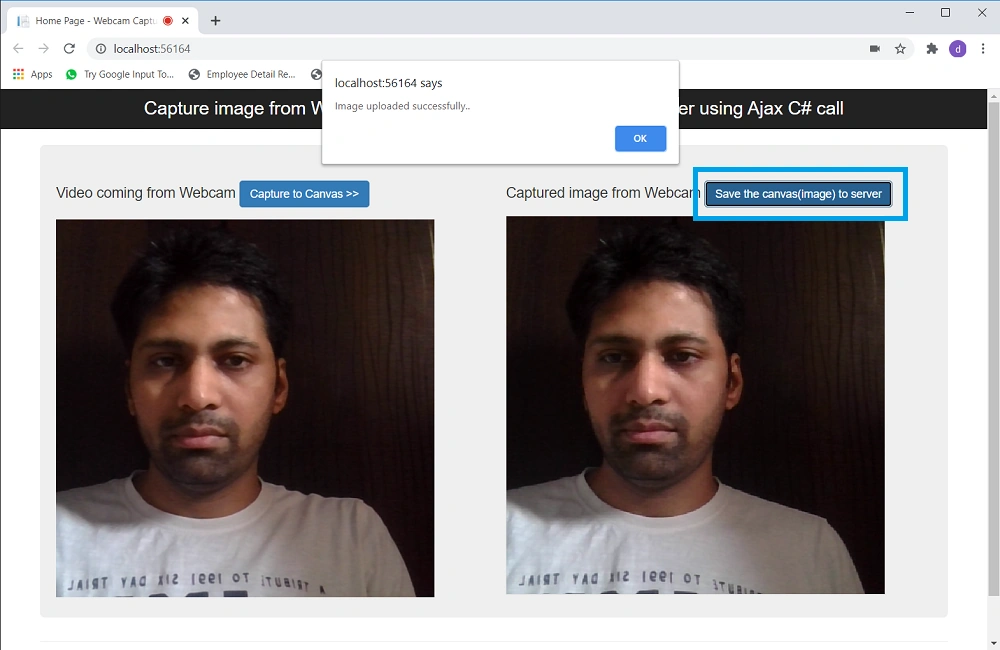
And here we can see the uploaded image in the project folder.
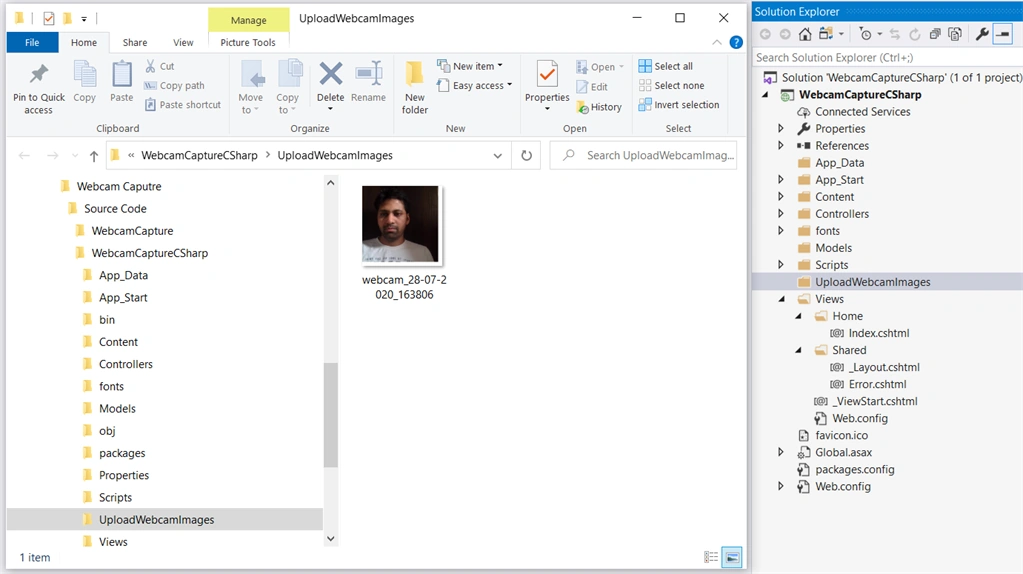
Please download the source code attached and change it according to your requirement.
Notes
Due to the large size, I have not added these packages in the zip file. Visual Studio will handle installing them for you.
- Microsoft.AspNet.Mvc.5.2.7
- Microsoft.AspNet.Razor.3.2.7
- Microsoft.AspNet.WebPages.3.2.7
- Microsoft.CodeDom.Providers.DotNetCompilerPlatform.2.0.0
- Microsoft.Web.Infrastructure.1.0.0.0
Happy Coding!!
Piotr BanasikPosted Sep 7, 2021, 6:17 AM
Hi Durshan! Great presentation! I've implemented it in my API and it works nice. The only thing which I can't obtain is flipping the #video screen image (and #canvas) to avoid mirroring the view streem. I've used your "style" but it doesn't do. Could you write In what place of the code do you recommend to insert the "style" block? Did you obtain required effect? I see on your t-shert that it may not work in your code as well? Regards. Stary Banas.
Victor JoPosted Nov 20, 2020, 2:32 AM
Thank you thank you
Taha AbbasiPosted Nov 17, 2020, 12:16 AM
Also accessible to mobile camera if we running the web application in mobile browser?
Mr ChinaPosted Sep 12, 2020, 11:29 PM
Don't hardcode your JSON. Do JSON.stringify({ imageData: imagebase64data })
Mageshwaran RPosted Sep 2, 2020, 2:39 AM
Nice Article..
Dinesh MandaviyaPosted Aug 6, 2020, 12:36 AM
Nice one. it is really helpful this article
Bhavesh VankarPosted Aug 5, 2020, 12:16 AM
Thank you so much sir...really very helpful your this article.
Bhavesh VankarPosted Jul 31, 2020, 12:43 AM
I need this project in asp.net c# web base if possible.
Hamid KhanPosted Jul 30, 2020, 12:14 PM
Good article...........Thanks for sharinng...............
Pankajkumar PatelPosted Jul 30, 2020, 8:44 AM
Very good article and easy to implement also.