

Introduction
Here are the steps to change your existing password in Windows 8.
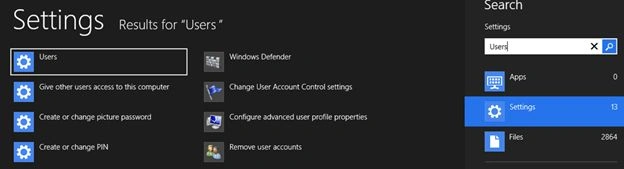
WIN+W to search Settings and search for Users.
Click on "Users", as in:
Go to PC Settings where you will see Users are selected.
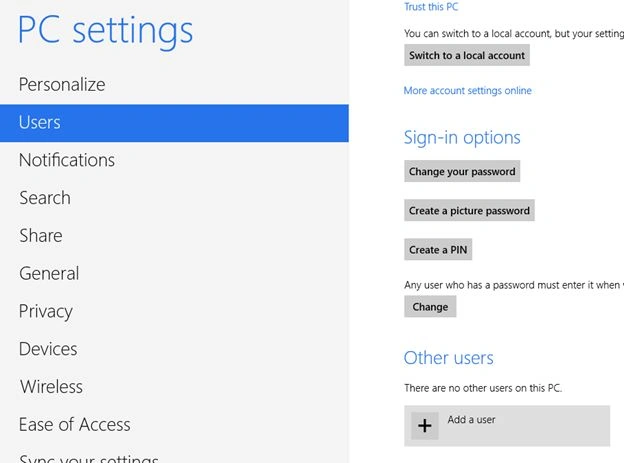
Click on the "Change your password" button.
On this screen, you need to provide your current password and new password (twice).
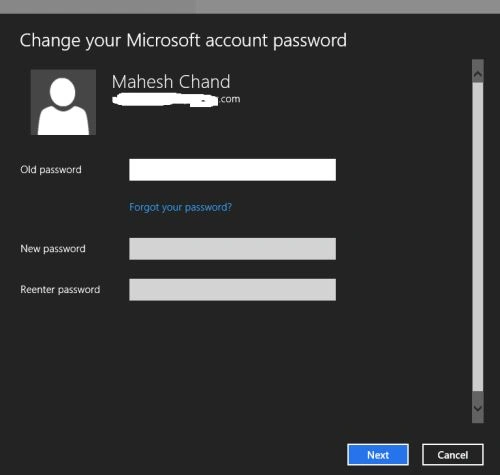
Hit "Next" and you are good to go.
You can also set a picture as your password including touch signals. Check out
We have hundreds of articles on Windows 8 here >>
Summary
In this article, we learned about Change Password in Windows 8.
Join the conversation! Your thoughts help the community grow.