Introduction
In this article, we will see how to change the layout theme of an Android application at runtime by clicking on a button.
What is Theme?
In your mobile, in the display settings, there is an option to set your whole mobile themes like a light blue color theme, red color theme or any other. This will set your full mobile functionality with this theme setting.
In Android, to set the theme of an Android application, you need to understand what style is.
Style is an XML file residing in the "project/res/values" directory. This file generally contains settings of appearances. The general structure of "style.xml" is like below:
- <?xml version="1.0" encoding="utf-8"?>
- <resources>
- <style name="nameOfTheTheme">
- <item name="android:attributeSets">value</item>
- </style>
- </resources>
Here, you can see that in the style tag, there is one attribute named "name" which has the value that determines the "name of the theme", for example, "MyTheme".
Next is an "item" tag. This tag contains the various attribute sets of views such as "android:textColor"," android:textSize" etc. First, define this attribute and then write the value corresponding to it. Let's see an example of a style.xml file:
- <?xml version="1.0" encoding="utf-8"?>
- <resources>
- <style name="MyTheme">
- <item name="android:textColor">#FF0000</item>
- </style>
- </resources>
Here, in the example, you can see that the name of the style is "MyTheme" and the item tag has the attribute "textColor" having a value "#FF0000" which is the color "Red".
Now to set the theme while your activity is loading, write the following code before setting your layout file in "setContentView".
- activity.setTheme(R.style.MyTheme);
- setContentView(R.layout.main);
This will set your application theme before loading the layout. Now you see what style is and how to set the style as the theme of your application. Now follow the steps to create this application.
Step 1
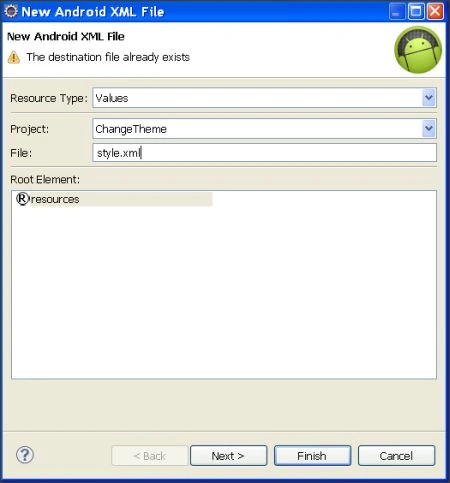
Create an Android project and name it "ChangeTheme" and then right-click on the project. Select "New -> Android XML File". This will open the following dialog box to give the name of that XML file. First select type as "Values" and give "style.xml" as the name of the file.
Now, open that file, and add the following code into that file:
- <?xml version="1.0" encoding="utf-8"?>
- <resources>
- <style name="FirstTheme" >
- <item name="android:textColor">#FF0000</item>
- </style>
- <style name="SecondTheme" >
- <item name="android:textColor">#00FF00</item>
- </style>
- <style name="Thirdheme" >
- <item name="android:textColor">#0000F0</item>
- </style>
- </resources>
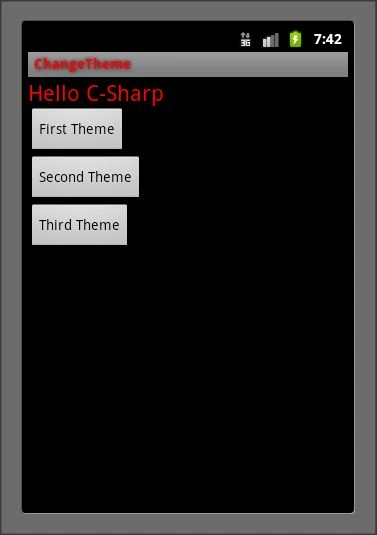
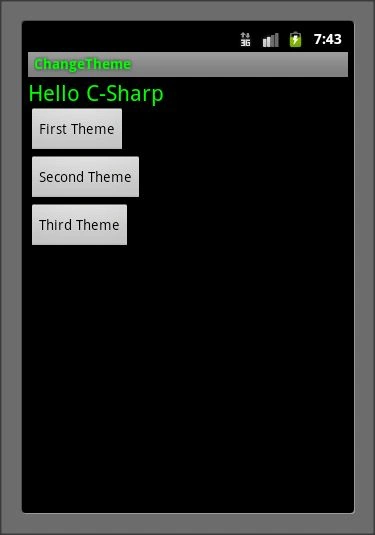
In this file, you can see that I have created 3 styles namely "FirstThem", "SecondTheme" and "ThirdTheme" with the same attribute "textColor" but with different color values.
Step 2
Now, open your "main.xml" layout file which resides in "res/layout" directory.
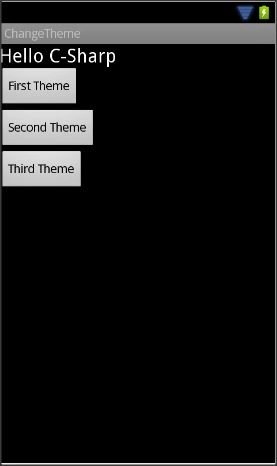
And put the following code to add 3 buttons and 1 label in it.
- <?xml version="1.0" encoding="utf-8"?>
- <LinearLayout xmlns:android="http://schemas.android.com/apk/res/android"
- android:layout_width="fill_parent"
- android:layout_height="fill_parent"
- android:orientation="vertical" >
- <TextView
- android:id="@+id/textView1"
- android:layout_width="wrap_content"
- android:layout_height="wrap_content"
- android:text="Hello C-Sharp"
- android:textAppearance="?android:attr/textAppearanceLarge" />
- <Button
- android:id="@+id/button1"
- android:layout_width="wrap_content"
- android:layout_height="wrap_content"
- android:text="First Theme" />
- <Button
- android:id="@+id/button2"
- android:layout_width="wrap_content"
- android:layout_height="wrap_content"
- android:text="Second Theme" />
- <Button
- android:id="@+id/button3"
- android:layout_width="wrap_content"
- android:layout_height="wrap_content"
- android:text="Third Theme" />
- </LinearLayout>


abdul rehmanPosted Apr 18, 2017, 4:56 AM
Can you please tell me how to change Activity Theme while replacing fragment...i mean activity Theme should be different for all fragment
Ad KiplPosted May 18, 2015, 9:05 AM
Hey Thats Very Nice But Can U Please Explain How to stored chosen file in preference so that theme setting will be available next time for user
Deepak DwijPosted Apr 8, 2012, 7:12 AM
Very useful features in the world of Layouts, changing theme is the wonderful concept as concern to the mobile application. Keep posting more !