

Introduction
Recently, Microsoft has declared the retirement of SharePoint 2010 workflows in SharePoint online, people are searching for the replacement to migrating their 2010 workflow. Though MS is suggesting Power Automate (MS Flow) as the alternative, everyone doesn’t have the necessary license to use them. So the next alternative is SharePoint 2013 Workflow.
In SP 2010 workflow, there was a feature called impersonation step with which we could change the permission of a list item or files. So, with the deprecation of SP 2010 workflow, this feature will not be available for us. And in SP 2013 workflow, there is no provided action to change permission. So if we want to change the permissions of any SPO list item or files permission, we have to use REST API endpoints for SP permission. In SharePoint 2013 Workflow, with the help of the provided action “Call HTTP web service action” we can execute the REST calls to change the permissions. In this article, we will walk through the step by step procedure to use SharePoint 2013 workflow for specific interactions involving permissions.
Enable App Step with Elevated Privilege
As we already know, SharePoint 2013 workflow runs under the permissions of the user who initiated the workflow. But the initiator does not always have the right permissions to complete all the actions within the workflow. As for executing rest calls, it’s better to have full control or necessary permission. Otherwise, it will give error and the workflow will fail. By using the App Step, it solves this problem by giving the workflow its own permission set.
App Step is a provided action for SharePoint 2013 workflow which provides elevated privilege to all the workflow actions that are added inside this App Step. Elevated privilege will work fine even if the workflow initiator doesn’t have the proper permissions. However, by default App Step is disabled for any site-collection. We need to complete some steps to make it available for the site’s workflow.
The steps to enable the App Step with elevated privilege are described in detail in this article: SharePoint 2013 Workflow - Elevated Permission with App Step.
Creating a SharePoint 2013 Workflow
I'm hoping that you have the SharePoint Designer 2013 installed in our environment, as we are going to develop our SharePoint 2013 Workflow with this designer tool, install it if you don’t have. So we have checked both the pre-requisites, activated the app step, and provided permission. Now, let’s start.
- Open your SP site with SharePoint Designer 2013 tool.
- Select Workflow from left navigation.
- As we are creating a list workflow, let’s select “List Workflow” from the left corner as shown in the image (Fig 1).
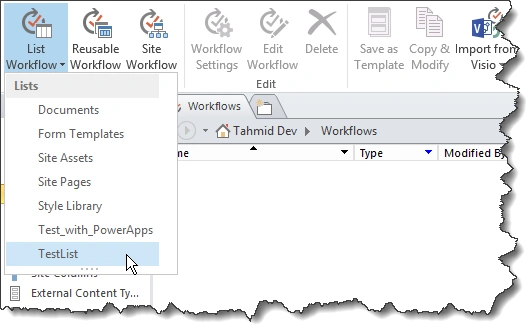
Fig 1: Select Workflow Type and List for Association
- Select your specific list with which you want to associate this List Workflow.
- I have selected this “TestList” as an example for this article.
- A popup window will be opened, as shown in the below image (Fig 2).
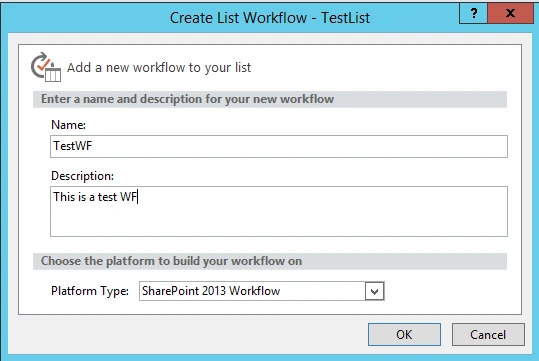
Fig 2: Workflow Details Window
- Now we have to provide the workflow name and selecting the platform type which would be SharePoint 2013 Workflow as that we wanted to create. The Description part is not required, but we can provide some details on this workflow.
- Now select the app step option from the above ribbon as shown in the below image (fig 3). I'm hoping you have already activated the App Step with elevated permission as described above.

Fig 3: Selecting App Step (Have to activate it)
-
So we have to put the api execution action inside this App Step.Other actions like creating a variable or inserting a value in variables can be put outside of this App Step.
-
We can use one or more App step in one SP 2013 WF as needed.
Breaking the Inheritance Permission
-
So to change the permission of a list item, we have to break the inheritance permission of that item first.
-
Breaking this inheritance, we can’t remove or add permission for any user or group.
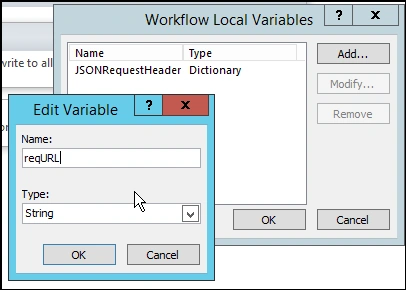
Fig 4: Creating Workflow Variables
-
Here, we have to create a couple of workflow variables for use in further actions.
- Now, create a dictionary type variable called “JSONRequestHeader”.
-
Create another named ‘reqURL’ as ‘String’ type as shown in the above image (Fig 4).
- Add the action ‘Build Dictionary’ to store the values in the ‘JSONRequestHeader’.
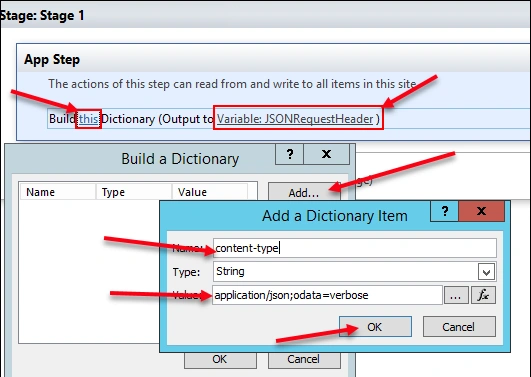
Fig 5: Build Dictionary for Breaking Inheritance
- Select 'JSONRequestHeader' as the variable.
- Click the link ‘this’ when a new popup will be opened as shown in the above image (Fig 5).
- Click on the Add button. The “Add a Dictionary Item” window will be opened.
- Put “content-type” in the Name filed And ‘String’ in the Type Field.
- In the Value field, put the following code,
application/json;odata=verbose

Join the conversation! Your thoughts help the community grow.