
Introduction
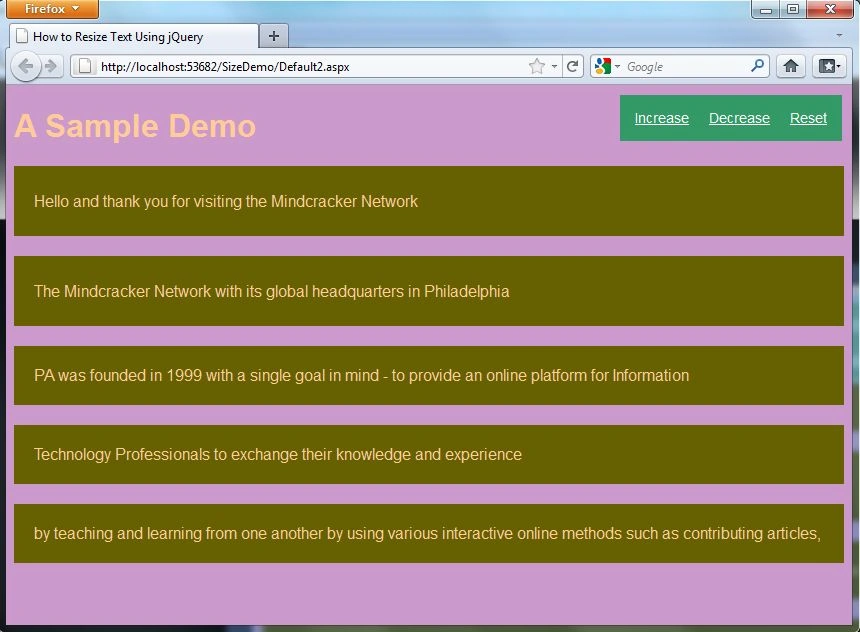
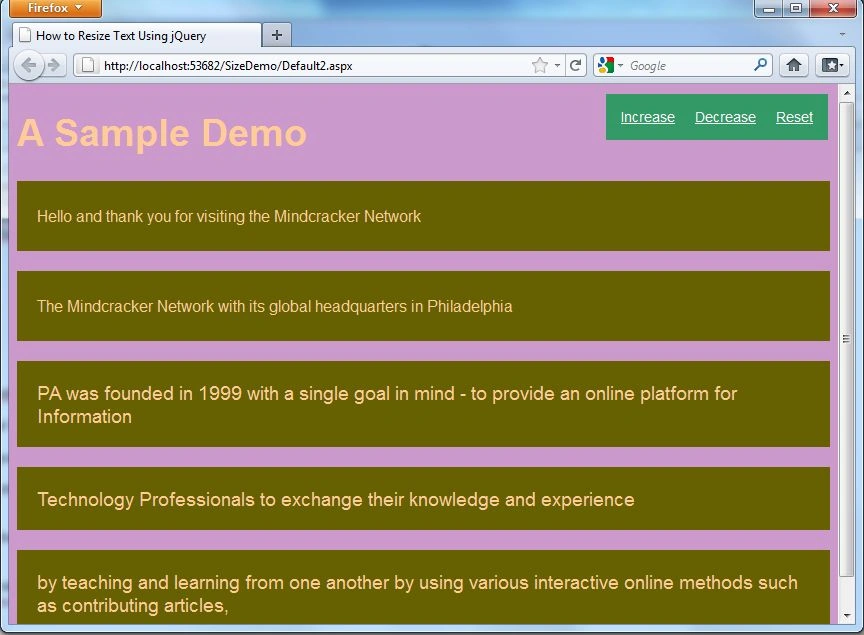
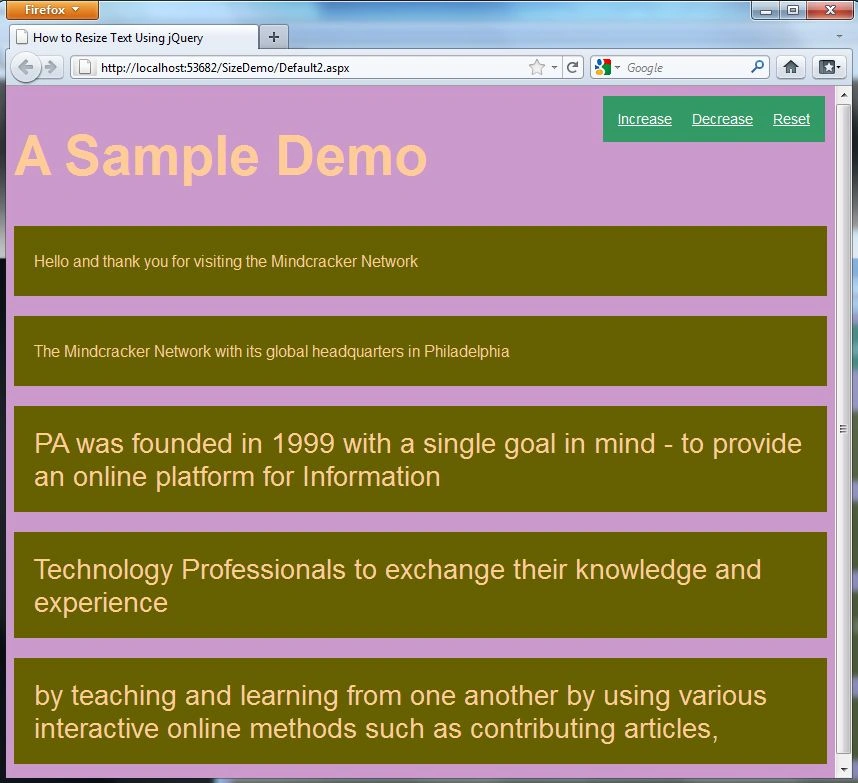
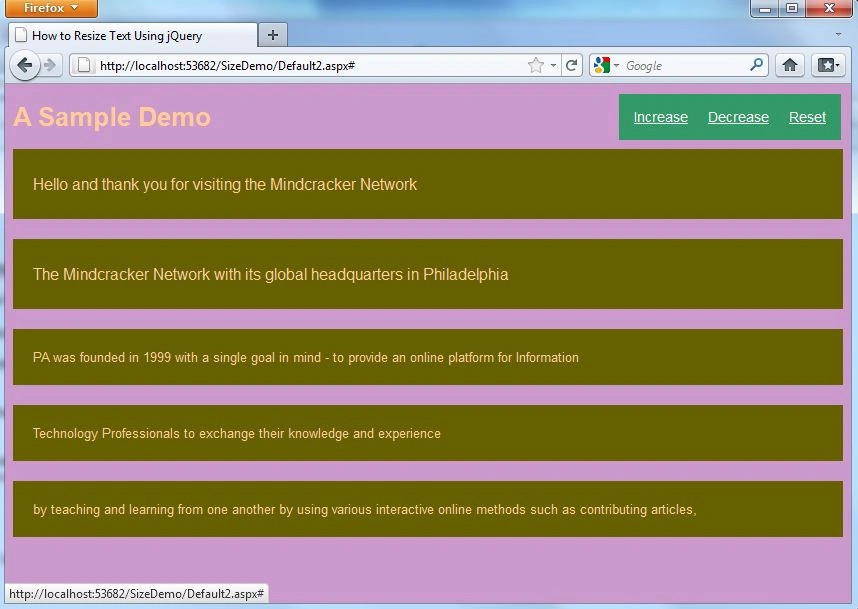
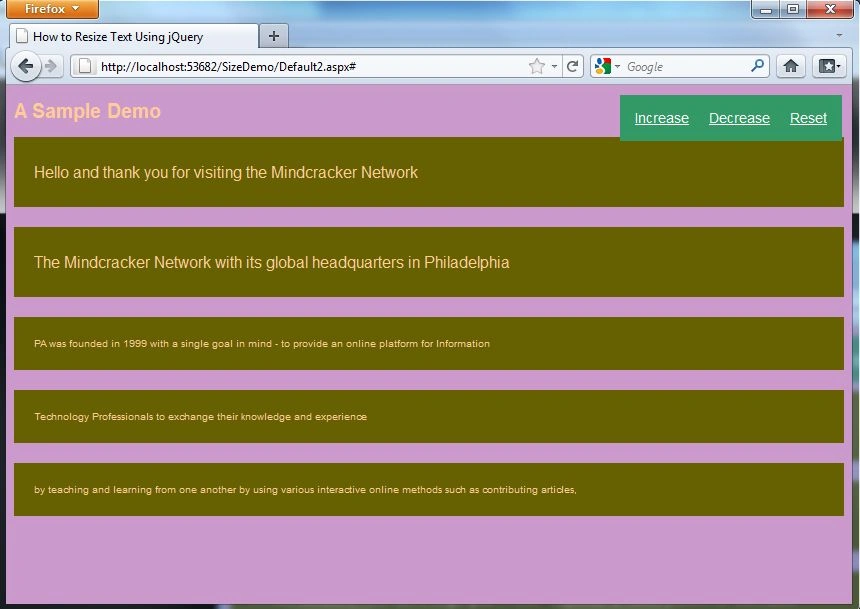
This article will show you how to allow visitors to increase or decrease the text size (font size) on your website using jQuery and CSS step by step.
Step 1: First we have to create a Web Application.
- Go to Visual Studio 2010.
- New--> And select the Web Application.
- Give whatever name you want to.
- Click OK.
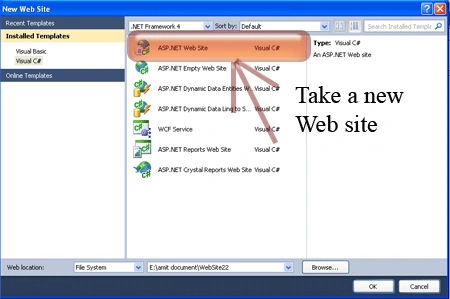
Step 2: Secondly you have to add a new page to the website.
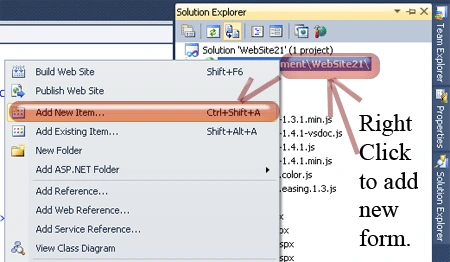
- Go to the Solution Explorer.
- Right-click on the project name.
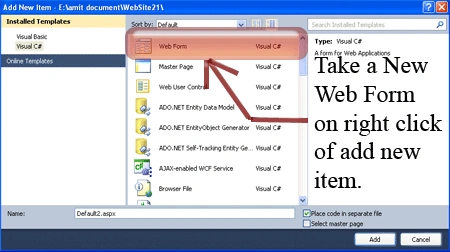
- Select add a new item.
- Add a new web page and give it a name.
- Click OK.
Step 3 : In this step add the CSS code inside the <style> tag and place it into the <head> section of your page.
- <style type="text/css">
- html
- {
- font-size: 1em;
- font-family: Arial, Helvetica, sans-serif;
- color: #FFCC99;
- }
- body
- {
- background-color: #CC99CC;
- }
- .pixels
- {
- font-size: 16px;
- line-height: 30px;
- margin-bottom: 20px;
- padding: 20px;
- background-color: #666000;
- }
- .point
- {
- font-size: 12pt;
- line-height: 30px;
- margin-bottom: 20px;
- padding: 20px;
- background-color: #666000;
- }
- .em
- {
- font-size: 1em;
- margin-bottom: 20px;
- padding: 20px;
- background-color:#666000;
- }
- .percentage
- {
- font-size: 100%;
- margin-bottom: 20px;
- padding: 20px;
- background-color:#666000;
- }
- .undefined
- {
- margin-bottom: 20px;
- padding: 20px;
- background-color: #666000;
- }
- #changeFont
- {
- position: absolute;
- top: 10px;
- right: 10px;
- background-color:#339966;
- padding: 5px;
- }
- .increaseFont, .decreaseFont, .resetFont
- {
- color: white;
- font-size: 14px;
- float: left;
- margin: 10px;
- }
- </style>
Step 4: In this step, we have to write the script reference to the aspx page; let us see from where you have to write the script code.
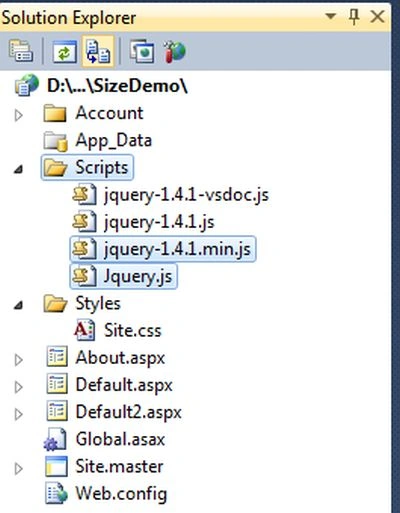
Right-click on both files respectively -> copy and paste it inside <Head> section of your page; see step 5.
Step 5: Let us see the script code which you have to add inside the <script></script> tags and that will be placed either in <head> section or the <body> section as you prefer.
- <script type="text/javascript" src="Scripts/jquery-1.4.1.min.js"></script>
- <script type="text/javascript" src="Scripts/Jquery.js"></script>
Step 6: In this step we have to write the JavaScript code which is given below.
- <script type="text/javascript" language="javascript">
- $(document).ready(function () {
- // Reset Font Size
- var originalFontSize = $('html').css('font-size');
- $(".resetFont").click(function () {
- $('html').css('font-size', originalFontSize);
- });
- // Increase Font Size
- $(".increaseFont").click(function () {
- var currentFontSize = $('html').css('font-size');
- var currentFontSizeNum = parseFloat(currentFontSize, 10);
- var newFontSize = currentFontSizeNum * 1.2;
- $('html').css('font-size', newFontSize);
- return false;
- });
- // Decrease Font Size
- $(".decreaseFont").click(function () {
- var currentFontSize = $('html').css('font-size');
- var currentFontSizeNum = parseFloat(currentFontSize, 10);
- var newFontSize = currentFontSizeNum * 0.8;
- $('html').css('font-size', newFontSize);
- return false;
- });
- });
- </script>
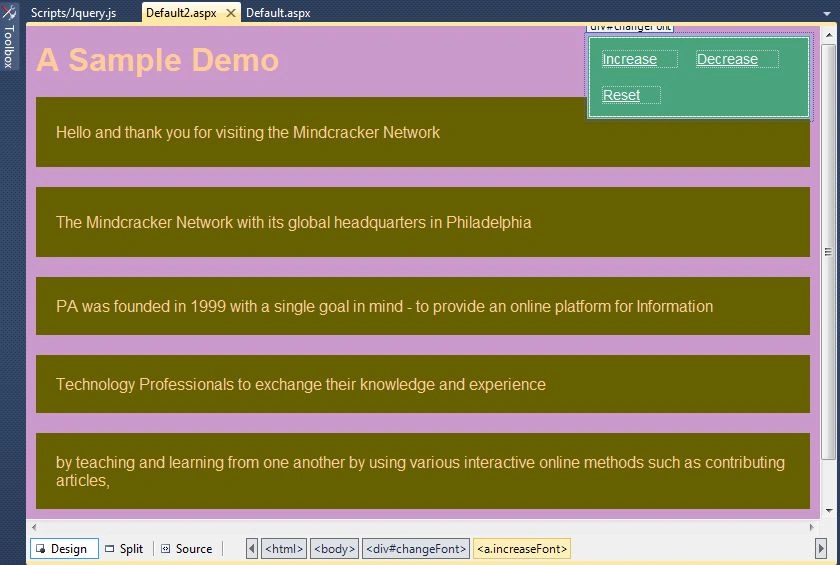
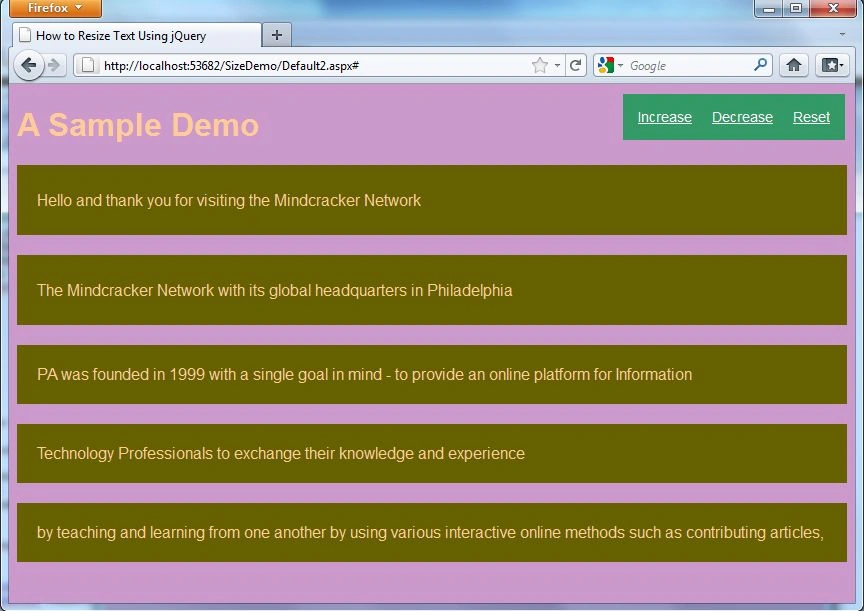
Step 7: In this step you will see the body code of the Default2.aspx page which is given below.
Code:
- <body>
- <h1>
- A Sample Demo</h1>
- <div class="pixels">
- Hello and thank you for visiting the Mindcracker Network</div>
- <div class="point">
- The Mindcracker Network with its global headquarters in Philadelphia </div>
- <div class="em">
- PA was founded in 1999 with a single goal in mind - to provide an online platform for Information </div>
- <div class="percentage">
- Technology Professionals to exchange their knowledge and experience
- </div>
- <div class="undefined">
- by teaching and learning from one another by using various interactive online methods such as contributing articles,
- </div>
- <div id="changeFont">
- <a href="#" class="increaseFont">Increase</a> <a href="#" class="decreaseFont">Decrease</a>
- <a href="#" class="resetFont">Reset</a>
- </div>
- </body>
Mahesh ChandPosted Mar 24, 2012, 9:38 AM
This should belong to JQuery category.
Arun ChoudharyPosted Mar 24, 2012, 2:27 AM
this is good article.