Prerequisites
- Visual Studio 2008, 2010
- AJAX Control Toolkit 3.5
If you don't have AjaxControlToolkit 3.5 then you can download it from the link given below:
http://ajaxcontroltoolkit.codeplex.com/releases/view/90063
After downloading it install it via toolbox in Visual Studio. Create a new tab in the toolbox by right-clicking and adding a new tab; rename it AJAX and then right-click on it and choose item and then browse to the location where you have downloaded ajaxcontroltoolkit35.dll and add it and click ok.
CollapseAblePanel allows you to save space on a webpage by allowing a large amount of data to be encapsulated into one container which will show portions of the data in it depending on the user clicks on it otherwise the data will be hidden.
Your source will be like this:
<%@ Page Language="C#" AutoEventWireup="true" CodeFile="Default.aspx.cs" Inherits="_Default" %>
<%@ Register Assembly="AjaxControlToolkit" Namespace="AjaxControlToolkit" TagPrefix="asp" %>
<!DOCTYPE html PUBLIC "-//W3C//DTD XHTML 1.0 Transitional//EN" "http://www.w3.org/TR/xhtml1/DTD/xhtml1-transitional.dtd">
<html xmlns="http://www.w3.org/1999/xhtml">
<head runat="server">
<title>This is a collapseablepanel control demo in AJAX.</title>
<style type="text/css">
.HeaderStyle
{
width:auto;
height:30px;
background:#006699;
color:White;
font-family:Times New Roman;
}
.HeaderStyle:hover
{
cursor:pointer;
}
.BodyStyle
{
width:auto;
height:100%;
background:#dcdcdc;
}
</style>
</head>
<body>
<form id="form1" runat="server">
<asp:ToolkitScriptManager ID="ToolkitScriptManager1" runat="server">
</asp:ToolkitScriptManager>
<div>
<asp:Panel ID="PnlHeader" runat="server" CssClass="HeaderStyle">
<asp:Label ID="TgtLabel" runat="server" />
</asp:Panel>
<asp:Panel ID="PnlBody" runat="server" CssClass="BodyStyle">
n the 1990s, most web sites were based on complete HTML pages;
each user action required that the page be re-loaded from the server
(or a new page loaded). This process is inefficient, as reflected by
the user experience: all page content disappears then reappears, etc.
Each time a page is reloaded due to a partial change, all of the content
must be re-sent instead of only the changed information. This can place
additional load on the server and use excessive bandwidth. In 1996, the
iframe tag was introduced by Internet Explorer to load content asynchronously.
In 1998, Microsoft Outlook Web Access team implemented the first component
XMLHTTP by client script. In 1999, Microsoft utilized its iframe technology
to dynamically update the news stories and stock quotes on the default page
for Internet Explorer (http://home.microsoft.com). In 1999, Microsoft created
the XMLHTTP ActiveX control in Internet Explorer 5, which was later
by Mozilla, Safari, Opera and other browsers as the XMLHttpRequest JavaScript
object.[3] Microsoft has adopted the native XMLHttpRequest model as of Internet
Explorer 7, though the ActiveX version is still supported. The utility of background
HTTP requests to the server and asynchronous web technologies remained fairly
obscure until it started appearing in full scale online applications such as
Web Access (2000)[4] and Oddpost (2002), and later, Google made a wide deployment
of AJAX with Gmail (2004) and Google Maps (2005).[5]
</asp:Panel>
<asp:CollapsiblePanelExtender ID="CollapsiblePanelExtender1" runat="server"
TargetControlID="PnlBody" ExpandControlID="PnlHeader" CollapseControlID="PnlHeader"
TextLabelID="TgtLabel"
AutoCollapse="false" AutoExpand="false" CollapsedText="Show Details.."
ExpandedText="Hide Details..">
</asp:CollapsiblePanelExtender>
</div>
</form>
</body>
</html>
Press F5 to run the website.
The output will be like this:
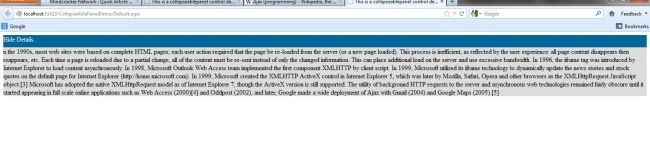
When you click on the hide details then it will hide the data and when you again click on it, it will show the data.
See Other Snap.

Properties Explained
- TargetControlID="PnlBody" specify the controlid which is to hidden or shown on click.
- ExpandControlID="PnlHeader" specify the controlid which will show the targetcontrol on click.
- CollapseControlID="PnlHeader" specify the controlid which will hide the targetcontrol on click.
- TextLabelID="TgtLabel" specify label control which shows the text 'Show Details' or 'Hide Details' Based on the conditions.
- AutoCollapse="false" specify that it will not be collapse automatically. So autocollapse set to false.
- AutoExpand="false" specify that it will not be expand automatically. So autoexpand set to false.
- CollapsedText="Show Details.." Text shown when the data is not showing.
- ExpandedText="Hide Details.." Text Shown when the data is showing.
Hope you like it.


Join the conversation! Your thoughts help the community grow.