

Introduction
This article will help you to customize your site on SharePoint, using Office 365 with the page navigation links, Title, Logo, links order etc.
Note: Here, I will be working with the existing site, which I have created with SharePoint on Office 365. Thus, it's better to read my previous article to make sense about what is SharePoint, creating a site collection, and customizing your site collection with the new pages and content.
Links
- Kickstart to SharePoint and access a free trial.
- Creating a site collection using Office 365 in SharePoint.
- Customize your site collection with new pages and content at SharePoint.
- Creating a new subsite under SharePoint using Office 365.
- Managing your site on SharePoint with Office 365.
- Adding Event Calendar Site Page on SharePoint.
Follow the steps, given below:
Step 1: Open your SharePoint page that you have created. Here, in my case, I will be using the Events page, which I have created in my previous demo. Goto Settings Panel - Site Settings.
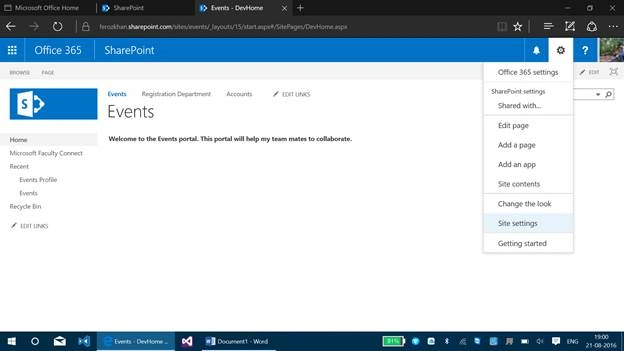
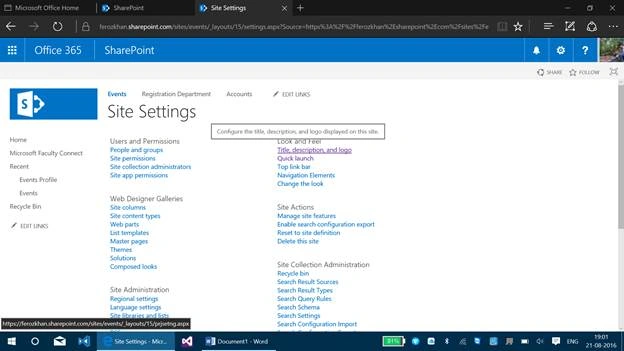
This Site Settings panel will help you to customize your site for any extent, which you expect. Let’s go with the Look and Feel panel now.
Step 2: Click on Title, description and logo.
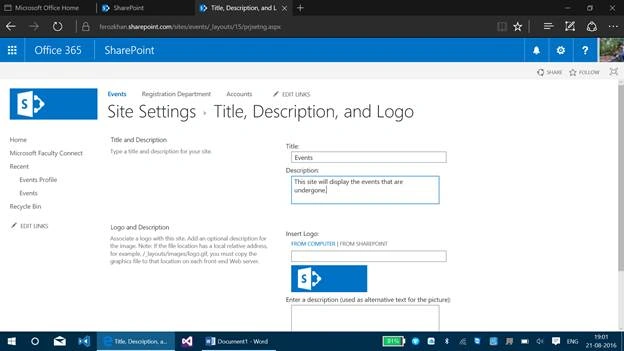
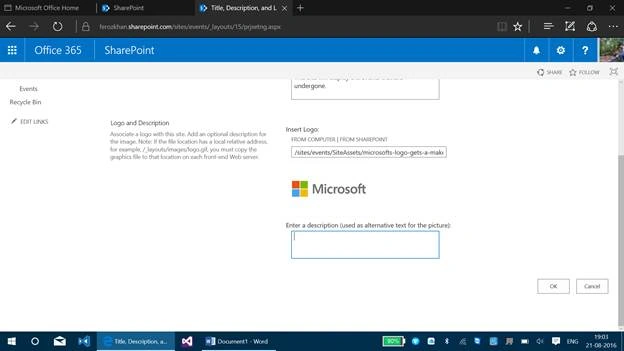
Enter the description for your Title, logo, etc.
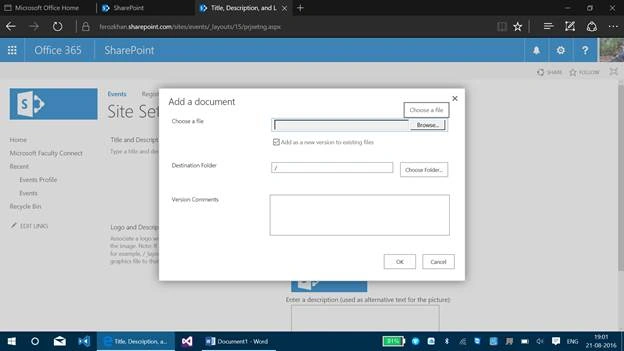
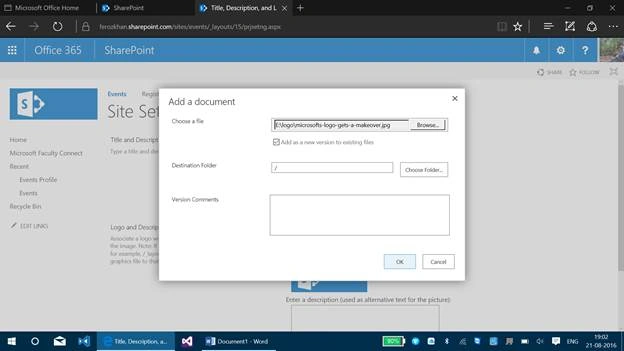
You can insert the logo, either from Computer or From SharePoint,
Tarun DPosted Aug 24, 2016, 1:39 AM
Nice one.Thanks for sharing...
Ramesh PalaniappanPosted Aug 24, 2016, 12:52 AM
Good one
Vignesh ManiPosted Aug 23, 2016, 9:09 AM
Nice one