

Introduction
My team recently configured Kerberos Authentication in SharePoint 2013 web application. We have captured step by step process of how to configure Kerberos Authentication in SharePoint 2013. This article will help the SharePoint administrators who want to configure the Kerberos Authentication in their SharePoint web applications.
Creating new web application with Kerberos Authentication
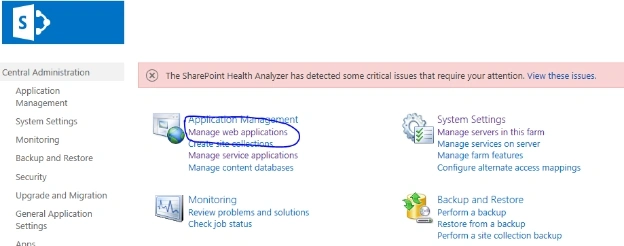
- Open your Central Administrator site.
- Click on "Manage web application" in "Application Management" section.
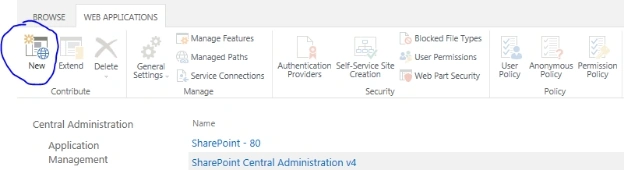
- Click on "New" in the top menu.
- Create new web application in the dialog box.
- Specify the name for web application, such as “webapplication name” in IIS web site section.
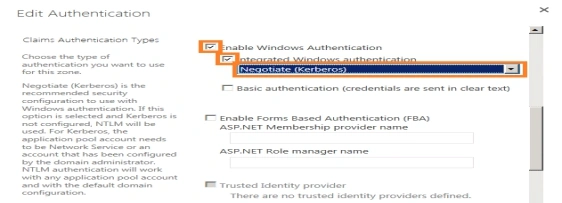
- Specify the type of Authentication to "Negotiate (Kerberos)" in Claims Authentication Type section.
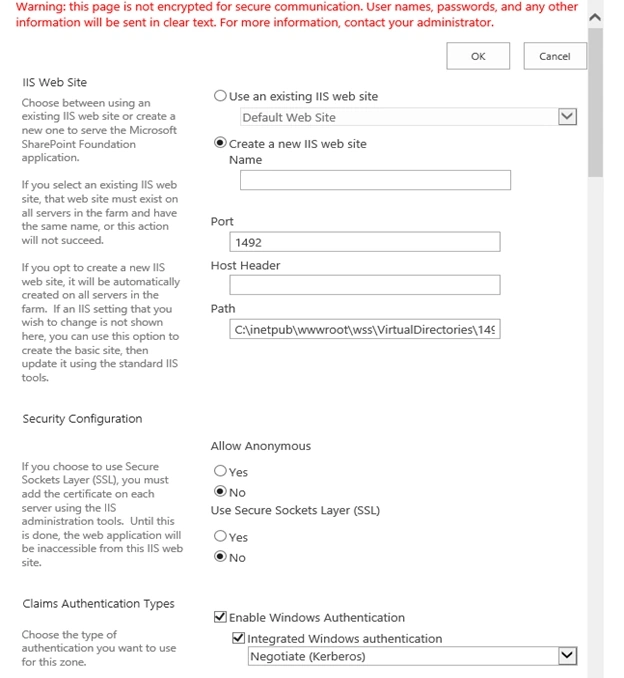
- Change the public URL to a specified URL.
Note - You can use the default name with port number given by SharePoint. However, you need to use the port number too during the execution of Service Principal Name commands (Section 3). - Click OK button to create new web application with Kerberos Authentication type.
Name Resolution
DNS
Note - This section is to be executed by Windows Server Administrator for reliable configuration.
This section to be execute ONLY on DNS Server.
- Open DNS Management in Administrative Tools on a DNS Server.
- Expand "Forward Lookup Zones" container.
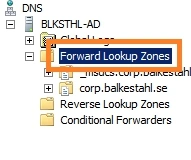
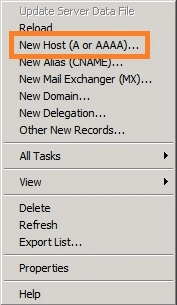
- Right click on your domain and click on "New Host (A or AAAA)".
- You will see the below screen for entering the new Host details.
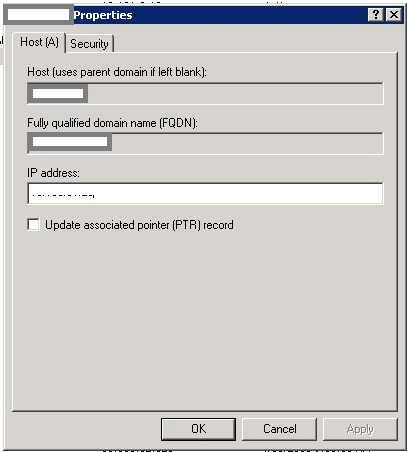
- Enter your Host Name - this is the URL of the web application (minus the domain part in a FQDN) and type in the IP address of WFE Server-. Check the above screen.
Note
If you have 2 WFE Servers within the same farm, you need to make 2 entries - one for each WFE Server with the same Host Name and with respective WFE’s IP address.
- Click on "Add Host".
- Click on "Done".
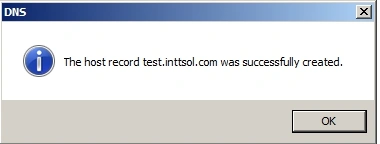
- You will see the confirmation dialog box. Click OK to close the dialog box.
- Verify that the A Record is created in the right pane with correct Host name and IP address.
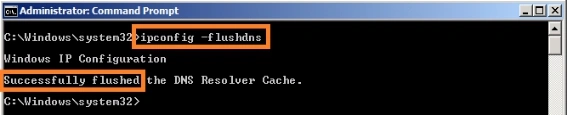
- (optional) Flush the DNS cache. Enter Ipconfig -flushdns
- (optional) In Command Prompt, ping the web application URL and check if it’s working fine. If not, then follow the below steps to update in the host file.
Service Principal Name (SPN)
Note
Run setspn command with your web application’s Application Pool Service Account – e.g. DomainName/App pool service account. To do so, the Application Pool Service account must have membership in Domain Administrator or Enterprise Administrator.
Follow these steps on DNS Server only.
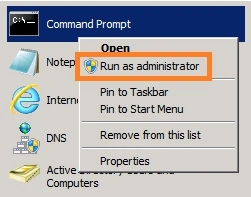
- Open command prompt “Run as” Administrator.
- (Optional step) Check if any SPN is registered for Application Pool Service Account.
setspn -L App pool service account - (Important command) Register SPN for Host Name on Application Pool Service Account.
setspn -S HTTP/spn host name <space>App pool service account
Note - The HTTP service above is case insensitive. Do not configure service principal names with “https” even if the web application uses SSL. If your web application has port number (e.g. port number - 1234), then it should be after Host name; else SPN will get registered but service ticket won’t get generated. - (Important command) Now, register SPN for the Full Qualified Domain Name (FQDN) also.
setspn -S HTTP/Full qualified domain name <space>App pool service account
Note - If your web application has port number, then it should be after FQDN name; else SPN will get registered but service ticket won’t be generated.
- (Optional step) You can check numbers of service(s) registered for Application Pool Service Account.
“-L” option will list all the service(s).
setspn -L<space>App pool service account
If the command ran successfully, you can see the list of services associated with the Service Account - App Pool Service Account.
- (Important command) For DB Server, instead of HTTP service, register MSSQLSvc service to register the SPN.
Allow Trust for delegation
Note - Logged user must have membership in Domain Administrator or Enterprise Administrator to execute the below steps.
- Go to Start -> Administrative Tools.
- Open Active Directory Users and Computers.
- Expand your Fully Qualified Domain Name on left panel. Click on Computers folder. If in case you do not find your Server listed, then right click on your Fully Qualified Domain Name and click on Find and search Computer Name.
- Right click on the Server where you need to trust your Server for delegating the services.
- Click on Properties.
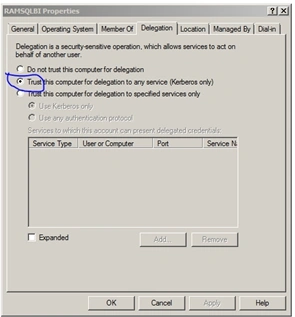
- On the Delegation tab, select "Trust this computer for delegation to any service ( Kerberos only) option.
- Click OK
Daniel KPosted Nov 4, 2018, 5:26 PM
Please let me know if you configured this Kerberos authentication for Normal WebApplication or Service Applications ?
Daniel KPosted Nov 4, 2018, 5:24 PM
Thank you for KB Article
Vinodh NarayananPosted Nov 26, 2016, 4:33 AM
Good one thanks for sharing