
This article explains how to configure mail rules in New Outlook (2026) to automatically exclude auto-reply and out-of-office emails. By identifying common automated subject lines, these messages can be moved to a separate folder or deleted, helping reduce inbox noise and improve email management.
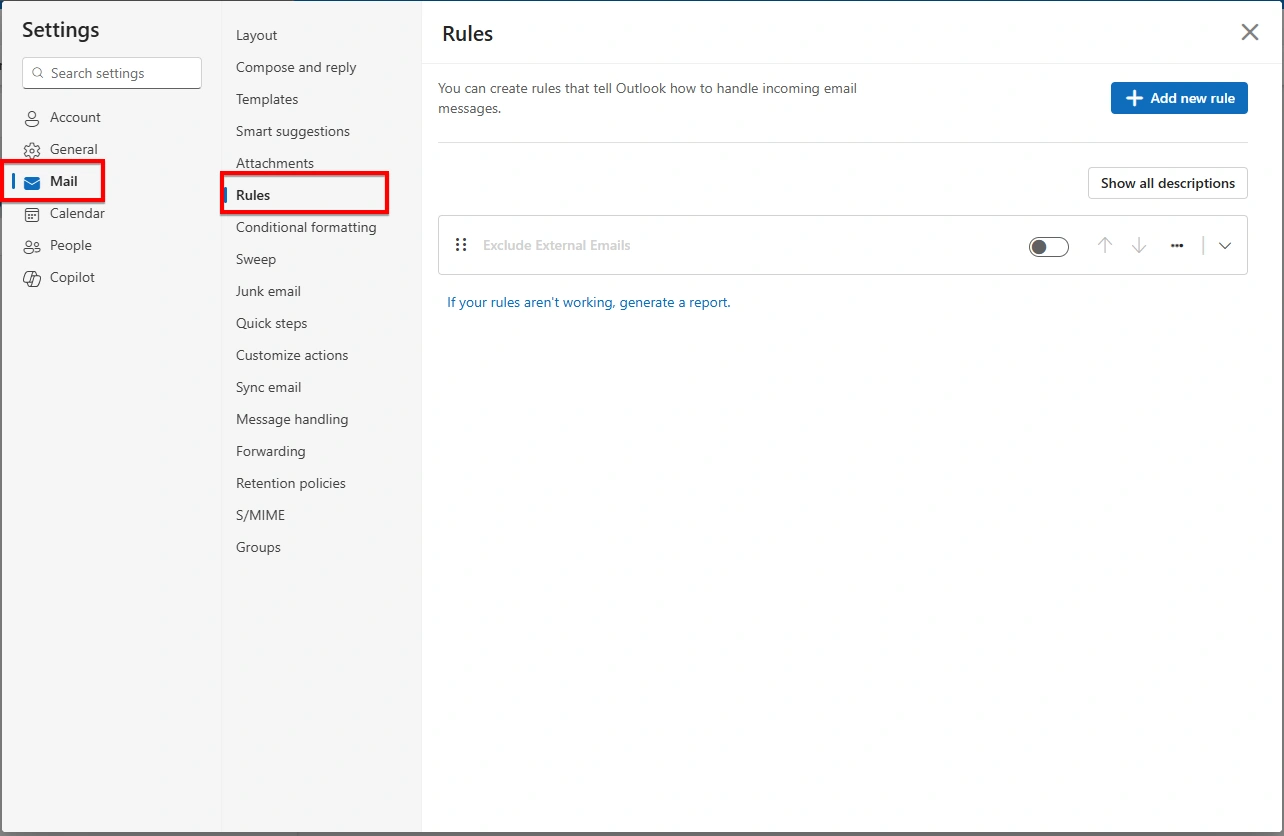
To access the rule settings in New Outlook, click the Settings (⚙️) icon located in the top-right corner of the Outlook window. From the settings menu, navigate to Mail. Select Rules from the available options.
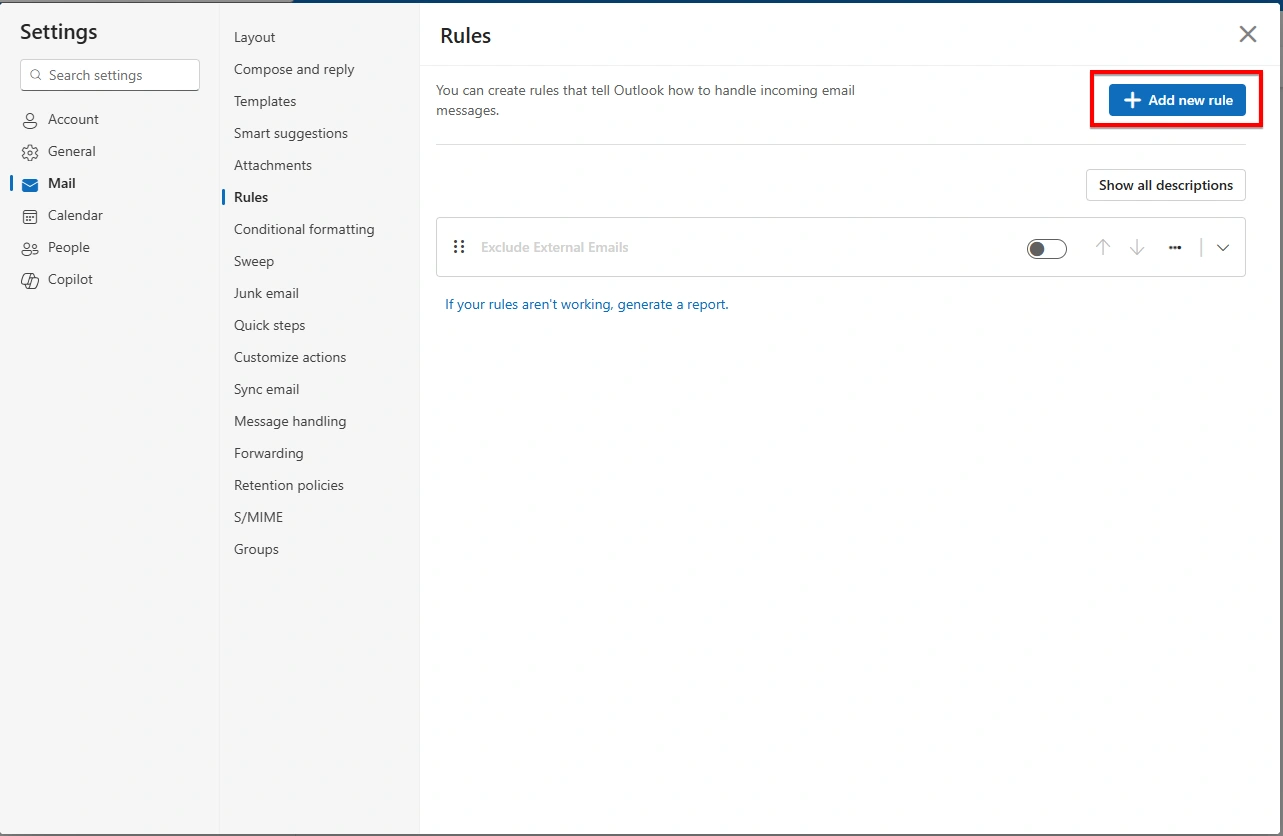
On the Rules page, click + Add new rule to create a new mail rule. Add name to this rule as “Exclude Auto-Replies”.
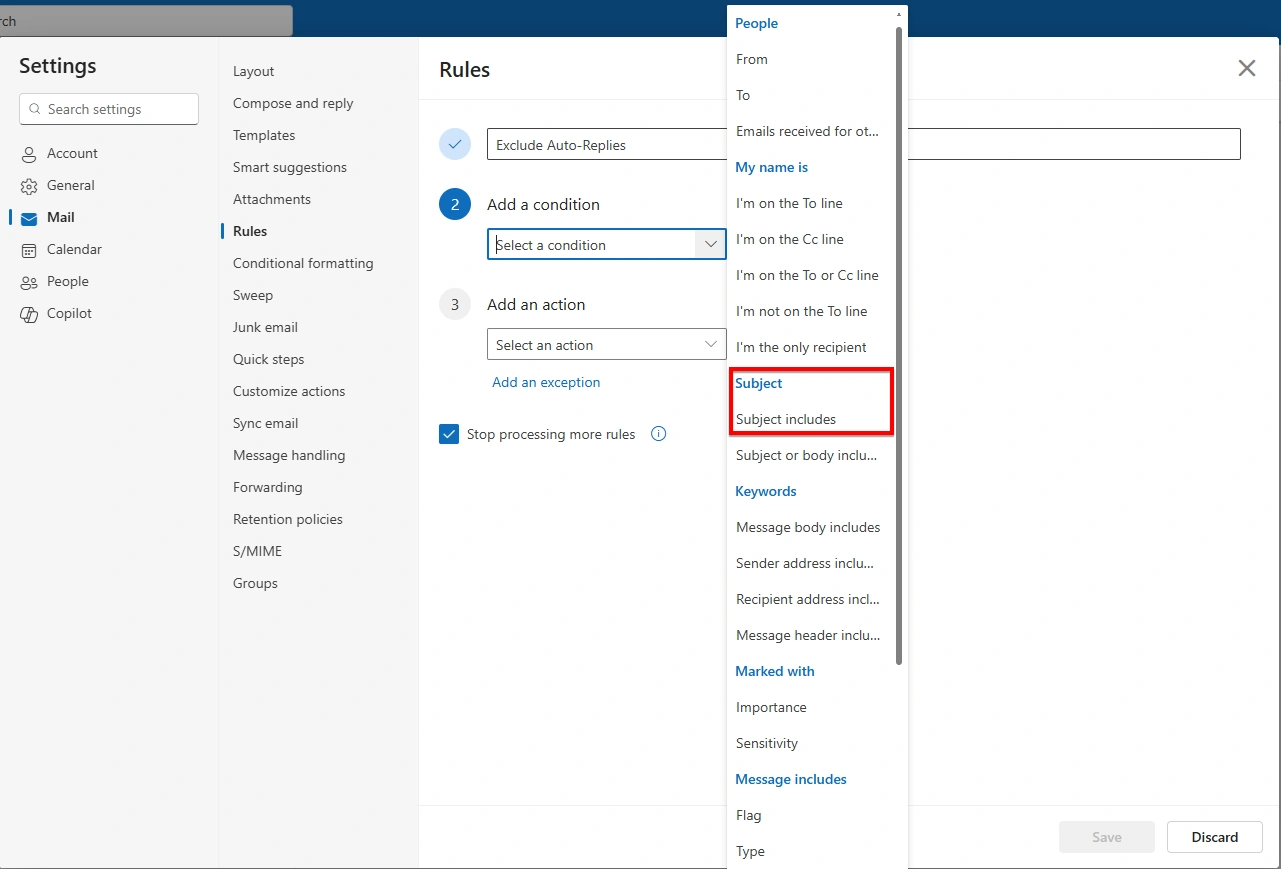
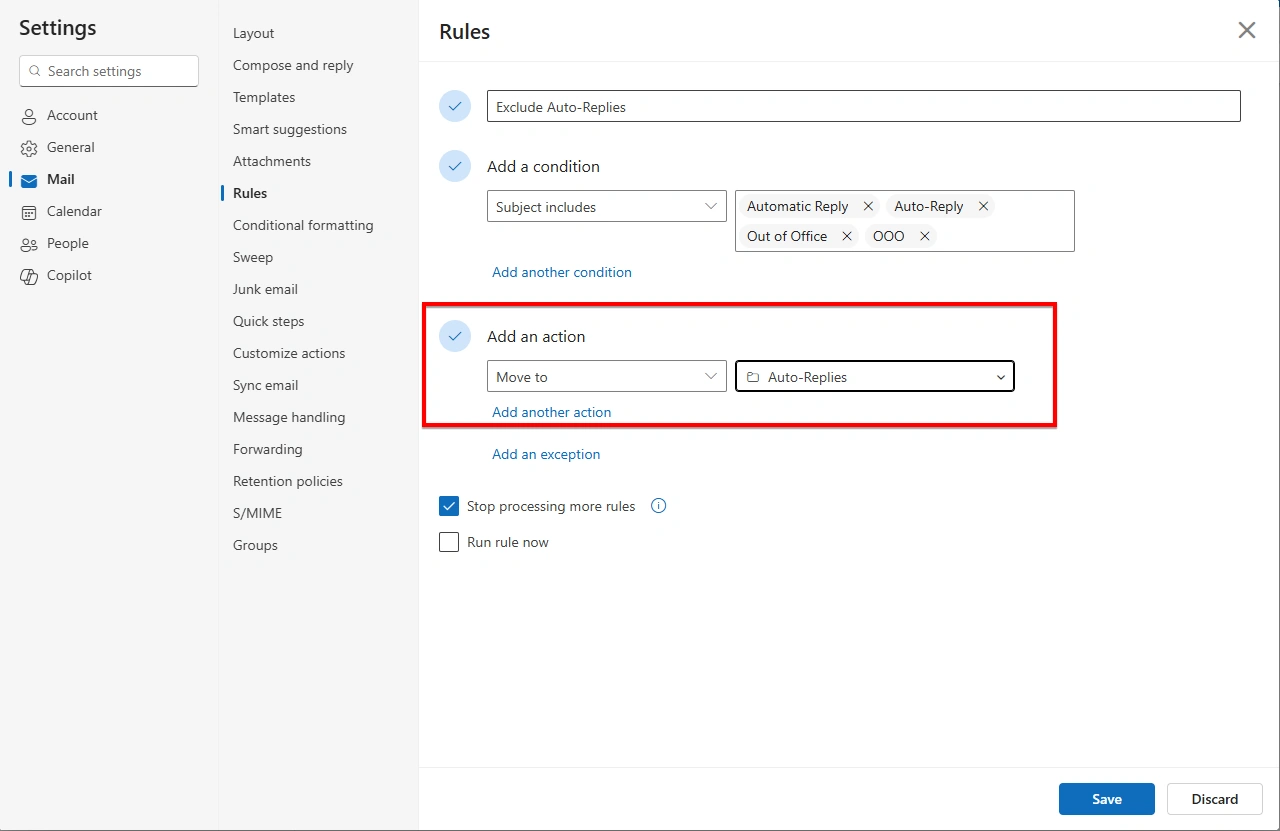
In the Add a condition section, select Subject includes from the drop-down menu.
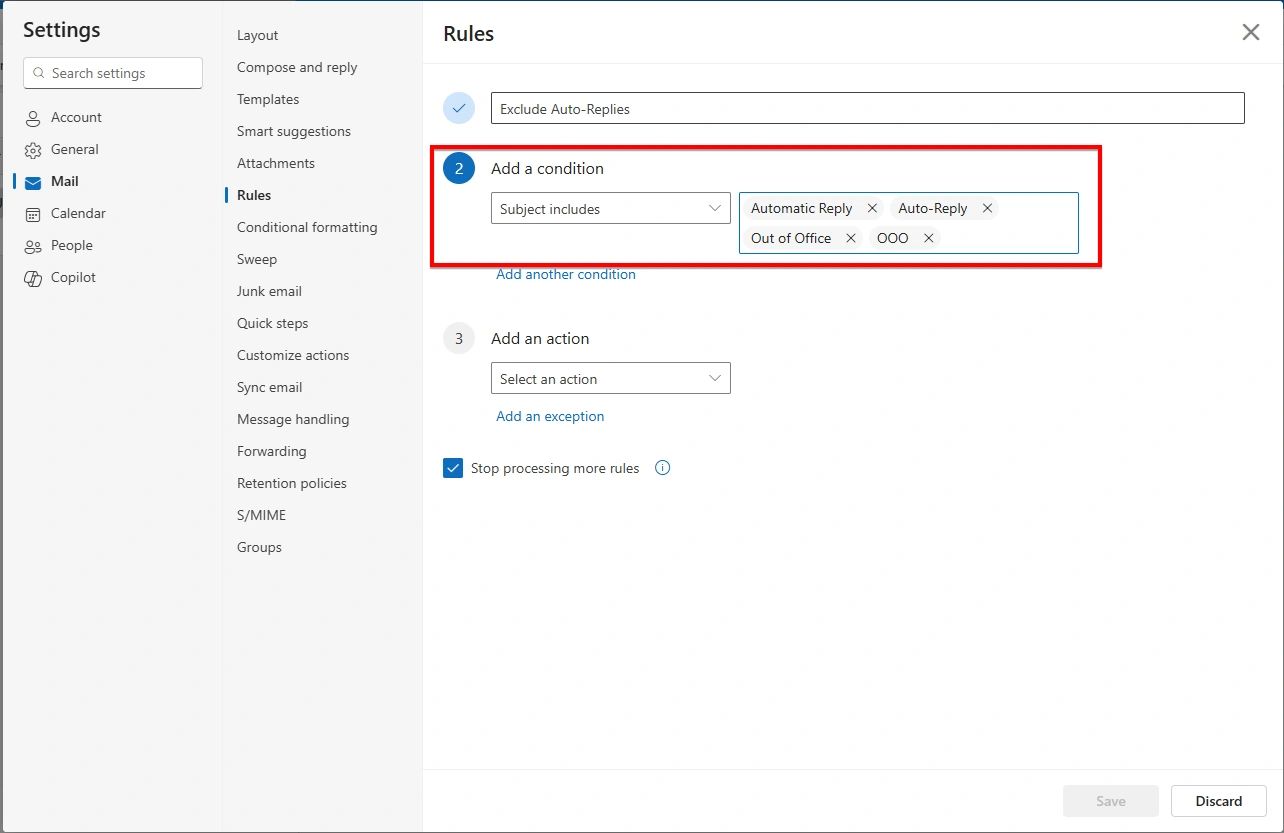
Enter the following keywords, adding each value separately (Additional keywords can be added as needed to accommodate organization-specific auto-reply formats.):
Automatic Reply
Out of Office
OOO
Auto-Reply
These keywords are commonly used in automated response subject lines.
In the Add an action section, select one of the following options based on the desired behavior:
Move to: Select or create a folder named Auto-Replies
Delete: Automatically remove auto-reply emails (It is recommended to initially move auto-replies to a folder before enabling deletion.)
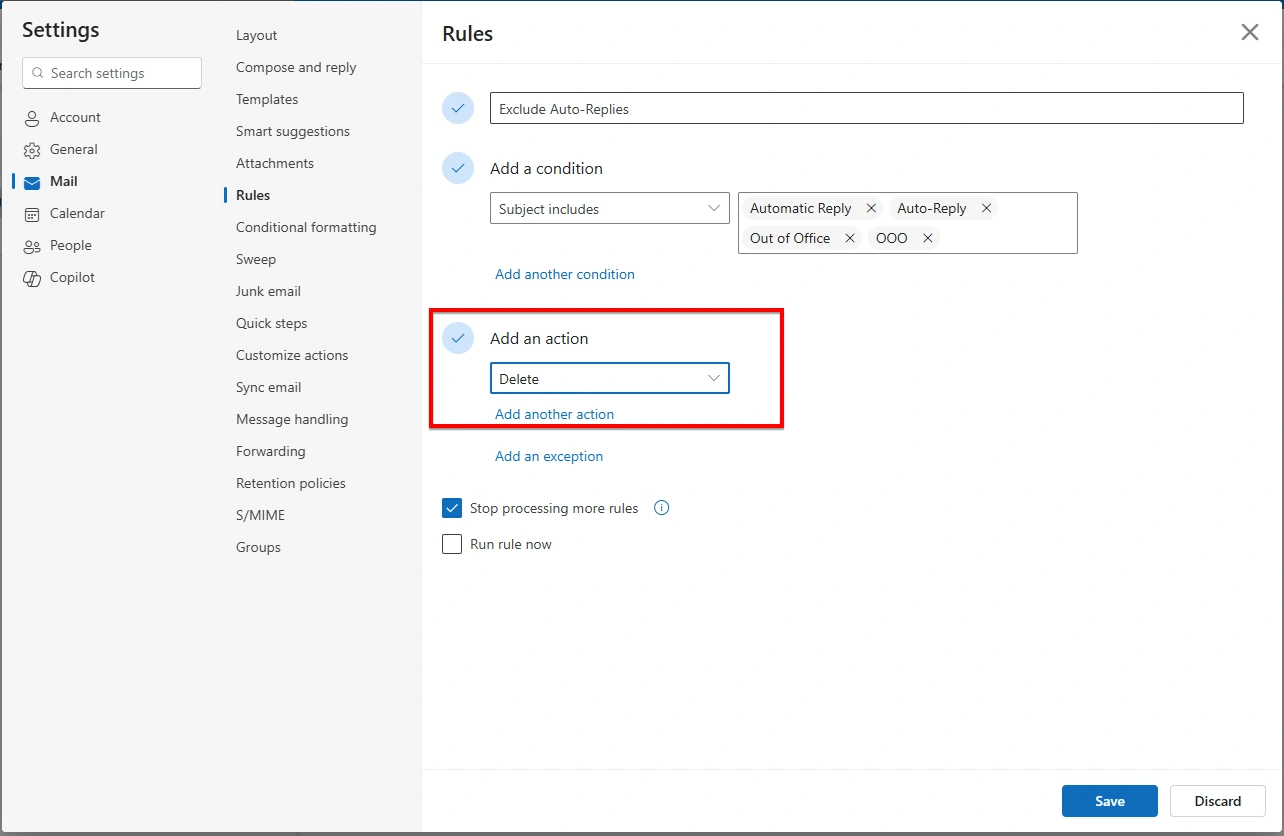
Click Save to activate the rule.
Rule Priority Consideration
To ensure correct execution, this rule should be placed at the top of the rule list. This allows auto-reply emails to be processed before other rules are applied, preventing conflicts or unintended handling.
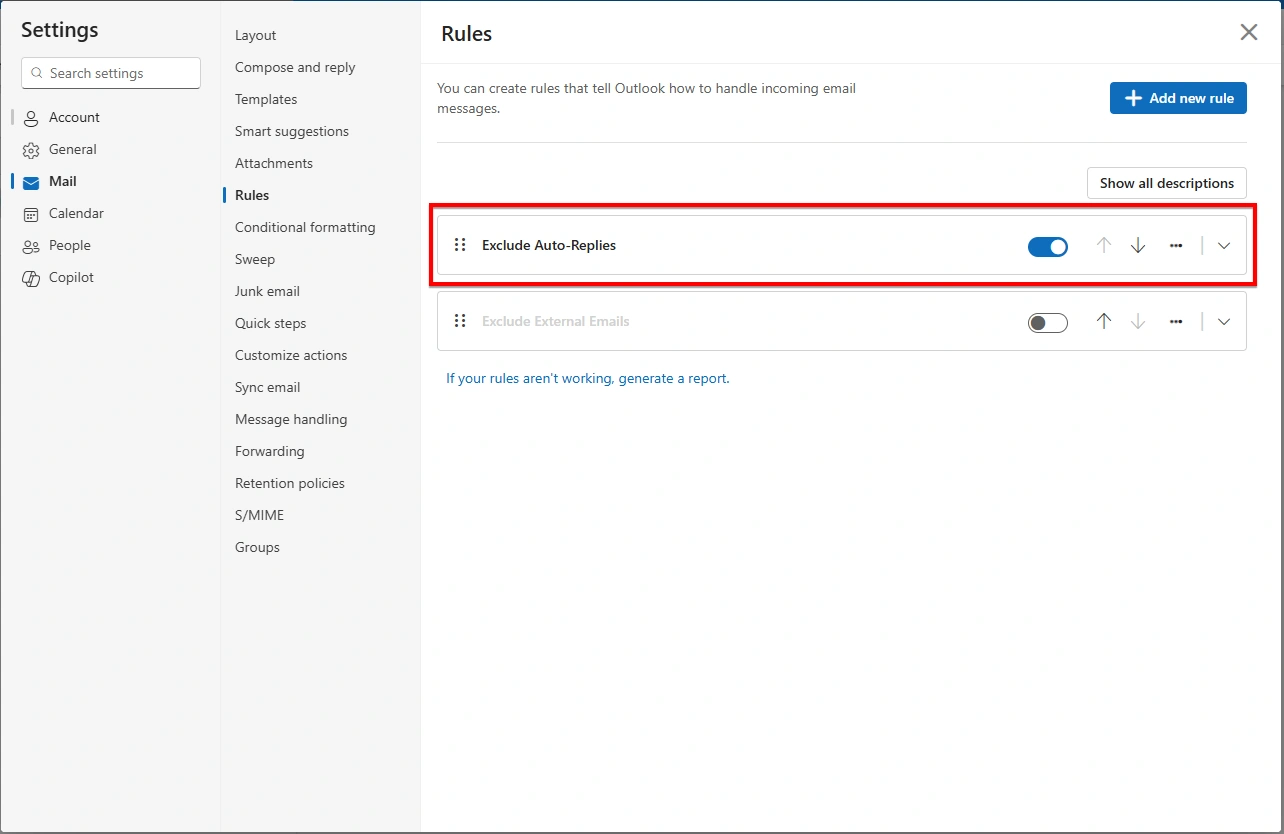
By filtering auto-reply emails based on subject keywords, New Outlook rules provide an effective way to reduce unnecessary inbox traffic. Proper rule placement and cautious use of deletion actions help maintain consistent and reliable email management.
Join the conversation! Your thoughts help the community grow.