
This article outlines a step-by-step approach to creating mail rules in Outlook for managing emails received from external senders. By configuring these rules, external emails can be automatically routed to a specific folder or deleted, while emails from the organization’s domain are excluded – helping keep the inbox organized and clutter-free.
1. To create a new folder in Outlook, follow these steps:
a. In the Folder pane on the left, locate the mailbox where the folder should be created (for example, under Inbox) and click on the ellipsis (three dots) next to the mailbox.
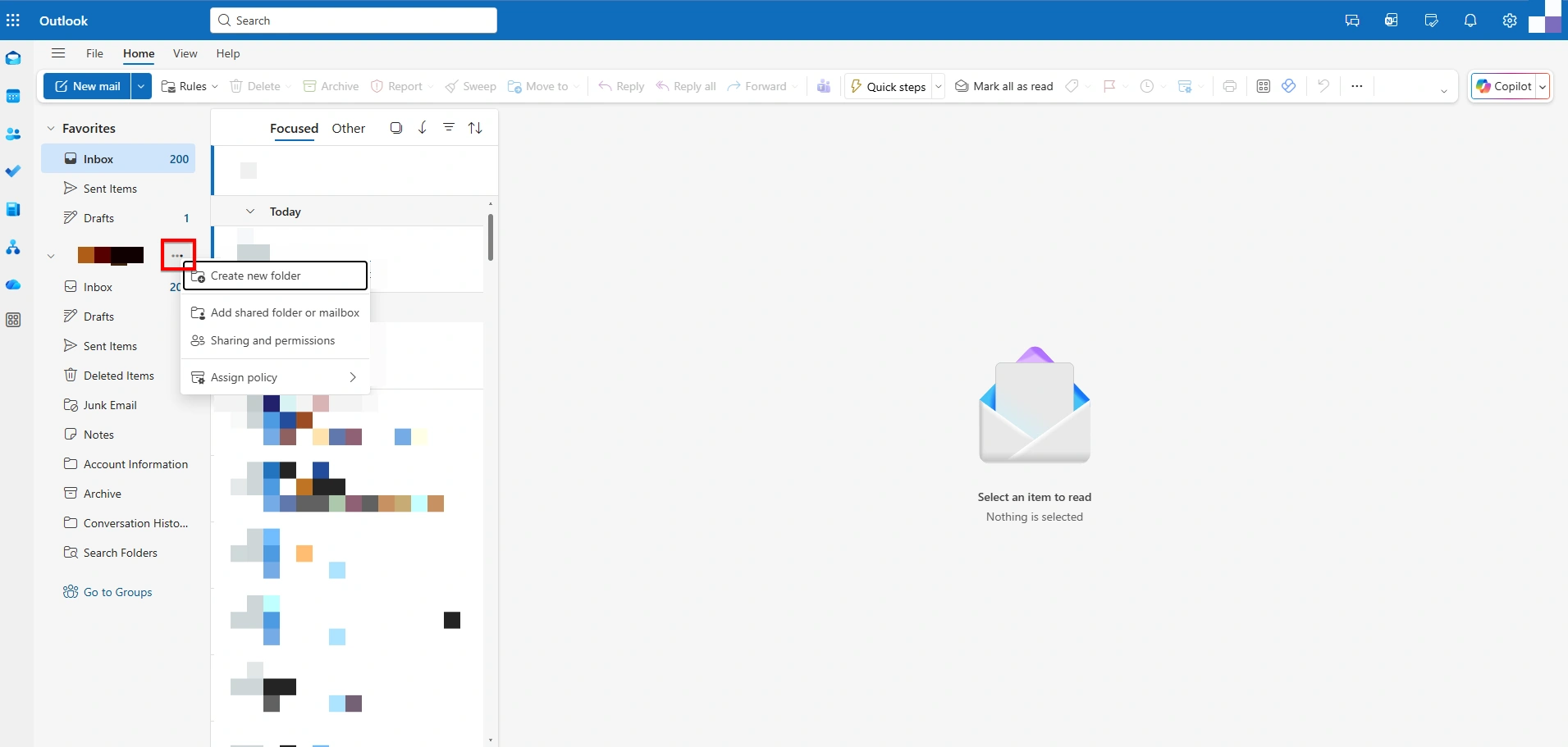
b. Select Create new folder from the opened dialogue box.

c. Enter a name for the folder (for example, External Email) and press Enter.
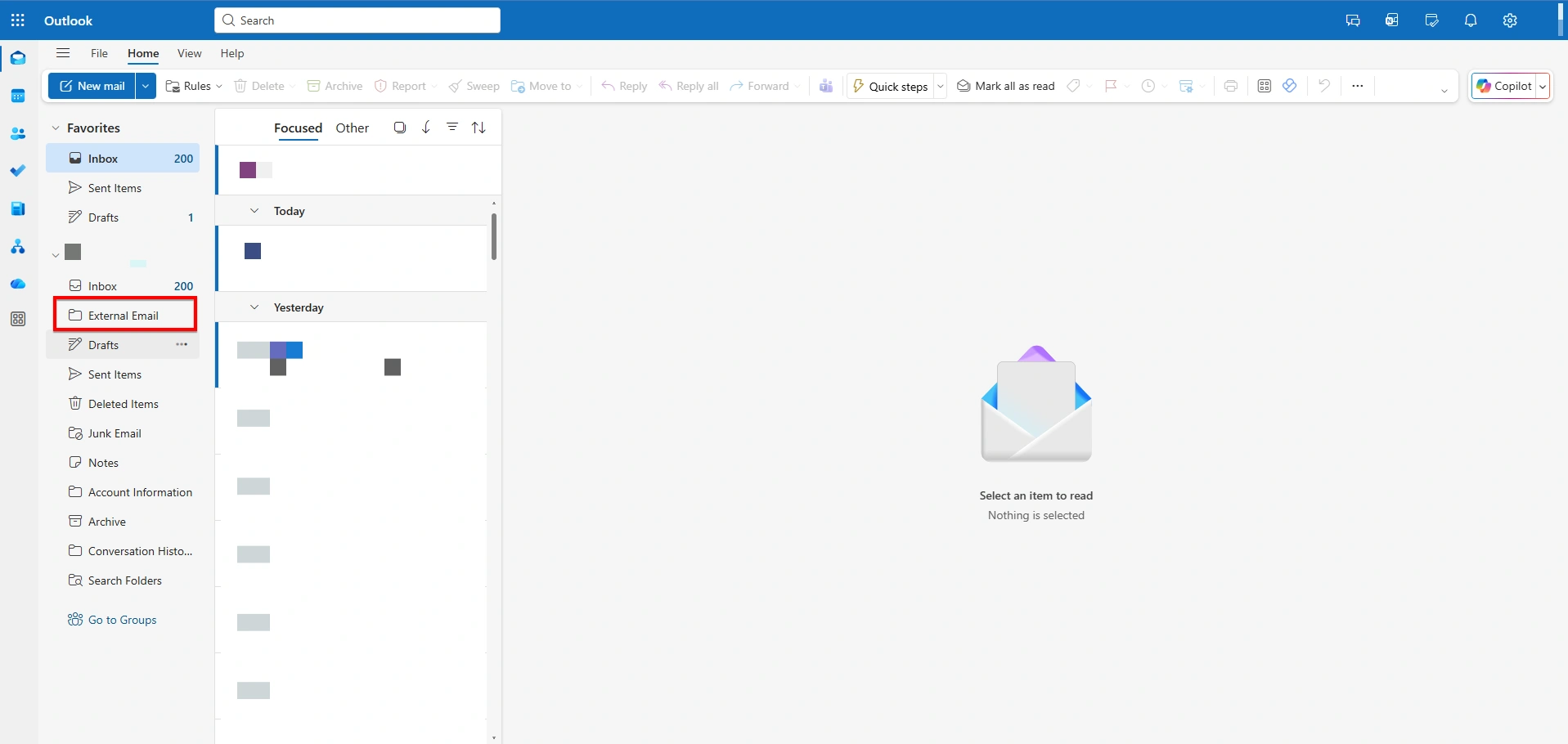
2. Configuring a mail rule in Outlook to move emails from external domains to a separate folder:
a. To access the rule settings in New Outlook, click the Settings (⚙️) icon located in the top-right corner of the Outlook window. From the settings menu, navigate to Mail and select Rules.

b. On the Rules page, click + Add new rule to create a new mail rule and name for the rule, such as “Exclude External Emails”.

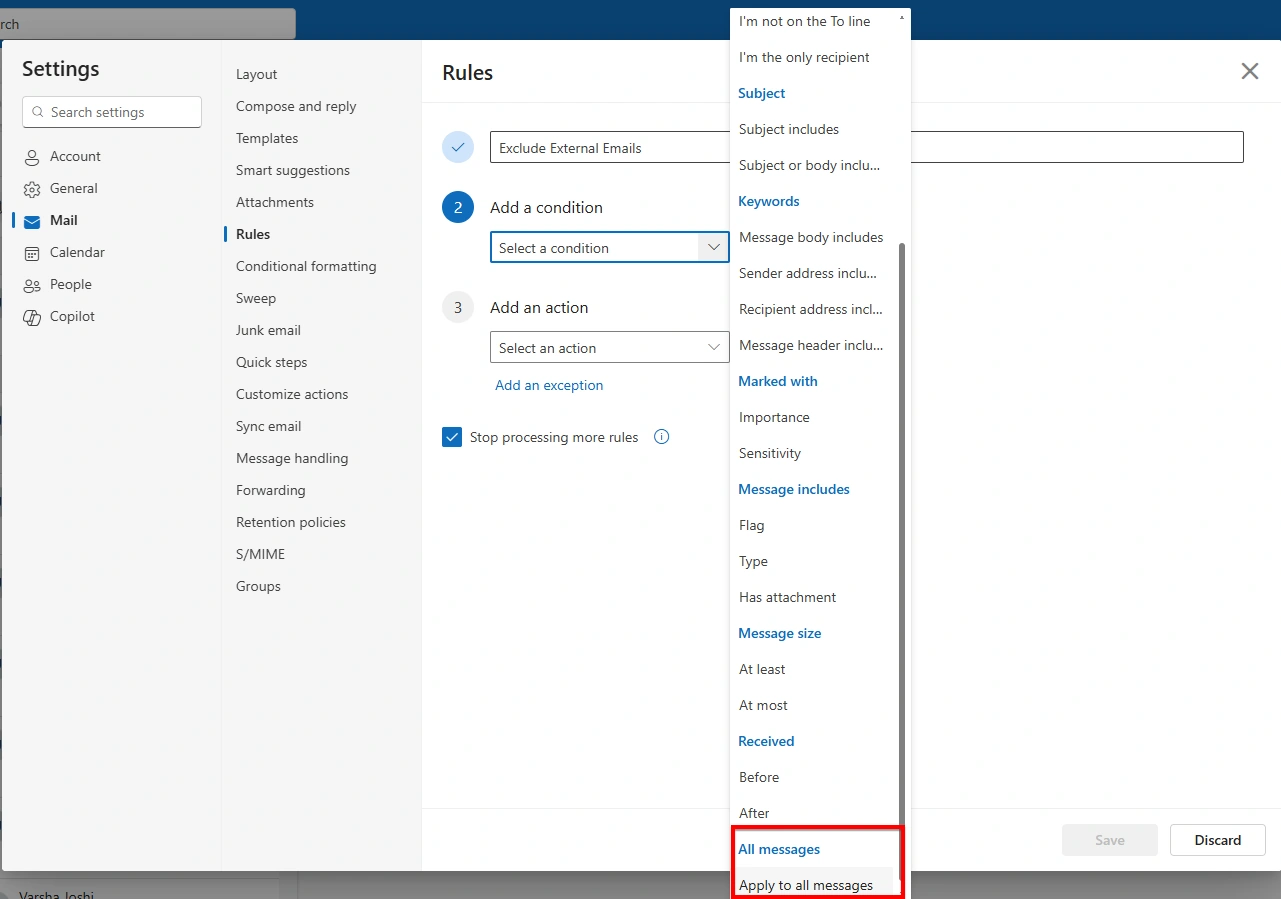
c. In the Add a condition section, select Apply to all messages from the drop-down menu.
d. In the Add an action section, select Move to from the drop-down menu, then choose the target folder from the Select a folder drop-down located next to the action selection.
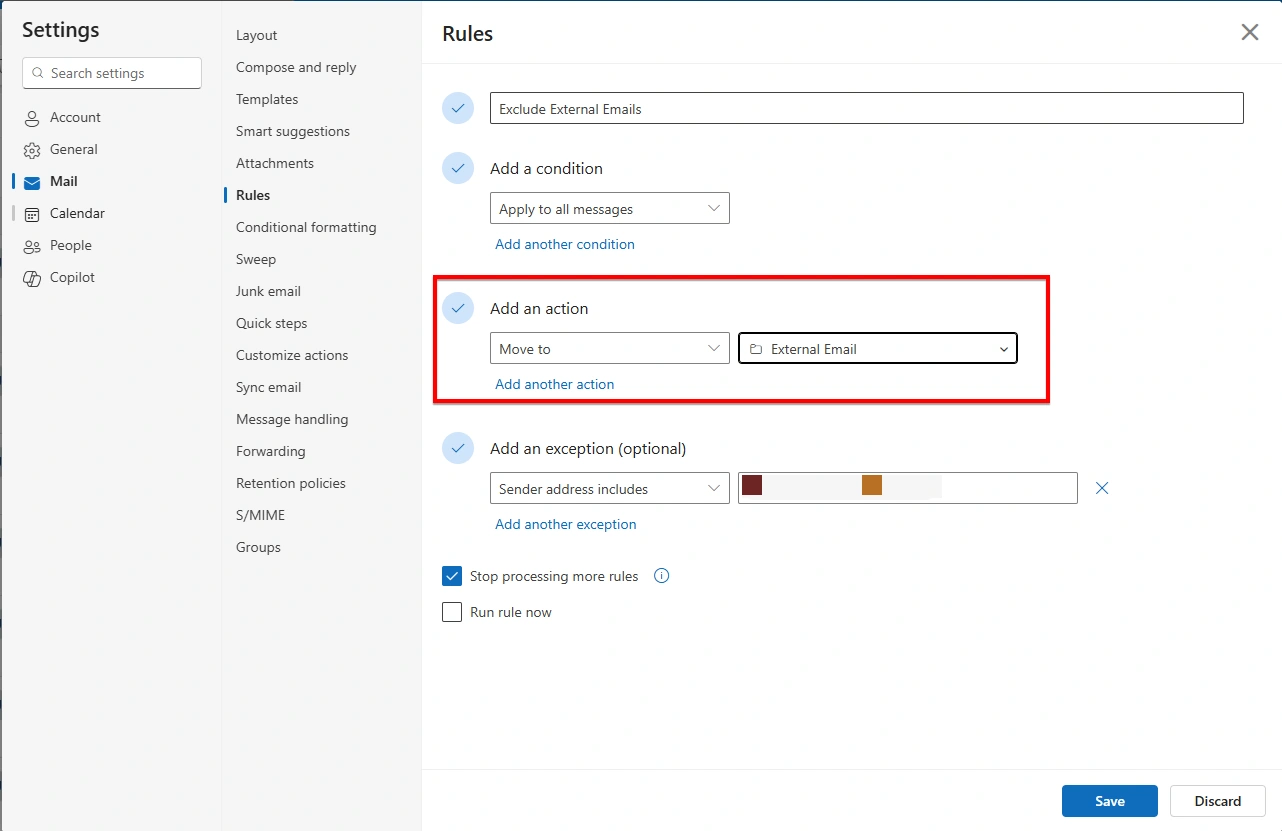
e. Under Add an exception, select Sender address includes from drop-down menu, then enter your domain
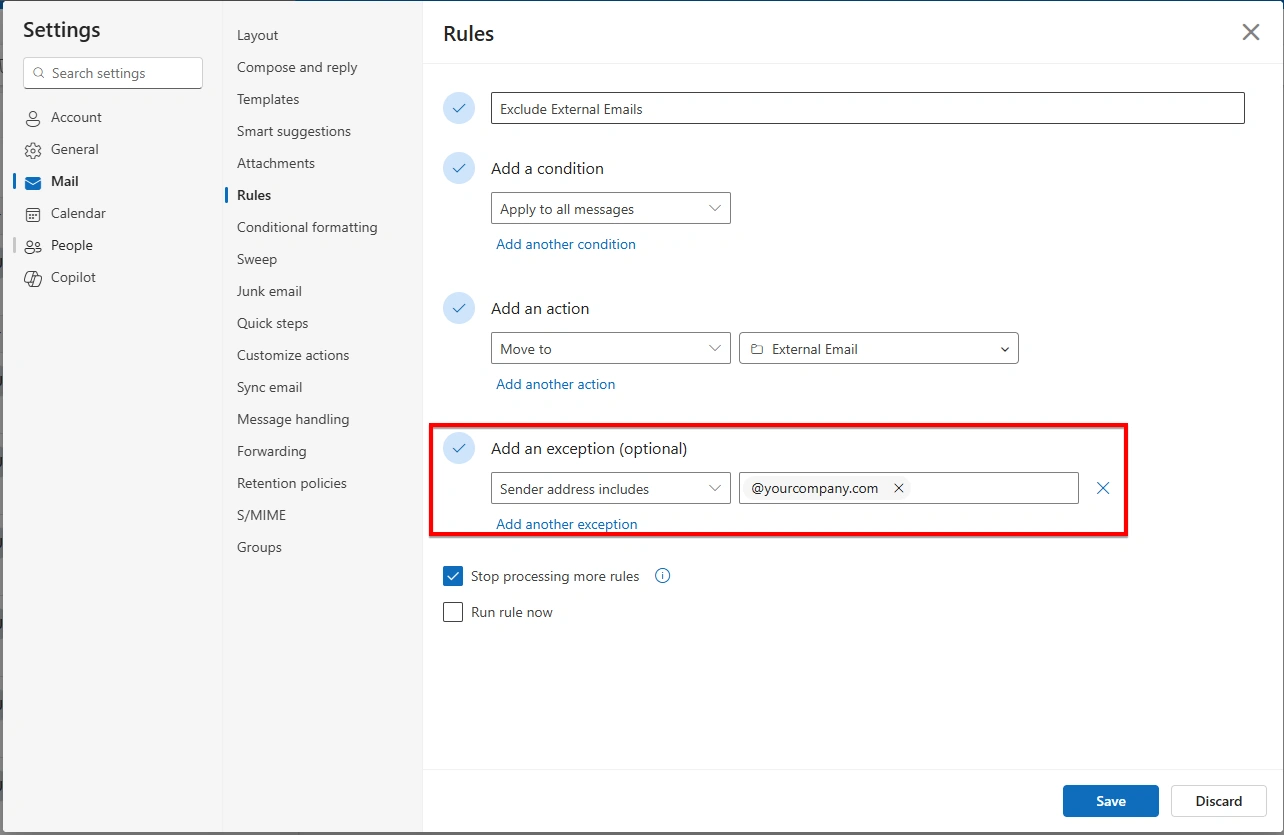
f. Click Save. The rule is now active and will apply to all incoming mail.
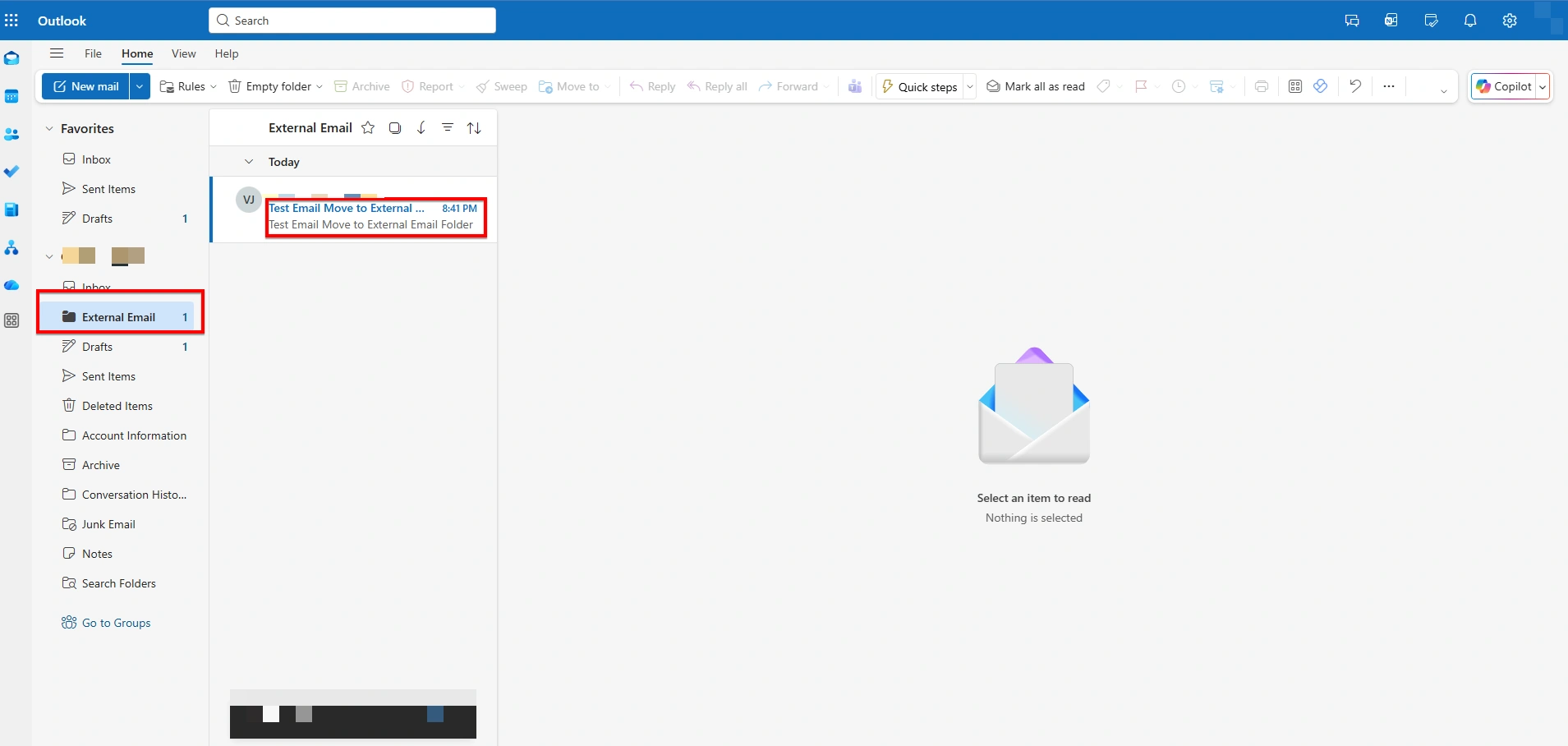
g. The mails received from external domains will be now moved to External Email folder.
3. Configuring a Mail Rule in Outlook to delete the email received from External Domains:
a. To access the rule settings in Outlook, click the Settings (⚙️) icon located in the top-right corner of the Outlook window. From the settings menu, navigate to Mail. Then select Rules option.
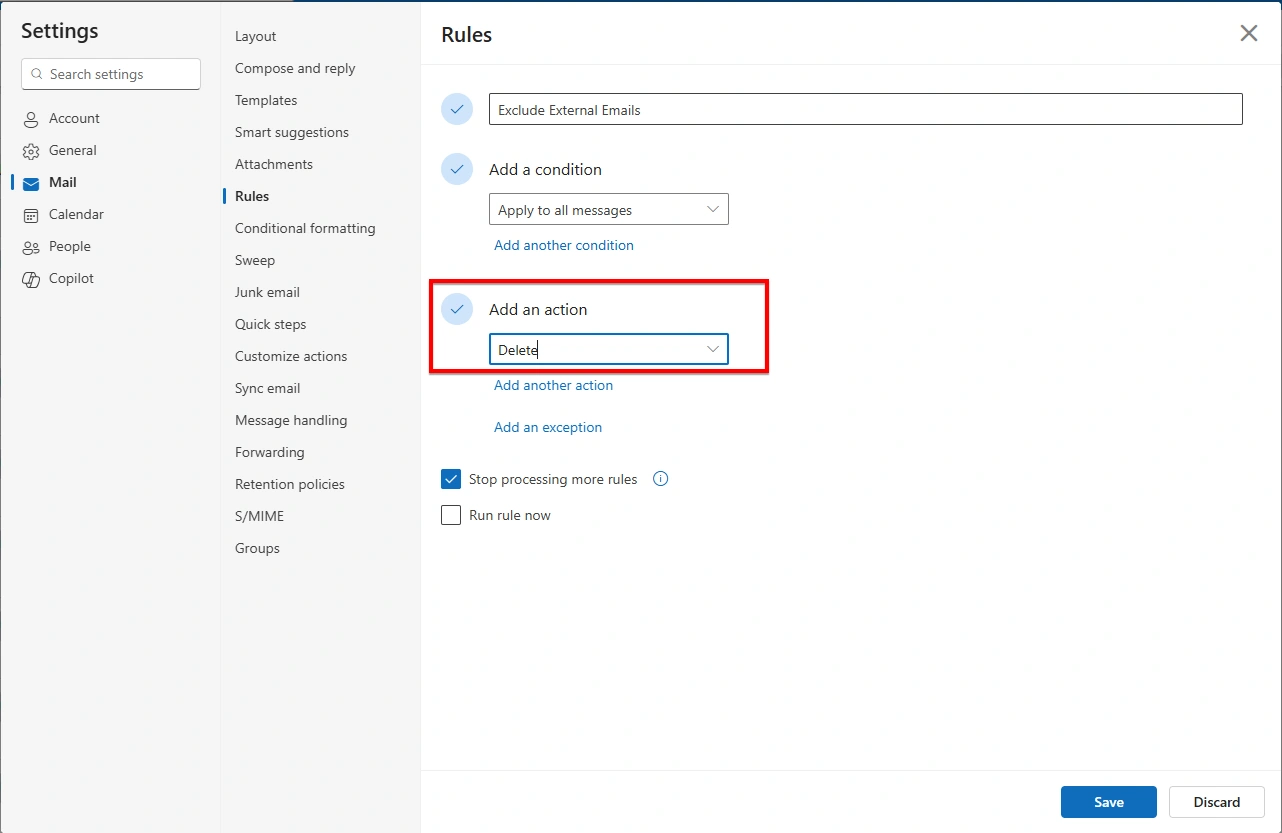
b. On the Rules page, click + Add new rule to create a new mail rule. Provide a meaningful name for the rule, such as “Exclude External Emails”, to clearly identify its purpose.
c. In the Add a condition section, select Apply to all messages from the drop-down menu.
d. In the Add in action, select Delete from the drop-down menu.
e. Under Add an exception, select Sender address includes from drop-down menu, and enter your internal domain
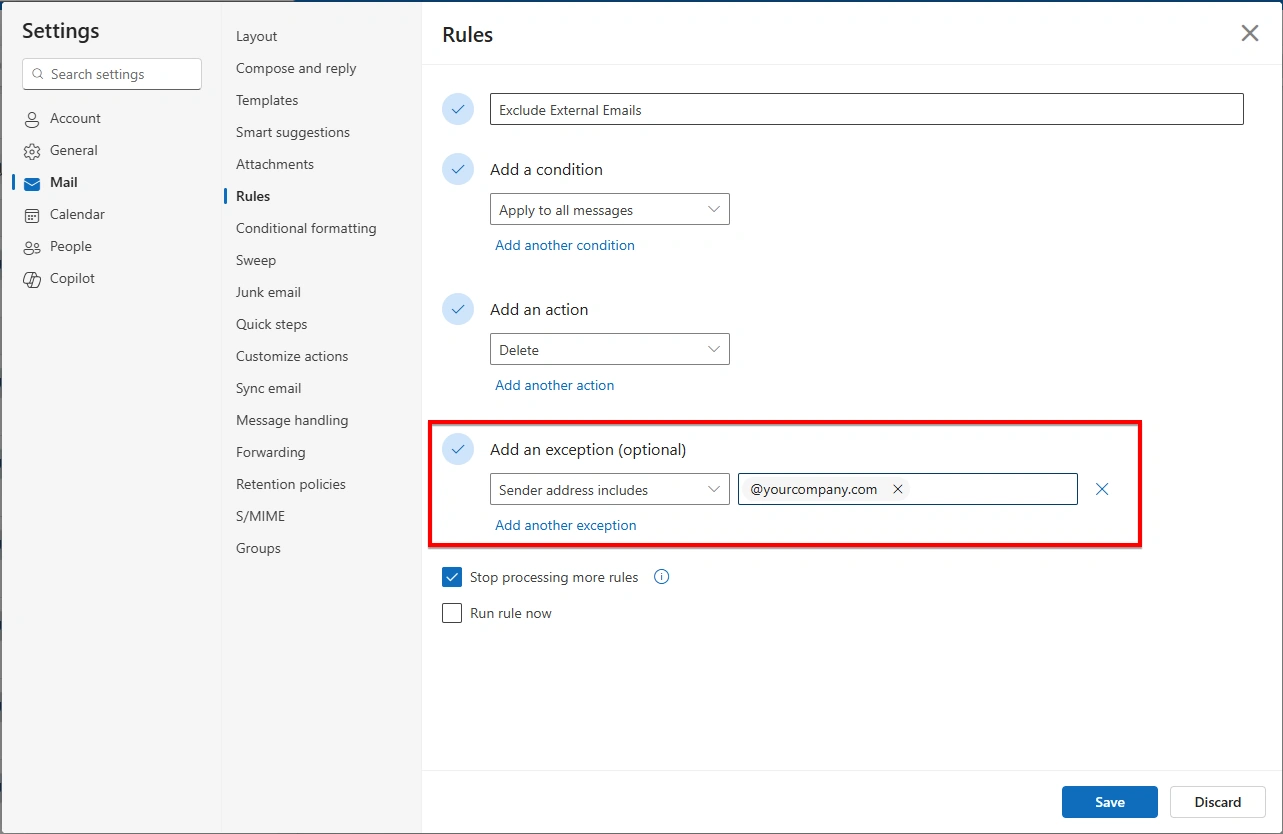
f. Click Save. The rule is now active and will apply to all incoming mail.
g. The mails received from external domains will be moved to Deleted Items folder

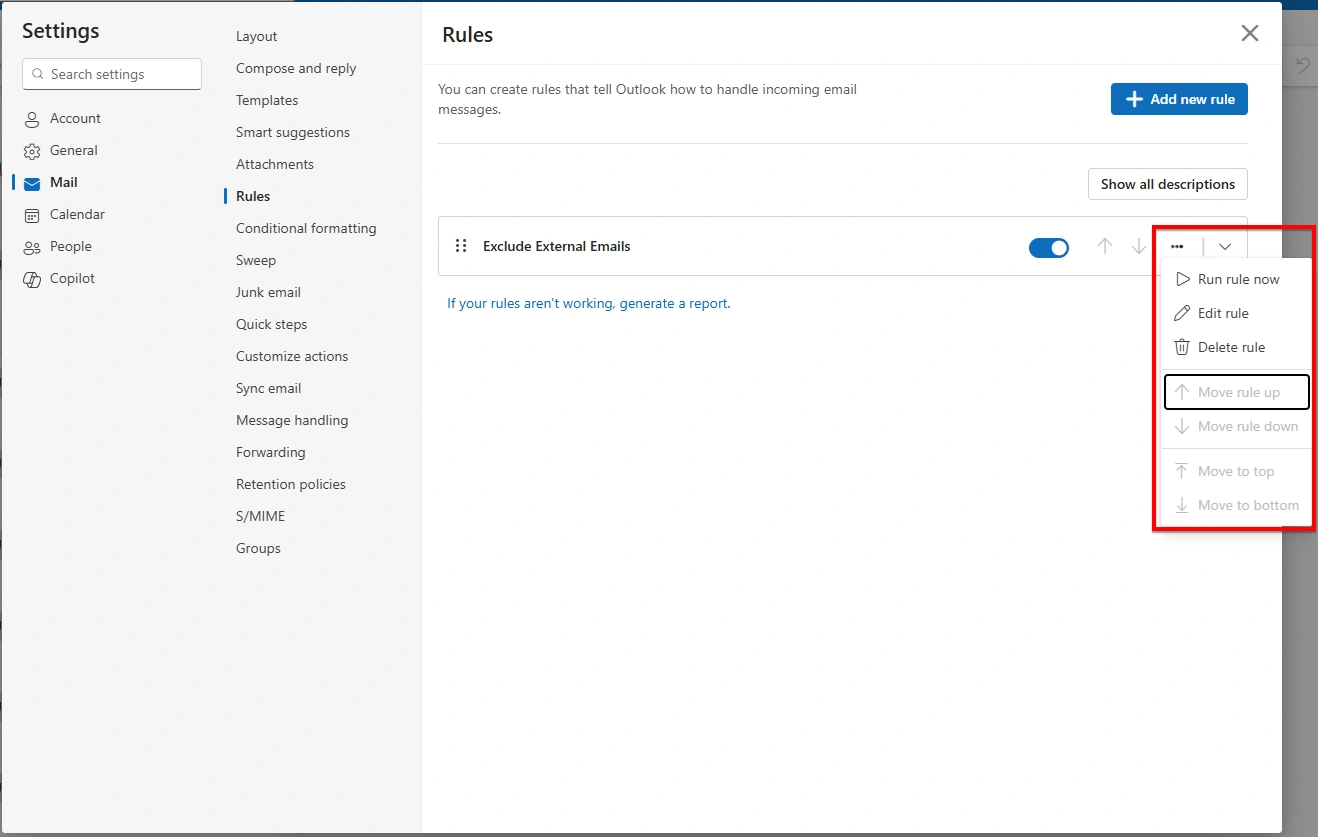
h. The following options are available for configuration:
Use the toggle to enable or disable the rule.
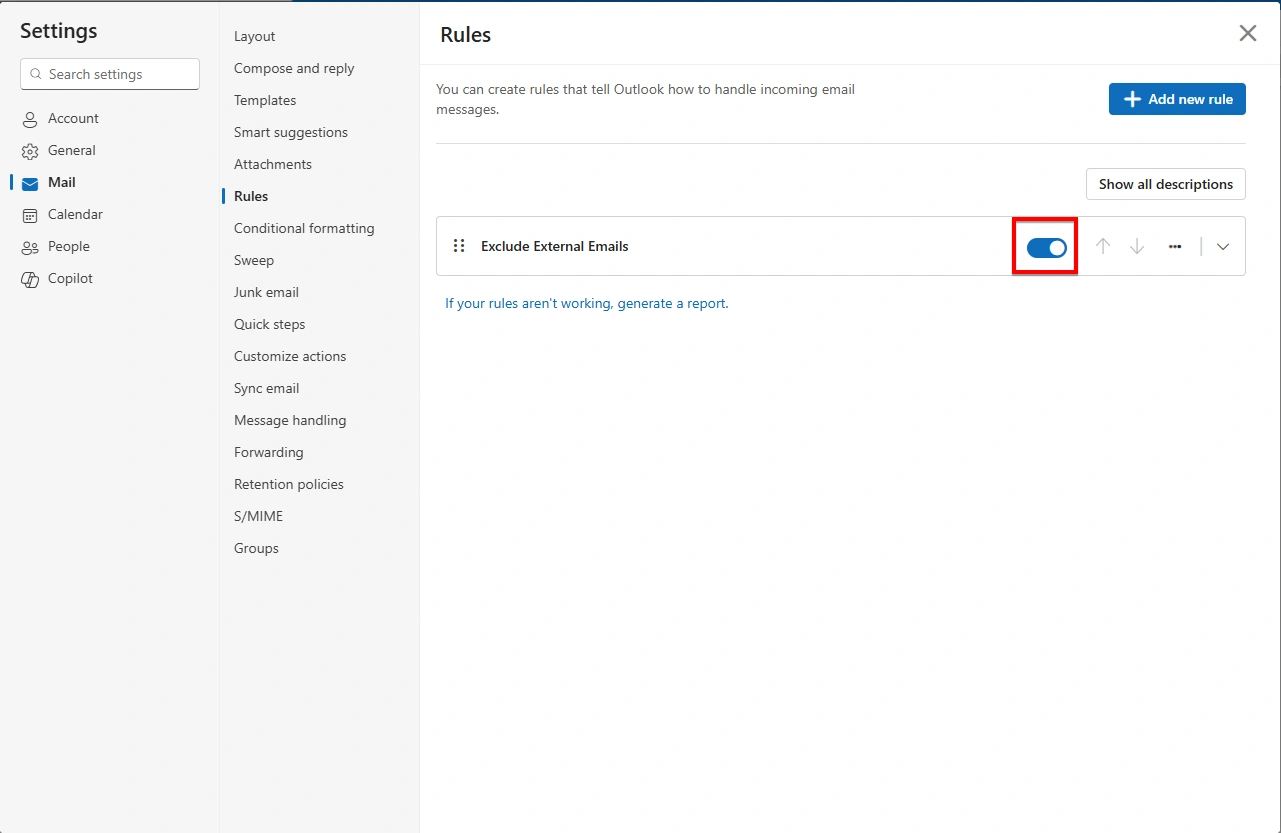
Select the ellipsis (three dots) to open more options, such as Run rule now, Edit rule, or Delete rule.
Select the downward arrow to expand the rule and view its description, with options to Edit or Delete the rule.

Outlook mail rules offer a practical way to manage external emails by moving or deleting them automatically. With the right conditions and exceptions, inbox clutter can be reduced while ensuring important internal emails remain unaffected.
Join the conversation! Your thoughts help the community grow.