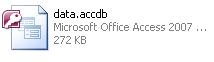
First of all, we need to make a database file for our project. Here I'm using an OLEDB connection so I create my database in Microsoft Access; see.
Enter the data and field names into the database like in this table.
| Field Name |
Data Type |
Max Length |
| user |
text |
20 |
| pass |
text |
20 |
Now Start Visual Studio and start a new project or open an existing project.
If you want to start a new project, please use the following instructions.
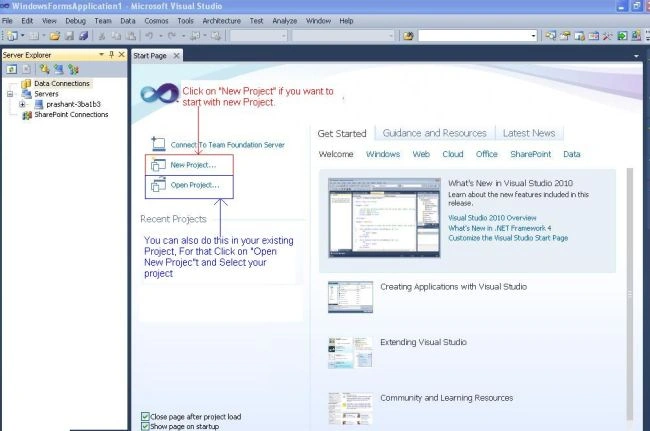
1. First, start Visual Studio, then click on "New Project" on the Sart Page, as in the following.
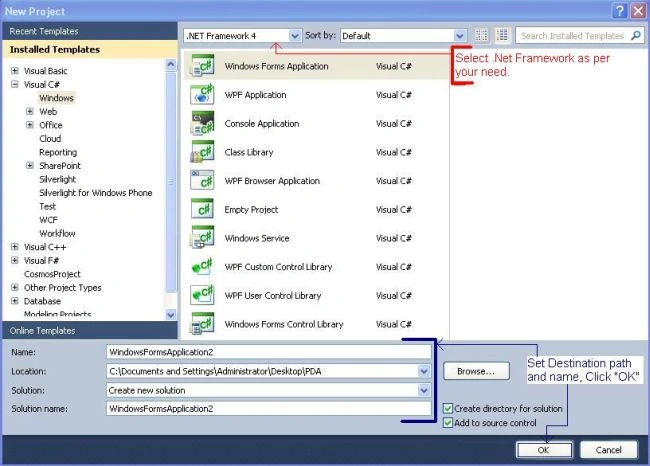
2. Select a Destination folder path for the new project and name.
3. Now, we connect our database to the project. For that, please review the following screen.
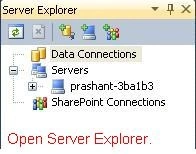
Click On Server Explorer [Mostly placed on the left-hand side. or you can access it from here. {View -> Server Explorer} or press Ctrl+Alt+S]
Open Server Explorer
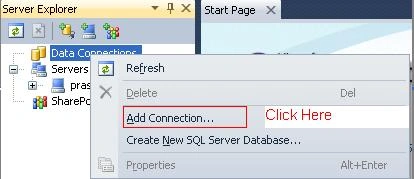
Right-click on "Data Connections" and then click on "Add Connections"; see.
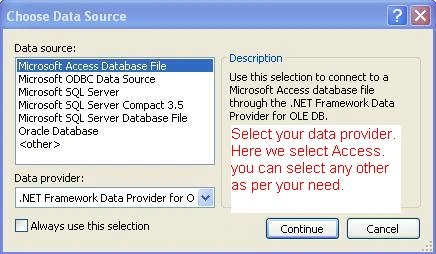
Select your Data Source then click "Continue" [Here we use OLEDB so I select "Microsoft Access Database File", but you can select something else as per your need.]
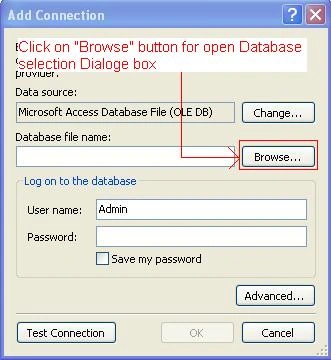
Now the screen for Add Connection appears. Here we select our database file from where we save it.
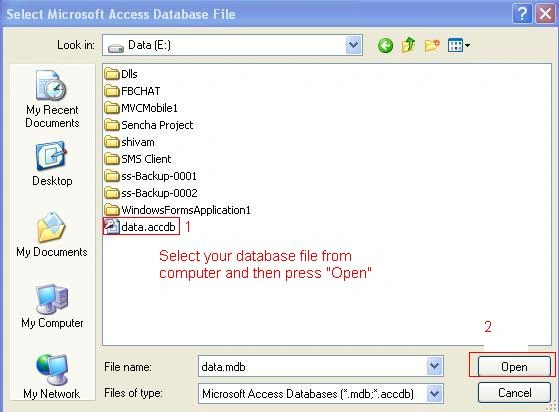
Select your database file from your computer drive and click on "Open".
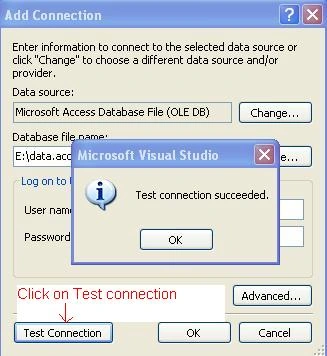
Now to check whether our connection is successful or not. Click On "Test Connection". Now click on "OK" to close the test connection message box.
After that click on the "Add Connection's 'OK' button to complete our database add operation".
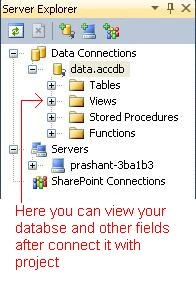
Now see in Server Explorer. Here you will see the database and its fields in "Data Connection" as in the following.
Now right-click on the database name (i.e. data. accdb) and select Properties (Alt+Enter).
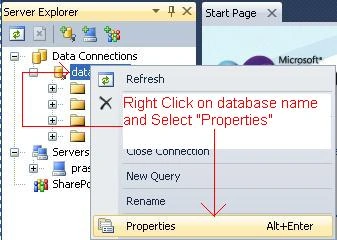
It opens a "Properties" sidebar. Click on the Connection String and copy that. We need it for our connection coding.
Now We Start Our Code
First of all, take two textbox fields and one button.
| Text Box 1 |
txt_user |
for username |
| Text Box 2 |
txt_pass |
for password |
| Button 1 |
btn_ok |
for submit |
Add References
using System.Data.OleDb.
Now for the button's Click Event (for that double-click on the "OK" button) place this code.
string str = "";
// Paste your connection string that you copy from your database Properties.OleDbConnection con = new OleDbConnection(str);
OleDbCommand cmd =new OleDbCommand("SELECT COUNT(*) FROM tablename WHERE user = '" + txt_user.text +"' AND pass = '" + txt_pass.text +"'", con);
con.Open();try{int i;
i =Convert.ToInt32(cmd.ExecuteScaler());
if (i == 1){MessageBox.Show("Success");
}
else{MessageBox.Show("Invalid User Name or Password");
}
}
Catch (Exception ex)
{
MessageBox.Show(ex.Message);
}
Finaly
{
Con.Close();
}
You can also perform "Insert", "Delete", "Update" etc. operations using this code. For that just change the query and replace "Ex ecuteNonQuery()" with "Ex ecuteSca ler()".


Chinna DuraiPosted Feb 25, 2017, 4:10 AM
This code is really helpful for new!!!
Shivam PandyaPosted Feb 20, 2015, 4:30 AM
jack the best Here you can get your answer http://www.c-sharpcorner.com/Forums/Thread/233274/
jack the bestPosted Feb 12, 2015, 9:54 PM
hi can you help me?how add you category for the products and on product frm show you a combox with all category?
cid navPosted Jun 6, 2013, 3:38 PM
I tried out your tutorial.. and failed.. I got all the way to adding references and not only did you mis-spell "ExecuteScaler" (Should be "ExecuteScalar") but it was super unclear.. was hoping that you would have a working example to see it in action but no.. and where do i place the connection string?? tried a few variations with no luck.. next time please read through your tutorial and try it out before posting. I know you wanted to help but instead you caused more trouble than help.
manda patelPosted Oct 13, 2012, 5:11 AM
Nice efforts Keep going.....!!!!!!
Shivam PandyaPosted Oct 12, 2012, 12:34 AM
Yes, My Next article on it. Its for grid view with add, delete and update operations.
Vikas GillPosted Oct 12, 2012, 12:06 AM
Very Nice article Shivam.You describe the connectivity through the wizard, Can you tell something about the connectivity through coding?
PriyaPosted Oct 11, 2012, 11:41 PM
Well explained......
Shelly GogiaPosted Oct 11, 2012, 11:16 PM
Very useful article through this we can connect database in C#..
Megha GoyalPosted Oct 11, 2012, 10:56 PM
Yaa this is the easiest way to connect database in C#. I'll try it definitely...