

Microsoft Teams is a chat-based workspace for Office 365 – Microsoft
It is one of the emerging applications in Office 365, which helps to bring people to a single place for collaborating on content, conversations, connecting with people, and more…
We can handle Microsoft Teams through the web browser and client-based Microsoft Teams application. We also have Microsoft Graph API to manage Microsoft Teams by managing teams, channels, members, and more.
Microsoft Graph API makes the lives of developers easier, but for IT professionals, it is difficult to control the Teams application. To help them, Microsoft has come up with a PowerShell Module to control the Microsoft Teams.
To get the PowerShell Module to our local environment, we have to get the MicrosoftTeams module from PowerShell Gallery.
Find the MicrosoftTeams PowerShell module from the PowerShell Gallery
- Open Windows PowerShell.
- Run the “Find-Module MicrosoftTeams” command.

Install Microsoft Teams PowerShell module as an Administrator
- Open Windows PowerShell as an Administrator
- Then, run the below command
PS:> Install-Module MicrosoftTeams
- Upon prompt; to trust the untrusted source from PowerShell Gallery, press ‘Y’ and then press ‘Enter’.
Install Microsoft Teams PowerShell module as a normal user
- Open Windows PowerShell as an Administrator
- Then Run the below command
PS:> Install-Module MicrosoftTeams –Scope CurrentUser
- Upon prompt; to trust the untrusted source from PowerShell Gallery, press ‘Y’ and then press ‘Enter’.
Verify the PowerShell module is installed
- Open Windows PowerShell.
- Run the below command
PS:> Get-Module MicrosoftTeams -ListAvailable
- If the command returns the value, then the module is installed. Otherwise, we have to install the module.

Get the list of available cmdlets from Microsoft Teams
After the installation of Microsoft Teams PowerShell module, we can get the list of available commands available in the module to manage and control the Microsoft Teams
- Open Windows PowerShell
- Run the below command to get the list of commands
PS:> Get-Command –Module MicrosoftTeams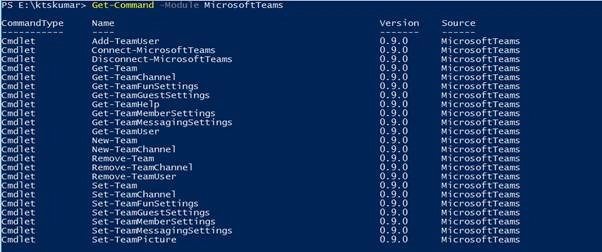
- Also, we can run the below command to get the list of commands
PS:> Get-TeamHelp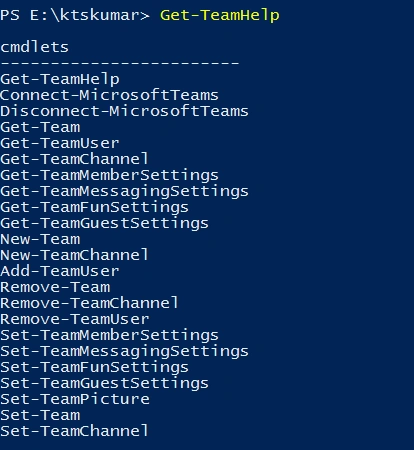
Based on the screenshot above, below is the list of command and I have linked them to the documentation for each command
| Command | Description |
| Add-TeamUser | Adds an owner or member to the Team |
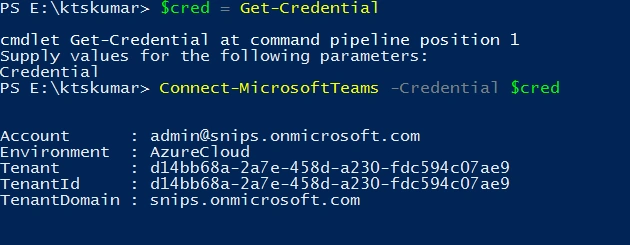
| Connect-MicrosoftTeams | Connect to the Microsoft Team based on the provided credentials |
| Disconnect-MicrosoftTeams | Disconnect from the Microsoft Team |
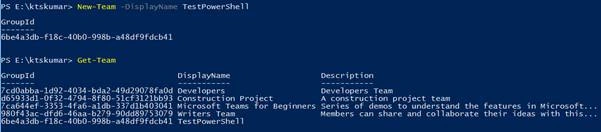
| Get-Team | Returns all the teams that the user belongs to |
| Get-TeamChannel | Returns all the channels for a Team |
| Get-TeamFunSettings | Returns a team's fun settings |
| Get-TeamGuestSettings | Returns Team guest settings |
| Get-TeamHelp | Returns a list of commands for Microsoft Teams |
| Get-TeamMemberSettings | Returns team member settings |
| Get-TeamMessagingSettings | Returns team messaging settings |
| Get-TeamUser | Returns all users from the team |
| New-Team | Creates a new team |
| New-TeamChannel | Add a new channel to the team |
| Remove-Team | Deletes a Team |
| Remove-TeamChannel | Deletes a channel and this will not delete the content from associated tabs |
| Remove-TeamUser | Remove an owner or member from the team. The last owner cannot be removed from the team |
| Set-Team | Updates a team properties |
| Set-TeamChannel | Updates a team channel settings |
| Set-TeamFunSettings | Update Giphy, Stickers and Memes settings |
| Set-TeamGuestSettings | Updates team guest settings |
| Set-TeamMemberSettings | Updates team member settings |
| Set-TeamMessagingSettings | Updates team messaging settings |
| Set-TeamPicture | Updates the team picture |



mahendra reddyPosted Aug 7, 2018, 4:06 AM
Is there any way to remove team owner using powershell?
Sagar Pandurang KapPosted Feb 15, 2018, 11:03 PM
Neat and easy article.Keep sharing