Introduction
In previous Windows versions if you need to copy the items from one location to another location then what will you do?
Well, we select our file, copy it and then traverse to that location where we want to copy (paste) it manually. But now in
Windows 10, Microsoft provides a great feature for copying an item using the File Explorer. There is a Copy To button in the file explorer that gives an opportunity to select the location.
How to Copy the Items in Windows 10?
Look at the following points.
Launch File Explorer on your screen.
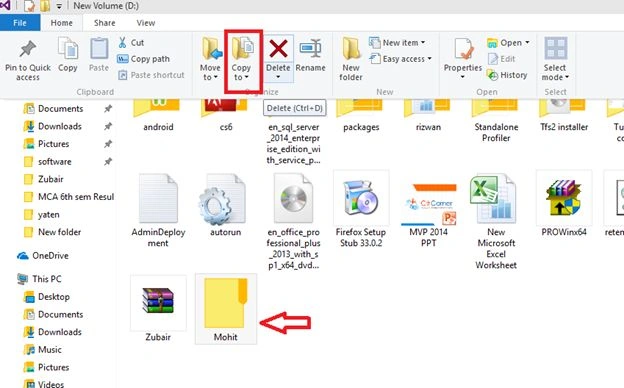
Select the item that you want to copy to another location and expand the Home Tab. Now you can see the Copy To button with a drop-down.
Select your item
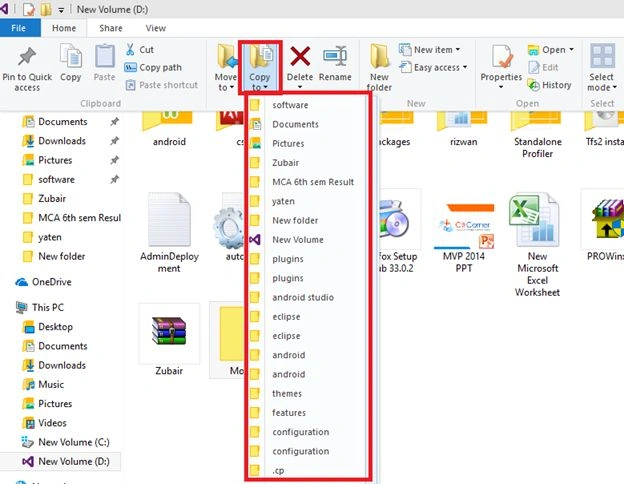
Click the Copy to Drop-down menu, then you can see some locations. Select the location/directory of where you want to copy to.
Copy To button with a drop-down
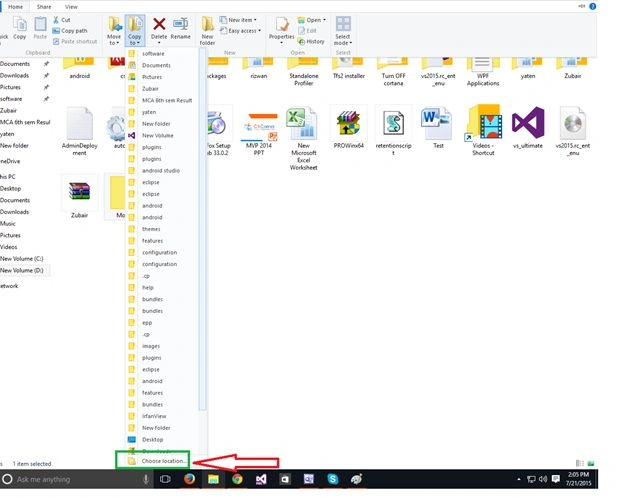
If you don't want to copy your item on any given location, then click Choose location.
Dropdown menu
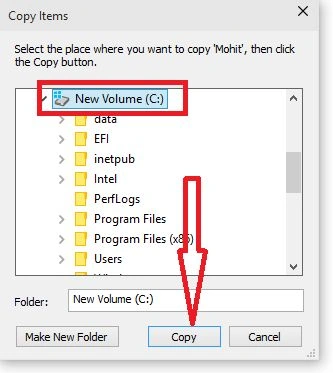
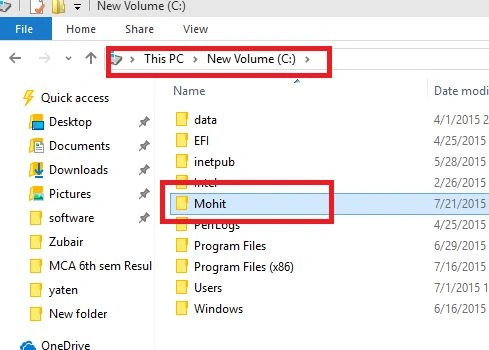
Select the location you want to copy to and click the Copy button.
Choose a location
Now the item will be copied to the location you want to copy to.
Select location.
Summary
Finally, the simple task of File Explorer has been made simpler. From anywhere you can copy your stuff and place it anywhere. Try this out and let us know how easily you can copy and paste items in Windows 10 File Explorer.


jyoti yadavPosted Aug 2, 2015, 1:54 PM
nice one abhishek..
Abhishek KumarPosted Jul 29, 2015, 11:21 AM
Thanks to all
Santhakumar MunuswamyPosted Jul 23, 2015, 3:02 PM
Thanks for nice article:)
Sibeesh VenuPosted Jul 21, 2015, 9:34 AM
Nice Share.
Nilesh JadavPosted Jul 21, 2015, 9:02 AM
Nice one sir