

Introduction
This is a simple application for beginners that shows how to create a 3D cube on a canvas using HTML5. We know that HTML 5 is the advanced version of HTML. Basically, HTML 5 can be used to develop 3D applications. This article is intended to help with the use of HTML5 tools to develop a 3D cube on canvas applications. The <canvas> tag is an HTML element that can be used to draw graphics using scripting. It can be used to draw graphs, make photo compositions, or do simple animations. The <canvas> element is a bitmap drawing API and once you have committed to a set of pixels you are stuck with them. Canvas is an important tag of HTML 5 that is used to show the image and text in an HTML 5 application. I hope this article helps to Create a 3D cube on Canvas Using HTML5 tools.
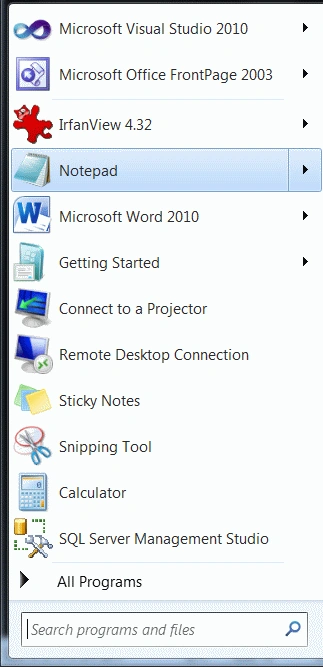
Step 1. First, open an HTML editor such as Notepad.
- Open Start ->Notepad.
- The name of the editor is "slide".
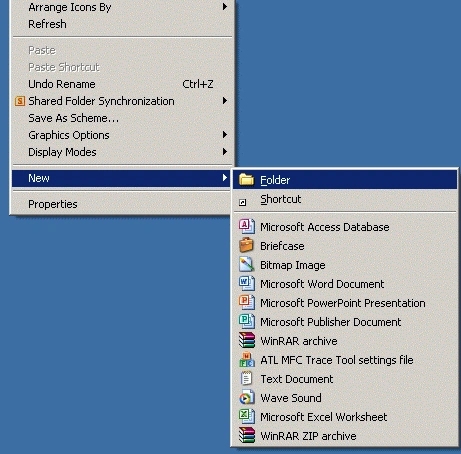
Step 2. Create a Folder on a desktop.
- Right-click on desktop->new->Folder.
- The name of the folder is "Tom".
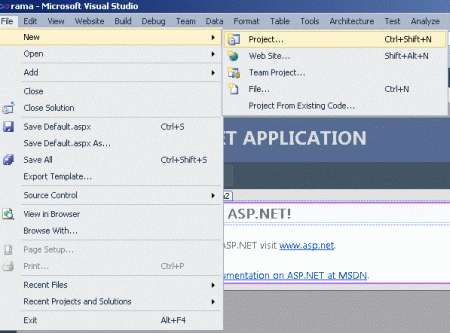
Step 3. Open Visual Studio.
- Go to file -> New->Projects.
- Create an ASP. NET Web Application.
- Name of "cube.aspx".

Step 4. Add an HTML file to your web application.
- Right-click on Solution Explorer.
- Add->add new item->HTML form.
- The Name of the HTML form is "Democube.html".

Step 5. Now in this step, we apply a style of cube page. Set the color and background color of a page.
Code
body * {
    font-family: Verdana;
    font-size: 24px;
}

body.red {
    background-color: Orange;
    color: Green;
}

body.sky {
    background-color: Green;
    color: Orange;
}

body.sky a:link,
body.sky a:visited,
body.sky a:hover,
body.sky a:active {
    color: Orange;
}

body.red a:link,
body.red a:visited,
body.red a:hover,
body.red a:active {
    color: Green;
}

span.spaceyspan {
    margin-right: 20px;
}

div.centeredDiv {
    text-align: center;
}

li {
    list-style: none;
}

td {
    padding-right: 10px;
}
Step 6. Now in this step, we set one HTML5 tool named canvas and set the height and width of a canvas.
Code
<body class="sky">
    <div class="centeredDiv" style="background-color: #FF99CC">
        <canvas id="canvas" width="700" height="600">
            This is a cube performing a 3D functionality
        </canvas>
    </div>
</body>
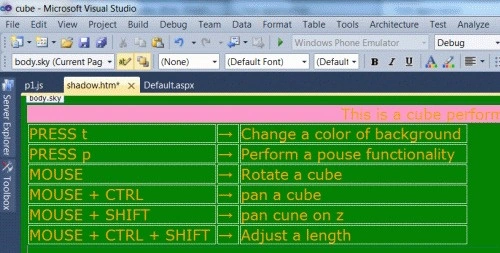
Step 7. Now in this step, we define a table content that presses a content after that performs an action.
s avePosted Jul 1, 2012, 8:40 PM
The HTML in the demo is malformed (no closing head tag) and the code does not work as advertised. There are no CSS3 rules in the stylesheet.