

This article has been
excerpted from book "A Programmer's Guide to ADO.NET in C#".
The first step is to drag and drop an OleDbDataAdapter component from the
toolbox's Data tab. As you drop the OleDbDataAdapter on the page. The Data
Adapter Configuration Wizard pops up on the screen. You then follow these simple
steps: At the generate the SQL Statement page, select the EmployeeID, FirstName,
LastName, Title, City, and Address fields from the Employees table, as shown in
Figure 7-30.
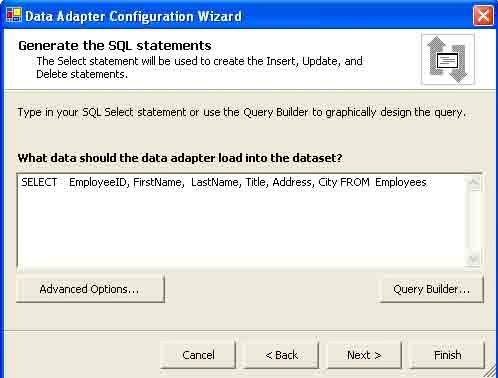
Figure 7-30. Generating a SQL statement using the Query Builder
The Finish buttons adds a data adapter and a connection object to the project.
Now if you view the code of your page using the View Code option, you see the
wizard has added an OleDbDataAdapter, an OleDbConnection, and four OleDbCommand
variables to your project. The variables look like this:
protected System.Data.OleDb.OleDbDataAdapter
oleDbDataAdapter1;
protected System.Data.OleDb.OleDbCommand
oleDbSelectCommand1;
protected System.Data.OleDb.OleDbCommand
oleDbInsertCommand1;
protected System.Data.OleDb.OleDbCommand
oleDbUpdateCommand1;
protected System.Data.OleDb.OleDbCommand
oleDbDeleteCommand1;
protected System.Data.OleDb.OleDbConnection
oleDbConnection1;
Generating a DataSet from Data Adapter
The next Step is to generate a data a dataset from the data adapter. To generate
a dataset from the OleDbDataAdapter, right-click on the OleDbDataAdapter, and
click the generate dataset menu option. The option brings up the Generate
Dataset page, as shown in figure 7-31. The Default name of the dataset is
DataSet1.
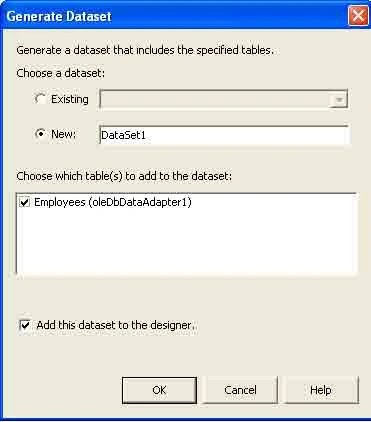
Figure 7-31. Generating a dataset using the data adapter's generate Dataset
option
This page actually a class called DataSet1, which comes from the DataSet class.
This class looks like figure 7-32 in Class View.
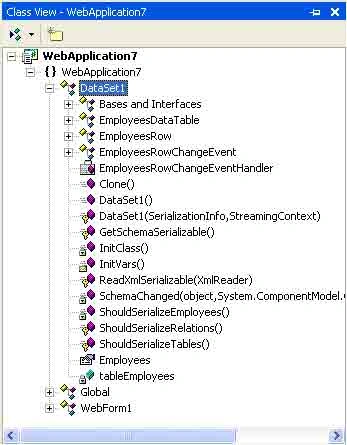
Figure 7-32. The Class View representation of the Data Set1 class
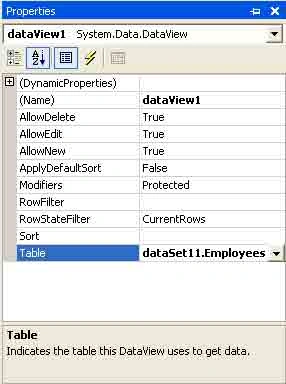
This action also adds one DataSet variable, named dataset11, to your project
(See Figure 7-33).


Join the conversation! Your thoughts help the community grow.