

Install the extension
The extension can be installed in two ways,
- Through the Visual Studio market here
- Downloaded from Visual Studio itself (Tools > Extensions and Updates)
Create a new project
After you have successfully installed the extension, you can create a new DotVVM project using a Visual Studio project template.
There are two templates for DotVVM,
- .NET Core template
- Owin template
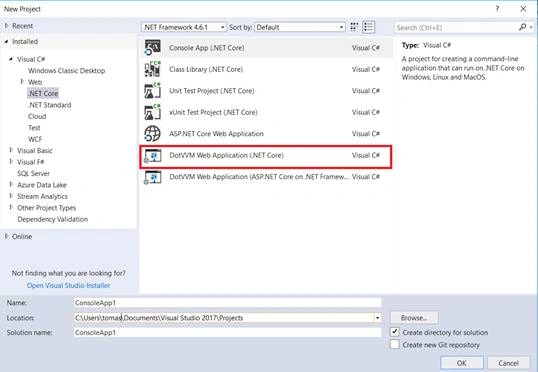
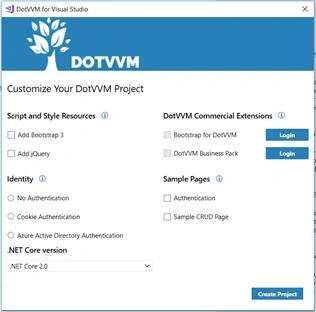
And after you have selected a project template, DotVVM will open a modal window for setting up the application in which you can:
- Add Bootstrap/jQuery
- Add Identity
- Add Sample pages
- Select .NET version
- Add commercial DotVVM controls
Basic project structure
The application’s basic configuration is in the Startup class, where services and middlewares are registered.
Usual project structure
- ViewModels
- Contains your ViewModel classes
- Contains your ViewModel classes
- Views
- Contains your Views (.dothtml files)
- Contains your Views (.dothtml files)
- DotvvmStartup
- A C# class; contains your DotVVM - specific configuration
- Routes
- Resources
- Controls
- A C# class; contains your DotVVM - specific configuration
The structure is not a strict rule. You can move your Views/ViewModels around if you want to.
- They must be JSON serializable so that they can be sent to the client
- They preserve state for your Views and defines Commands, which are called from the Views
- It is recommended to inherit all ViewModels from DotvvmViewModelBase as it gives you several useful mechanisms,
- Context property
- Option to hook into the ViewModel‘s lifecycle (Init, Load, PreRender)
- public class DefaultViewModel: DotvvmViewModelBase {
- public int Count {
- get;
- set;
- }
- public void Counter() {
- Count += 1;
- }
- }
- They must contain the @viewModel directive which specifies what ViewModel type must accompany it
- They are made up of controls
- They can (and most likely will) contain bindings
- {value: Property} - binds to a public property of the ViewModel
- {command: Command()} –calls method in the ViewModel
- {staticCommand: Command()} – calls static methods in the ViewModel
- If you want to use bindings outside of control properties, you need to use double braces as an example,
- @viewModel DotvvmApplication1.ViewModels.DefaultViewModel, DotvvmApplication1
- <p>
- <span>{{value: Count}}</span>
- <dot:Button Text="Counter" Click="{command: Counter()}" />
- </p>
Configuration class - DotvvmStartup
Implements interface IDotvvmStartup, which contains a single method,
Join the conversation! Your thoughts help the community grow.