

PowerApps can be used for creating user-friendly apps, forms, solution, etc. in the Office 365 ecosystem. It can be used to create SharePoint apps and Views as well. It supports minimal/no-code app development. SharePoint provides a very neat integration with PowerApps. This connection can be utilized for creating a mobile/tablet friendly View for SharePoint lists and libraries.
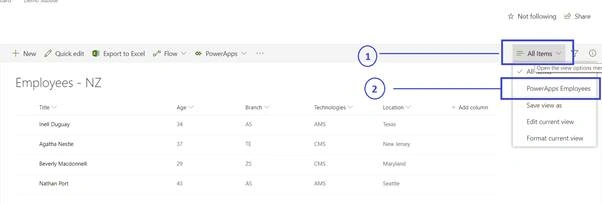
To begin with, here is the list with the data.
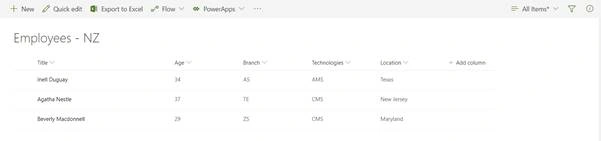
Follow the instructions to create a PowerApps for this.
Step 1
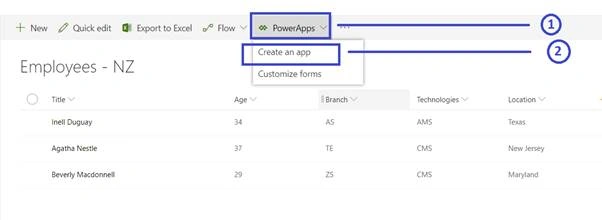
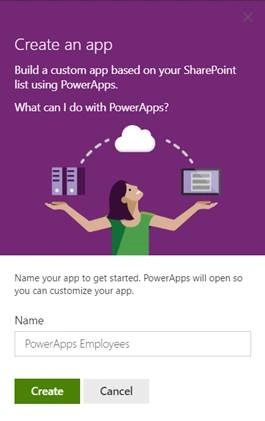
From the SharePoint list, click on “PowerApps” and then select “Create an App”. This will open the next screen where the user will have to enter the name of the app. Name the app “PowerApps Employees” and click on “Create”.
Step 2
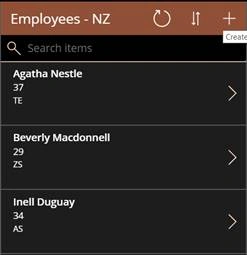
The previous action will load the PowerApps Studio. This step will take some time as the engine builds all the connections from SharePoint and PowerApps. Once the background processes are completed, the user will be presented with a default Mobile View as shown in the screen below.
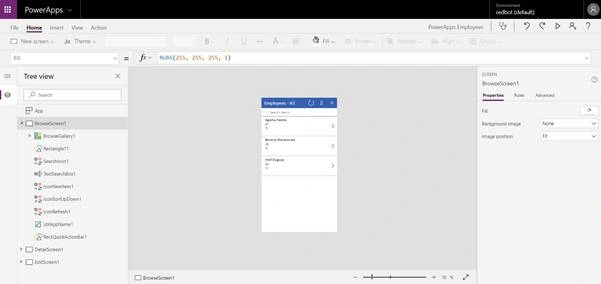
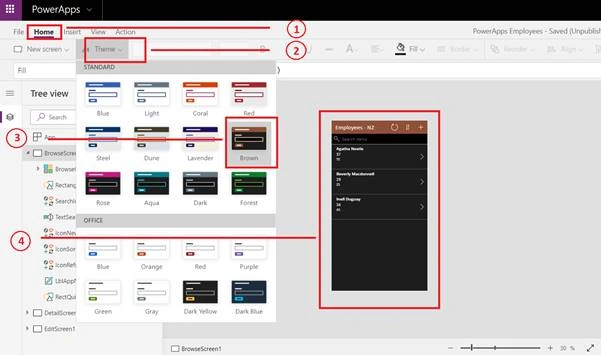
We can modify the View and make modifications as per our needs. Let us go ahead and change this default View’s theme. Locate the “Home” tab on the top-left corner, click on “Theme”, and then select “Brown”. The changes can be seen in the design view instantaneously.
Step 3
In this step, we will look at how to preview this app before publishing to SharePoint. Click on the “Preview the app” button found on the top-right corner. This can also be done by pressing F5.
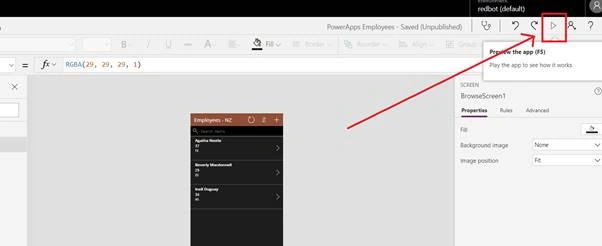
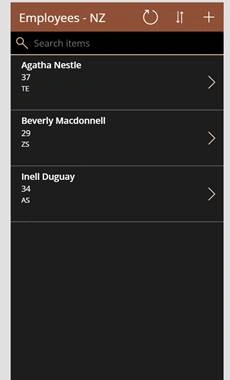
Clicking on it will open the real-time View of the app in a new tab. In this step, we can still go back and make the necessary alterations if necessary.
Step 4
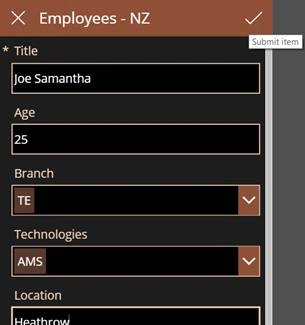
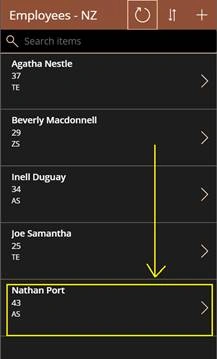
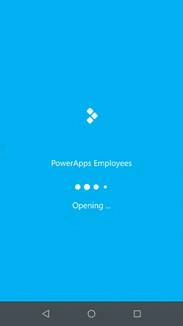
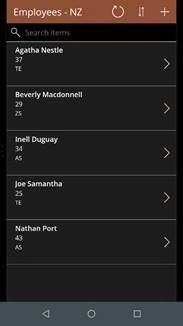
Join the conversation! Your thoughts help the community grow.