Overview
In this article, we will learn about how to create Secure Azure Active Directory for users with Multi-Factor Authentication on Azure portal.
We will learn:
- Azure Multi-Factor Authentication (MFA)
- How to create a plan to deploy Azure MFA
- How to turn on Azure MFA for users and specific apps
Prerequisites
- Basic knowledge of Azure portal.
- Azure Subscriptions.
- Azure AD Premium
Azure Multi-Factor Authentication
Protect your cloud assets for security groups. One of the primary ways unauthorized users get access to systems is by obtaining a valid username/password combination. Azure can help mitigate this with several features of Azure Active Directory including,
- Self-service password reset (SSPR)
- Azure AD Identity Protection
- Single sign-on (SSO)
- Password complexity rules
- Password expiration rules
- Azure AD password protection
How to get Multi-Factor Authentication?
- Azure AD Free
- Azure Active Directory Global Administrators
- Office 365
Plan your multi-factor authentication deployment,
- Selecting an authentication method
Azure Active Directory Identity Protection
Step 1
Login to portal.azure.com
Step 2
Enable Azure Multi-Factor Authentication
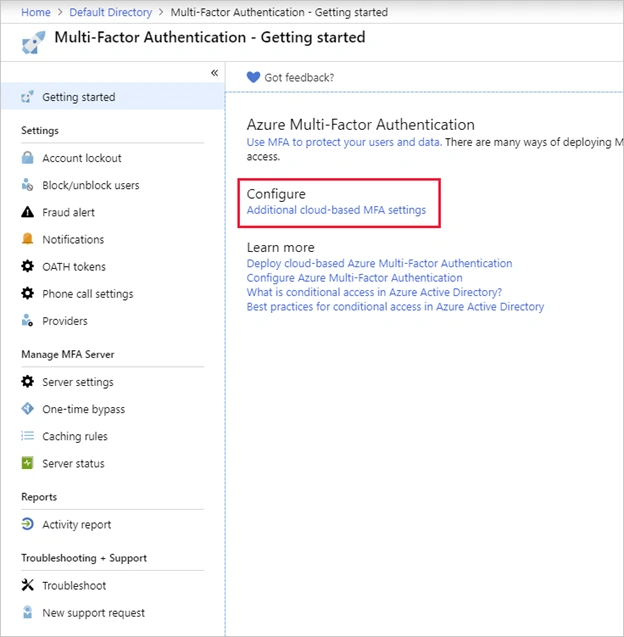
Click Navigation Menu > Azure Active Directory > Getting Started
Select MFA under the Security group
Step 3
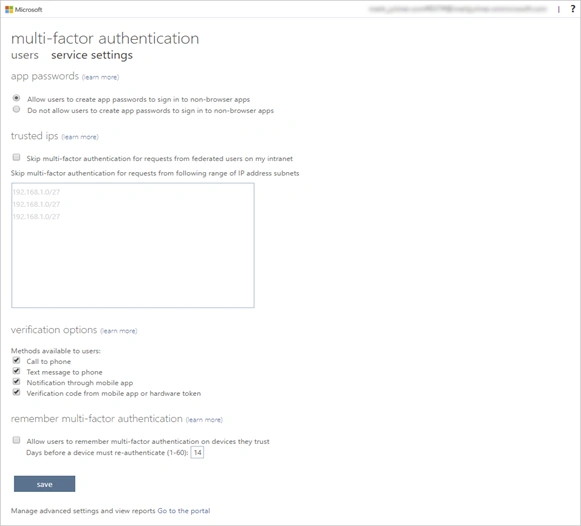
Select Additional cloud-based MFA settings link under Configure.
Step 4
Setup conditional access rules for MFA
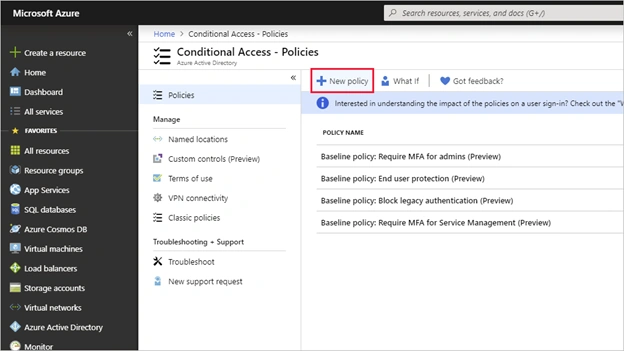
Click on the Navigation Menu > Azure Active Directory > Conditional access.
Select New policy
Step 5
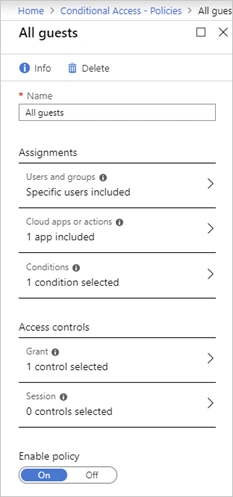
- Name your policy, for example "All guests"
- Select Users and groups to open the panel.
- Select users and groups
- Check the All guest and external users checkbox to apply this to all guests
- Select Done to close the panel.
- Select Cloud apps or actions.
- Select apps and press the Select group
- Choose an app where you want to enable Azure MFA such as Visual Studio App Center
- Select and then chhose Done to close the panel.
- Review the Conditions
- Select Locations and then configure it for any location.
- Under Access Controls select Grant and make sure that Grant access is selected, select the Require multi-factor authentication checkbox - this is what enforces MFA.
- Select to close the window.
- Set Enable policy to On.
- Select Create to create the policy.
Step 6
Click on the Navigation Menu > Azure Active Directory > Users
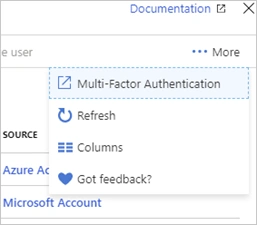
On top of the Users tab, select Multi-Factor Authentication.
Step 7
Configure multi-factor authentication methods
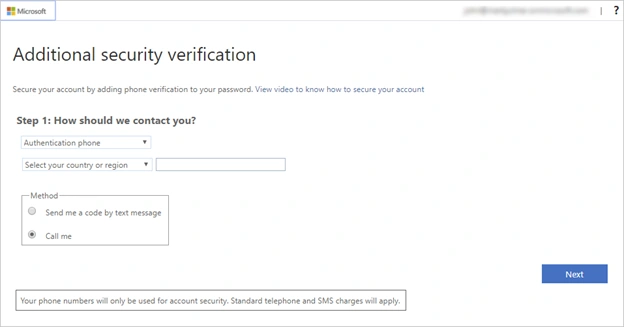
When a user signs into a service that requires MFA the first time, they will be asked to register their preferred multi-factor authentication method as shown in the following screenshot.
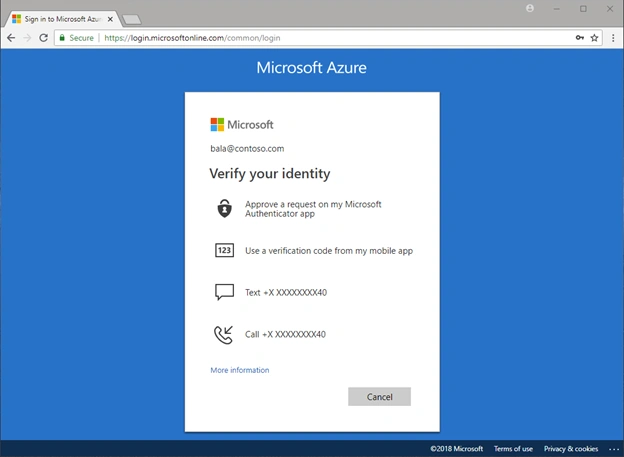
Once they've registered, each time they sign into a service or app that requires MFA the Azure login.
Text message
Azure sends a verification code to a mobile phone using SMS. The user must enter the code into the browser within a specific time period to continue.
Step 8 - Monitoring adoption
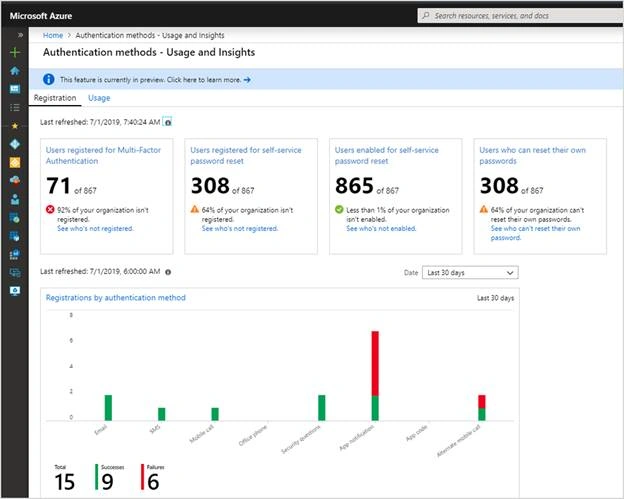
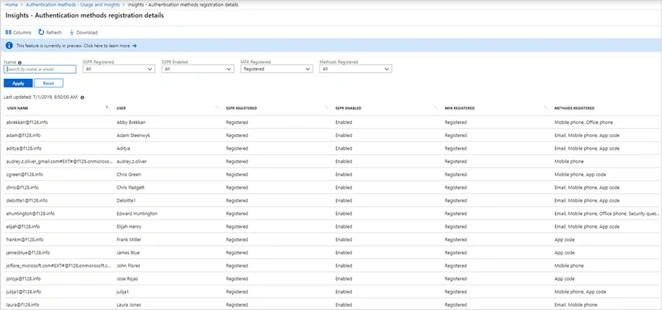
Azure AD includes a Usage & insights view in the Monitoring.
You can drill down and see the latest registration audit information for each user by clicking the chart.
You can also learn more about SSPR
Summary
That’s all, we have learned about Multi-Factor Authentication on Azure portal. I hope you understood How to Create a Secure Azure Active Directory for users with Multi-Factor Authentication on Azure portal.


Join the conversation! Your thoughts help the community grow.