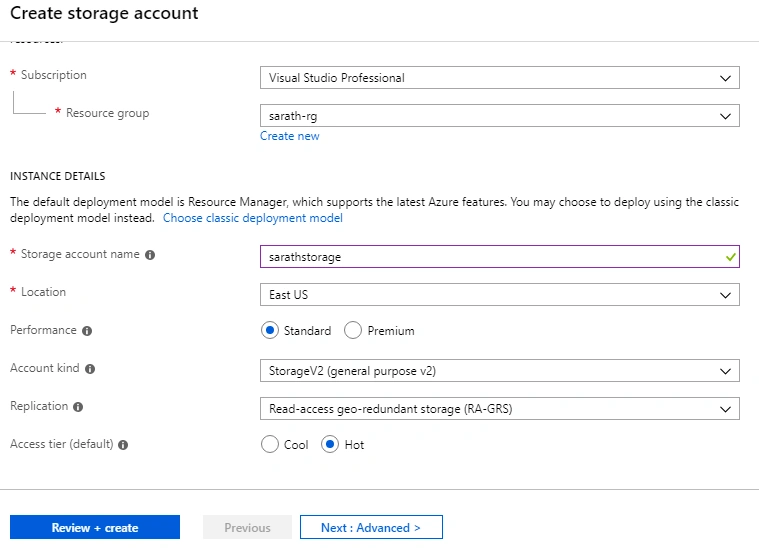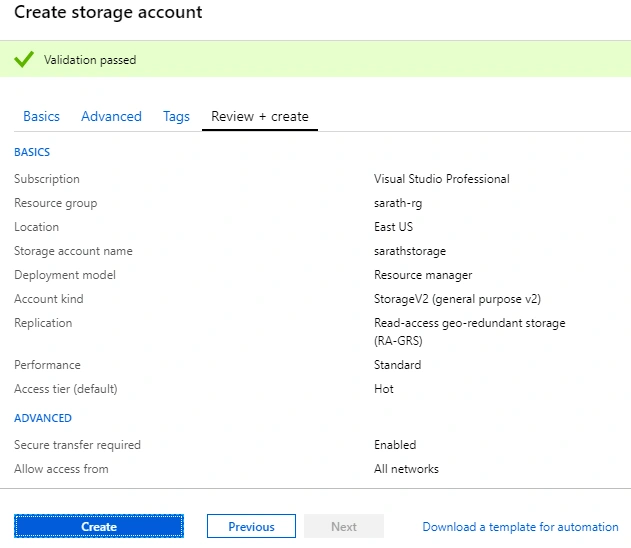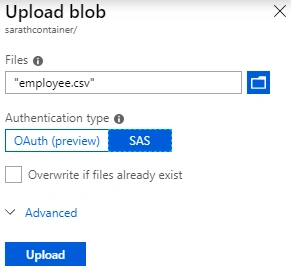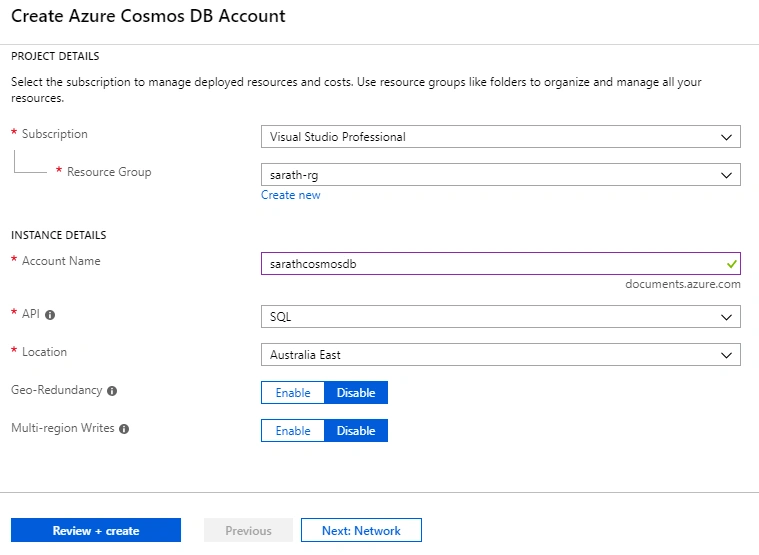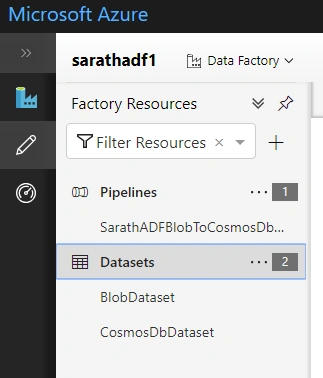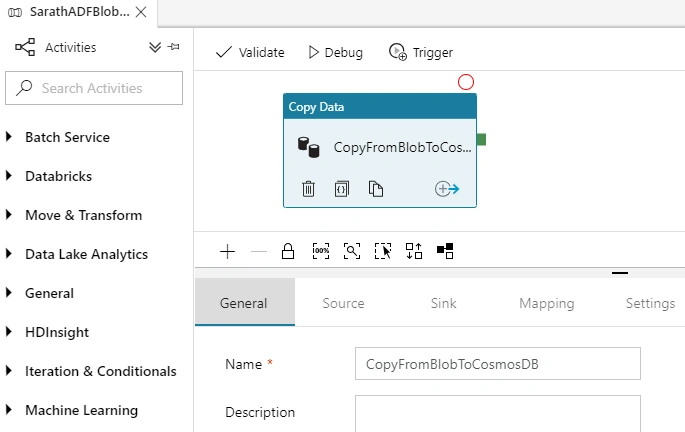
In this article, we will create an Azure Data Factory and Pipeline using .NET SDK. We will create two linked services and two datasets - One for the source dataset and another one for the destination (sink) dataset. Here, we will use Azure Blob Storage as input data source and Cosmos DB as the output (sink) data source. We will copy the data from the CSV file (which is in Azure Blob Storage) to the Cosmos DB database.
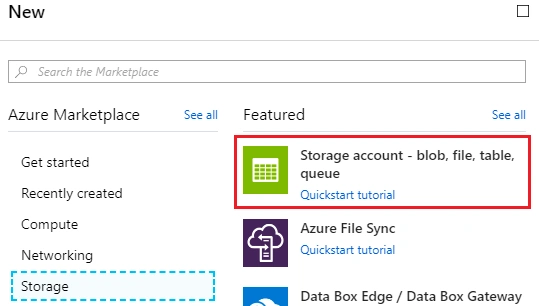
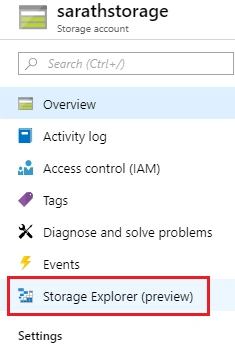
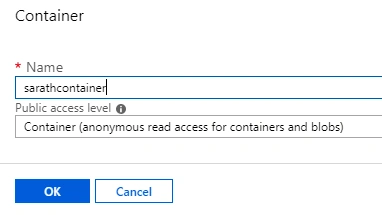
We have successfully created a Blob Storage and uploaded the CSV file to the blob container.
Step 2 - Create Azure Cosmos DB account
After successful validation, click “Create” button.
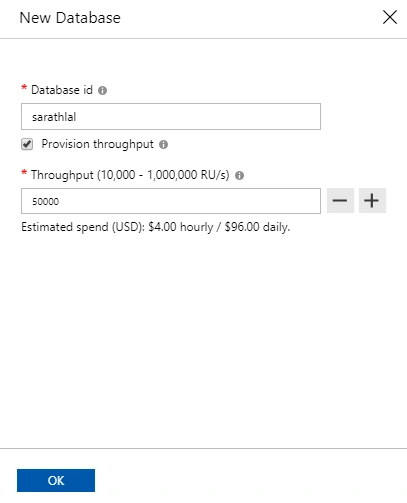
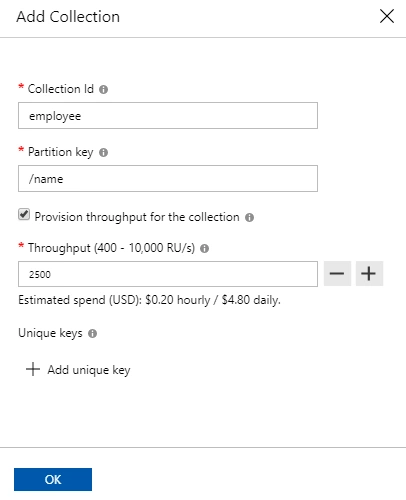
We can go to Cosmos DB account and open “Data Explorer” tab.
Step 3 - Create Azure Data Factory and Pipeline using .NET SDK
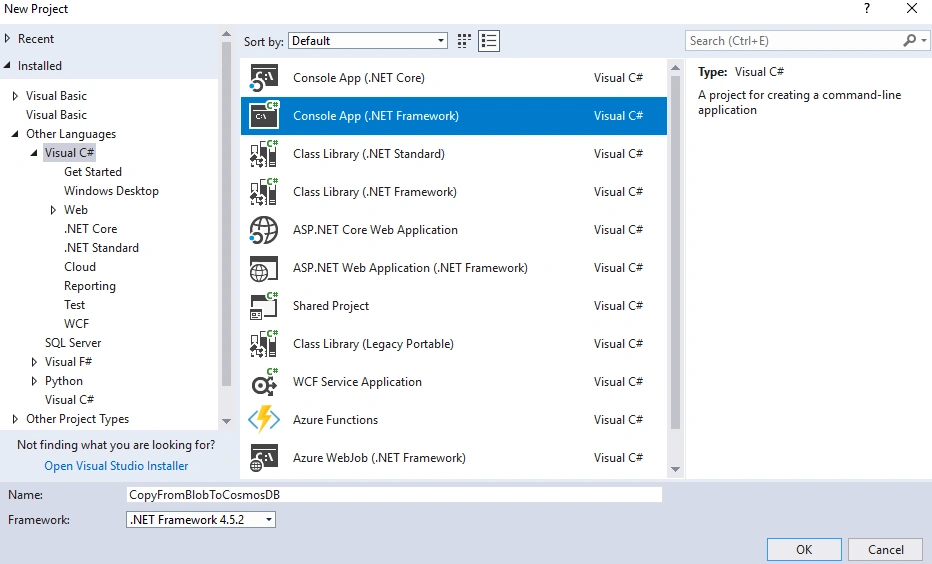
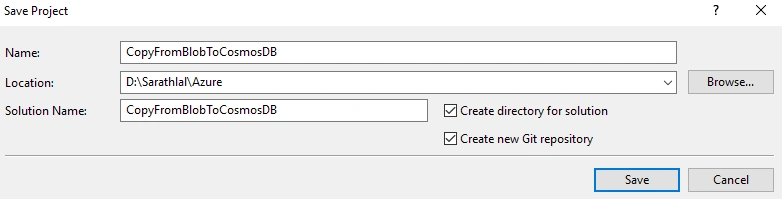
For creating any Azure resource from .NET, we must install the .NET SDK first. We need the below information from the Azure portal to create a resource using .NET SDK.
- Tenant ID
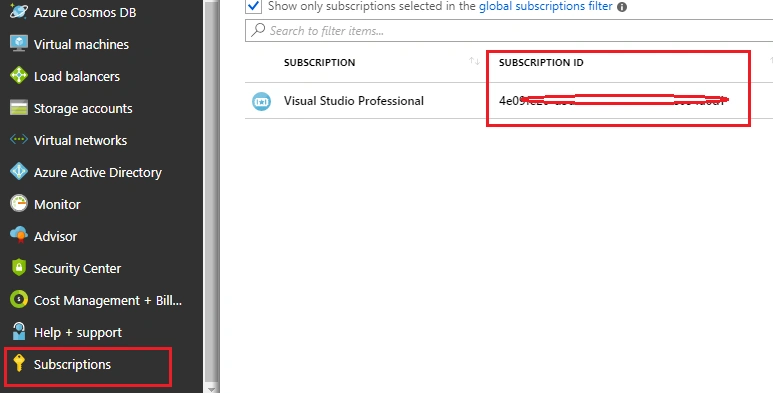
- Subscription ID
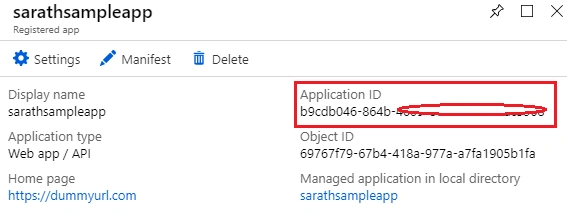
- Application ID
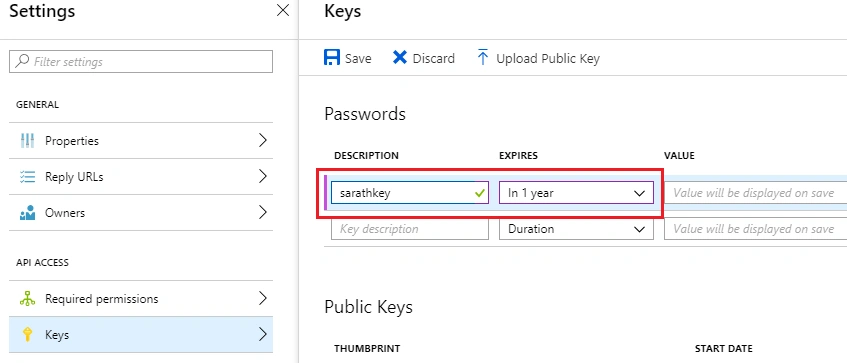
- Authentication Key
We can get the Tenant ID from Azure Portal. Click “Azure Active Directory” -> “Properties” -> and choose Directory ID.
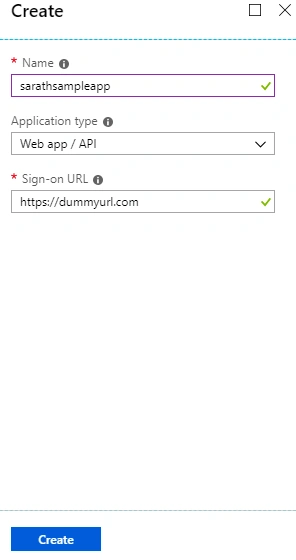
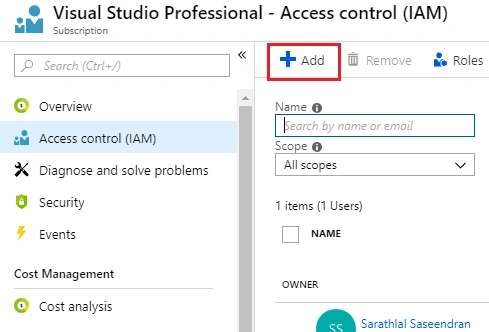
We need an application id and authentication key also. We can create a new app registration and get the id and key.
Click “Azure Active Directory” -> “App registrations” and click “New application registration” button.
- Install-Package Microsoft.Azure.Management.DataFactory
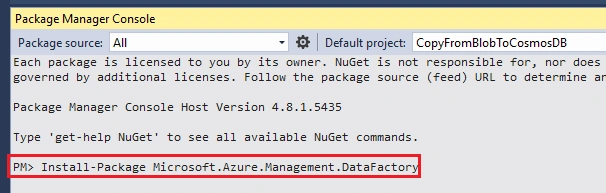
Install two more packages.
- Install-Package Microsoft.Azure.Management.ResourceManager -Prerelease
- Install-Package Microsoft.IdentityModel.Clients.ActiveDirectory
We can modify the static “Main” method inside “Program” class to create Azure Data Factory and Pipeline.
This method will be automatically executed while starting the application.
- // Set variables
- string tenantID = "<fill the value>";
- string subscriptionId = "<fill the value>";
- string applicationId = "<fill the value>";
- string authenticationKey = "<fill the value>";
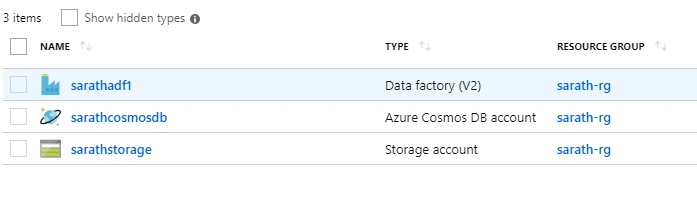
- string resourceGroup = "sarath-rg";
- string region = "East US";
- string dataFactoryName = "sarathadf1"; //must be globally unique
Specify the source Azure Blob information
- // Specify the source Azure Blob information
- string storageAccount = "sarathstorage";
- string storageKey = "<fill the value>";
- string inputBlobPath = "sarathcontainer/";
- string inputBlobName = "employee.csv";
Specify the Azure Cosmos DB information
- // Specify the Azure Cosmos DB information
- string azureCosmosDBConnString = "AccountEndpoint=https://sarathcosmosdb.documents.azure.com:443/;AccountKey=<account key>;Database=sarathlal";
- string azureCosmosDBCollection = "employee";
Specify the Linked Service Names and Dataset Names
- string blobStorageLinkedServiceName = "AzureBlobStorageLinkedService";
- string cosmosDbLinkedServiceName = "AzureCosmosDbLinkedService";
- string blobDatasetName = "BlobDataset";
- string cosmosDbDatasetName = "CosmosDbDataset";
- string pipelineName = "SarathADFBlobToCosmosDbCopy";
We can authenticate and create a data factory management client
- // Authenticate and create a data factory management client
- var context = new AuthenticationContext("https://login.windows.net/" + tenantID);
- ClientCredential cc = new ClientCredential(applicationId, authenticationKey);
- AuthenticationResult result = context.AcquireTokenAsync("https://management.azure.com/", cc).Result;
- ServiceClientCredentials cred = new TokenCredentials(result.AccessToken);
- var client = new DataFactoryManagementClient(cred) { SubscriptionId = subscriptionId };
Create data factory and wait.
- // Create data factory
- Console.WriteLine("Creating data factory " + dataFactoryName + "...");
- Factory dataFactory = new Factory
- {
- Location = region,
- Identity = new FactoryIdentity()
- };
- client.Factories.CreateOrUpdate(resourceGroup, dataFactoryName, dataFactory);
- Console.WriteLine(SafeJsonConvert.SerializeObject(dataFactory, client.SerializationSettings));
- while (client.Factories.Get(resourceGroup, dataFactoryName).ProvisioningState == "PendingCreation")
- {
- System.Threading.Thread.Sleep(1000);
- }
Create an Azure Blob Storage linked service
- // Create an Azure Blob Storage linked service
- Console.WriteLine("Creating linked service " + blobStorageLinkedServiceName + "...");
- LinkedServiceResource storageLinkedService = new LinkedServiceResource(
- new AzureStorageLinkedService
- {
- ConnectionString = new SecureString("DefaultEndpointsProtocol=https;AccountName=" + storageAccount + ";AccountKey=" + storageKey)
- }
- );
- client.LinkedServices.CreateOrUpdate(resourceGroup, dataFactoryName, blobStorageLinkedServiceName, storageLinkedService);
- Console.WriteLine(SafeJsonConvert.SerializeObject(storageLinkedService, client.SerializationSettings));
Create an Azure Cosmos DB linked service
- // Create an Azure Cosmos DB linked service
- Console.WriteLine("Creating linked service " + cosmosDbLinkedServiceName + "...");
- LinkedServiceResource cosmosDbLinkedService = new LinkedServiceResource(
- new CosmosDbLinkedService
- {
- ConnectionString = new SecureString(azureCosmosDBConnString),
- }
- );
- client.LinkedServices.CreateOrUpdate(resourceGroup, dataFactoryName, cosmosDbLinkedServiceName, cosmosDbLinkedService);
- Console.WriteLine(SafeJsonConvert.SerializeObject(cosmosDbLinkedService, client.SerializationSettings));
Create an Azure Blob dataset
- // Create an Azure Blob dataset
- Console.WriteLine("Creating dataset " + blobDatasetName + "...");
- DatasetResource blobDataset = new DatasetResource(
- new AzureBlobDataset
- {
- LinkedServiceName = new LinkedServiceReference
- {
- ReferenceName = blobStorageLinkedServiceName
- },
- FolderPath = inputBlobPath,
- FileName = inputBlobName,
- Format = new TextFormat { ColumnDelimiter = ",", TreatEmptyAsNull = true, FirstRowAsHeader = true },
- Structure = new List<DatasetDataElement>
- {
- new DatasetDataElement
- {
- Name = "name",
- Type = "String"
- },
- new DatasetDataElement
- {
- Name = "age",
- Type = "Int32"
- },
- new DatasetDataElement
- {
- Name = "department",
- Type = "String"
- }
- }
- }
- );
- client.Datasets.CreateOrUpdate(resourceGroup, dataFactoryName, blobDatasetName, blobDataset);
- Console.WriteLine(SafeJsonConvert.SerializeObject(blobDataset, client.SerializationSettings));
Create a Cosmos DB Database dataset
- // Create a Cosmos DB Database dataset
- Console.WriteLine("Creating dataset " + cosmosDbDatasetName + "...");
- DatasetResource cosmosDbDataset = new DatasetResource(
- new DocumentDbCollectionDataset
- {
- LinkedServiceName = new LinkedServiceReference
- {
- ReferenceName = cosmosDbLinkedServiceName
- },
- CollectionName = azureCosmosDBCollection
- }
- );
- client.Datasets.CreateOrUpdate(resourceGroup, dataFactoryName, cosmosDbDatasetName, cosmosDbDataset);
- Console.WriteLine(SafeJsonConvert.SerializeObject(cosmosDbDataset, client.SerializationSettings));
Create a Pipeline with Copy Activity (very important)
- // Create a Pipeline with Copy Activity
- Console.WriteLine("Creating pipeline " + pipelineName + "...");
- PipelineResource pipeline = new PipelineResource
- {
- Activities = new List<Activity>
- {
- new CopyActivity
- {
- Name = "CopyFromBlobToCosmosDB",
- Inputs = new List<DatasetReference>
- {
- new DatasetReference()
- {
- ReferenceName = blobDatasetName
- }
- },
- Outputs = new List<DatasetReference>
- {
- new DatasetReference
- {
- ReferenceName = cosmosDbDatasetName
- }
- },
- Source = new BlobSource { },
- Sink = new DocumentDbCollectionSink { }
- }
- }
- };
- client.Pipelines.CreateOrUpdate(resourceGroup, dataFactoryName, pipelineName, pipeline);
- Console.WriteLine(SafeJsonConvert.SerializeObject(pipeline, client.SerializationSettings));
Create a Pipeline Run
- // Create a Pipeline Run
- Console.WriteLine("Creating Pipeline run...");
- CreateRunResponse runResponse = client.Pipelines.CreateRunWithHttpMessagesAsync(resourceGroup, dataFactoryName, pipelineName).Result.Body;
- Console.WriteLine("Pipeline run ID: " + runResponse.RunId);
Monitor the Pipeline Run
- // Monitor the Pipeline Run
- Console.WriteLine("Checking Pipeline Run Status...");
- PipelineRun pipelineRun;
- while (true)
- {
- pipelineRun = client.PipelineRuns.Get(resourceGroup, dataFactoryName, runResponse.RunId);
- Console.WriteLine("Status: " + pipelineRun.Status);
- if (pipelineRun.Status == "InProgress")
- System.Threading.Thread.Sleep(15000);
- else
- break;
- }
Check the Copy Activity Run Details
- // Check the Copy Activity Run Details
- Console.WriteLine("Checking copy activity run details...");
- if (pipelineRun.Status == "Succeeded")
- {
- Console.WriteLine("Copy Activity Succeeded!");
- }
- else
- {
- Console.WriteLine("Copy Activity Failed!");
- }
- Console.WriteLine("\nPress any key to exit...");
- Console.ReadKey();
We have completed all the coding for creating Azure Data Factory, pipeline, linked services for both input and output ,and completed data sets also. Now we can run the application. It will take some moments to create all these items and we will write all the logs in to the console. Our application executed successfully without any errors.
You can see many tabs are available in the pipeline. Source and Sink tab contain the information about the dataset and linked service details.

Prathap ReddyPosted Jan 25, 2024, 11:37 AM
It was really awesome
arul vivekPosted Mar 3, 2022, 9:51 AM
Do you have article to transfer the data from Excel to Data Factory MS SQL
arul vivekPosted Mar 3, 2022, 9:50 AM
Nice article.
Rushi MehtaPosted Oct 16, 2018, 10:32 PM
NIce Article