

Introduction
Today we will create a Windows Store app that displays Bing maps using C# and XAML. Bing maps is a web mapping services provide by Microsoft Corporation that enables the user to search, discover, explore, plan, and share information about specific locations. To add Bing maps to your application first you must add the Bing maps SDK to Visual Studio 2012.
You can download the Bing maps SDK from this link:
Step 1
First download the Bing maps SDK and install it.

Step 2
Open Visual Studio 2012 and start a "Windows Store Apps" new project.
Step 3
Now add the Bing maps SDK to your project. For that go to Solution Explorer and right-click and select "Add Reference".
Step 4
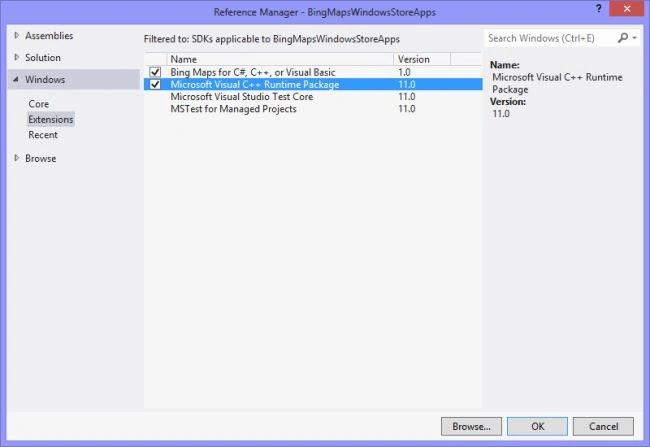
In the reference manager window, expand "windows" and then select "Extensions". Select "Bing Maps for C#, C++, or Visual Basic" and "Microsoft Visual C++ Runtime Package", and then click "OK".
Step 5
Now go to the "Build" menu and select "Configuration manager".
Step 6
In the Configuration Manager window set "Active solution configuration" to "Debug" and "Active solution platform" to "ARM, x64 or x86" according to your platform. And click on "Close".

Step 7
Now go to Solution Explorer and double-click on "MainPage.xaml". Your "MainPage.xaml" is as in the following code. Here we are using the namespace xmlns:bm="using:Bing.Maps".
<Page
x:Class="BingMapsWindowsStoreApps.MainPage"
xmlns="http://schemas.microsoft.com/winfx/2006/xaml/presentation"
xmlns:x="http://schemas.microsoft.com/winfx/2006/xaml"
xmlns:local="using:BingMapsWindowsStoreApp"
xmlns:d="http://schemas.microsoft.com/expression/blend/2008"
xmlns:mc="http://schemas.openxmlformats.org/markup-compatibility/2006"
xmlns:bm="using:Bing.Maps"
mc:Ignorable="d">
<Grid Background="{StaticResource ApplicationPageBackgroundThemeBrush}">
<bm:Map Credentials="My Bind Maps Apps" x:Name="myMap"
MapType="Aerial" ZoomLevel="12"
Width="600" Height="800">

Join the conversation! Your thoughts help the community grow.