

Introduction (CommandBar)
Windows Universal app creates one app to run all Windows devices (Ex: Windows phone, local machine, IOT, Xbox, Holo Lens). Commandbar is called to the Windows Universal app. The control button used in the bottom of the app is called commandbar.
Prerequisites
- Visual Studio 2015 Update 3
Step 1 - Go to Visual Studio.
Click Open-->select New--> select project.
Project has many types of project, which we can develop.
Step 2 - New project will open.
Click installed-->Chose Templates-->select Visual c#-->select windows-->select Universal-->chose Blank app(Universal Windows).
Give your project name(Ex:sample) and also give the path of your project.Finally click OK.
Step 3 - Select the project version in the project version, which is minimum and maximum version. It should be selected.
- Target Version - Windows 10 Anniversary edition(10.0,Build 14393).
- Minimum Version - Windows 10 (10.0:Build 10586).
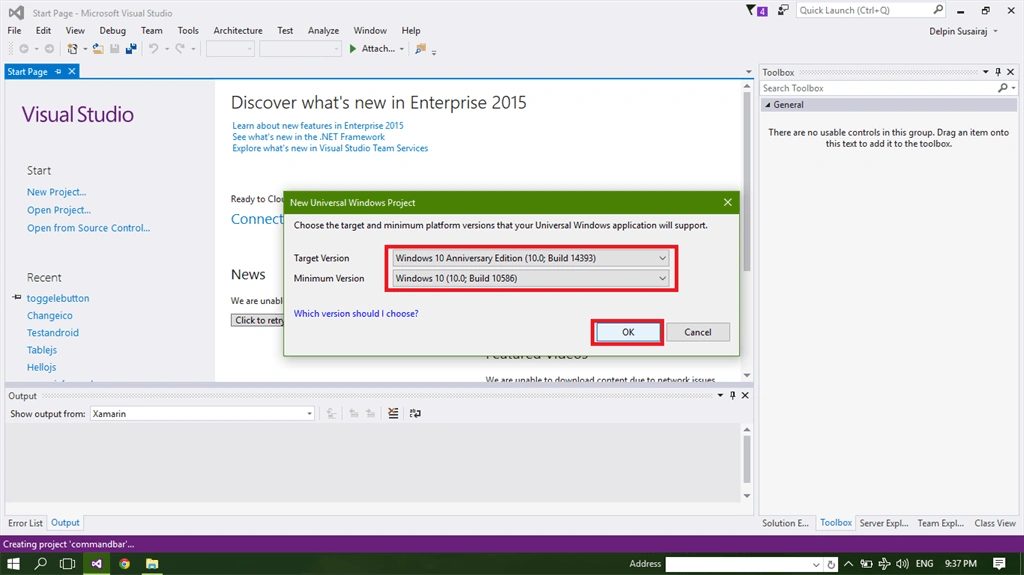
Step 4 - Design your page (if you want to any type of app, you want to design).
Go to the Solution Explorer Window. In the Solution Explorer Window, have all the pages. Accept the images, which are there in your project source. Now, double click to open the MainPage.xaml in the mainpage.xaml, which is your main page of your project.
Go to the Solution Explorer Window. In the Solution Explorer Window, have all the pages. Accept the images, which are there in your project source. Now, double click to open the MainPage.xaml in the mainpage.xaml, which is your main page of your project.
Step 5 - After opening the mainpage.xaml, show the designer Window. If you want any type of app, you can design the user interface.
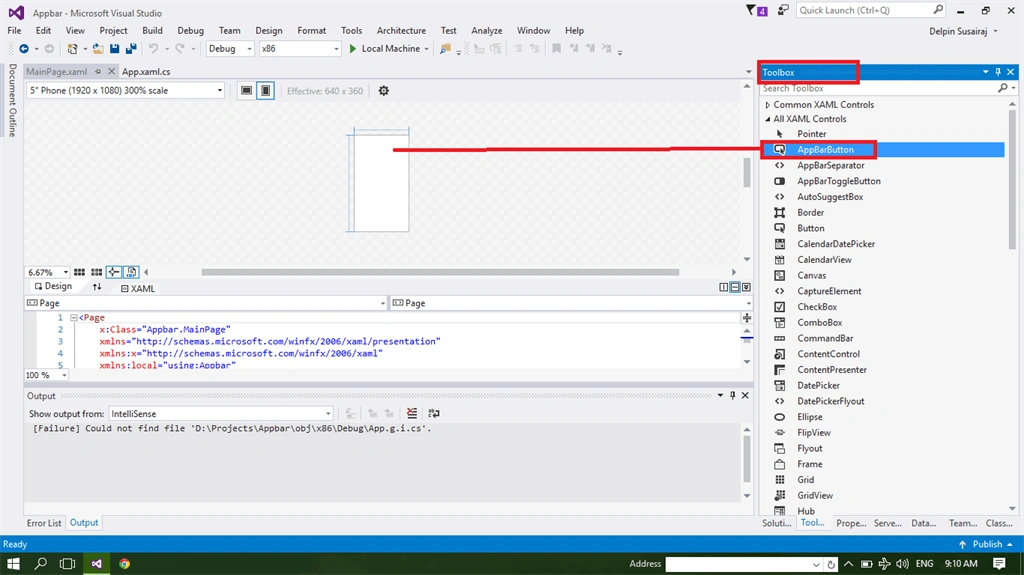
Step 6 - Go to the Toolbox Window (In the toolbox Window, have all type tools and controls).
You can chose commandbar control.
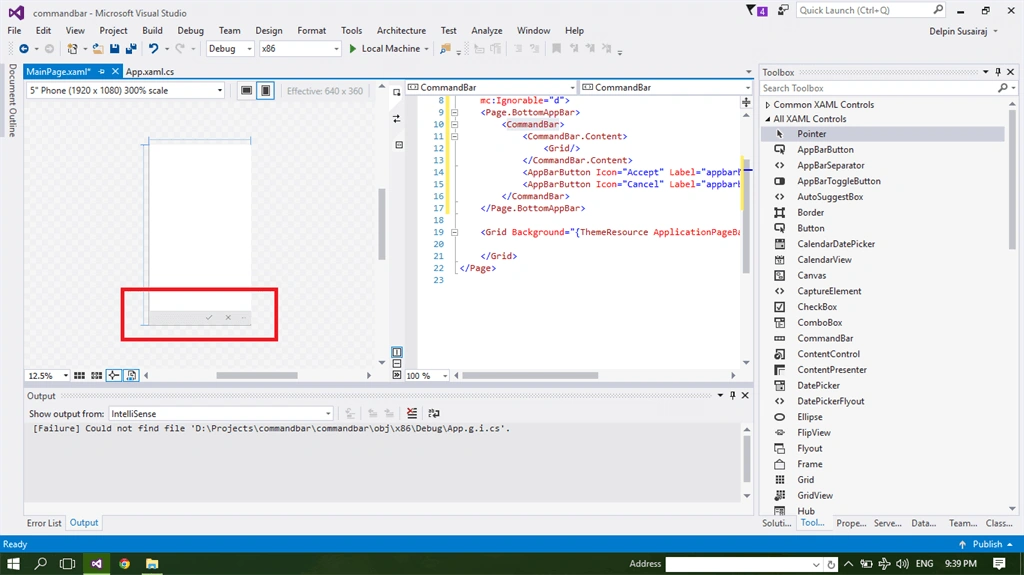
Step 7 - Afterwards drag and drop the command bar control. See the bottom of the app page.
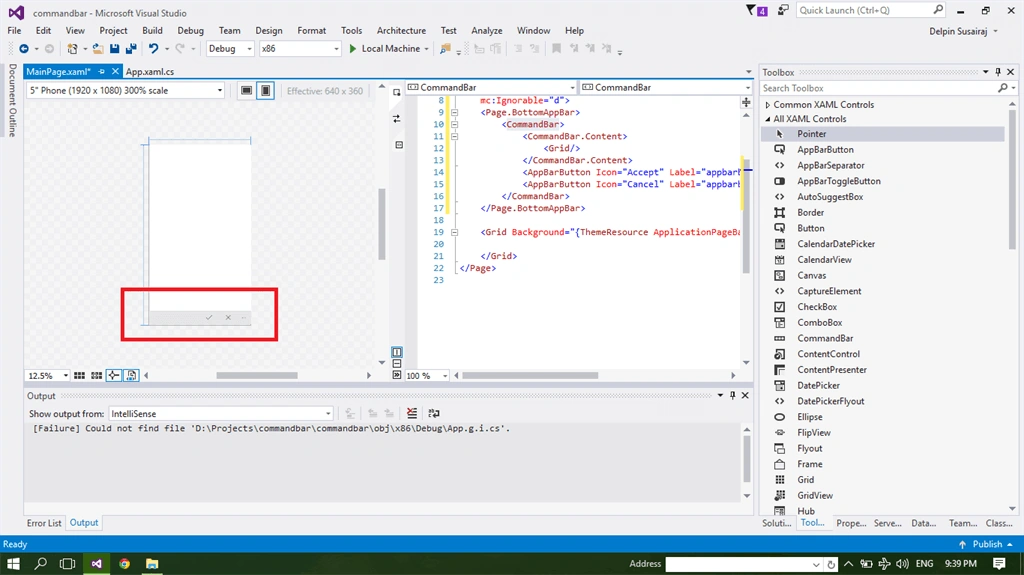
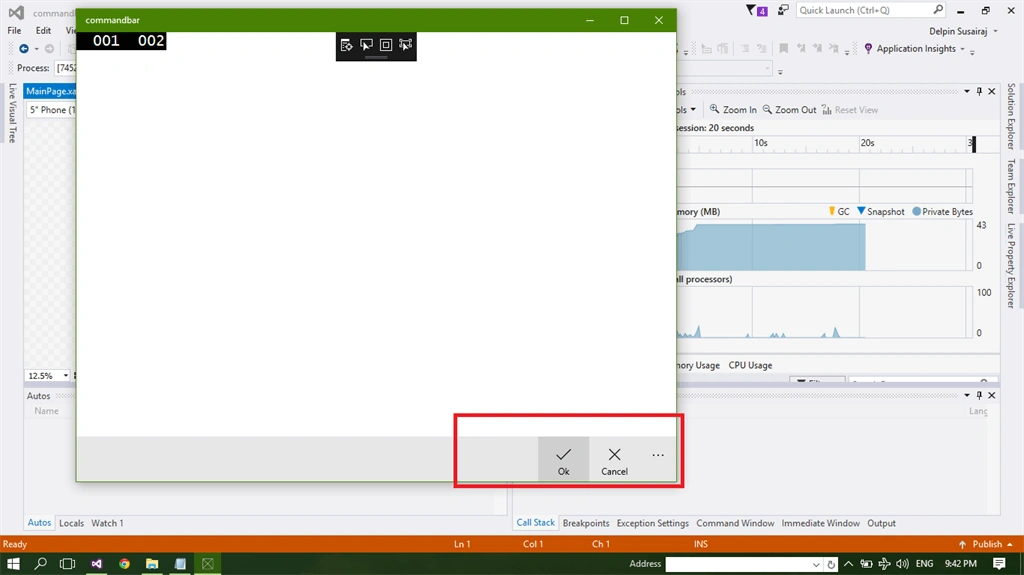
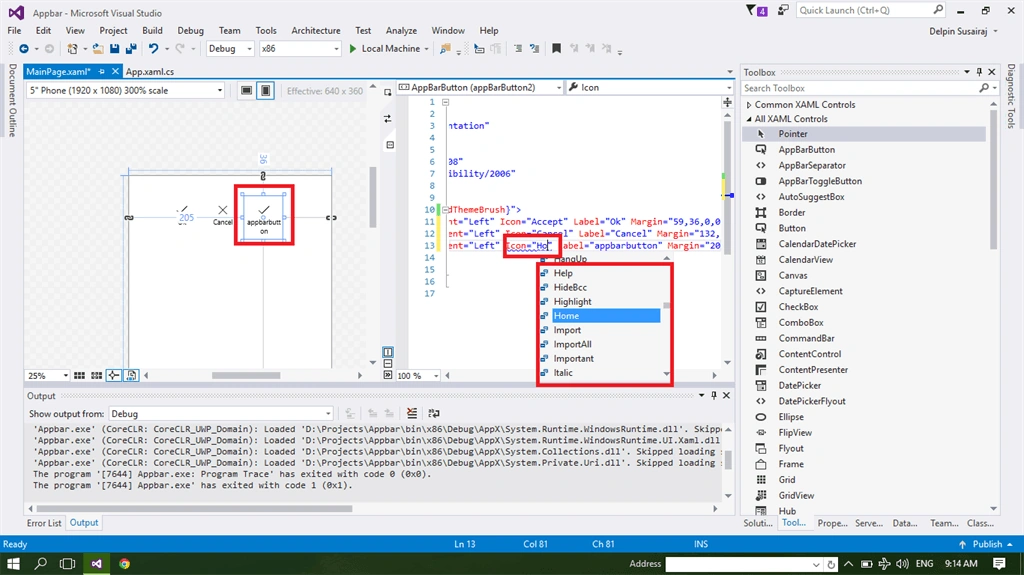
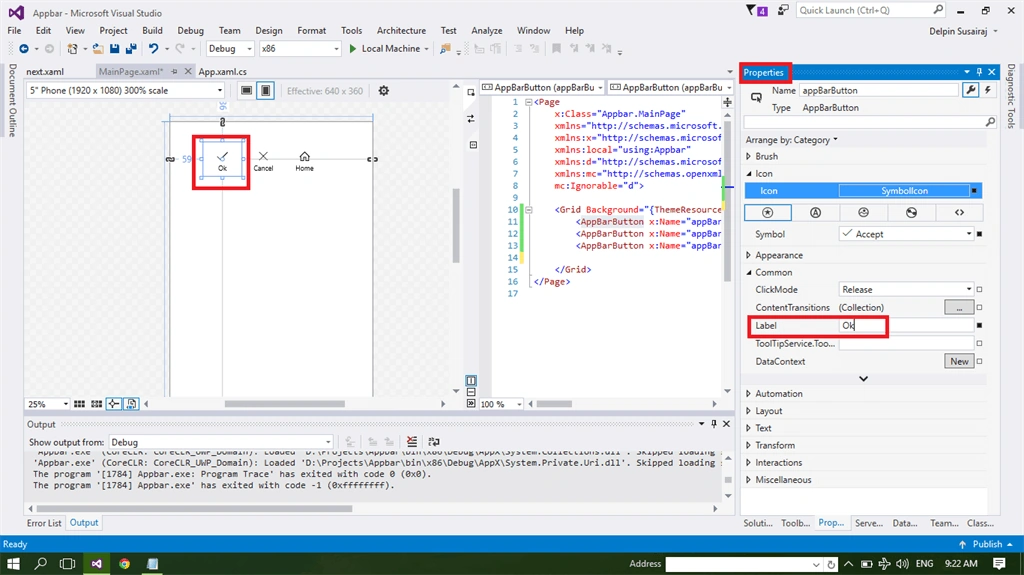
Step 8 - Change the label text in the commandbar control options.
Go to the Mainpage.xaml.cs page. In this page, you can write XAML code. Now, you will be edit the label of the commandbar control options.
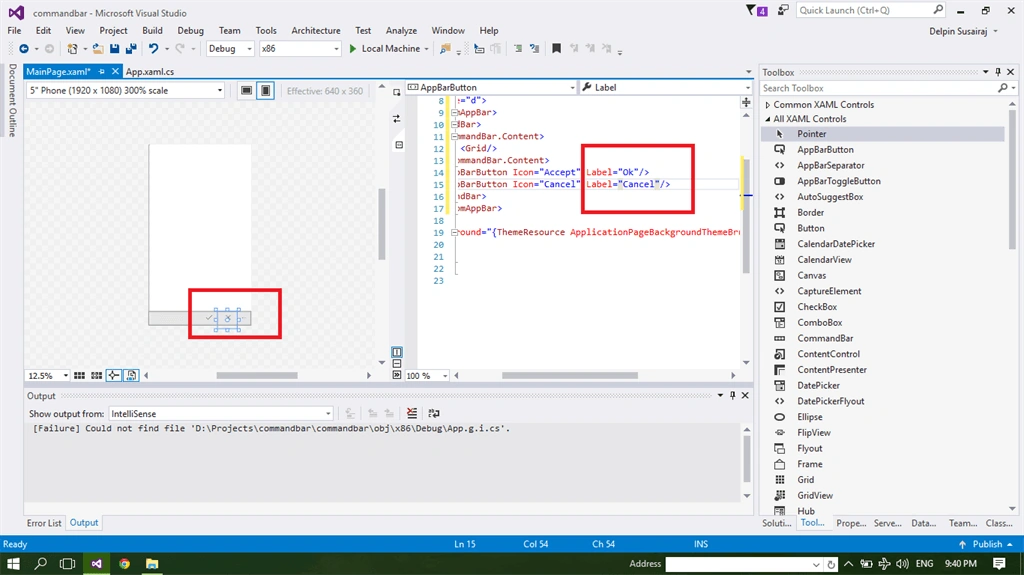
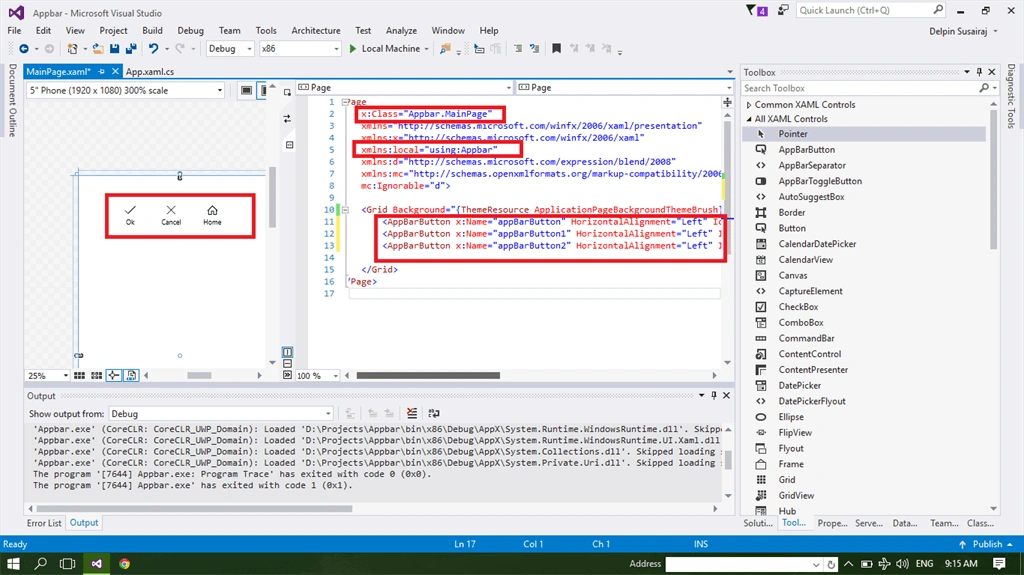
Step 9 - In this area, add the class of the commandbar control and library file of the commandbar control.
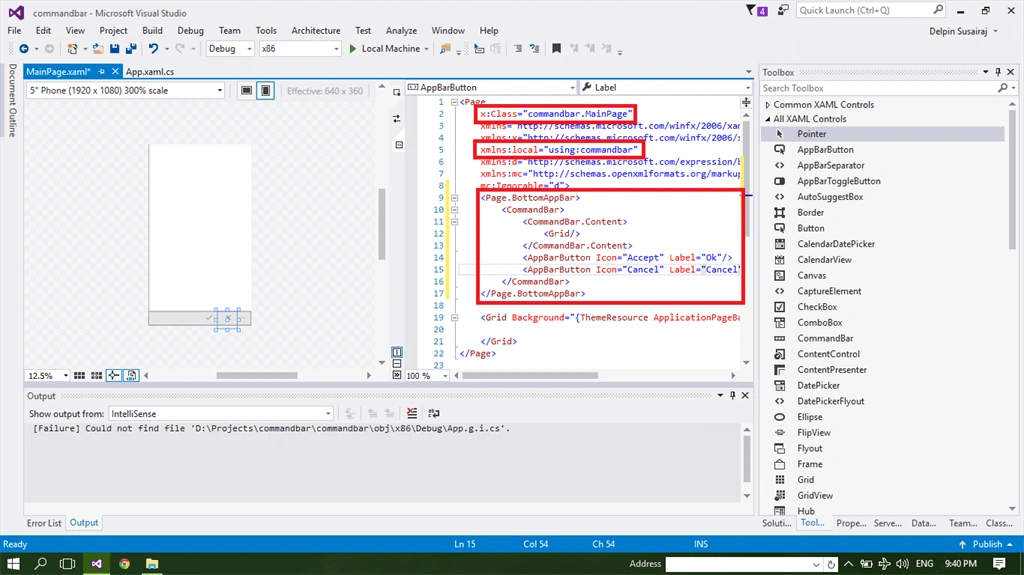
Code
- <Page x:Class="commandbar.MainPage" xmlns="http://schemas.microsoft.com/winfx/2006/xaml/presentation" xmlns:x="http://schemas.microsoft.com/winfx/2006/xaml" xmlns:local="using:commandbar" xmlns:d="http://schemas.microsoft.com/expression/blend/2008" xmlns:mc="http://schemas.openxmlformats.org/markup-compatibility/2006" mc:Ignorable="d">
- <Page.BottomAppBar>
- <CommandBar>
- <CommandBar.Content>
- <Grid/>
- </CommandBar.Content>
- <AppBarButton Icon="Accept" Label="Ok" />
- <AppBarButton Icon="Cancel" Label="Cancel" />
- </CommandBar>
- </Page.BottomAppBar>
- <Grid Background="{ThemeResource ApplicationPageBackgroundThemeBrush}">
- </Grid>
- </Page>
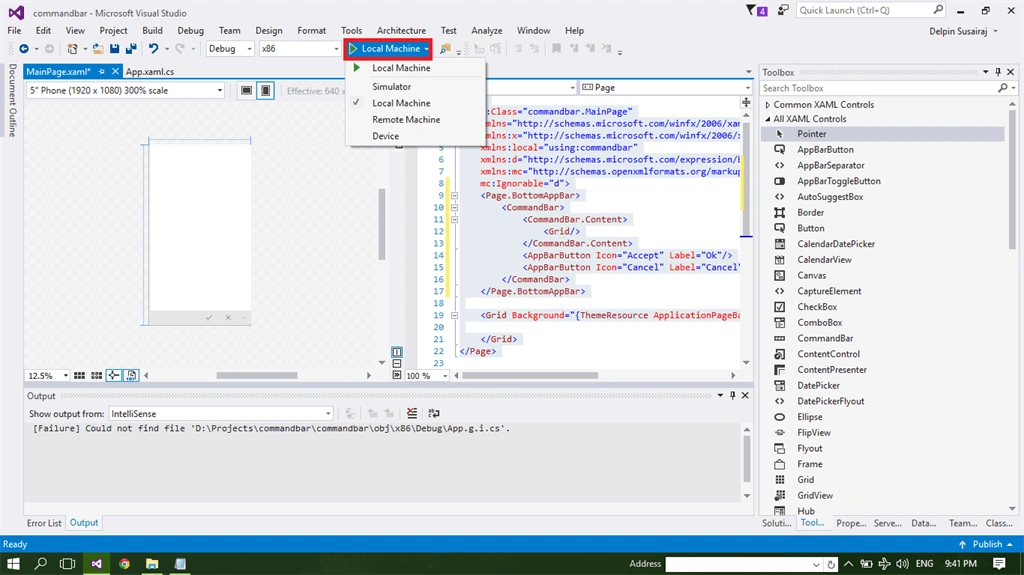
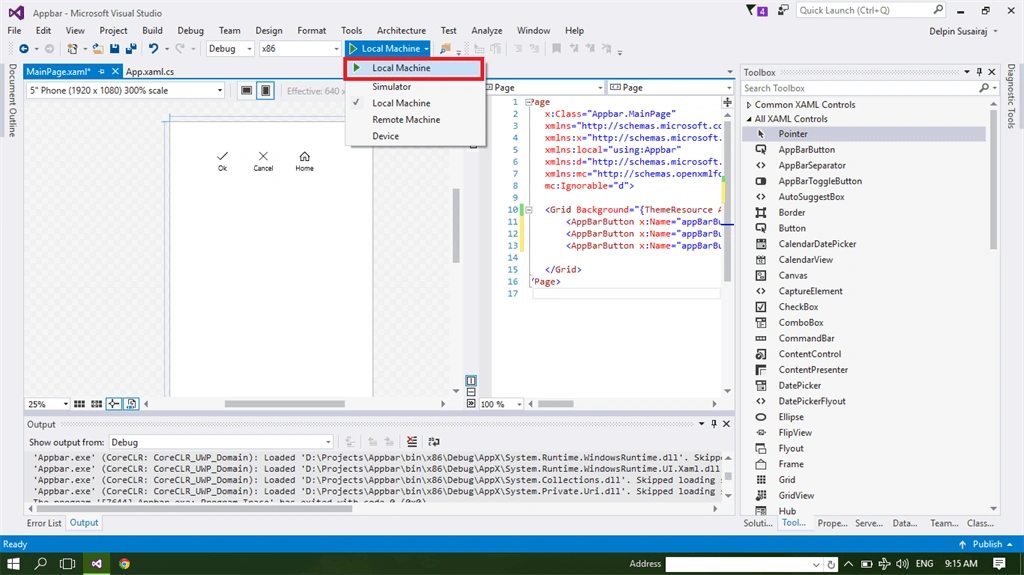
You can go to the top of Visual Studio. In the run menu, you have many types of devices. (Local machine,remote machine, Simulator,Emulator, Device(Windwos Phone).
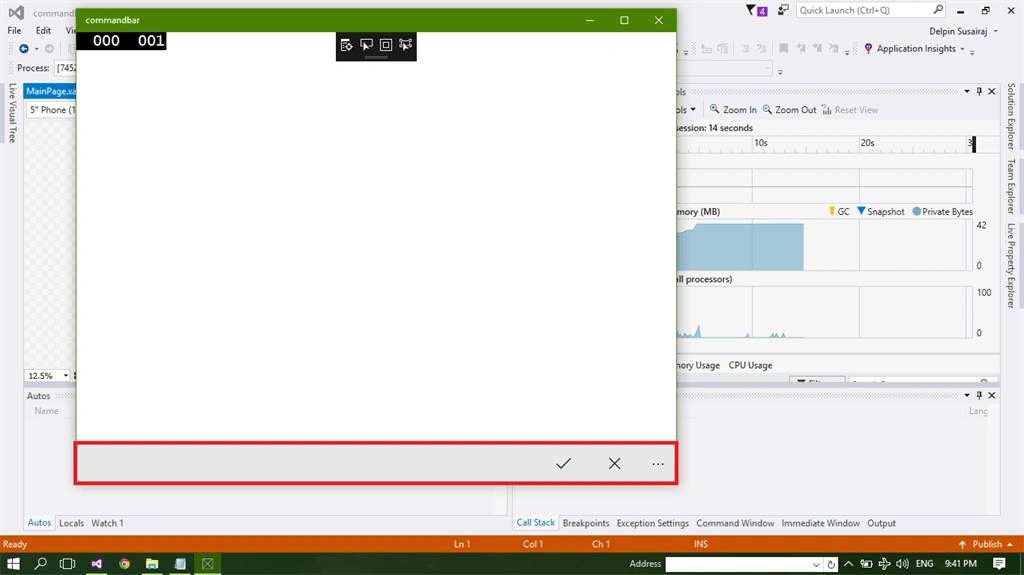
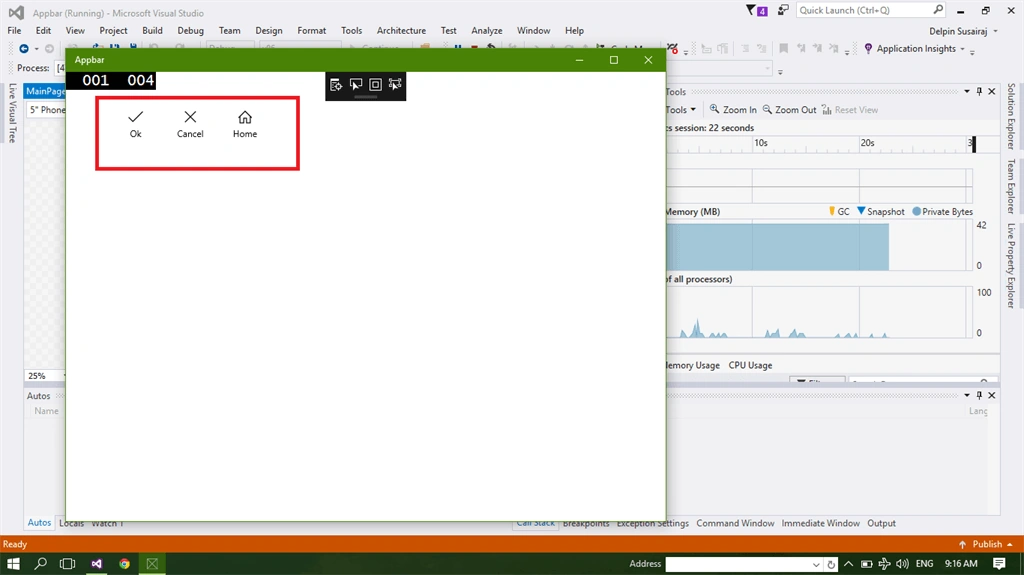
You can choose local machine and run your app.
Join the conversation! Your thoughts help the community grow.