
In Excel, Microsoft introduced several new chart types.
- Waterfall Chart
- Funnel Chart
- Treemap Chart
- Box and Whisker Chart
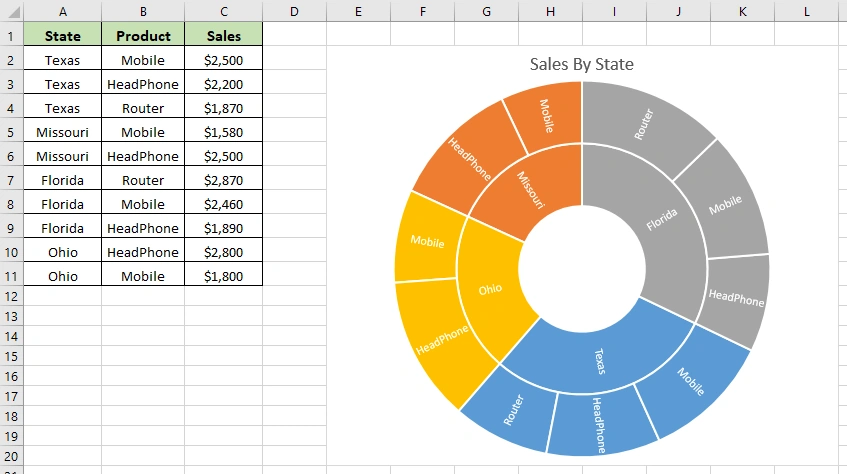
- Sunburst Chart
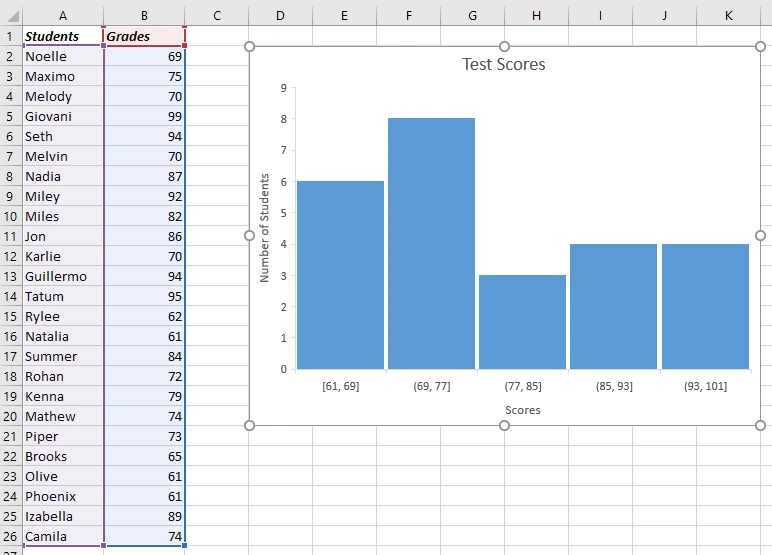
- Histogram Chart
These new chart types expand the options available for data visualization in Excel and provide users with more flexibility in presenting and analyzing their data. In this article, we will explore how to create these new types of charts added in Excel 2016 programmatically using Java.
Import the Required Library
There are many libraries in Java that support manipulating Excel files. This article will use one of these libraries called Spire.XLS for Java. Before utilizing this library to create Excel 2016 charts, we will need to import it's jar file into our project by adding the following configuration to the pom.xml file of the project.
<repositories>
    <repository>
        <id>com.e-iceblue</id>
        <name>e-iceblue</name>
        <url>https://repo.e-iceblue.com/nexus/content/groups/public/</url>
    </repository>
</repositories>
<dependencies>
    <dependency>
        <groupId>e-iceblue</groupId>
        <artifactId>spire.xls</artifactId>
        <version>13.10.0</version>
    </dependency>
</dependencies>
Create Excel Charts with Java
Spire.XLS for Java allows the creation and manipulation of up to 81 types of charts. The full list of the supported chart types can be found under the ExcelChartType enumeration. Here are the main steps to create a chart in Excel with Spire.XLS for Java:
- Initialize an instance of the Workbook class.
- Load an Excel file using the Workbook.loadFromFile() method.
- Get a specified worksheet by its index using the Workbook.getWorksheets().get(index) method.
- Add a chart to the worksheet using the Worksheet.getCharts().add() method.
- Set the chart type to the desired type using Chart.setChartType(ExcelChartType chartType) method.
- Set data range for the chart using Chart.setDataRange() method.
- Set the position and title of the chart.
- Set format for other chart elements like data labels, legend, data series, etc.
- Save the resulting file using the Workbook.saveToFile() method.
The following part will mainly dive into the code snippets for creating waterfall charts, funnel charts, treemap charts, box and whisker charts, sunburst charts, and histogram charts.
Waterfall Chart
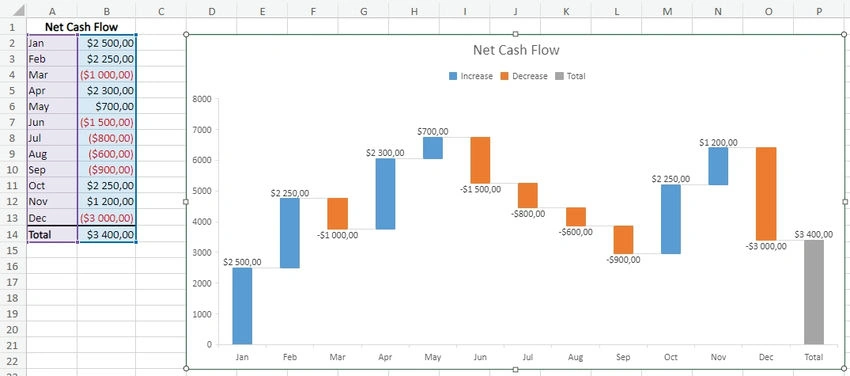
A waterfall chart is a useful chart type for showing a series of positive and negative values and how they contribute to a final total. It is commonly used for illustrating financial statements, budgeting, and analyzing profit and loss statements.
The following code snippet explains how to create a waterfall chart.
import com.spire.xls.*;

public class WaterfallChart {
    public static void main(String[] args) {
        //Create a Workbook object
        Workbook workbook=new Workbook();

        //Load an Excel file
        workbook.loadFromFile("Sample1.xlsx");

        //Get the first worksheet
        Worksheet sheet=workbook.getWorksheets().get(0);

        //Add a waterfall chart to the worksheet
        Chart chart=sheet.getCharts().add();
        chart.setChartType(ExcelChartType.WaterFall);

        //Set data range for the chart
        chart.setDataRange(sheet.getRange().get("A2:B14"));

        //Set position of the chart
        chart.setLeftColumn(4);
        chart.setTopRow(2);
        chart.setRightColumn(17);
        chart.setBottomRow(23);

        //Set chart title
        chart.setChartTitle("Net Cash Flow");

        //Set specific data points in the chart as totals or subtotals
        chart.getSeries().get(0).getDataPoints().get(12).setAsTotal(true);

        //Show the connector lines between data points
        chart.getSeries().get(0).getFormat().showConnectorLines(true);

        //Show data labels for data points
        chart.getSeries().get(0).getDataPoints().getDefaultDataPoint().getDataLabels().hasValue(true);
        chart.getSeries().get(0).getDataPoints().getDefaultDataPoint().getDataLabels().setSize(8);

        //Set the legend position of the chart
        chart.getLegend().setPosition(LegendPositionType.Top);

        //Save the resulting file
        workbook.saveToFile("WaterfallChart.xlsx",FileFormat.Version2016);
        workbook.dispose();
    }
}
Funnel Chart
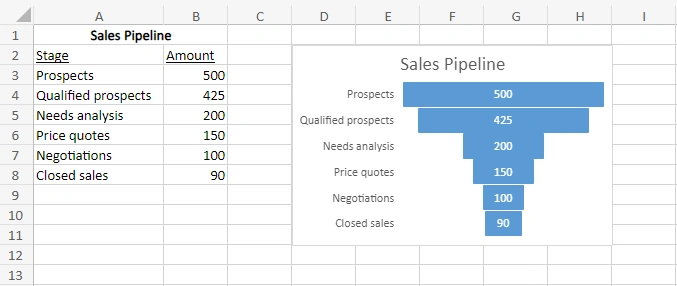
A funnel chart is used to depict a progressive or sequential decrease in values. It is commonly used in sales and marketing to represent the stages of a sales process, customer conversion rates, or the number of leads at each stage of a funnel.
The following code snippet explains how to create a funnel chart.
import com.spire.xls.*;

public class FunnelChart {
    public static void main(String[] args) {
        //Create a Workbook object
        Workbook workbook=new Workbook();
        //Load an Excel file
        workbook.loadFromFile("Sample2.xlsx");

        //Get the first worksheet
        Worksheet sheet = workbook.getWorksheets().get(0);

        //Add a funnel chart to the worksheet
        Chart chart = sheet.getCharts().add();
        chart.setChartType(ExcelChartType.Funnel);

        //Set data range in the worksheet
        chart.setDataRange(sheet.getRange().get("A3:B8"));

        //Set position of the chart
        chart.setLeftColumn(4);
        chart.setTopRow(2);
        chart.setRightColumn(9);
        chart.setBottomRow(12);

        //Set the chart title
        chart.setChartTitle("Sales Pipeline");

        //Remove legend
        chart.hasLegend(false);

        //Show data labels for data points
        chart.getSeries().get(0).getDataPoints().getDefaultDataPoint().getDataLabels().hasValue(true);
        chart.getSeries().get(0).getDataPoints().getDefaultDataPoint().getDataLabels().setSize(8);

        //Save the resulting file
        workbook.saveToFile("FunnelChart.xlsx", FileFormat.Version2016);
        workbook.dispose();
    }
}
Treemap Chart
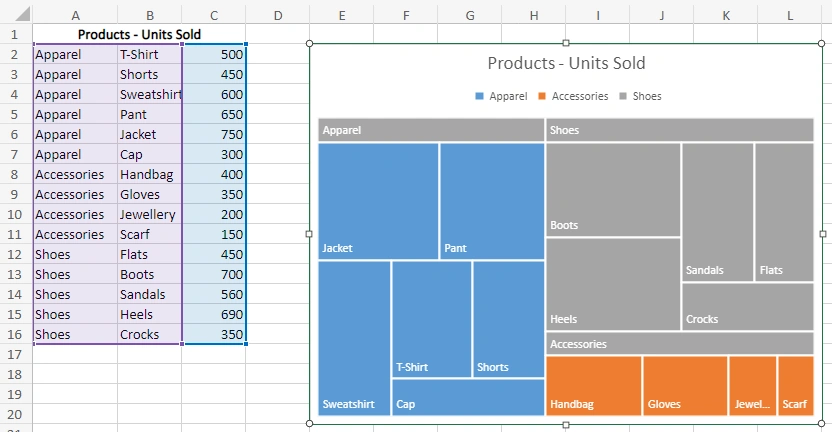
A treemap chart is used to display hierarchical data using nested rectangles. It is excellent for comparing proportions within a dataset and is often used for visualizing the file sizes on a computer's hard drive, market share, or organizational structure.
Join the conversation! Your thoughts help the community grow.