

Windows 8 Metro Style applications have rich styles for building user interfaces. Today I will show you how to create a login screen in a Windows 8 Metro Style Application. I have seen many login screens in Microsoft builtin Metro Applications. After that I would try to create something like that. It is a new style to open a login screen to the user. It is like a popup that will appear when the user logs in in a Metro Style Application.
In the Windows 8 Store Application the login window appears like this: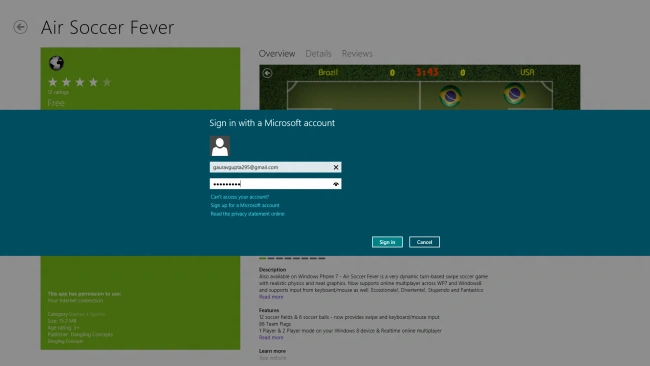
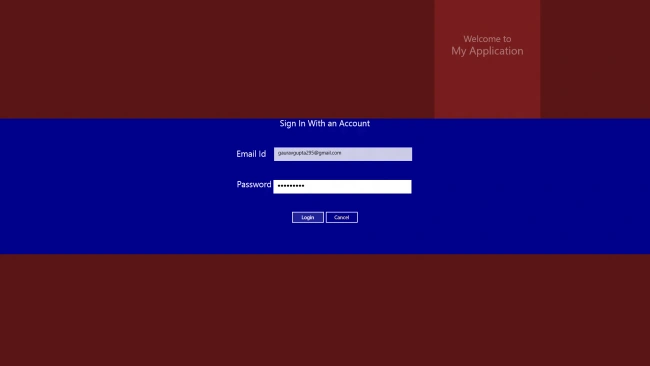
Now, we will try to create a login screen in our Metro Style Application. I will use a PopUp control to create a login screen and after opening the login screen to the user the background is immediately disabled, so the user cannot work on the rest of the screen until the login screen is completed.
Step 1: First we take a Blank application using C#.
Step 2: In the MainPage.XAML file we write the following code:
Here I design a PopUp control to display the login screen to the user. I take this PopUp control to the Content Control for better flexibility
<ContentControl x:Name="container" Height="450" Margin="0,194,0,124">
<Popup x:Name="logincontrol1" IsOpen="False" >
<StackPanel Orientation="Vertical" Background="DarkBlue" Height="400" x:Name="pop" >
<StackPanel>
<TextBlock Text="Sign In With an Account" HorizontalAlignment="Center" Foreground="White" FontSize="25" />
</StackPanel>
<StackPanel Orientation="Horizontal" Margin="0,50" HorizontalAlignment="Center">
<TextBlock Text="Email Id" Margin="10" Foreground="White" FontSize="25" />
<TextBox x:Name="id" Height="40" Margin="13,1" Width="408"/>
</StackPanel>
<StackPanel Orientation="Horizontal" HorizontalAlignment="Center">
<TextBlock Text="Password" Foreground="White" FontSize="25" />
<PasswordBox x:Name="pwd" Height="40" Margin="5,1" Width="408"/>
</StackPanel>
<StackPanel Orientation="Horizontal" Margin="0,50" HorizontalAlignment="Center">
<Button x:Name="loginclick" Click="loginclick_Click_1" Foreground="Wheat" Width="100" Content="Login" ></Button>
<Button x:Name="cancel" Click="Button_Click_1" Foreground="Wheat" Width="100" Content="Cancel" ></Button>
</StackPanel>
</StackPanel>
</Popup>
Gowtham RajamanickamPosted Apr 27, 2016, 2:24 AM
good one...
Mukesh KumarPosted Oct 18, 2015, 2:56 PM
Nice article
Ricardo RodriguesPosted Jul 4, 2013, 5:21 AM
Nice job, but what i should put in login button to make it go to my database to confime login data?
Gaurav GuptaPosted Feb 6, 2013, 10:22 PM
Try It... Bor. It is possible...
Bor SicnarfPosted Feb 2, 2013, 3:18 PM
i dont think this example is possible. you cannot put two contentcontrol panels on the same page.
John DPosted Jan 11, 2013, 4:20 AM
Could you post complete source code ?